> For the complete documentation index, see [llms.txt](https://docs.powermonitor.com.br/llms.txt). Markdown versions of documentation pages are available by appending `.md` to page URLs; this page is available as [Markdown](https://docs.powermonitor.com.br/en/power-monitor/assistente-de-ia.md).
# AI Assistant
Chat in natural language with the AI Assistant about consumption, failures, permissions, access, and best practices in your Fabric/Power BI environment.
The **AI Assistant** is a chat built into Power Monitor that answers natural-language questions about your Microsoft Fabric / Power BI environment, using the data Power Monitor has already collected: capacity consumption, recent alerts, model and gateway health, permissions, report access, semantic model structure and best practices, and the administrative audit.
**How to access:** click the **round button in the lower-right corner** of any screen (**Open AI assistant**). Available to **all users**, as long as the organization has an AI provider configured in [Settings › AI](/en/power-monitor/configuracoes/ia.md) and the spend limit allows it.
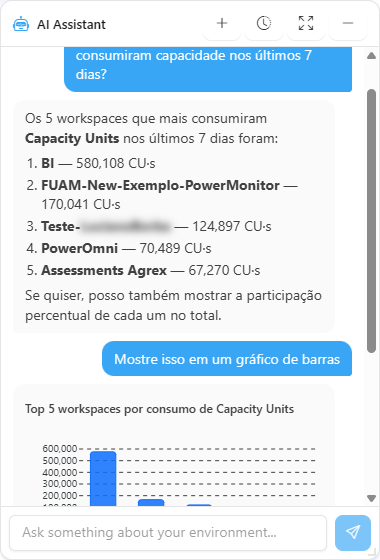
AI Assistant
## What it is for
Example questions:
* "Which capacities have the highest consumption today and who is consuming the most?"
* "Which semantic models failed to refresh this week?"
* "Is any gateway offline right now?"
* "Who has permission on the *Sales* model?" / "Who accessed the *Finance* report in the last few days?"
* "Which tables and measures exist in the *Inventory* model?"
* "What can I improve in the *Commercial* model according to best practices?"
* "What did the user *john* change in Power Monitor?"
## Features
### Assistant button
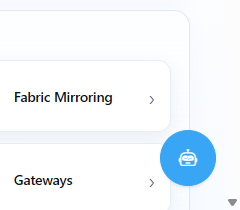
**What it is:** the round button in the lower-right corner of every screen, with the tooltip **Open AI assistant**.
**What it is for:** opening the chat without leaving the screen you are on (for example, to ask about an alert you just saw).
Open AI assistant button
**How to use:** click the button. The **AI Assistant** window opens with the last conversation restored (while it loads, *Loading the previous conversation…* appears). With no previous conversation, the window shows "No messages yet. Ask something about your Fabric/Power BI environment.".
### Ask a question
**What it is:** the **Ask something about your environment...** field and the **Send** button, at the bottom of the window.
**What it is for:** getting, in natural language, answers that would require navigating through several screens (consumption, failures, permissions, access, best practices).
Question field and Send button
**How to use:**
{% stepper %}
{% step %}
### Write the question
Click the **Ask something about your environment...** field and write the question. Mention the name (or part of the name) of the model, report, capacity, or user when the question is about a specific item. Use **Shift+Enter** to add a line break.
{% endstep %}
{% step %}
### Send it
Press **Enter** or click **Send**. While the assistant prepares the answer, *Typing…* appears, and the text is displayed as it is generated.
{% endstep %}
{% step %}
### Continue the conversation
Ask follow-up questions ("and last month?", "who has access to this model?"). The assistant uses the previous messages in the conversation to understand the references.
{% endstep %}
{% endstepper %}
**How it works:** if the message cannot be sent, the window shows "Could not send your message. Please try again.". See *Where the data comes from* for the sources the assistant queries.
{% hint style="warning" %}
**Be careful with what you paste into the chat.** The question is sent to the AI provider configured by your organization. Do not paste passwords, keys, connection strings, personal data, or customer data into your questions.
{% endhint %}
### Answers, tables, and charts
**What it is:** the message area of the window, where answers arrive **in real time** (the text appears while it is generated), formatted with headings, lists, and tables.
**What it is for:** reading the answer already organized and, when the data allows, viewing it in a chart without needing to export anything.
**How it works:**
* When useful, the answer includes **charts** (bar, line, area, donut, or pie) built from the queried data. If a chart cannot be built, "This chart could not be displayed." appears.
* The answer comes in the language selected in the interface.
* Check the numbers before acting: the answer is generated by AI from the collected data.
### Suggested options
**What it is:** **clickable option** buttons that the assistant displays below the answer when it finds more than one possible item (for example, two models with similar names).
**What it is for:** disambiguating the question with one click, instead of rewriting it.
**How to use:** click the correct option. It is sent as your next message and the assistant continues from it.
### Stop generating
**What it is:** while the answer is being written, the **Send** button is replaced by **Stop generating**.
**What it is for:** interrupting a long answer or one that went in the wrong direction, saving time and AI consumption.
**How to use:**
1. Click **Stop generating**.
2. The text received up to that point is kept, with the mark **Generation stopped.** Send the question again if you want the complete answer.
### New conversation
**What it is:** the **New conversation** button at the top of the window.
**What it is for:** starting a new subject without the context of the previous conversation influencing the answer.
Assistant title bar buttons
**How to use:** click **New conversation**. The current conversation is kept in the history and an empty conversation opens. Use one conversation per subject.
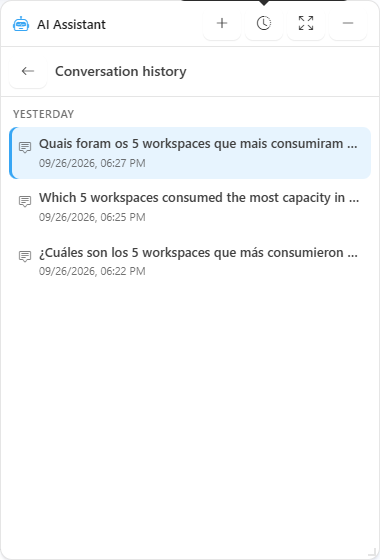
### Conversation history
**What it is:** the **Conversation history** panel, opened by the **View conversation history** button, with your previous conversations grouped into **Today**, **Yesterday**, and **Week of…**.
**What it is for:** resuming an analysis from another day without asking the questions again.
Conversation history
**How to use:**
1. At the top of the window, click **View conversation history**.
2. Click the desired conversation. It is loaded in the window and you can continue where you left off.
3. To leave the history without opening another conversation, click **Back to the conversation**.
**How it works:** each person sees only their own conversations. Conversations without a title appear as "New conversation". There is no option to delete conversations through the interface.
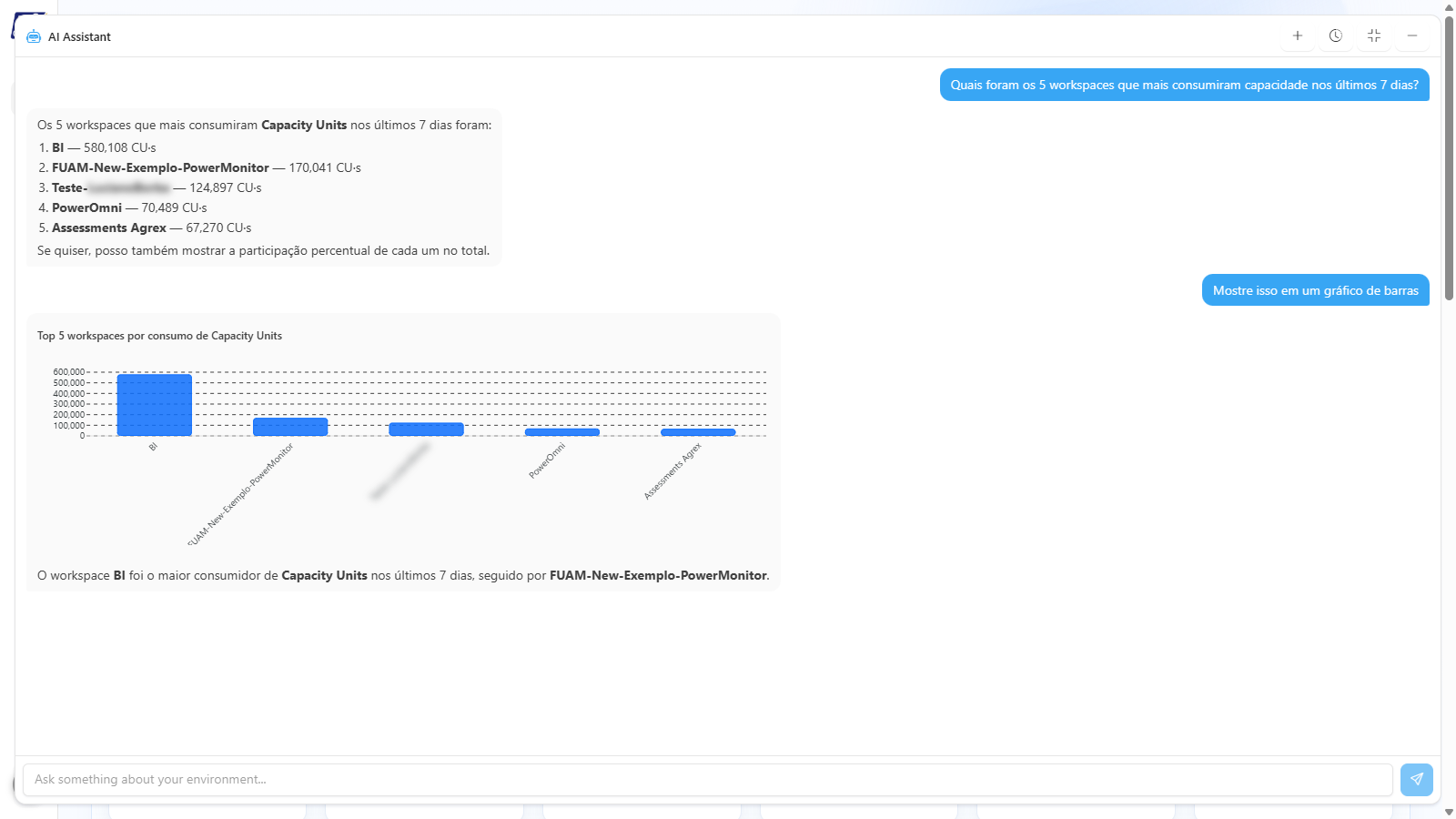
### Window size and position
**What it is:** the **Maximize assistant** / **Restore assistant size** and **Minimize AI assistant** controls, as well as dragging and resizing the window.
**What it is for:** reading long answers or wide tables in the full area, or keeping the window in a corner while you use the screen behind it.
Maximized assistant
**How to use:**
* **Maximize:** click **Maximize assistant** to fill the whole area. Click **Restore assistant size** to go back.
* **Move:** on a computer, drag the window by the title bar.
* **Resize:** drag the lower-right corner of the window.
* **Minimize:** click **Minimize AI assistant**. The conversation remains available when you reopen it.
**How it works:** position and size are saved in this browser. On mobile, the window always opens in full screen.
### Assistant not configured
**What it is:** the **AI assistant not configured** notice, displayed instead of the chat when the organization does not have an active AI provider.
**What it is for:** indicating what is missing to enable the assistant.
**How to use:**
1. If you are an **Administrator**, click **Configure**. The [Settings › AI](/en/power-monitor/configuracoes/ia.md) screen opens.
2. Register and activate an AI provider and check the organization's spend limits.
3. Go back to any screen and open the assistant again.
If you are not an Administrator, the window shows *"Ask an administrator to configure the AI integration in Settings › AI."*
### Explain with AI on other screens
**What it is:** the **Explain with AI** button, present on some screens, which generates an analysis of what is on the screen (respecting the applied filters).
**What it is for:** getting a quick reading of a dashboard, with highlights and recommendations, without having to formulate the question.
| Screen | What the AI analyzes |
| ----------------------------------------------------------------------------------- | -------------------------------------------------------------------------------------------------------------------------------------------------------------------------------------------------------------------------------------------------------------------- |
| [Dashboard](/en/power-monitor/dashboards/dashboard-principal.md) | Overall reading of the environment, cross-referencing capacity, models, gateways, and alerts. |
| [Capacity Dashboard](/en/power-monitor/dashboards/dashboard-de-capacidade.md) | Consumption and behavior of the capacities in the chosen slice. |
| [Efficiency Dashboard](/en/power-monitor/dashboards/dashboard-de-eficiencia.md) | Item efficiency and savings opportunities in the period. |
| [Consumption Anomalies](/en/power-monitor/monitoramento/anomalias-de-consumo.md) | The anomalies in the filtered slice. |
| [Consumption History](/en/power-monitor/monitoramento/historico-de-consumo.md) | The evolution of consumption in the filtered period. |
| [Performance Assessment](/en/power-monitor/performance/avaliacao-de-performance.md) | **AI suggestion** with optimization recommendations for the assessed model (Administrator action; it can include the Power Query structure if sharing is enabled in [Settings › AI](/en/power-monitor/configuracoes/ia.md#share-power-query-structure-with-the-ai)). |
**How to use:**
{% stepper %}
{% step %}
### Apply the filters
Open the screen (for example, the [Capacity Dashboard](/en/power-monitor/dashboards/dashboard-de-capacidade.md)) and adjust the filters: the analysis considers the displayed slice.
{% endstep %}
{% step %}
### Click Explain with AI
Click **Explain with AI**. While the analysis is generated, the button shows **Analyzing…**.
{% endstep %}
{% step %}
### Read and check
The analysis appears in a panel on the screen itself (on the Dashboard, in the **Environment insights** window), with a notice that it was generated by AI. Check the numbers before acting. If the analysis fails, an error message is displayed and you can try again.
{% endstep %}
{% endstepper %}
**How it works:** these explanations use the same provider and the same spend limits as the assistant.
## Where the data comes from
For each question, the assistant decides which sources to query, among:
| Source | What it provides |
| ------------------------------ | ---------------------------------------------------------------------------------------------------------------------------------------------------------------------------------- |
| Capacity consumption | Capacity Units consumption for the period and the previous period, background/interactive split, capacities at risk, and top consumers (workspaces, items, users, and operations). |
| Capacity state | Current state (active, paused) and percentage usage at the last collected point. |
| Recent alerts | Alerts from the last 7 days (gateway offline, refresh failure, capacity limit, anomaly, Fabric item failure). |
| Semantic model health | State of each model, open incidents, and last check. |
| Gateway health | Online/offline, open incidents, and last check. |
| Permissions on semantic models | Who has access to a model and at what level. |
| Permissions on reports | Who **can** access a report (through the semantic model). |
| Report access | Who **has already accessed** a report, based on activity events. |
| Model metadata | Tables, columns, measures, relationships, storage mode, sensitivity label, and schedule. |
| Model best practices | Best practices score (BPA) and main issues found. |
| User audit | What a user created, changed, or removed in Power Monitor. |
For questions about a specific item, mention the name (or part of the name) of the model, report, or user. In follow-up questions, the assistant uses the conversation history to understand references such as "this model" or "these reports".
{% hint style="info" %}
The quality of the answers depends on the collections being active: for example, questions about report access require activity event collection ([Settings › Audit](/en/power-monitor/configuracoes/auditoria.md)), and questions about consumption require capacity monitoring ([Settings › Monitoring](/en/power-monitor/configuracoes/monitoramento.md)).
{% endhint %}
## Rules and behavior
* **Conversations are individual:** each person sees only their own conversations in the history. When the assistant is opened, the last conversation is restored.
* **Context:** the assistant considers the most recent messages in the conversation (up to 20) to answer.
* **Cost and limits:** each question generates two calls to the AI provider (one to choose the sources and another for the answer), recorded in [AI usage](/en/power-monitor/configuracoes/ia.md#ai-usage) and added to the organization's monthly limit and to the user's individual limit. When a limit is reached, the assistant shows the corresponding message (for example, *You reached your monthly AI spend limit*).
* **Usage rate:** there is a limit of 20 questions per minute per user (shared with the **Explain with AI** buttons).
* **No provider configured:** the assistant shows **AI assistant not configured**. Administrators see the **Configure** button; others are told to ask an administrator.
* **Isolation:** the assistant only queries data from your organization.
## Frequently asked questions
The assistant replied that it did not find the model I mentioned.
Check the name (or use a unique part of it). If there are several similar items, the assistant may offer options for you to choose from. Items deleted from the environment may not have current data.
Can I delete a conversation?
There is no option to delete conversations through the interface. Use **New conversation** to start another subject.
Which AI provider is answering?
The first active provider in the precedence defined in [Settings › AI](/en/power-monitor/configuracoes/ia.md). The [AI usage](/en/power-monitor/configuracoes/ia.md#ai-usage) screen shows the provider and model of each call.
The answer stopped in the middle.
If you clicked **Stop** or closed the window, the partial text is kept as **Generation stopped.** If there was a provider error, the error message appears below the text received. Send the question again if necessary.
## Related pages
* [Settings › AI](/en/power-monitor/configuracoes/ia.md)
* [Users › Individual AI spend limit](/en/power-monitor/usuarios.md#individual-ai-spend-limit)
* [Interface and navigation](/en/power-monitor/interface-e-navegacao.md)
---
# Agent Instructions
This documentation is published with GitBook. GitBook is the documentation platform designed so that both humans and AI agents can read, navigate, and reason over technical content effectively. Learn more at gitbook.com.
## Querying This Documentation
If you need additional information that is not directly available in this page, you can query the documentation by asking a question.
Perform an HTTP GET request on the following URL with the `ask` and `goal` query parameters:
```
GET https://docs.powermonitor.com.br/en/power-monitor/assistente-de-ia.md?ask=&goal=
```
`ask` is the immediate question: it should be specific, self-contained, and written in natural language.
`goal` is what the user is ultimately trying to achieve, the reason they need the answer. Sharing it helps GitBook give you a better, more relevant answer. A goal is most helpful when it describes the outcome the user wants rather than restating the question. For example, with `ask=how do I create an API token`, a goal like `automate deployments from our CI pipeline` lets GitBook tailor the answer to that use case.
The response will contain a direct answer to the question and relevant excerpts and sources from the documentation.
Use this mechanism when the answer is not explicitly present in the current page, you need clarification or additional context, or you want to retrieve related documentation sections.