> For the complete documentation index, see [llms.txt](https://docs.powermonitor.com.br/llms.txt). Markdown versions of documentation pages are available by appending `.md` to page URLs; this page is available as [Markdown](https://docs.powermonitor.com.br/en/power-monitor/auditoria/auditoria-de-emails.md).
# Email Audit
Record of all emails sent by Power Monitor to your organization, alerts, checklists, capacity notifications, and notices, with delivery status, provider, recipients, and errors.
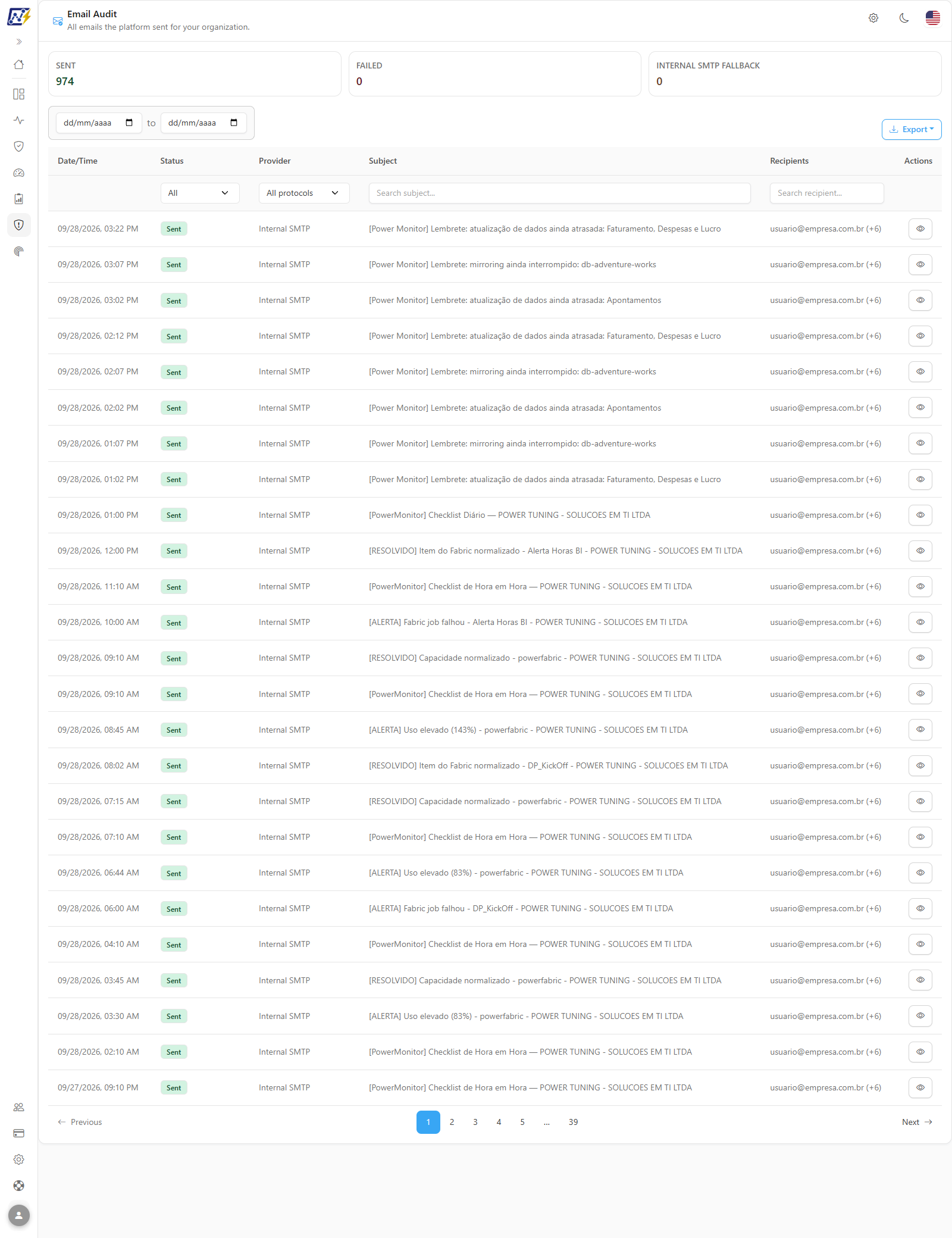
**Email Audit** lists **all the emails that Power Monitor sent to your organization** (alerts, environment checklists, capacity action notifications, account notices, and other notifications) with date, delivery status, server used for sending, subject, recipients, and, in case of failure, the error message.
**How to access:** *Audit › Email Audit*. **Exclusive to Administrators**, because it exposes the recipients' email addresses (personal data, LGPD).
Totals and list of sent emails
## What it is for
* **"Did we receive the alert?"**: confirm whether a failure, capacity, or gateway alert was actually sent, when, and to whom.
* **SMTP diagnosis**: identify failures of your company's SMTP server and how many emails had to go out through the platform's internal server.
* **Recipient review**: check who is receiving each type of notification.
* **Audit evidence** that automatic communications are working.
## Features
### Total cards
**What it is:** three cards at the top (**Sent**, **Failed**, and **Internal SMTP fallback**) with the count of emails for the current filter.
**What it is for:** knowing in seconds whether there was a sending failure in the period and whether your organization's SMTP is needing the platform's internal server.
Totals for the current filter
| Card | Meaning |
| -------------------------- | ---------------------------------------------------------------------------------------------------------- |
| **Sent** | Emails sent successfully in the current filter |
| **Failed** | Emails whose sending attempt failed |
| **Internal SMTP fallback** | Emails for which your organization's SMTP failed and sending was done through the platform's internal SMTP |
**How to use:** apply the filters (period, status, provider, subject, or recipient); the cards are recalculated automatically.
**How it works:** the totals consider **the entire filter**, not just the page displayed. The cards are not clickable.
### Period filter and Clear filters
**What it is:** two date fields (start and end) above the table and the **Clear filters** button.
**What it is for:** limiting the query to the window in which the email should have gone out.
**How to use:**
1. Enter the start date and the end date in the two fields above the table.
2. To undo all filters, click **Clear filters**.
**How it works:** **Clear filters** only appears when there is an active filter and removes all of them, including the period.
### Column filters (Status, Provider, Subject, and Recipient)
**What it is:** the row of filters right below the table headings.
**What it is for:** finding a specific email ("yesterday's gateway alert"), all failures, or everything a person received.
Filters under the table header
**How to use:**
1. In **Status**, choose *All*, **Sent**, or **Failed**.
2. In **Provider**, choose *All protocols*, **Client SMTP**, **Internal SMTP**, or **None**.
3. In *Search subject...* or *Search recipient...*, type part of the text. The list is updated as you type.
**How it works:** the filters combine with each other and with the period. Filters and the current page are saved in the address (URL): copy the link to send exactly the same query to another administrator.
### Email list
**What it is:** the table with one row per sending attempt, from newest to oldest, with 25 emails per page by default and the **Items per page** selector (10, 25, 50 or 100).
**What it is for:** checking when each email went out, whether it was delivered to the server, through which provider, and to whom.
| Column | Content |
| -------------- | -------------------------------------------------------------------------------------------------------------------------------------------------------------------------------------------------------------------------------------------- |
| **Date/Time** | Moment of the sending attempt |
| **Status** | *Sent* or *Failed* badge |
| **Provider** | *Client SMTP* (server configured by your organization) or *Internal SMTP* (platform server). The **Fallback** badge indicates that the client's SMTP failed and the email went out through the internal SMTP (hover to see the explanation). |
| **Subject** | Email subject |
| **Recipients** | First main recipient, followed by *(+N)* when there are more; the full list is in the detail |
| **Actions** | Button with an eye icon (**View details**), which opens the email detail |
**Special states:** with no results, *No emails found.* appears; if the query fails, *Failed to load the email audit.* appears with the **Try again** button.
### Email details
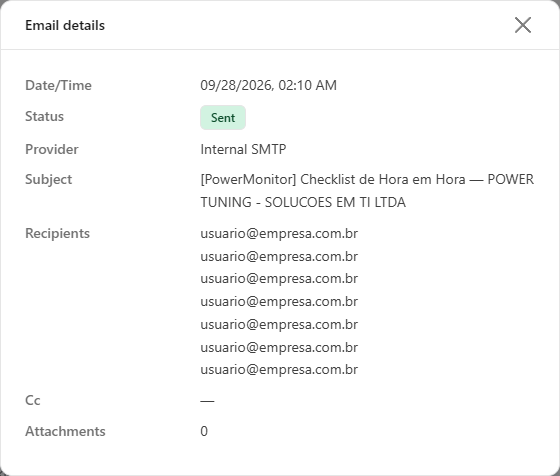
**What it is:** the **Email details** modal, opened by the **View details** button (eye icon).
**What it is for:** seeing all recipients and copies and, in case of failure, the error message returned by the email server.
Details of an email
**How to use:**
1. On the email row, click the eye icon (**View details**) in the **Actions** column.
2. Read the date/time, status, provider (with the fallback indication), subject, **Recipients**, **Cc**, the number of **Attachments**, and, when present, the **Error**.
3. Close it with the **X** or by clicking outside the modal.
**How it works:** the email body is never stored, that is why the detail shows only the sending metadata.
### Hide data
**What it is:** the **Hide data** button, next to **Export**. Once on, it shows **Show data**.
**What it is for:** sharing the screen, recording demos or taking screenshots without exposing people.
**How to use:** click **Hide data**: the recipients (**Recipients** and **Cc**) and the e-mails that appear in the subject and in the error message are masked on screen and in exported files. To see the values again, click **Show data**. If the file cannot be masked, the download is stopped and the screen warns *Could not mask the exported file. Show the data again or try once more.* The choice is saved in the browser and applies to the other screens that have the button. It is a presentation convenience, not an access control.
### Export
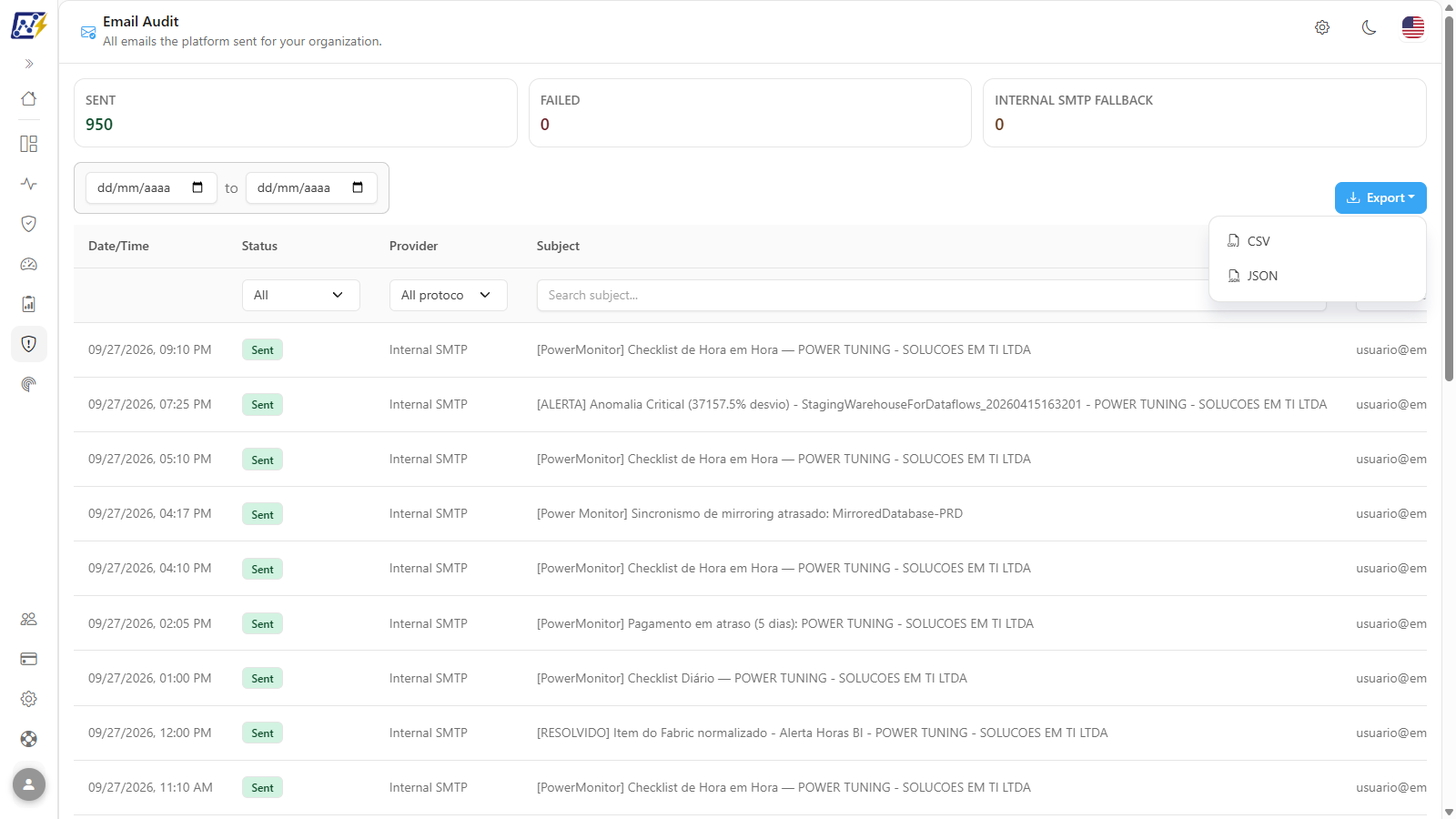
**What it is:** the **Export** button, to the right of the date fields, with the **CSV** and **JSON** options.
**What it is for:** keeping evidence of sending for audit or analyzing failures in a spreadsheet.
Export options
**How to use:**
1. Apply the desired filters.
2. Click **Export** and choose **CSV** or **JSON**.
3. The download starts automatically, with up to 50,000 rows. If something goes wrong, *Failed to export data.* appears.
{% hint style="warning" %}
The exported file contains email addresses (personal data). Store and share it carefully.
{% endhint %}
## Rules and behavior
* **Every attempt is recorded**, successful or failed, at the moment of sending.
* **The email body is never stored**: only subject, recipients, number of attachments, provider, duration, and error.
* **Provider choice.** If your organization configured its own SMTP (see [Settings › Alerts](/en/power-monitor/configuracoes/alertas.md)), it is used first; if it fails, the email is sent through the platform's internal SMTP and marked as **Fallback**. Without its own SMTP, sending is done through the internal SMTP.
* **Scope.** The screen shows only your organization's emails. Internal platform emails to the Power Tuning support team do not appear.
## Step by step: common scenarios
Prerequisite for all steps: **Administrator** profile. Go to *Audit › Email Audit*.
### How to confirm whether an alert was sent
Use this when someone asks "did we receive yesterday's refresh failure alert?".
{% stepper %}
{% step %}
### Set the period
In the two date fields above the table, enter the start date and the end date when the alert should have gone out.
{% endstep %}
{% step %}
### Filter by subject
In the **Subject** header, type part of the subject in *Search subject...* (for example, the name of the semantic model or gateway). The list is updated as you type.
{% endstep %}
{% step %}
### Check the status and recipients
The **Status** column shows *Sent* or *Failed*, and the **Recipients** column shows the first recipient (with *(+N)* when there are others).
{% endstep %}
{% step %}
### Open the detail
Click the eye icon button (**View details**) in the **Actions** column to see all recipients, the copies, and, if any, the error.
{% endstep %}
{% endstepper %}
### How to check which emails a person received
1. In the **Recipients** header, type part of the address in *Search recipient...*.
2. Adjust the period, if necessary.
3. The **Sent**, **Failed**, and **Internal SMTP fallback** cards then reflect only the emails for that recipient.
### How to investigate sending failures
{% stepper %}
{% step %}
### Filter the failures
In the **Status** header, choose **Failed**. The **Failed** card shows the total for the period.
{% endstep %}
{% step %}
### Open a failed email
Click **View details** (eye icon). The **Error** field shows the message returned by the email server.
{% endstep %}
{% step %}
### Fix the cause
If the error comes from your organization's SMTP server, review the configuration in *Settings › Alerts* and test the connection. If it is an invalid address, correct the recipients in *Settings › Notifications*.
{% endstep %}
{% endstepper %}
### How to check whether your organization's SMTP is working
1. In the **Provider** header, choose **Internal SMTP**.
2. Look for the **Fallback** badge on the rows (hover to see the explanation): each one indicates an email for which the client's SMTP failed and sending went through the internal server. The **Internal SMTP fallback** card shows the total.
3. Open one of these emails to see the original error and fix the configuration in *Settings › Alerts*.
## Frequently asked questions
Many emails appear with "Fallback". What should I do?
The SMTP configured by your organization is failing. Open an email with fallback, see the error in the detail, and review the SMTP server configuration in *Settings › Alerts* (test the connection).
The email appears as "Sent", but the recipient says they did not receive it.
"Sent" means that the email server accepted the message. Ask the recipient to check the spam folder and filtering rules, and check with your company's email team whether the message was blocked on receipt.
A non-administrator user needs to view this screen.
This is not possible: the screen is restricted to administrators because it contains the email addresses of all recipients.
## Related pages
* [Settings › Notifications](/en/power-monitor/configuracoes/notificacoes.md) and [Alerts](/en/power-monitor/configuracoes/alertas.md): recipients and SMTP
* [Capacity Actions](/en/power-monitor/auditoria/acoes-de-capacidade.md): notification status of each action
* [Monitoring › Alerts](/en/power-monitor/monitoramento/alertas.md)
---
# Agent Instructions
This documentation is published with GitBook. GitBook is the documentation platform designed so that both humans and AI agents can read, navigate, and reason over technical content effectively. Learn more at gitbook.com.
## Querying This Documentation
If you need additional information that is not directly available in this page, you can query the documentation by asking a question.
Perform an HTTP GET request on the following URL with the `ask` and `goal` query parameters:
```
GET https://docs.powermonitor.com.br/en/power-monitor/auditoria/auditoria-de-emails.md?ask=&goal=
```
`ask` is the immediate question: it should be specific, self-contained, and written in natural language.
`goal` is what the user is ultimately trying to achieve, the reason they need the answer. Sharing it helps GitBook give you a better, more relevant answer. A goal is most helpful when it describes the outcome the user wants rather than restating the question. For example, with `ask=how do I create an API token`, a goal like `automate deployments from our CI pipeline` lets GitBook tailor the answer to that use case.
The response will contain a direct answer to the question and relevant excerpts and sources from the documentation.
Use this mechanism when the answer is not explicitly present in the current page, you need clarification or additional context, or you want to retrieve related documentation sections.