> For the complete documentation index, see [llms.txt](https://docs.powermonitor.com.br/llms.txt). Markdown versions of documentation pages are available by appending `.md` to page URLs; this page is available as [Markdown](https://docs.powermonitor.com.br/en/power-monitor/auditoria/compartilhamento-direto.md).

# Direct Sharing

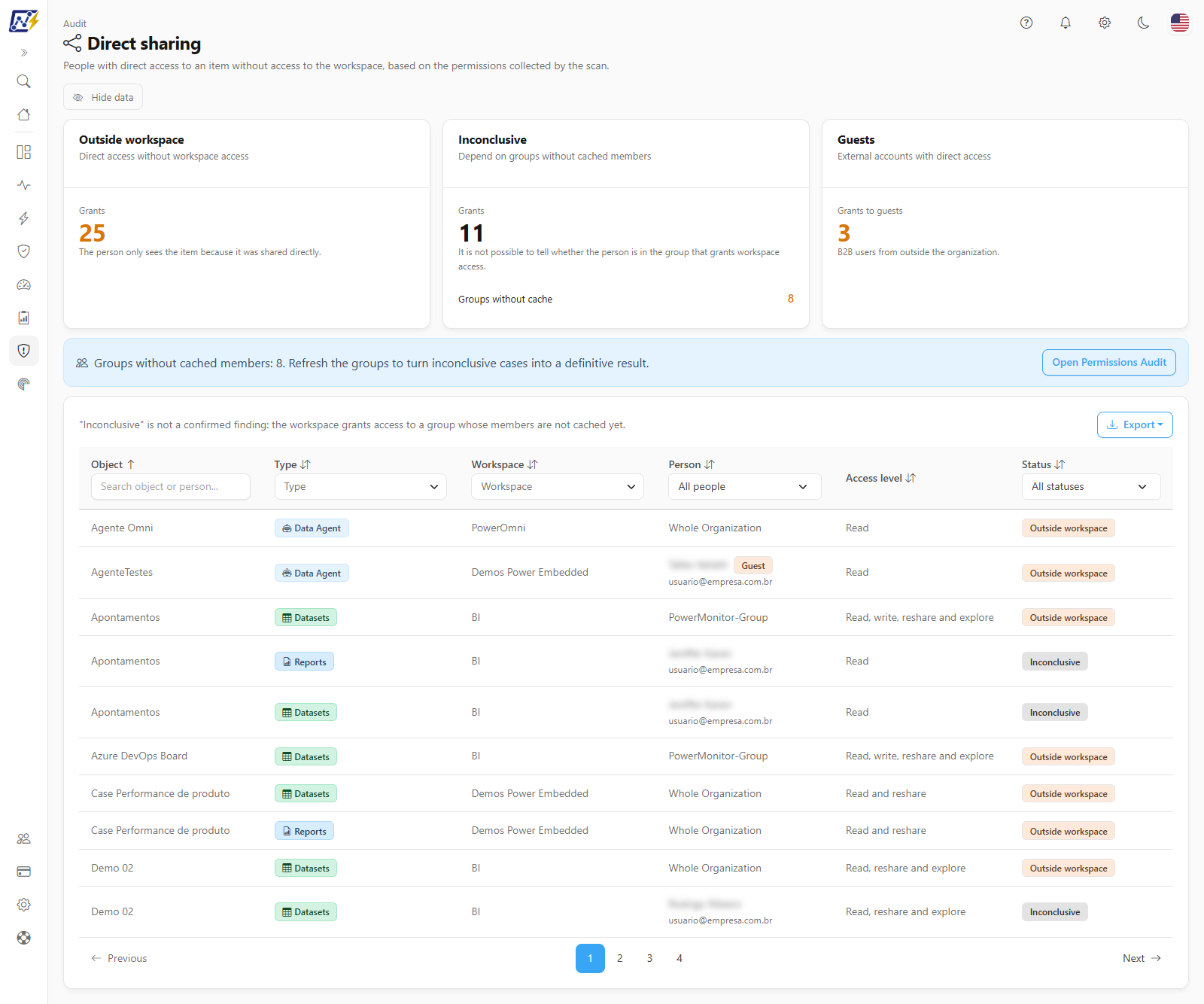
Finds people, groups, and applications that received direct access to a Power BI/Fabric item without having access to the workspace where it is, the sharing that escapes a workspace-based review.

The **Direct Sharing** screen answers a classic Power BI governance question: **who sees an item without having access to the workspace that contains it?** This happens when a report, semantic model, or other item is shared directly with someone. This access does not show up when you review only the workspace members, and that is why it tends to go unnoticed in access recertifications.

The list is built from the permissions collected in the inventory scans (the same ones as the [Permissions Audit](/en/power-monitor/auditoria/auditoria-de-permissoes.md)). Each direct grant on an item is compared with the permissions of the item's workspace, and only those that do **not** have corresponding access through the workspace appear on the screen.

**How to access:** *Audit › Direct Sharing*. Available to all profiles (Administrator and User). The screen is read-only: there are no write actions. The **Hide data** button in the header masks the name and e-mail of people on screen and in exported files (the choice is saved in the browser and applies to the other screens with the button).

<figure><picture><source srcset="/files/iNoUqhEraGftLKHspceF" media="(prefers-color-scheme: dark)"><img src="https://3938213054-files.gitbook.io/~/files/v0/b/gitbook-x-prod.appspot.com/o/spaces%2FH2bFRBmIfyK3kwVKbldl%2Fuploads%2Fgit-blob-0b8eb5bd683dd522d50230ad2ef5dbfe744022e3%2Fpm-auditoria-compartilhamento-direto-en.png?alt=media" alt="Direct sharing screen with the Outside workspace, Inconclusive, and Guests indicators and the list of grants"></picture><figcaption><p>Direct grants on items for people who do not have access through the workspace</p></figcaption></figure>

## What it is for

* **Closing the gap in the workspace-based review.** Reviewing workspace members does not show who received a report through direct sharing. This screen lists exactly those cases.
* **Controlling guest access.** External accounts (B2B) with direct access to items are the highest-risk case. The **Guests** indicator and the **Person** column filter isolate these accounts.
* **Finding sharing with the entire organization.** Items granted to the whole tenant always appear as **Outside workspace**.
* **Preparing offboarding and recertifications.** Export the list so that the owners of each workspace can validate whether the sharing still makes sense.

## Features

### Indicators

**What it is:** three cards at the top: **Outside workspace**, **Inconclusive** (with the **Groups without cache** line), and **Guests**.

**What it is for:** sizing the problem before opening the list: how many direct shares are confirmed, how many depend on refreshing the groups, and how many involve external accounts.

<figure><picture><source srcset="/files/zp7ratfrlNOwlnlWU91s" media="(prefers-color-scheme: dark)"><img src="https://3938213054-files.gitbook.io/~/files/v0/b/gitbook-x-prod.appspot.com/o/spaces%2FH2bFRBmIfyK3kwVKbldl%2Fuploads%2Fgit-blob-2593ca8b972b3300ba60c6c282255d261c4005dd%2Fpm-auditoria-compartilhamento-direto-indicadores-en.png?alt=media" alt="Outside workspace, Inconclusive with Groups without cache, and Guests cards"></picture><figcaption><p>Direct Sharing indicators</p></figcaption></figure>

| Indicator             | What it counts                                                                                                                                                                                                                                                                                                      | Highlight                                              |
| --------------------- | ------------------------------------------------------------------------------------------------------------------------------------------------------------------------------------------------------------------------------------------------------------------------------------------------------------------- | ------------------------------------------------------ |
| **Outside workspace** | *Grants* with direct access to the item and without access to the workspace. The person only sees the item because it was shared directly.                                                                                                                                                                          | In orange when greater than 0                          |
| **Inconclusive**      | *Grants* that depend on groups without cached members: it is not possible to tell whether the person is in the group that grants access to the workspace. It also shows the **Groups without cache** line, with the number of groups that have access to some workspace and whose members have not been loaded yet. | **Groups without cache** in orange when greater than 0 |
| **Guests**            | *Grants to guests*: B2B users from outside the organization, among the rows of the list (Outside workspace or Inconclusive).                                                                                                                                                                                        | In orange when greater than 0                          |

**How to use:** read the cards when you open the screen. If **Inconclusive** or **Groups without cache** is above zero, refresh the groups before the review (see [How to turn inconclusive cases into a definitive result](#how-to-turn-inconclusive-cases-into-a-definitive-result)).

**How it works:** the cards consider **all** the grants in your workspace scope and **do not change** when you filter the table. The cards are not clickable. While the data loads, loading blocks appear; if the query fails, the screen shows *Could not load the audit* with the **Try again** button.

### Notices about groups without cache and partial read

**What it is:** banners displayed below the indicators when the result may be incomplete.

**What it is for:** preventing an inconclusive case or a truncated list from being treated as a definitive result.

<figure><picture><source srcset="/files/zRmID0I3iZD2jkVMNndq" media="(prefers-color-scheme: dark)"><img src="https://3938213054-files.gitbook.io/~/files/v0/b/gitbook-x-prod.appspot.com/o/spaces%2FH2bFRBmIfyK3kwVKbldl%2Fuploads%2Fgit-blob-230831d7838281a6f1360abf97c9ab2ec97f35a1%2Fpm-auditoria-compartilhamento-direto-aviso-grupos-en.png?alt=media" alt="Notice about groups without cached members with the Open Permissions Audit button"></picture><figcaption><p>Notice displayed when there are groups without cached members</p></figcaption></figure>

* **Groups without cached members**: appears when **Groups without cache** is greater than zero: *Groups without cached members: {N}. Refresh the groups to turn inconclusive cases into a definitive result.* The **Open Permissions Audit** button leads to the Permissions Audit, from which the **View/manage collection →** link opens the Group Members screen, where the **Refresh groups** action is.
* **Partial read**: appears when the environment has more than 50,000 permissions: *Partial read: the audit stopped at the limit of 50,000 permissions read. Numbers and the list may be incomplete.* In this case, consider the numbers as a minimum.

**How to use:** in the groups notice, click **Open Permissions Audit**, click **View/manage collection →**, click **Refresh groups** on [Group Members](/en/power-monitor/mapeamento/membros-de-grupos.md), and then come back to this screen.

### Search by object or person

**What it is:** the *Search object or person...* box, in the **Object** column header.

**What it is for:** answering "what was shared directly with this person?" or "who received this report?".

<figure><picture><source srcset="/files/fRXLAVInahhfmeLvh3Oc" media="(prefers-color-scheme: dark)"><img src="https://3938213054-files.gitbook.io/~/files/v0/b/gitbook-x-prod.appspot.com/o/spaces%2FH2bFRBmIfyK3kwVKbldl%2Fuploads%2Fgit-blob-7c47f1be64c91123ed94c283257c10fe9d42b962%2Fpm-auditoria-compartilhamento-direto-filtros-en.png?alt=media" alt="Table header with the search by object or person and the Type, Workspace, Person, and Status filters"></picture><figcaption><p>Search and filters in the table header</p></figcaption></figure>

**How to use:**

1. Type part of the item name, the person's name, or the email.
2. The table is filtered right after you stop typing and goes back to the first page.

**How it works:** the search looks in the object name and in the person's name and email.

### Type and Workspace filters

**What it is:** multi-select fields in the **Type** and **Workspace** headers.

**What it is for:** reviewing one workspace at a time with its owner or focusing the review on one item type (for example, only reports).

**How to use:**

1. Click the field to open the panel.
2. Type in **Search...** to narrow the options and check the desired boxes. The field then shows *{N} selected*.
3. To undo, click the **X** next to the field.

**How it works:** the options are built from the values present in the loaded list. Every filter applied takes the table back to the first page.

### Person filter (guests)

**What it is:** the list in the **Person** header, with **All people**, **Guest**, and **Organization member**.

**What it is for:** isolating external accounts (B2B) with direct access to items: the highest-risk case.

**How to use:** choose **Guest**. Only the external accounts remain, identified by the **Guest** badge next to the name.

### Status filter

**What it is:** the list in the **Status** header, with **All statuses**, **Outside workspace**, and **Inconclusive**.

**What it is for:** separating confirmed findings from those that still depend on refreshing the groups.

**How to use:** choose **Outside workspace** to review only the confirmed cases, or **Inconclusive** to see what still depends on the group cache.

### Grants table

**What it is:** the list of direct grants that are not backed by access to the workspace, 10 rows per page by default (the **Items per page** selector in the footer offers 10, 25, 50 and 100). Above it is the reminder *"Inconclusive" is not a confirmed finding: the workspace grants access to a group whose members are not cached yet.*

**What it is for:** reviewing, item by item, who received access and with which permission.

| Column           | Content                                                                                                                                                                                                                   |
| ---------------- | ------------------------------------------------------------------------------------------------------------------------------------------------------------------------------------------------------------------------- |
| **Object**       | Name of the shared item                                                                                                                                                                                                   |
| **Type**         | Item type with icon (Report, Dataset, Dashboard, Lakehouse, Notebook, etc.), with the same labels as the Permissions Audit                                                                                                |
| **Workspace**    | Workspace where the item is                                                                                                                                                                                               |
| **Person**       | Name of the user, group, or application, with the email below when available. External accounts get the **Guest** badge. With **Hide data** on, name and e-mail are masked. With no name or email, *Not provided* appears |
| **Access level** | Permission granted on the item, translated (for example, *Read*, *Read and reshare*, *Read, write and explore*). New Microsoft values appear as they came                                                                 |
| **Status**       | **Outside workspace** (orange badge) or **Inconclusive** (gray badge; on hover, it explains that the groups need to be refreshed in the Permissions Audit)                                                                |

**How to use sorting:** click the header of any column. The first click sorts in descending order and the second reverses it. When the screen opens, the list is sorted by **Object**, from A to Z. Use the pagination in the footer to navigate.

**Special states:** when no row matches the filters, *No direct sharing found* appears. There is no single button to clear filters: delete the search text, click the **X** of the **Type** and **Workspace** filters, and set **Person** and **Status** back to **All people** and **All statuses**.

### Export

**What it is:** the **Export** button, above the table, with the **CSV** and **JSON** options.

**What it is for:** sending the list to the owners of each workspace for recertification.

**How to use:**

1. Apply the desired filters (the export respects all of them).
2. Click **Export** and choose **CSV** (for Excel) or **JSON** (for integration with other tools).
3. The download of `compartilhamento-direto-AAAA-MM-DD.csv` (or `.json`) starts automatically.

**How it works:** **all filtered rows** are exported (not just the current page), in the chosen sort order. The button is disabled when the filtered list is empty.

| Format   | Content                                                                                                                                                    |
| -------- | ---------------------------------------------------------------------------------------------------------------------------------------------------------- |
| **CSV**  | Columns Object, Type, Workspace, Person, Email, Principal type, Guest (*Guest* or *Organization member*), Access level, and Status, with translated labels |
| **JSON** | The rows as they came from the server, with the item and workspace identifiers and the original (untranslated) values of type, access level, and status    |

## Rules and behavior

### How each grant is classified

Only **direct permissions on items that belong to a workspace** are included in the analysis. Permissions on the workspace itself serve as a reference, and gateways, connections, and Power Embedded permissions are left out.

| Grant situation                                                                                                          | Result                                                               |
| ------------------------------------------------------------------------------------------------------------------------ | -------------------------------------------------------------------- |
| Granted to the **entire organization**                                                                                   | **Outside workspace**                                                |
| Granted to a **group** that also has direct permission on the workspace                                                  | Does not appear (the group already has access through the workspace) |
| Granted to a **group** that does not have direct permission on the workspace                                             | **Outside workspace**                                                |
| Granted to a **user or application** that also has direct permission on the workspace                                    | Does not appear                                                      |
| User or application without direct permission on the workspace, and the workspace does **not** grant access to any group | **Outside workspace**                                                |
| **User** without direct permission, and a member (by email) of a group with access to the workspace                      | Does not appear (has access through the group)                       |
| **User** without direct permission, outside all the workspace's groups, and all these groups have cached members         | **Outside workspace**                                                |
| **User** without direct permission, and some group with access to the workspace has no cached members                    | **Inconclusive**                                                     |
| **Application (Service Principal)** without direct permission, and the workspace grants access to some group             | **Inconclusive**                                                     |

Power Monitor only states **Outside workspace** when it has evidence. If a group without cache may be granting access to the workspace, the row stays as **Inconclusive**, not as a confirmed finding.

### Known limitations

* **Nested groups and applications inside groups are not seen.** The member cache stores only the emails of the users in each group. Because of this, an application in a workspace that grants access to groups always stays as **Inconclusive**, and a group shared directly on the item is compared only with the groups that have direct permission on the workspace.
* **One row per person and item.** If the same person has more than one direct permission on the same item, the list shows only one.
* **A group without members counts as without cache.** A group whose members have never been loaded, or that has no members, is counted in **Groups without cache**.

### Source and refresh of the data

* **Permissions:** come from the Power BI/Fabric inventory scans. A sharing change made in Power BI only appears here after the next scan.
* **Group members:** come from the members cache, updated automatically once a day (**Group members** scan) and on demand by the **Refresh groups** action of the [Group Members](/en/power-monitor/mapeamento/membros-de-grupos.md) screen (reachable from the [Permissions Audit](/en/power-monitor/auditoria/auditoria-de-permissoes.md)), which requires the Microsoft Graph application permission `GroupMember.Read.All` (or `Directory.Read.All`). Without this cache, cases of access through groups stay as **Inconclusive**.
* **Loading:** the list is calculated when the screen opens. There is no reload button: to see new data (for example, after refreshing the groups), open the screen again or reload the page.
* **Limit:** the analysis reads up to 50,000 permissions. Above that, the partial read notice appears.

### Permissions and scope

* The screen and the export are available to all profiles.
* **Workspace scope:** you see only the grants on items in the workspaces you can view.
* **Blocking per user:** if an administrator unchecked this page for your user in [Users](/en/power-monitor/usuarios.md), it disappears from the menu, and direct access through the address leads to the **Not allowed** screen.

## Step by step: common scenarios

All the steps start from *Audit › Direct Sharing* and apply to any profile, always within the workspaces in your scope.

### How to turn inconclusive cases into a definitive result

Do this before an access review, whenever the **Inconclusive** indicator or the **Groups without cache** line is above zero.

Prerequisite: the organization's registered application must have the Microsoft Graph application permission `GroupMember.Read.All` (or `Directory.Read.All`), with tenant admin consent.

{% stepper %}
{% step %}

### Open the Permissions Audit

In the *Groups without cached members* notice, click **Open Permissions Audit**. If the notice is not showing, go to *Audit › Permissions Audit*.
{% endstep %}

{% step %}

### Refresh the groups

In the Permissions Audit, click **View/manage collection →**, then **Refresh groups** and wait for the result message. See the details in [Group collection and Hide data](/en/power-monitor/auditoria/auditoria-de-permissoes.md#group-collection-and-hide-data).
{% endstep %}

{% step %}

### Go back to Direct Sharing

Open *Audit › Direct Sharing* again. The list is recalculated: each inconclusive row disappears (the person has access through the group) or moves to **Outside workspace**. If **Groups without cache** is still above zero, some groups failed to refresh or have no members.
{% endstep %}
{% endstepper %}

### How to review the confirmed shares

{% stepper %}
{% step %}

### Filter by status

In the **Status** column header, choose **Outside workspace**.
{% endstep %}

{% step %}

### Organize by workspace

Click the **Workspace** header to visually group the rows of each workspace, or check a specific workspace in the **Workspace** filter.
{% endstep %}

{% step %}

### Evaluate each row

For each item, check with the workspace owner whether the person in **Person** still needs the access indicated in **Access level**. If they do, the recommended path is usually to grant access through a group or a Power BI app, instead of direct sharing. If they do not, remove the sharing in Power BI/Fabric itself.
{% endstep %}

{% step %}

### Check after the next scan

A removal made in Power BI is only reflected here after the next inventory scan.
{% endstep %}
{% endstepper %}

### How to find guests with direct access

{% stepper %}
{% step %}

### Filter the guests

In the **Person** column header, choose **Guest**. Only the external accounts (B2B) remain, identified by the **Guest** badge.
{% endstep %}

{% step %}

### Prioritize by access level

Click the **Access level** header to sort and look for permissions with write or reshare (for example, *Read and reshare* or *Read, write and explore*).
{% endstep %}

{% step %}

### Export for review

Click **Export › CSV** to send the list to the owners.
{% endstep %}
{% endstepper %}

### How to check what was shared with a person or on an item

1. In the text filter of the **Object** header (*Search object or person...*), type part of the item name, the person's name, or the email. The table is filtered right after you stop typing.
2. If necessary, refine with the **Type** and **Workspace** filters.
3. Read the **Access level** and **Status** columns of each row.

To see **all** of the person's access paths, including those coming from the workspace and from groups, use the [Permissions Audit](/en/power-monitor/auditoria/auditoria-de-permissoes.md) with the **User** filter.

## Frequently asked questions

<details>

<summary>What does "Inconclusive" mean?</summary>

That Power Monitor has no way of telling whether the person has access to the workspace, because the workspace grants access to a group whose members are not cached. It is not a confirmed finding. Refresh the groups in the [Permissions Audit](/en/power-monitor/auditoria/auditoria-de-permissoes.md) and open this screen again.

</details>

<details>

<summary>I refreshed the groups, but an application is still Inconclusive.</summary>

The member cache stores only users (by email). A Service Principal that is inside a group is not seen, so, if the workspace grants access to any group, the application remains **Inconclusive**. Check in Microsoft Entra ID whether it belongs to any of these groups.

</details>

<details>

<summary>Why does a person who is in a nested group appear as Outside workspace?</summary>

The comparison uses the direct members of each group with access to the workspace. Someone who enters the workspace through a group inside another group is not recognized. Check the composition of the groups in Microsoft Entra ID before removing the access.

</details>

<details>

<summary>I removed the sharing in Power BI, but the row is still here.</summary>

Permissions come from the inventory scans. The row disappears after the next scan that collects the item's permissions.

</details>

<details>

<summary>The numbers on the cards do not change when I filter the table. Is that right?</summary>

Yes. The indicators always consider all the grants in your workspace scope. The filters affect only the table and the export.

</details>

<details>

<summary>What is the difference from the Permissions Audit?</summary>

The [Permissions Audit](/en/power-monitor/auditoria/auditoria-de-permissoes.md) lists **all** permissions and all access paths (direct, via group, via workspace). Direct Sharing shows only the exception: direct grants on items that are **not** backed by access to the workspace.

</details>

## Related pages

* [Permissions Audit](/en/power-monitor/auditoria/auditoria-de-permissoes.md): complete list of permissions and the link to the group collection
* [Service Principals](/en/power-monitor/auditoria/service-principals.md) and [Row-Level Security](/en/power-monitor/auditoria/seguranca-em-nivel-de-linha.md): the other access audits
* [Governance › Compliance › Organization-wide Links](/en/power-monitor/governanca/conformidade/links-para-toda-a-organizacao.md): another form of sharing that escapes the workspace-based review
* [Permissions Dashboard](/en/power-monitor/dashboards/dashboard-de-permissoes.md): aggregated view of identities and access
* [Governance › Workspaces](/en/power-monitor/governanca/workspaces.md): users and permissions of each workspace
* [Settings › Additional Permissions](/en/power-monitor/configuracoes/permissoes-adicionais.md): Microsoft Graph permissions
* [Users](/en/power-monitor/usuarios.md): profiles, workspace scope, and page blocking


---

# Agent Instructions
This documentation is published with GitBook. GitBook is the documentation platform designed so that both humans and AI agents can read, navigate, and reason over technical content effectively. Learn more at gitbook.com.

## Querying This Documentation
If you need additional information that is not directly available in this page, you can query the documentation by asking a question.

Perform an HTTP GET request on the following URL with the `ask` and `goal` query parameters:

```
GET https://docs.powermonitor.com.br/en/power-monitor/auditoria/compartilhamento-direto.md?ask=<question>&goal=<user_goal>
```

`ask` is the immediate question: it should be specific, self-contained, and written in natural language.
`goal` is what the user is ultimately trying to achieve, the reason they need the answer. Sharing it helps GitBook give you a better, more relevant answer. A goal is most helpful when it describes the outcome the user wants rather than restating the question. For example, with `ask=how do I create an API token`, a goal like `automate deployments from our CI pipeline` lets GitBook tailor the answer to that use case.

The response will contain a direct answer to the question and relevant excerpts and sources from the documentation.

Use this mechanism when the answer is not explicitly present in the current page, you need clarification or additional context, or you want to retrieve related documentation sections.


