# Permission history
The **Permission history** screen answers two questions that the [Permissions Audit](auditoria-de-permissoes.md) (which shows the **current** state) does not: **what changed?** (who gained, lost or had their role changed) and **who had access on a given date?**. Each change is detected by comparing one permission collection with the previous one.
**How to access:** menu *Audit › Permission history*.
**Who can use it:** all profiles, within each user's **workspace scope**. API access follows the same page control as the [Permissions Dashboard](../dashboards/dashboard-de-permissoes.md). An administrator can block the page for specific users in [Users](../usuarios.md).
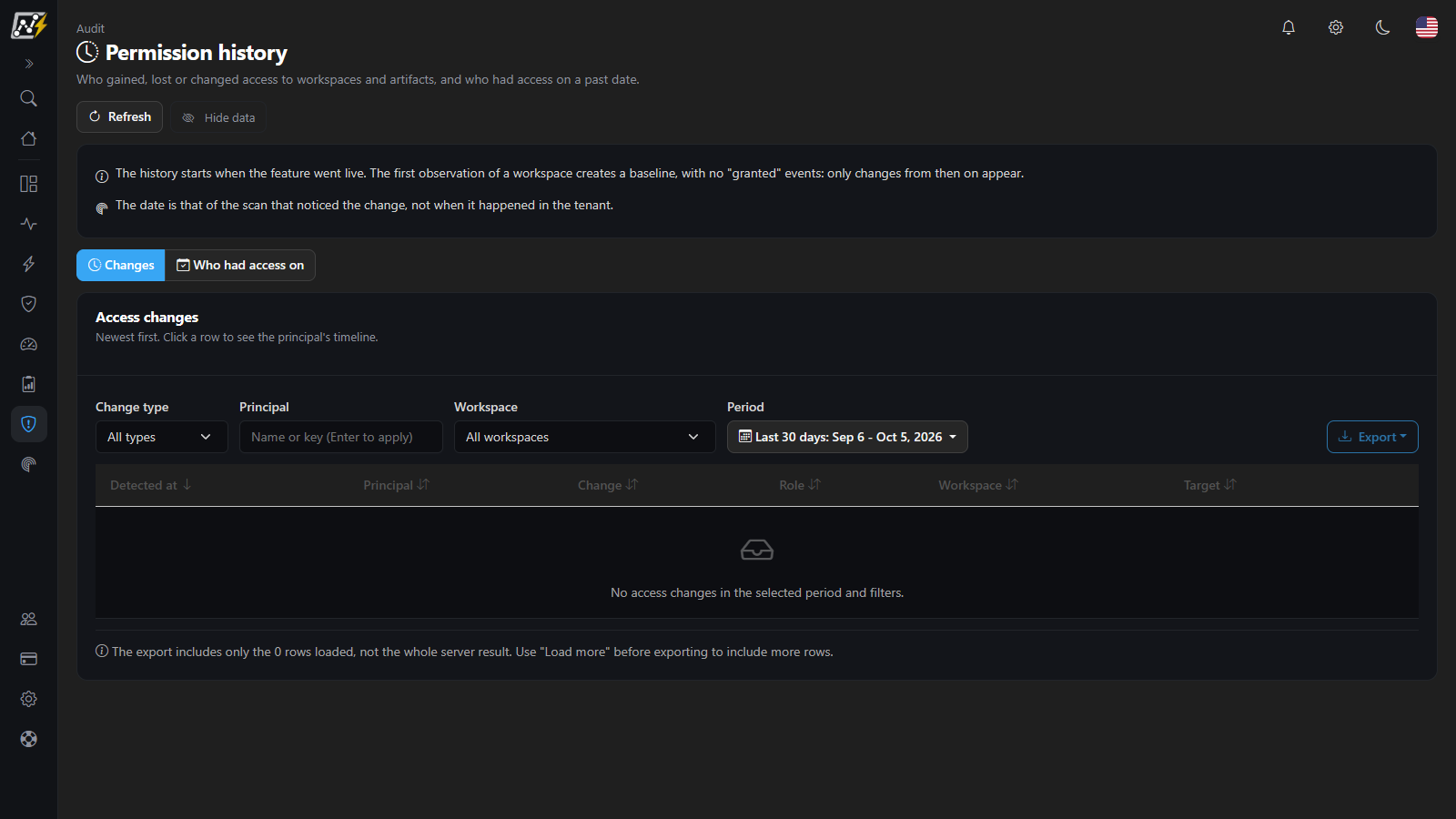
Audit › Permission history, Changes tab
{% hint style="info" %}
**The history starts when the feature went live.** The first observation of a workspace (or artifact) creates a **baseline**, with no "Granted" events: only changes from then on appear. The date shown is that of the **collection that noticed the change**, not when it happened in the tenant.
{% endhint %}
## What it is for
* **Investigate** when and for whom an access was granted or revoked.
* **Prove** (in audits) who had access to a workspace or artifact on a past date.
* **Track** role promotions (for example, from Viewer to Admin) and the arrival of apps, groups and guests.
## Changes tab
The **Access changes** list (*Newest first. Click a row to see the principal's timeline*) has these filters:
| Filter | Options |
| --- | --- |
| **Change type** | **All types**, **Granted**, **Revoked** or **Role changed** |
| **Principal** | Name or key (press Enter to apply) |
| **Workspace** | **All workspaces** or one workspace |
| **Period** | 7, 14, 30 (default), 60, 90 or 180 days, or a custom range (maximum 180 days); the button also shows the dates of the range |
| Column | Content |
| --- | --- |
| **Detected at** | Date and time of the collection that noticed the change |
| **Principal** | Person, group, app or another principal |
| **Change** | **Granted**, **Revoked** or **Role changed** |
| **Role** | Role after the change (**Admin**, **Member**, **Contributor**, **Viewer**) |
| **Workspace** | Affected workspace |
| **Target** | **Workspace** or the **artifact** (with its type) whose access changed |
Results come from the server in batches of 100, with the **Load more** button (which reports how many changes are already loaded out of the total). The table shows 10 rows per page, with an items-per-page selector, and can be sorted by clicking the column titles (default: **Detected at**, newest first). On **Role changed**, the **Role** column shows the previous role, an arrow and the new role. The **Refresh** button in the header (available on the **Changes** tab) runs the query again. The **More actions** menu of each row (also with right-click) offers **View principal timeline**, which opens a drawer with that principal's changes (up to the 500 most recent), and **Copy key**, useful for the next tab.
The **Export** button (CSV or JSON) takes **only the loaded rows**, not the whole server result; use **Load more** before exporting to include more rows.
## "Who had access on" tab
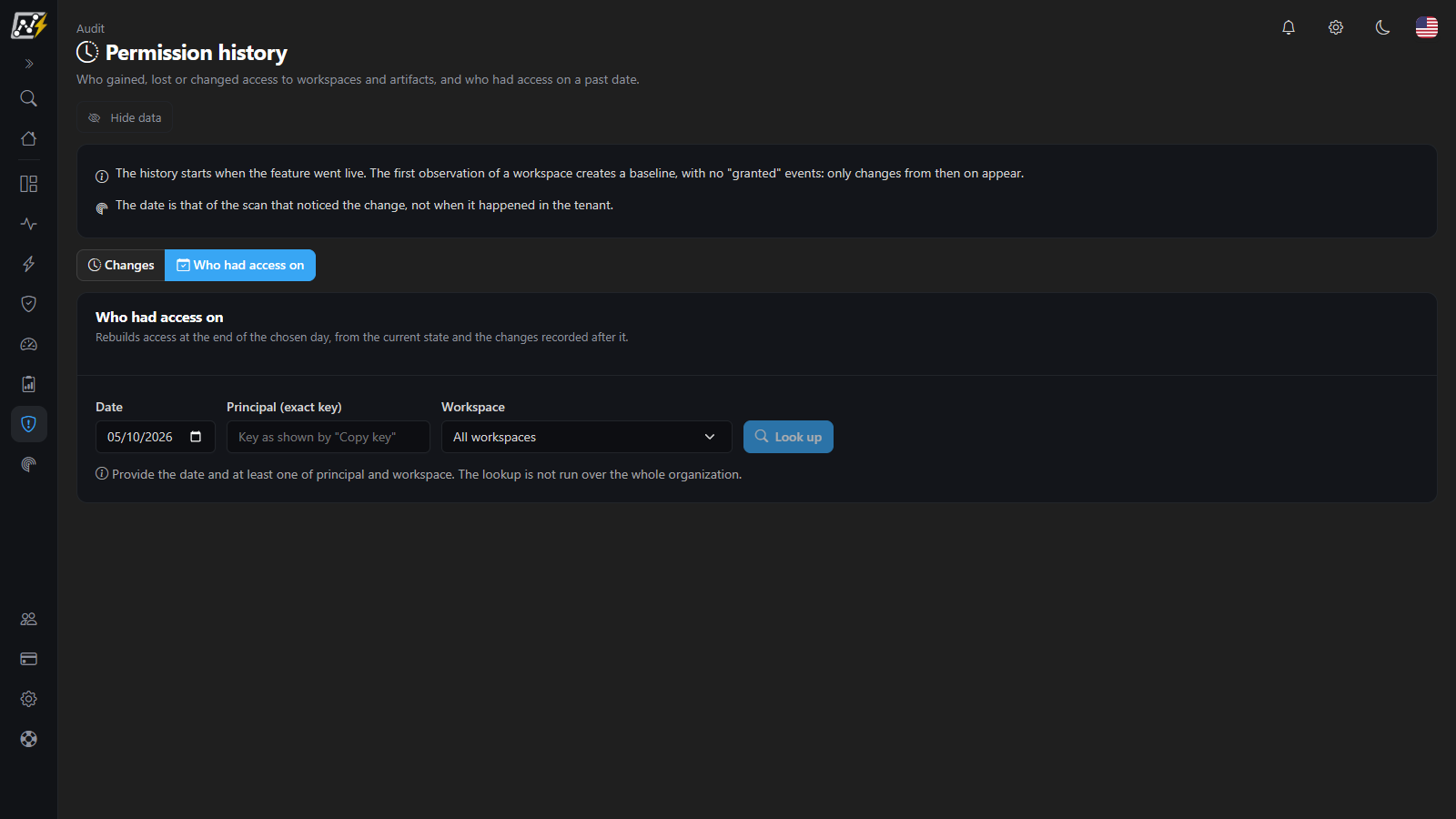
Who had access on tab
It rebuilds access **at the end of the chosen day**, from the current state and the changes recorded after it.
| Field | Notes |
| --- | --- |
| **Date** | Starts at today; cannot be in the future |
| **Principal (exact key)** | Use the key as shown by **Copy key** |
| **Workspace** | One workspace |
Provide the date and **at least one** of principal and workspace: the lookup is not run over the whole organization. Click **Look up**.
The result shows *Access at the end of [date]: N grants* and the list, which can be exported. The table has **Principal**, **Role**, **Workspace** and **Target**, is paginated and sortable, and each row has the **View principal timeline** button. Possible notices:
* **No coverage for [date]:** *this does not mean nobody had access*; the history simply cannot rebuild that date. The reasons are: the date is **outside the retention window** (events are kept for **400 days**), it is **before the organization's history started**, or **there is no history** recorded yet.
* **N workspaces or artifacts were only observed after that date** and are left out of the list.
* **The result was cut by a limit:** the list may be incomplete; narrow it by principal or workspace.
## Rules and behavior
* **How it is detected:** at each permission collection, Power Monitor compares each principal's access on each workspace and artifact with what was stored. New principal = **Granted**; principal that disappeared = **Revoked**; different set of roles = **Role changed**. Reordering roles is not a change.
* **Privacy:** the principal's name and key are identity and respect the **Hide data** button (also in exports).
* **Retention:** events are kept for 400 days.
* **Scope:** users with restricted visibility see only the workspaces in their scope.
## Step by step
### How to find out who had access to a workspace on a date
{% stepper %}
{% step %}
### Open the tab
In *Audit › Permission history*, open **Who had access on**.
{% endstep %}
{% step %}
### Choose the date and the workspace
Provide the **Date** and the **Workspace** (or the **Principal**, using the key copied on the **Changes** tab).
{% endstep %}
{% step %}
### Look up
Click **Look up** and read the summary. If **No coverage** appears, the date is outside the available history.
{% endstep %}
{% endstepper %}
### How to see everything that changed for a person
1. On the **Changes** tab, filter by the **Principal** and press Enter.
2. Click a row to open the **Principal timeline**.
## Frequently asked questions
Why do I not see old changes?
The history starts when the feature went live and keeps events for 400 days. The first observation of each workspace is just the baseline.
The date of the change does not match what the administrator remembers.
The date shown is that of the collection that noticed the change, not the moment it happened. The change happened between the previous collection and this one.
The lookup says "No coverage". Does that mean nobody had access?
No. It only means the history does not allow rebuilding that date.
## Related pages
* [Audit](README.md)
* [Permissions Audit](auditoria-de-permissoes.md)
* [Permissions Dashboard](../dashboards/dashboard-de-permissoes.md)
* [Access reviews](../governanca/revisoes-de-acesso.md)
* [Direct Sharing](compartilhamento-direto.md)