> For the complete documentation index, see [llms.txt](https://docs.powermonitor.com.br/llms.txt). Markdown versions of documentation pages are available by appending `.md` to page URLs; this page is available as [Markdown](https://docs.powermonitor.com.br/en/power-monitor/auditoria/seguranca-em-nivel-de-linha.md).
# Row-Level Security
Row-level security (RLS) roles of each semantic model, with members and DAX filters, and the risk findings, model with a sensitivity label and no RLS, roles without members, and roles without filter.
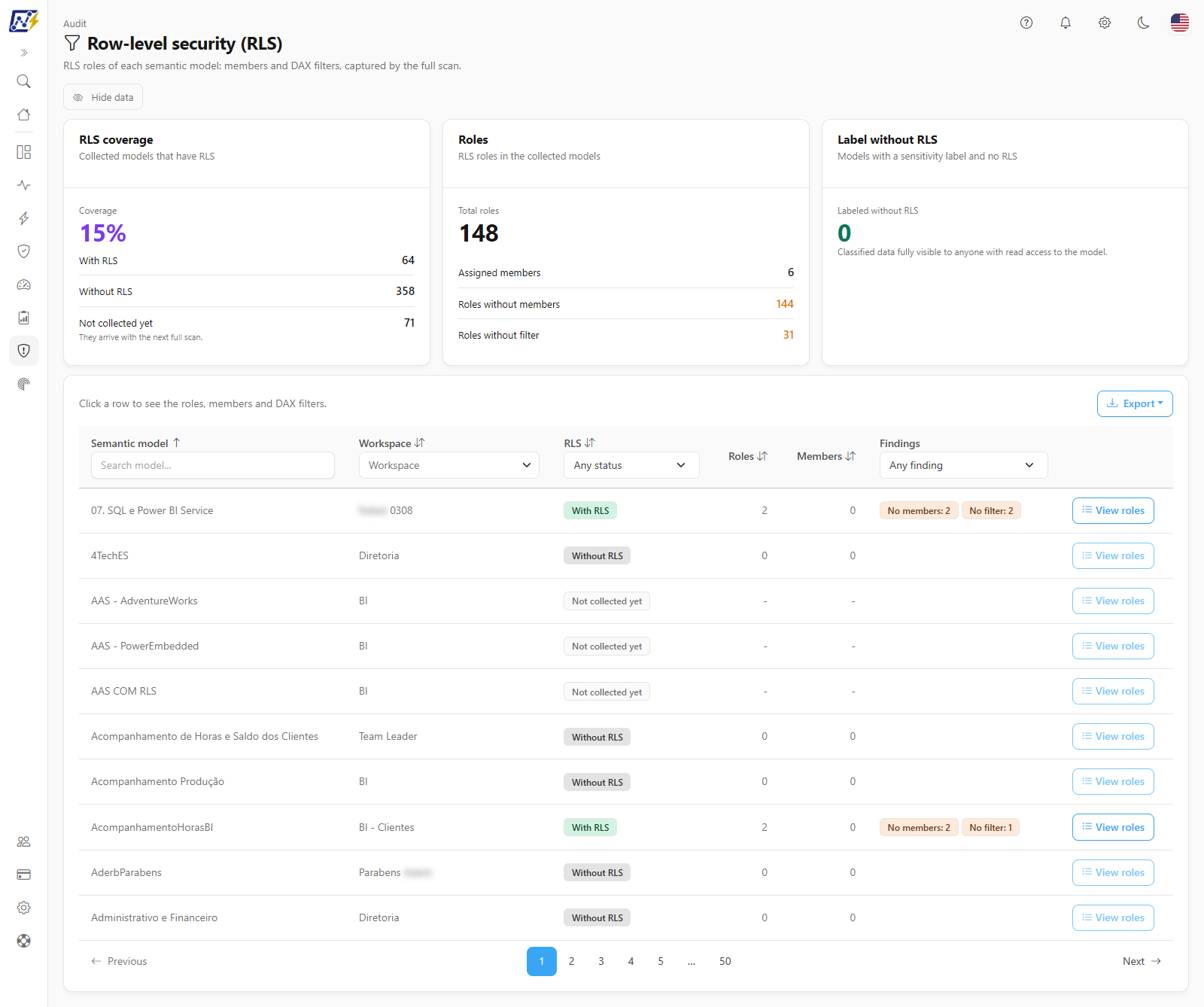
The **Row-Level Security** screen shows, for each semantic model in your environment, whether it has **row-level security (RLS)**, which roles are defined, who is a member of each role, and which DAX filter each role applies to each table. It also highlights the **findings** that usually indicate a protection gap: models with a sensitivity label and no RLS, roles without any members, and roles that do not filter any table.
**How to access:** *Audit › Row-Level Security* (page title: **Row-level security (RLS)**). Available to all profiles. The screen is read-only: there are no write actions.
RLS coverage, roles, and findings by semantic model
## What it is for
* **Validating the protection of classified data.** A model with a sensitivity label (for example, *Confidential*) and no RLS delivers **all rows** to anyone with read permission on the model. It is the most serious finding on the screen.
* **Reviewing RLS roles** (recertification): export who is in each role and which filter it applies for the data owners to validate.
* **Finding incomplete configurations:** roles created but without any members (no one receives that slice of data) and roles without filter (whoever is in them sees all rows, as if there were no RLS).
* **Measuring RLS coverage** of the environment: how many collected models have RLS and how many do not.
{% hint style="info" %}
This screen shows **what is configured in the model**. It does not evaluate whether the DAX filter is correct for your business rule or who has read permission on the model. To find out who can read the model, use the [Permissions Audit](/en/power-monitor/auditoria/auditoria-de-permissoes.md).
{% endhint %}
## Features
### Indicator cards
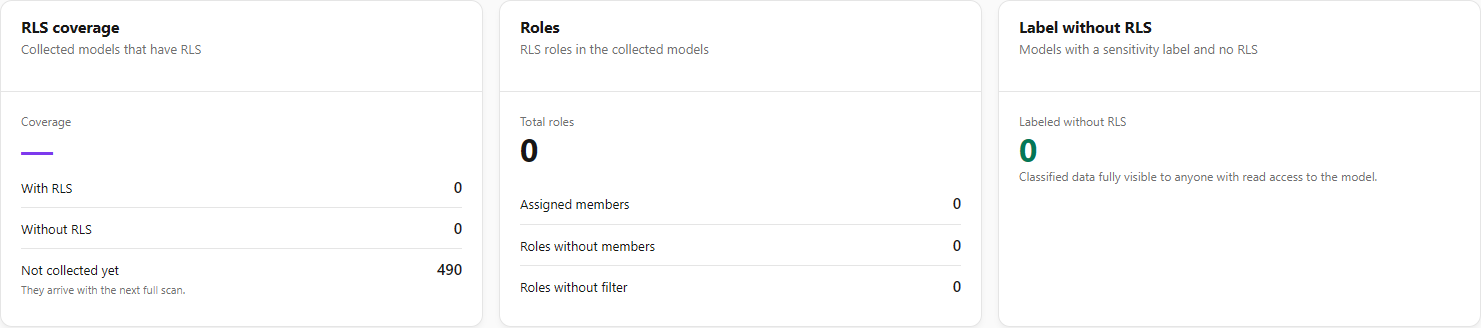
**What it is:** three cards at the top: **RLS coverage**, **Roles**, and **Label without RLS**.
**What it is for:** measuring the RLS coverage of the environment and sizing the risks before opening the list.
Coverage, roles, and findings indicators
| Card | Main value | Details |
| ------------------------------------------------------------------- | ----------------------------------------------------------------------------------------------------------------------------------------------------------- | ------------------------------------------------------------------------------------------------------------------------------------------------------------------------------------ |
| **RLS coverage**: *Collected models that have RLS* | **Coverage**: percentage of models with RLS among the models whose roles have already been collected (rounded). Shows "—" when no model has been collected. | **With RLS**, **Without RLS**, and **Not collected yet** (*They arrive with the next full scan.*). Models not collected yet are not included in the percentage calculation. |
| **Roles**: *RLS roles in the collected models* | **Total roles** adding up all collected models | **Assigned members** (total members in all roles), **Roles without members**, and **Roles without filter** (highlighted as an alert when greater than zero) |
| **Label without RLS**: *Models with a sensitivity label and no RLS* | **Labeled without RLS**: number of collected models that have a sensitivity label and no role | Footer: *Classified data fully visible to anyone with read access to the model.* The card turns red when there is at least one model in this situation and green when there is none. |
**How to use:**
1. Read **RLS coverage**: the percentage considers only the models already collected; see in **Not collected yet** how many were left out of the calculation.
2. In **Roles**, check whether **Roles without members** or **Roles without filter** are above zero.
3. In **Label without RLS**, a red card indicates the most serious finding: filter the list by this finding (see *RLS and Findings filters*).
**How it works:** the cards consider **all models** in your scope, regardless of the filters applied to the list, and are not clickable.
### Search and Workspace filter
**What it is:** the *Search model...* box in the **Semantic model** header and the **Workspace** multi-select in the header of the column of the same name.
**What it is for:** finding a specific model or reviewing the models of a workspace with its owner.
Search and filters in the list header
**How to use:**
1. Type part of the name in **Search model...**.
2. In **Workspace**, open the panel, use the field's own search, and check one or more workspaces.
3. To remove them, delete the search text or uncheck the workspaces.
**How it works:** the filters combine and each change takes the list back to the first page. The **Workspace** options are the workspaces present in the list.
### RLS and Findings filters
**What it is:** the selection lists in the **RLS** (*Any status*, **With RLS**, **Without RLS**, **Not collected yet**) and **Findings** (*Any finding*, **Roles without members**, **Roles without filter**, **Labeled without RLS**) headers.
**What it is for:** going straight to the risky models: for example, those that have classified data and no role.
**How to use:**
1. In the **Findings** header, choose the finding (for example, **Labeled without RLS**).
2. If you want, combine it with **RLS** (for example, **Without RLS**).
3. To remove them, set the selection back to *Any status* / *Any finding*.
**RLS status (RLS column):**
| Status | Meaning |
| --------------------- | ------------------------------------------------------------------------------------------------------------------------------------------------- |
| **With RLS** | The model has at least one RLS role defined |
| **Without RLS** | The model's roles were collected and it has no role: anyone with read access to the model sees all rows |
| **Not collected yet** | Power Monitor has not yet received this model's roles. This does **not** mean that the model has no RLS: the roles arrive with the next full scan |
**Findings (Findings column):**
| Finding | When it appears | Why it matters |
| ----------------------------------------------- | ----------------------------------------------------------------------------------------------------------------------------------------------------------------------------------- | ----------------------------------------------------------------------------------------------------------------- |
| **Labeled without RLS** (red badge) | The model has a sensitivity label, its roles were collected, and it has no role. Models **Not collected yet** never get this finding, because the absence of RLS cannot be asserted | Data classified as sensitive is fully visible to anyone with read access to the model |
| **No members: {N}** / **Roles without members** | {N} roles of the model have no member assigned | The role exists but protects no one; it usually indicates a configuration forgotten after the model was published |
| **No filter: {N}** / **Roles without filter** | {N} roles of the model have no DAX filter on any table (no filtered table or all with an empty expression) | Whoever is in this role sees all rows, as if there were no RLS |
{% hint style="info" %}
A role without filter is not always an error: it is common to have a "Full access" type of role for managers. Use the finding as a review point, confirming with the model owner whether the unrestricted access is intentional.
{% endhint %}
### Semantic model list
**What it is:** the table with one model per row, 10 models per page by default (the **Items per page** selector in the footer offers 10, 25, 50 and 100), with the tip *Click a row to see the roles, members and DAX filters.* above it.
**What it is for:** seeing, model by model, the RLS status, how many roles and members exist, and which findings apply.
| Column | Content | Sortable |
| ------------------ | ----------------------------------------------------------------------------------------------------------------------------------- | -------- |
| **Semantic model** | Model name. When the model has a sensitivity label and the label name could be resolved, it appears below the name, with a tag icon | Yes |
| **Workspace** | Workspace of the model | Yes |
| **RLS** | **With RLS**, **Without RLS**, or **Not collected yet** | Yes |
| **Roles** | Number of RLS roles in the model ("-" when not collected yet) | Yes |
| **Members** | Total members adding up all roles ("-" when not collected yet) | Yes |
| **Findings** | **Labeled without RLS** (red), **No members: {N}**, and **No filter: {N}** (yellow) badges | No |
| *(actions)* | **View roles** button, which opens the model detail. It is disabled when the model has not been collected yet or has no roles | — |
**How to use sorting:** click the title of a sortable column; click again to reverse it. The list starts sorted by **Semantic model** (A–Z). For example, sort by **Members** to find the models with the most people in roles. Use the pagination in the footer to navigate.
**Special states:** when no model matches the filters, *No semantic models found* appears. If the query fails, *Could not load the audit* appears with the **Try again** button.
### Model detail (roles, members, and DAX filters)
**What it is:** the window opened by clicking a row or the **View roles** button, with the model name as the title and the workspace as the subtitle.
**What it is for:** reviewing, role by role, who receives each slice of data and which DAX expression limits the rows of each table.
**How to use:**
1. Click the model row or **View roles**. (The button is disabled when the model has no roles or has not been collected yet; in these cases, clicking the row opens the detail with the corresponding explanation.)
2. In each role block, read:
* **Role name** and badges: the role's permission on the model (for example, *Read*), **No members** and **No filter**, when applicable;
* **Members**: users and groups assigned, with the type and the identity provider in parentheses (for example, *user · AzureAD*). With no members, *No members assigned to this role.* appears;
* **Table filters (DAX)**: each filtered table and the applied expression. With no filters, *This role does not filter any table: its members see every row.* appears.
3. Close it with the **X**, by pressing **Esc**, or by clicking outside the window.
**Special detail messages:**
* *This model requires an effective identity (roles) in embedded queries.*: applications that embed the content (for example, Power BI Embedded) must provide the effective identity and the roles in each query.
* *This model has no RLS roles.*: model collected and with no role.
* *This model's roles have not been collected yet. They arrive with the next full scan.*: model **Not collected yet**.
### Hide data
**What it is:** the **Hide data** button, next to **Export**. Once on, it shows **Show data**.
**What it is for:** sharing the screen, recording demos or taking screenshots without exposing people.
**How to use:** click **Hide data**: the names of the members of each role in the model detail are masked on screen and in exported files. To see the values again, click **Show data**. If the file cannot be masked, the download is stopped and the screen warns *Could not mask the exported file. Show the data again or try once more.* The choice is saved in the browser and applies to the other screens that have the button. It is a presentation convenience, not an access control.
### Export
**What it is:** the **Export** button, above the list, with the **CSV** and **JSON** options.
**What it is for:** sending the RLS recertification to the data owners or doing a detailed review of the DAX expressions outside the tool.
**How to use:**
1. Apply the desired filters (the export respects the current filters and sorting).
2. Click **Export** and choose **CSV** or **JSON**.
3. The download of `seguranca-nivel-linha-AAAA-MM-DD.csv` (or `.json`) starts automatically.
**How it works:** **all models that match the filters** are exported (all pages). The button is disabled when the list is empty.
| Format | Content |
| -------- | --------------------------------------------------------------------------------------------------------------------------------------------------------------------------------------------------------------------- |
| **CSV** | One row per model, with the columns **Semantic model**, **Workspace**, **RLS**, **Roles**, **Members**, **Roles without members** (count), **Roles without filter** (count), and **Labeled without RLS** (*Yes*/*No*) |
| **JSON** | The complete data of each model, **including the roles, members, and DAX expressions** of each table |
{% hint style="warning" %}
The export contains **user names and emails** (role members) and, in the JSON, the **business rules** expressed in the DAX filters. Treat the file as internal information, share it only with those who need it, and be careful when pasting this content into other tools.
{% endhint %}
## Rules and behavior
* **Data source.** Roles, members, and filters come from the Power BI/Fabric metadata scanner API, collected by the [Inventory Scan](/en/power-monitor/mapeamento/inventarios.md) (the Full Scan runs automatically every day at 00:00, Brasília time, UTC-3). This screen has no collection of its own: it reads what the last scan stored. The sensitivity label of each model also comes from the scan.
* **Tenant prerequisite.** The scanner only returns the schema and roles of models when the tenant setting **Enhance admin APIs responses with detailed metadata** is enabled for the Power Monitor Service Principal. Without it, the models remain as **Not collected yet**.
* **"Not collected yet" never becomes "Without RLS" due to missing information.** A model only becomes **Without RLS** when the scan brings the model schema without any role. If a collection comes without schema information, the previously stored roles are preserved. Models that already existed before this feature appear as **Not collected yet** until the next full scan. Workspaces marked as not monitored do not have their artifacts scanned in depth, so their models may remain as **Not collected yet**.
* **Sensitivity label name.** The scan brings only the label identifier; the name is looked up in Microsoft Purview through Microsoft Graph, with a 1-hour cache, and only when some model has a label. To display the name, the organization's registered application needs the **application** permission `InformationProtectionPolicy.Read.All`, with tenant admin consent. Without this permission, the label name does not appear below the model, but the **Labeled without RLS** finding is still identified and counted normally.
* **Deleted models** (detected as removed by the scan) do not appear in the list.
* **Workspace scope.** You see only the models from the workspaces you can view; the cards are also calculated only on them.
* **Loading.** The screen loads everything at once when it is opened; filters, sorting, pagination, and export are done in the browser, without a new query. To see data from a scan that finished later, reload the page.
* **Loading failure.** If the query fails, the screen shows *Could not load the audit* with the **Try again** button.
* **Page blocking.** An administrator can hide this page from a user in [Users](/en/power-monitor/usuarios.md); it disappears from the menu and direct access through the address leads to the **Not allowed** screen.
## Step by step: common scenarios
All the steps start from *Audit › Row-Level Security* and are available to any profile, always within the workspaces in your scope.
### How to find models with classified data and no RLS
Use it to prioritize fixing the highest-risk models.
{% stepper %}
{% step %}
### Check the Label without RLS card
In the **Label without RLS** card, see how many models have a sensitivity label and no role. If the card is green (zero), there are no models in this situation among those already collected.
{% endstep %}
{% step %}
### Filter by the finding
In the **Findings** column header, select **Labeled without RLS**. The list then shows only these models, with the red badge.
{% endstep %}
{% step %}
### Identify the label and the workspace
Below the name of each model, the sensitivity label appears (when the `InformationProtectionPolicy.Read.All` permission is granted). The **Workspace** column indicates where the model is published.
{% endstep %}
{% step %}
### Route the fix
Export the list (**Export › CSV**) and send it to the model owners. The fix is made in the model itself (creating RLS roles in Power BI Desktop or in the service) or by reviewing whether the applied label is correct. After publication, the next full scan updates the screen.
{% endstep %}
{% endstepper %}
### How to see the roles, members, and filters of a model
{% stepper %}
{% step %}
### Find the model
Type part of the name in the **Search model...** field of the **Semantic model** header and, if necessary, narrow it down with the **Workspace** filter.
{% endstep %}
{% step %}
### Open the detail
Click the model row or the **View roles** button. The button is disabled when the model has no roles or has not been collected yet; in these cases, clicking the row opens the detail with the corresponding explanation.
{% endstep %}
{% step %}
### Review each role
For each role, check in **Members** who receives that slice of data and in **Table filters (DAX)** which expression limits the rows of each table. The **No members** and **No filter** badges indicate points of attention.
{% endstep %}
{% step %}
### Close the detail
Click the **X**, press **Esc**, or click outside the window to go back to the list.
{% endstep %}
{% endstepper %}
### How to find roles without members or without filter
1. In the **Findings** column header, select **Roles without members** (or **Roles without filter**).
2. The **Findings** column shows how many roles of each model are in this situation (*No members: {N}* or *No filter: {N}*).
3. Click the row to open the detail and identify which roles they are; they carry the **No members** or **No filter** badge.
4. Confirm with the model owner: a role without members is usually a forgotten configuration; a role without filter may be intentional (full access) or an error.
### How to measure RLS coverage
1. Read the **RLS coverage** card: the percentage considers only the models whose roles have already been collected.
2. See in **Not collected yet** how many models were left out of the calculation. If the number is high, check whether the Full Scan is running and whether the detailed metadata tenant setting is enabled (see [Rules and behavior](#rules-and-behavior)).
3. To list the models in each group, use the **RLS** column filter (**With RLS**, **Without RLS**, or **Not collected yet**).
## Frequently asked questions
My model has RLS, but it appears as "Not collected yet".
The roles arrive through the Full Scan. Wait for the next daily scan (00:00, Brasília time, UTC-3) or ask an administrator to trigger a scan in *Mapping › Inventory*. If the model is still not collected, check whether the tenant setting **Enhance admin APIs responses with detailed metadata** is enabled for the Service Principal and whether the workspace is monitored.
I changed the roles in Power BI, but the screen did not change.
The screen shows what the last scan collected. The changes appear after the next Full Scan. If the scan has already finished, reload the page.
The model has a label, but the label name does not appear.
The label name is looked up in Microsoft Purview and requires the application permission `InformationProtectionPolicy.Read.All` for the organization's registered application. Without it, the name is not displayed, but the model is still counted in the **Labeled without RLS** finding. Newly published labels may take up to 1 hour to appear, because of the cache.
Is a "No filter" role always a problem?
No. Full-access roles (for example, for the executive board) are common. The finding is for review: confirm whether the unrestricted access is intentional.
Are the members of a group shown expanded?
No. The screen shows the members exactly as they are assigned to the role: when the member is a group, the group name appears. To see who is part of a group with access to the model, use the [Permissions Audit](/en/power-monitor/auditoria/auditoria-de-permissoes.md).
Does RLS prevent workspace administrators from seeing the data?
No. In Power BI, RLS applies to people with read access (for example, Viewer or report/app sharing). Workspace Admins, Members, and Contributors are not filtered by RLS. That is why you should also review who has these roles in the [Permissions Audit](/en/power-monitor/auditoria/auditoria-de-permissoes.md).
## Related pages
* [Permissions Audit](/en/power-monitor/auditoria/auditoria-de-permissoes.md): who has read access to the models
* [Service Principals](/en/power-monitor/auditoria/service-principals.md) and [Direct Sharing](/en/power-monitor/auditoria/compartilhamento-direto.md): the other access audits
* [Governance › Compliance › Labels and Certification](/en/power-monitor/governanca/conformidade/rotulos-e-certificacao.md): sensitivity labels, endorsement, and exposure
* [Governance › Semantic Models](/en/power-monitor/governanca/modelos-semanticos.md)
* [Mapping › Inventory](/en/power-monitor/mapeamento/inventarios.md): collection of roles and tenant prerequisites
* [Settings › Additional Permissions](/en/power-monitor/configuracoes/permissoes-adicionais.md): Microsoft Graph permissions
* [Users](/en/power-monitor/usuarios.md): page blocking per user
---
# Agent Instructions
This documentation is published with GitBook. GitBook is the documentation platform designed so that both humans and AI agents can read, navigate, and reason over technical content effectively. Learn more at gitbook.com.
## Querying This Documentation
If you need additional information that is not directly available in this page, you can query the documentation by asking a question.
Perform an HTTP GET request on the following URL with the `ask` and `goal` query parameters:
```
GET https://docs.powermonitor.com.br/en/power-monitor/auditoria/seguranca-em-nivel-de-linha.md?ask=&goal=
```
`ask` is the immediate question: it should be specific, self-contained, and written in natural language.
`goal` is what the user is ultimately trying to achieve, the reason they need the answer. Sharing it helps GitBook give you a better, more relevant answer. A goal is most helpful when it describes the outcome the user wants rather than restating the question. For example, with `ask=how do I create an API token`, a goal like `automate deployments from our CI pipeline` lets GitBook tailor the answer to that use case.
The response will contain a direct answer to the question and relevant excerpts and sources from the documentation.
Use this mechanism when the answer is not explicitly present in the current page, you need clarification or additional context, or you want to retrieve related documentation sections.