> For the complete documentation index, see [llms.txt](https://docs.powermonitor.com.br/llms.txt). Markdown versions of documentation pages are available by appending `.md` to page URLs; this page is available as [Markdown](https://docs.powermonitor.com.br/en/power-monitor/configuracoes/auditoria.md).
# Audit
Turn on automatic collection of Power BI activity logs and integrate the Power Embedded access audit.
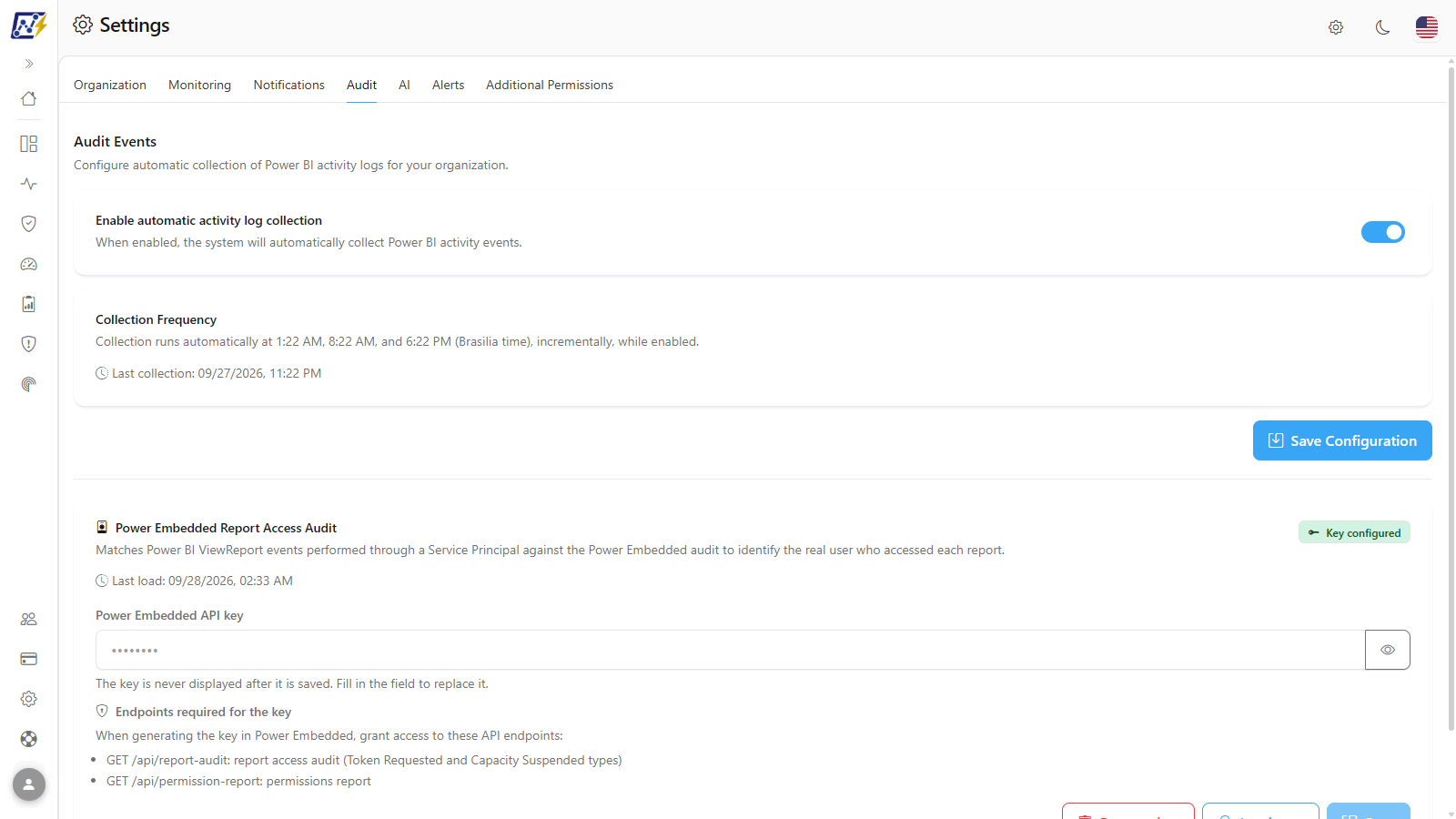
The **Audit** tab controls the automatic collection of **Power BI/Fabric activity logs** (who viewed, exported, shared or changed what), which feed Power Monitor's Audit module. This is also where you connect the **Power Embedded report access audit**, to identify the real user behind accesses made through a Service Principal.
**How to access:** *Settings › Audit*. Exclusive to **Administrators**.
Audit tab
## What it is for
* Keeping the tenant's activity event history available in Power Monitor, for investigations and access reports.
* Knowing who actually accessed reports published with Power BI Embedded (apps that access as a Service Principal).
The screen has two parts: **Audit Events** (collection of Power BI activity logs) and, below a divider line, the **Power Embedded Report Access Audit** card. Each part has its own save button.
## How to use
All flows require the **Administrator** role and start from *Settings › Audit*. Summary of the most common tasks (each one is detailed in [Features](#features)):
1. **Keep activity logs up to date:** turn on [Enable automatic activity log collection](#automatic-activity-log-collection) and click **Save Configuration**.
2. **Identify the real user of Power BI Embedded reports:** [configure the Power Embedded API key](#configure-the-power-embedded-api-key) and run the first load with [Load now](#load-now).
3. **End the Power Embedded integration:** use [Remove key](#remove-key).
## Features
### Automatic activity log collection
**What it is:** the **Enable automatic activity log collection** switch, which turns on or off the scheduled collection of your tenant's Power BI/Fabric activity events.
**What it is for:** without this collection, the Audit module screens (Events Overview, Sharing, Exports etc.) and the Report Access Dashboard do not receive new events. Keep it on whenever you want to keep the tenant's usage and access history.
Automatic collection switch
**How to use:**
1. In **Audit Events**, turn on (or off) **Enable automatic activity log collection**.
2. Click **Save Configuration** (the button shows **Saving...** while saving). *Configuration saved successfully!* is displayed; in case of failure, *Error saving configuration.* is displayed (or the message returned by the server).
3. With collection turned on, check the **Last collection** in the **Collection Frequency** card.
**How it works / rules:**
* Changing the switch without clicking **Save Configuration** has no effect: when you leave the screen, the saved state remains in effect.
* In recently created organizations, collection is already turned on.
* The same switch also appears in [Settings › Monitoring](/en/power-monitor/configuracoes/monitoramento.md#audit-security-and-compliance) (**Power BI activity log collection**). There, the change is saved immediately, with no save button, and both screens read and write the same setting.
* Collection uses the Power BI admin API with the organization's Service Principal (the Fabric tenant settings must allow the use of the admin APIs; see [Additional Permissions](/en/power-monitor/configuracoes/permissoes-adicionais.md)).
* Turning off collection does not delete events already collected.
### Collection Frequency and Last collection
**What it is:** an informational card that shows when collection runs and up to when events have been collected.
**What it is for:** knowing whether the audit data is up to date and when the next events will arrive, before investigating a recent access.
Collection Frequency
**How to use:** read the line with the clock icon: **Last collection: \** indicates up to when events are already in Power Monitor; **Never collected** indicates that no collection has been completed yet.
**How it works / rules:**
* Collection runs automatically **at 01:23, 08:23 and 18:23 (Brasília time, UTC-3)**, while it is enabled.
* It is **incremental**: each run fetches only what is new since the last collection.
* Manual execution and the collection history are in *Mapping › Audit*. The collected events are queried in [Audit › Events Overview](/en/power-monitor/auditoria/geral-de-eventos.md) and on the other Audit module screens.
### Power Embedded Report Access Audit
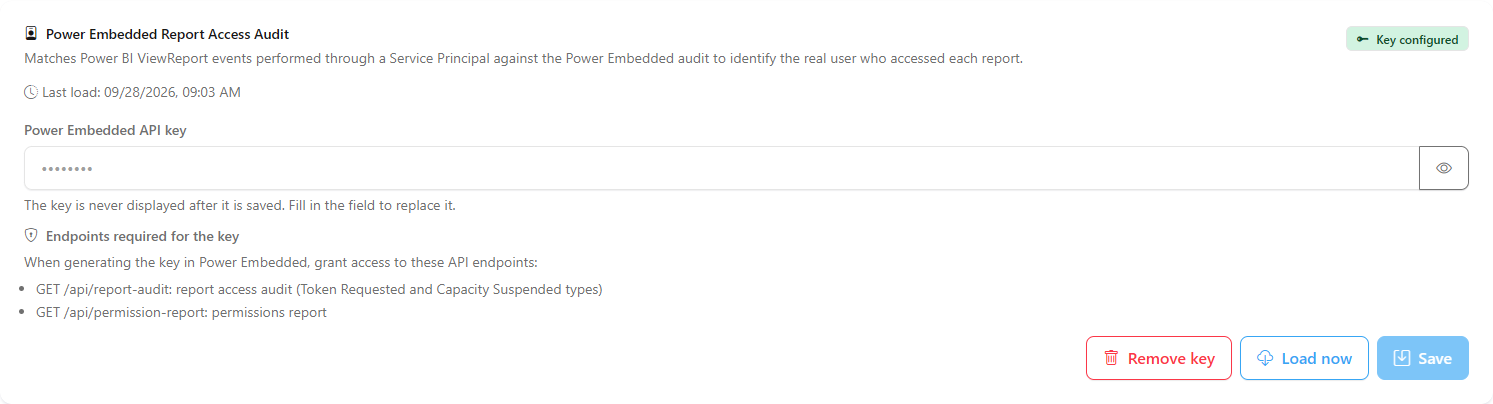
**What it is:** the integration card with **Power Embedded**. Reports published by applications that use **Power BI Embedded** appear in the Power BI logs as accessed by the application's Service Principal, not by the person. With this integration, Power Monitor matches the **ViewReport** events made through a Service Principal against the Power Embedded audit and identifies the real user of each access.
**What it is for:** for those who publish reports in portals or applications with Power BI Embedded and need to know who actually opened each report (auditing, chargeback, adoption). If you do not use Power BI Embedded, you can ignore this card.
Power Embedded integration
**How it works / rules:**
| Element | Description |
| ---------------------------------- | ------------------------------------------------------------------------------------------------------------------------------------------------------------------------------------------- |
| Status badge | **Key configured** (green) or **Key not configured** (gray). |
| **Last load** | Date and time of the last completed load, or **Never loaded**. |
| **Power Embedded API key** | Field for the key generated in Power Embedded. Once saved, the key is never displayed again: the field shows `••••••••` and you only need to fill it in to replace it. |
| Eye icon button | **Show**/**Hide** what is typed in the field. |
| **Endpoints required for the key** | When generating the key, grant access to `GET /api/report-audit` (report access audit, Token Requested and Capacity Suspended types) and `GET /api/permission-report` (permissions report). |
| **Remove key** | Appears only when a key is configured. Removes the key and disables the integration. |
| **Load now** | Triggers an immediate load. Disabled when no key is configured (tooltip *Configure the API key to load.*). |
| **Save** | Saves the typed key. Disabled while the field is empty. |
* With the key configured, the Power Embedded access audit is loaded automatically **every 30 minutes**, and the permissions report twice a day.
* The write fields and buttons only appear for Administrators; other profiles see *Only administrators can change this setting.*
### Configure the Power Embedded API key
**What it is:** the flow for registering (or replacing) the key that gives Power Monitor access to the Power Embedded audit.
**What it is for:** enabling the integration for the first time or replacing an expired or revoked key.
**How to use:**
{% stepper %}
{% step %}
### Generate the key in Power Embedded
In Power Embedded, create an API key granting access to the endpoints listed in **Endpoints required for the key** (report access audit and permissions report).
{% endstep %}
{% step %}
### Paste the key
In the **Power Embedded Report Access Audit** card, paste the key in **Power Embedded API key**. Use **Show** (eye icon) to check what was pasted and **Hide** to hide it again.
{% endstep %}
{% step %}
### Save
Click **Save**. *API key saved successfully.* is displayed, the field is cleared and the badge changes to **Key configured**. If the field is empty, *Enter an API key to save.* is displayed; in case of failure, *Error saving the API key.*
{% endstep %}
{% endstepper %}
To **replace** the key, repeat steps 2 and 3 with the new key: the previous one is overwritten.
### Load now
**What it is:** a button that immediately triggers a load of the Power Embedded audit, without waiting for the automatic 30-minute cycle.
**What it is for:** running the first load right after configuring the key, or updating the data before an investigation.
Power Embedded card actions
**How to use:**
1. With the key configured, click **Load now** (the button shows **Loading...** during the load).
2. The load goes to the queue and *Load queued. The last load date updates when it finishes.* is displayed. If a load is already running, *A load is already in progress. This screen follows the result.* is displayed.
3. The screen tracks the load until the end, for up to 3 minutes. When it finishes, *Load completed: X events loaded, Y correlated.* is displayed and **Last load** is updated. If the load fails, *The load finished with an error: ...* is displayed with the reason (and the hint *Check the API key.* when the key was rejected). If the request itself cannot be made, *Error triggering the load.* is displayed.
**How it works / rules:** "loaded" is the total number of events brought from Power Embedded; "correlated" is how many of them were associated with a **ViewReport** event made through a Service Principal in Power BI, identifying the real user.
### Remove key
**What it is:** a button that deletes the saved API key and disables the Power Embedded integration.
**What it is for:** ending the integration (for example, when you stop using Power Embedded or revoke the key for security reasons).
**How to use:**
1. On the Power Embedded card, click **Remove key**.
2. Confirm the question *Remove the Power Embedded API key? The integration will be disabled.*
3. *API key removed. The integration has been disabled.* is displayed and the badge goes back to **Key not configured**. The **Load now** button is disabled and **Remove key** no longer appears.
**How it works / rules:** without a key, the automatic Power Embedded loads stop.
## Rules and behavior
* Only Administrators can change these settings.
* Activity log collection and the Power Embedded integration are independent: one can be on without the other.
## Frequently asked questions
I turned on collection, but the Events Overview screen is still empty.
Check that you clicked **Save Configuration** after turning on the switch. The first collection happens at the next scheduled time (01:23, 08:23 or 18:23, Brasília time, UTC-3). To avoid waiting, trigger the collection in *Mapping › Audit*.
I do not use Power BI Embedded. Do I need to configure the API key?
No. The Power Embedded card is optional and only makes sense for those who publish reports in applications with Power Embedded.
I forgot which key is saved. Can I see it?
No. For security reasons, the key is never displayed after it is saved. If in doubt, generate a new one in Power Embedded and save it over the current one.
## Related pages
* [Audit › Events Overview](/en/power-monitor/auditoria/geral-de-eventos.md)
* [Audit › Permissions Audit](/en/power-monitor/auditoria/auditoria-de-permissoes.md)
* [Report Access Dashboard](/en/power-monitor/dashboards/dashboard-de-visualizacoes.md)
* [Mapping](/en/power-monitor/mapeamento.md)
---
# Agent Instructions
This documentation is published with GitBook. GitBook is the documentation platform designed so that both humans and AI agents can read, navigate, and reason over technical content effectively. Learn more at gitbook.com.
## Querying This Documentation
If you need additional information that is not directly available in this page, you can query the documentation by asking a question.
Perform an HTTP GET request on the following URL with the `ask` and `goal` query parameters:
```
GET https://docs.powermonitor.com.br/en/power-monitor/configuracoes/auditoria.md?ask=&goal=
```
`ask` is the immediate question: it should be specific, self-contained, and written in natural language.
`goal` is what the user is ultimately trying to achieve, the reason they need the answer. Sharing it helps GitBook give you a better, more relevant answer. A goal is most helpful when it describes the outcome the user wants rather than restating the question. For example, with `ask=how do I create an API token`, a goal like `automate deployments from our CI pipeline` lets GitBook tailor the answer to that use case.
The response will contain a direct answer to the question and relevant excerpts and sources from the documentation.
Use this mechanism when the answer is not explicitly present in the current page, you need clarification or additional context, or you want to retrieve related documentation sections.