
> For the complete documentation index, see [llms.txt](https://docs.powermonitor.com.br/llms.txt). Markdown versions of documentation pages are available by appending `.md` to page URLs; this page is available as [Markdown](https://docs.powermonitor.com.br/en/power-monitor/configuracoes/ia.md).

# AI

Register your organization's AI providers, control monthly spending and track every call on the AI usage screen.

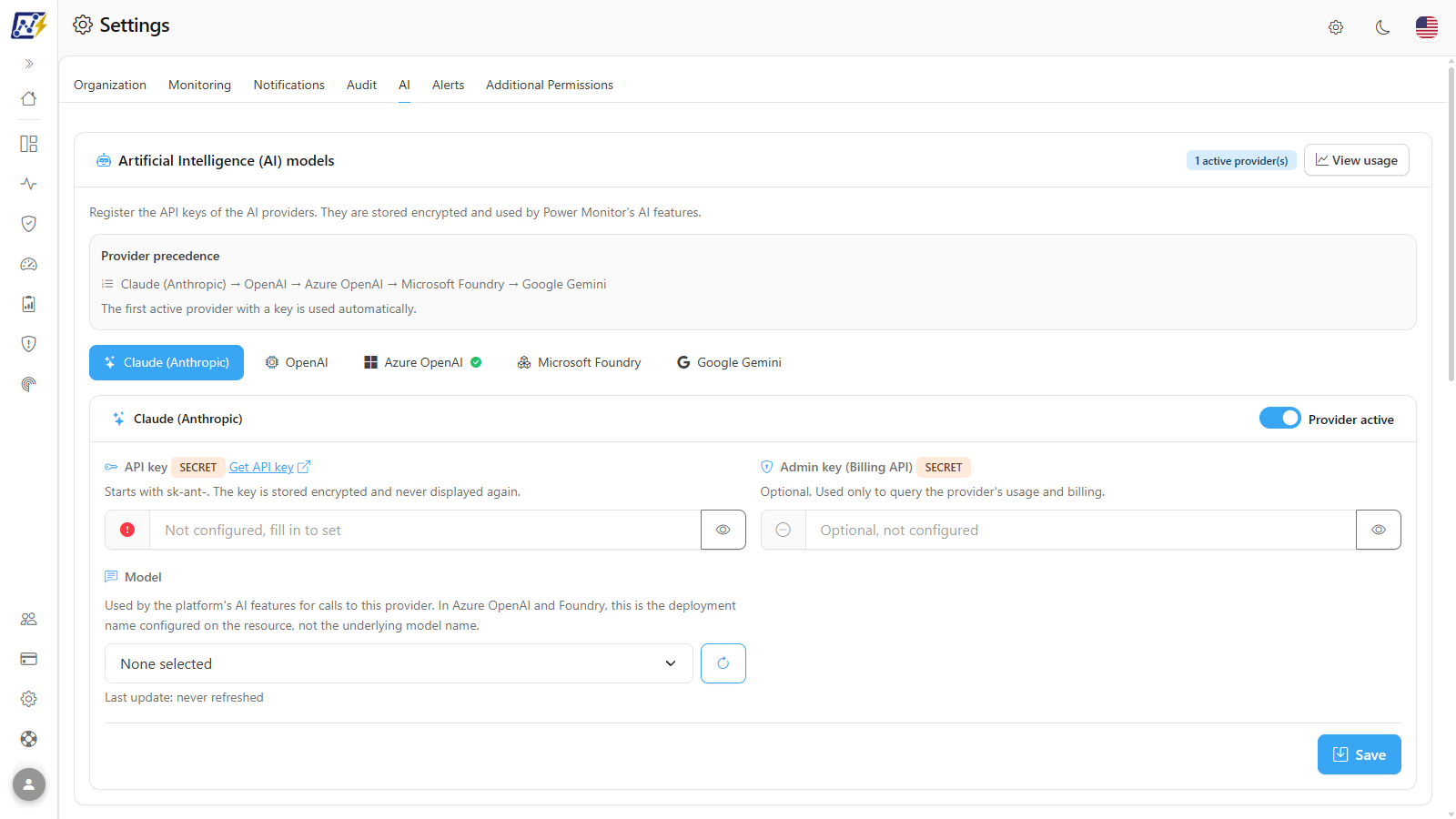
The **AI** tab enables Power Monitor's Artificial Intelligence features: the [AI Assistant](/en/power-monitor/assistente-de-ia.md), the dashboards' **Explain with AI** buttons and the Performance Assessment's **AI suggestion**. Here you register the providers' API keys, choose the model, set the organization's **monthly spending limit** and track the **usage** of each call.

**How to access:** *Settings › AI*. The usage screen is at *Settings › AI › **View usage***. Both are exclusive to **Administrators**.

<figure><picture><source srcset="/files/dILCRFZMZKTm2W6GKeDK" media="(prefers-color-scheme: dark)"><img src="https://3938213054-files.gitbook.io/~/files/v0/b/gitbook-x-prod.appspot.com/o/spaces%2FH2bFRBmIfyK3kwVKbldl%2Fuploads%2Fgit-blob-031103421ec60d33ea2b450f57bc89d4bea2e862%2Fpm-configuracoes-ia-en.png?alt=media" alt="AI tab with the provider precedence and the form of the selected provider"></picture><figcaption><p>AI tab</p></figcaption></figure>

{% hint style="info" %}
AI uses **your own organization's keys**: calls are made on the account you register with each provider and billed by that provider. With no provider configured, the AI features are unavailable and the assistant shows the **AI assistant not configured** notice.
{% endhint %}

## What it is for

* Connecting Power Monitor to the AI provider your company already has a contract with (Anthropic, OpenAI, Azure OpenAI, Microsoft Foundry or Google Gemini).
* Avoiding surprises on the provider's bill with a monthly spending cap.
* Deciding whether the Power Query structure of the models can be sent to the AI.
* Auditing who used AI, in which feature, with which model and at what cost.

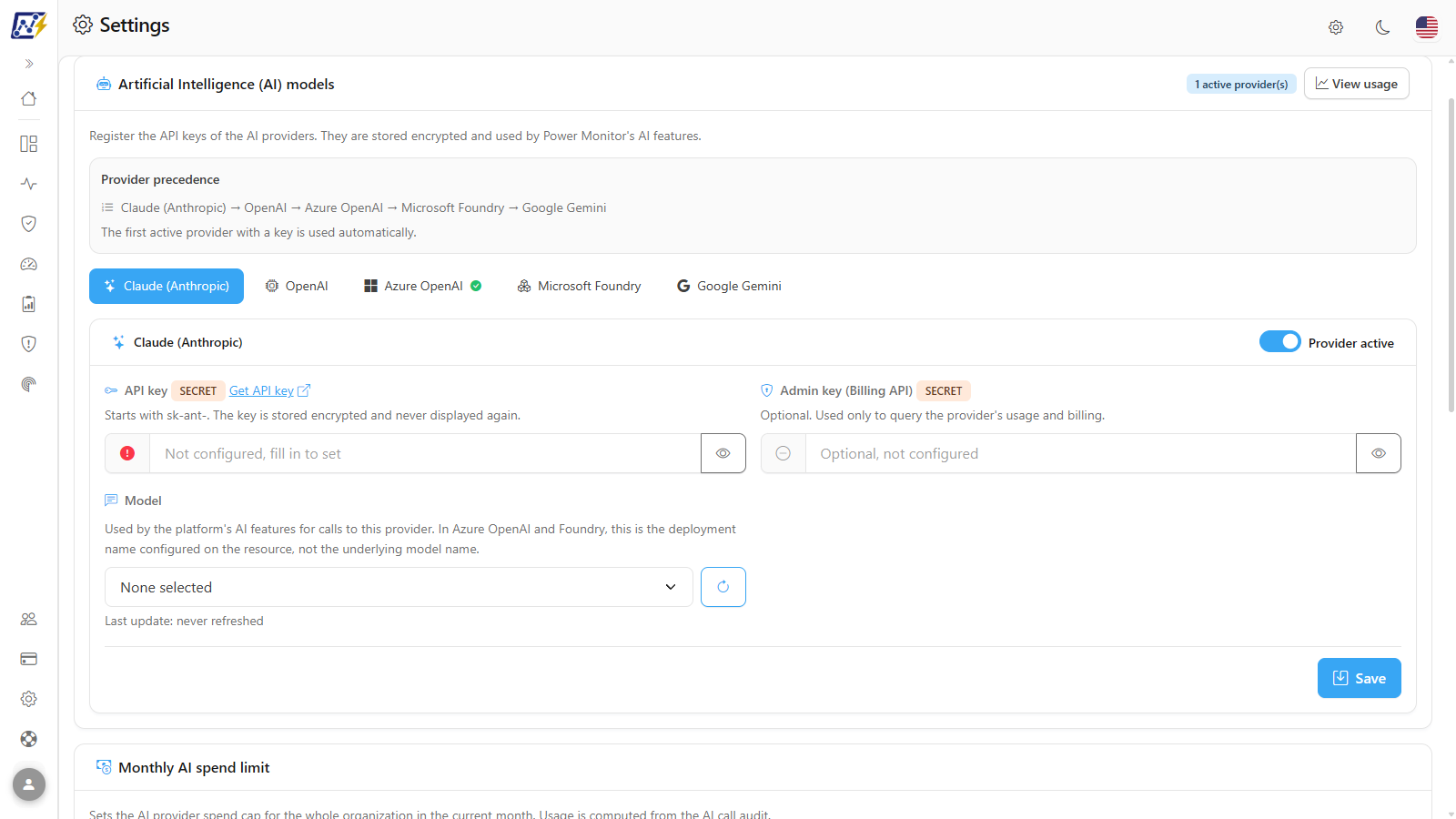
From top to bottom, the screen consists of the **Artificial Intelligence (AI) models** (providers), **Monthly AI spend limit**, **Share Power Query structure with the AI** and **Global AI Model Pricing** cards. The **View usage** button takes you to the **AI usage** screen.

## Features

### Provider precedence

**What it is:** the **Provider precedence** box, at the top of the **Artificial Intelligence (AI) models** card, which shows the fixed order in which Power Monitor chooses the provider for each call:

**Claude (Anthropic) → OpenAI → Azure OpenAI → Microsoft Foundry → Google Gemini**

**What it is for:** knowing, when more than one provider is registered, which one will actually respond.

<figure><picture><source srcset="/files/IqZg5G8qi5yZGBeIYgg9" media="(prefers-color-scheme: dark)"><img src="https://3938213054-files.gitbook.io/~/files/v0/b/gitbook-x-prod.appspot.com/o/spaces%2FH2bFRBmIfyK3kwVKbldl%2Fuploads%2Fgit-blob-5ae32499fc067549988500da52fb89f46d4a0dde%2Fpm-configuracoes-ia-precedencia-en.png?alt=media" alt="Provider precedence box with the order of the providers"></picture><figcaption><p>Provider precedence</p></figcaption></figure>

**How it works / rules:**

* The **first active provider with a key filled in** (and a model chosen) is automatically used for all calls.
* The others are not used as an automatic fallback in case of error. To switch providers, disable the one in front (see [Change the provider in use](#change-the-provider-in-use)).
* In the card header, the **N active provider(s)** badge shows how many providers are active with a key.

### Provider tabs

**What it is:** one tab per provider, right below the precedence. Each tab opens that provider's form.

**What it is for:** quickly seeing which providers already have a key and whether they are active, and switching between them to configure them.

<figure><picture><source srcset="/files/6YXCQxwCPoJmBoeWYbuI" media="(prefers-color-scheme: dark)"><img src="https://3938213054-files.gitbook.io/~/files/v0/b/gitbook-x-prod.appspot.com/o/spaces%2FH2bFRBmIfyK3kwVKbldl%2Fuploads%2Fgit-blob-40341a203f85b1be772020b5a6c4c605808fefa1%2Fpm-configuracoes-ia-abas-provedores-en.png?alt=media" alt="AI provider tabs with the status icons"></picture><figcaption><p>Provider tabs with the status of each one</p></figcaption></figure>

**How to use:** click the provider's name (e.g.: **OpenAI**) to open its form. On narrow screens, the tabs become a drop-down list.

**How it works / rules:**

| Icon next to the name | Meaning                                                                         |
| --------------------- | ------------------------------------------------------------------------------- |
| Green (check mark)    | **Key configured** and provider active.                                         |
| Yellow (warning)      | Key configured, but the provider is disabled and is not used in the precedence. |
| No icon               | No key configured.                                                              |

### Provider form

**What it is:** the card with the provider's name and the connection fields: key, endpoint, API version and model.

**What it is for:** registering and maintaining Power Monitor's connection with your organization's AI account.

<figure><picture><source srcset="/files/Xj6VwDm7QfuyIeJUrQsv" media="(prefers-color-scheme: dark)"><img src="https://3938213054-files.gitbook.io/~/files/v0/b/gitbook-x-prod.appspot.com/o/spaces%2FH2bFRBmIfyK3kwVKbldl%2Fuploads%2Fgit-blob-7f7f483451774cfc0adaeed027e93ecbca1b0325%2Fpm-configuracoes-ia-provedor-en.png?alt=media" alt="AI provider form with API key, endpoint and model"></picture><figcaption><p>Provider form</p></figcaption></figure>

**How it works / rules:**

| Field                                 | Description                                                                                                                                                                                                                                                                                                                                                                                                                 |
| ------------------------------------- | --------------------------------------------------------------------------------------------------------------------------------------------------------------------------------------------------------------------------------------------------------------------------------------------------------------------------------------------------------------------------------------------------------------------------- |
| **Provider active**                   | Switch in the card header. When disabled, the provider is ignored in the precedence, even with a key configured.                                                                                                                                                                                                                                                                                                            |
| **API key** (**SECRET** badge)        | Provider key. The help text indicates the expected prefix when there is one (for example `sk-ant-` for Anthropic, `sk-` for OpenAI and `AIza` for Gemini). It is stored encrypted and never displayed again: with a saved key, the field shows the masked key followed by *(fill in to change)*. The icon on the left is green with a key and red without one. The **Get API key** link opens the provider's official page. |
| **Remove the stored key when saving** | Checkbox that appears when there is a saved key. Deletes the key on the next **Save**.                                                                                                                                                                                                                                                                                                                                      |
| **Admin key (Billing API)**           | Optional, available for Anthropic. Used only to query usage and billing at the provider. Has the **Remove the stored admin key when saving** option.                                                                                                                                                                                                                                                                        |
| **Endpoint**                          | Required for **Azure OpenAI** and **Microsoft Foundry**: base URL of the resource (e.g.: `https://meu-recurso.openai.azure.com`). It must be `https` and a public address.                                                                                                                                                                                                                                                  |
| **API version**                       | Optional (Azure OpenAI and Foundry). Version of the service's REST API (e.g.: `2025-01-01-preview`), not the model version. Empty uses the default version.                                                                                                                                                                                                                                                                 |
| **Model** / **Deployment**            | Model used by the AI features. In Azure OpenAI and Foundry, the field is called **Deployment** and takes the name of the deployment created in the resource. See [Model selection](#model-selection).                                                                                                                                                                                                                       |
| **Saved at**                          | Footer with the date of the last save and who saved it.                                                                                                                                                                                                                                                                                                                                                                     |
| **Save**                              | Saves the provider.                                                                                                                                                                                                                                                                                                                                                                                                         |

* The eye button next to each key field (**Show**/**Hide**) displays what you are typing; it never reveals the key already saved.
* Leaving the key field empty when saving keeps the current key.

### Model selection

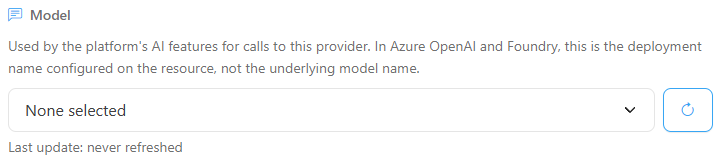
**What it is:** the **Model** (or **Deployment**) field, with the list of models, the **Refresh models** button and the **Type manually…** option.

**What it is for:** defining which model responds to that provider's calls, balancing quality and cost.

<figure><picture><source srcset="/files/5DZVUz8LVeWFiZ6Ij7vb" media="(prefers-color-scheme: dark)"><img src="https://3938213054-files.gitbook.io/~/files/v0/b/gitbook-x-prod.appspot.com/o/spaces%2FH2bFRBmIfyK3kwVKbldl%2Fuploads%2Fgit-blob-e63c7375407e1497c4e283e1d41aade24fb23d9d%2Fpm-configuracoes-ia-modelo-en.png?alt=media" alt="Model field with the list, the Refresh models button and the date of the last update"></picture><figcaption><p>Model selection field</p></figcaption></figure>

**How to use:**

1. Click **Refresh models** (circular arrow button next to the list) to fetch the list from the provider.
2. Select the model in the list. **None selected** leaves the provider without a model.
3. If the model or deployment does not appear, choose **Type manually…** and enter the exact name. To return to the list, use the **Back to the list** button.
4. Click **Save** in the form footer.

**How it works / rules:**

* Below the field, **Last update** shows when the list was obtained (or *never refreshed*).
* A badge indicates the source when the list did not come from the authenticated account: **public catalog (no key configured)** or **default list (provider did not respond)**. In these cases, a yellow notice also appears above the form: the list does not guarantee that your account has access to those models.

### Register an AI provider

**What it is:** the complete flow to turn on a provider.

**What it is for:** enabling the assistant, **Explain with AI** and **AI suggestion**. The example uses OpenAI; the flow is the same for the other providers.

**How to use:**

{% stepper %}
{% step %}

### Generate the key at the provider

On the provider's tab (e.g.: **OpenAI**), click **Get API key** to open the provider's page and create an API key in your organization's account.
{% endstep %}

{% step %}

### Paste the key

Back in Power Monitor, on the same tab, paste the key in **API key** (the help text indicates the expected prefix). Use the eye button (**Show**/**Hide**) to check it. Leave **Provider active** turned on.
{% endstep %}

{% step %}

### Choose the model

Click **Refresh models** and select the **Model**. If the model you want is not in the list, use **Type manually…**.
{% endstep %}

{% step %}

### Save

Click **Save**. The provider's tab then shows the green icon (key configured and provider active) and the **active provider(s)** counter in the header is updated.
{% endstep %}

{% step %}

### Check the precedence

If there is an active provider ahead of it in the **Provider precedence** (for example, Claude before OpenAI), that is the one that will respond. Disable the one in front if you want the new provider to be used.
{% endstep %}
{% endstepper %}

### Register Azure OpenAI or Microsoft Foundry

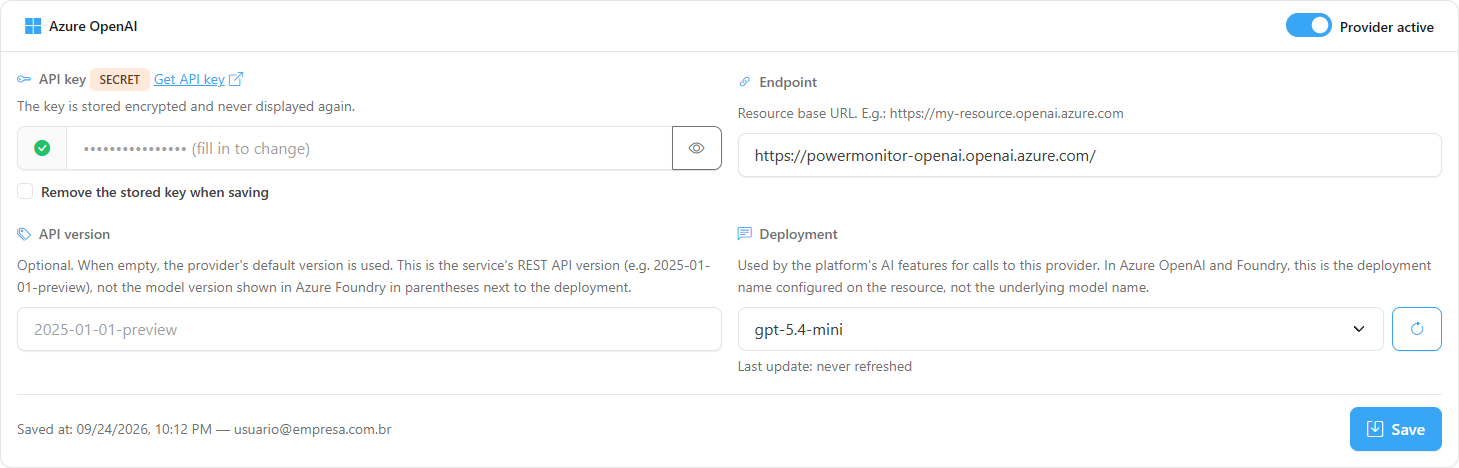
**What it is:** the registration variant for providers hosted on Azure, which require an endpoint and a deployment.

**What it is for:** using AI within your own Azure resource (data and billing in your subscription).

<figure><picture><source srcset="/files/5YyPSXopLI6oh7WHd4mm" media="(prefers-color-scheme: dark)"><img src="https://3938213054-files.gitbook.io/~/files/v0/b/gitbook-x-prod.appspot.com/o/spaces%2FH2bFRBmIfyK3kwVKbldl%2Fuploads%2Fgit-blob-2c6329ca47edf972f2f2eb9f384fa812714f3261%2Fpm-configuracoes-ia-azure-openai-en.png?alt=media" alt="Azure OpenAI form with the Endpoint, API version and Deployment fields"></picture><figcaption><p>Azure OpenAI form</p></figcaption></figure>

**How to use:**

1. Open the **Azure OpenAI** (or **Microsoft Foundry**) tab.
2. Fill in **API key** and **Endpoint** (base URL of the resource, in `https`, e.g.: `https://meu-recurso.openai.azure.com`). If needed, enter the service's **API version**; empty uses the default version.
3. In **Deployment**, click **Refresh models** and choose the deployment, or use **Type manually…** and enter the exact name of the deployment created in the resource.
4. Leave **Provider active** turned on and click **Save**.

### Change the provider in use

**What it is:** disabling the provider at the front of the precedence so that the next one starts responding.

**What it is for:** migrating providers or working around an outage without deleting keys.

**How to use:**

1. Open the tab of the provider currently in use (the first active one in the precedence).
2. Turn off **Provider active** and click **Save**. The tab then shows the yellow icon (key kept, provider disabled).
3. The next active provider in the precedence starts responding to calls.

### Replace or remove a provider's key

**What it is:** replacing or deleting a key that is already saved.

**What it is for:** rotating keys for security or ending the use of a provider.

**How to use:**

1. Open the provider's tab. The **API key** field shows the masked key followed by *(fill in to change)*.
2. To replace it, paste the new key. To remove it, check **Remove the stored key when saving** (for Anthropic, the admin key has the **Remove the stored admin key when saving** option).
3. Click **Save**. Leaving the field empty keeps the current key.

### Monthly AI spend limit

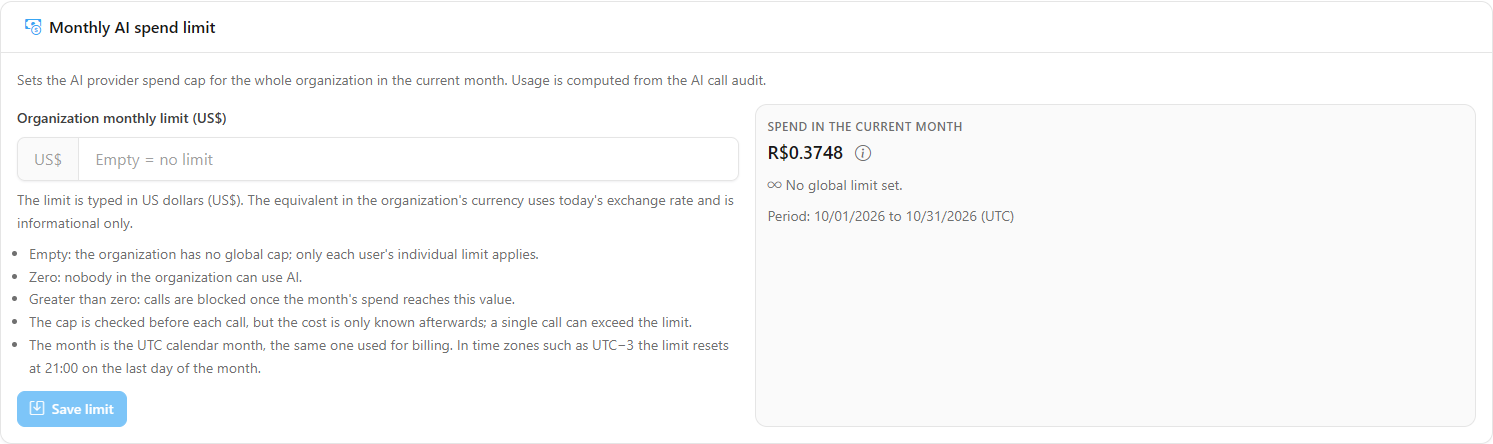
**What it is:** a card that sets a monthly AI spending cap for the whole organization and shows the spending for the current month.

**What it is for:** avoiding surprises on the provider's bill and blocking AI usage when the budget runs out.

<figure><picture><source srcset="/files/QBkFcHlHZX6AhsOzOk9b" media="(prefers-color-scheme: dark)"><img src="https://3938213054-files.gitbook.io/~/files/v0/b/gitbook-x-prod.appspot.com/o/spaces%2FH2bFRBmIfyK3kwVKbldl%2Fuploads%2Fgit-blob-6f1006b47b7792c298cc5b07ee9d9b183a237d36%2Fpm-configuracoes-ia-limite-en.png?alt=media" alt="Monthly AI spend limit card with the spending for the current month"></picture><figcaption><p>Monthly AI spend limit</p></figcaption></figure>

**How to use:**

1. Enter the value in **Organization monthly limit (US$)**: empty (no global cap), **0** (blocks AI for everyone) or a value greater than zero. The limit is always typed in US dollars (US$); below the field, **Equivalent in the organization's currency** shows the value converted at today's exchange rate, for reference only.
2. Click **Save limit** (the button is only enabled when the value has changed). The card then shows *Updated on … by …*.
3. Track the **Spend in the current month** (in the organization's currency) against the limit and the calculation **Period** (UTC).

Invalid values are rejected with *Enter a value greater than or equal to zero, or leave it empty for no limit.* The maximum accepted value is US$ 1,000,000. To limit a specific person, use the [individual limit in Users](/en/power-monitor/usuarios.md#individual-ai-spend-limit).

**How it works / rules:**

| Value of **Organization monthly limit (US$)** | Behavior                                                                                                                                                                          |
| --------------------------------------------- | --------------------------------------------------------------------------------------------------------------------------------------------------------------------------------- |
| **Empty**                                     | No global cap; only each user's individual limits apply. The box shows *No global limit set.*                                                                                     |
| **0 (zero)**                                  | No one in the organization can use AI. The box shows *Limit set to zero: AI usage is blocked for the whole organization.*                                                         |
| **Greater than zero**                         | Calls are blocked when the month's spending reaches this value. The box shows the spending "of" the limit and a progress bar: blue, yellow from 80% and red when it reaches 100%. |

* The month is the **calendar month in UTC** (the same as billing). In Brasília time (UTC−3), the limit resets at 21:00 on the last day of the month.
* The cap is checked **before** each call, but the cost is only known after it: a single call may slightly exceed the limit.
* Spending is calculated from the call audit (the same as the **AI usage** screen). Calls with no known price are left out of the total; the card warns when this happens (actual spending may be higher).
* Each user can also have their own limit, set in [Users](/en/power-monitor/usuarios.md#individual-ai-spend-limit). Both apply at the same time.
* When a limit is reached, the user sees a message explaining the reason (organization limit reached, individual limit reached, limit set to zero or no provider configured).

### Share Power Query structure with the AI

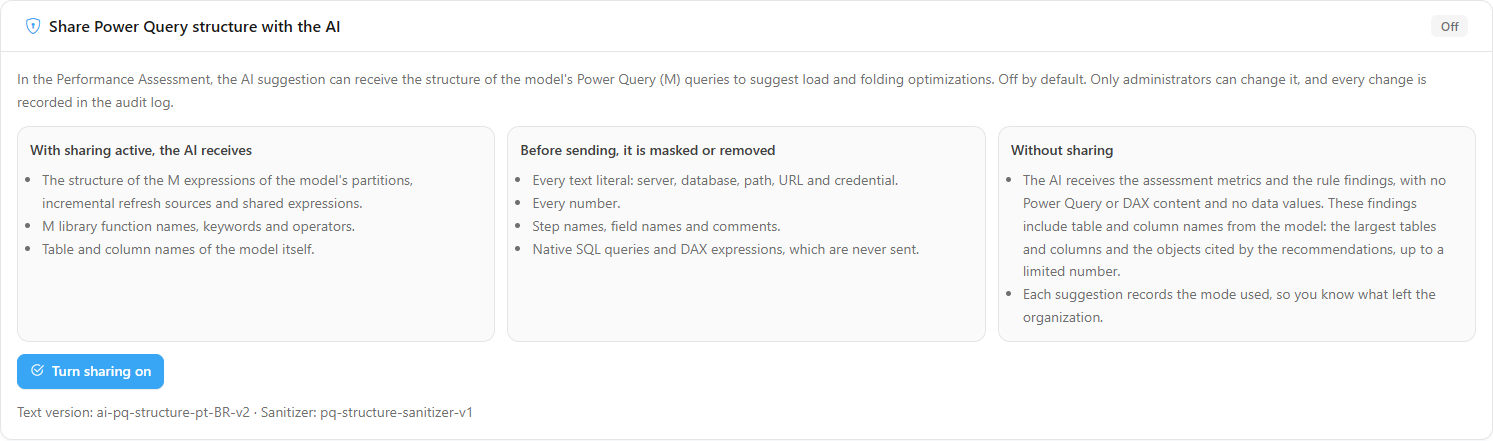
**What it is:** a consent card that controls whether the **AI suggestion** of the [Performance Assessment](/en/power-monitor/performance/avaliacao-de-performance.md) can receive the structure of the Power Query (M) queries of the assessed models. **It is off by default.**

**What it is for:** allowing the AI to suggest load and *query folding* optimizations, knowing exactly what leaves the organization.

<figure><picture><source srcset="/files/4xk91rNDwhsj1z8TkjoX" media="(prefers-color-scheme: dark)"><img src="https://3938213054-files.gitbook.io/~/files/v0/b/gitbook-x-prod.appspot.com/o/spaces%2FH2bFRBmIfyK3kwVKbldl%2Fuploads%2Fgit-blob-7e2368e832681d242f5b7e8a6523975c169e00e9%2Fpm-configuracoes-ia-compartilhamento-power-query-en.png?alt=media" alt="Share Power Query structure with the AI card with the status and the three boxes describing what is sent"></picture><figcaption><p>Sharing Power Query with the AI</p></figcaption></figure>

**How to use (turn on):**

1. Read the card's three boxes (what is sent, what is masked and what applies without sharing).
2. Click **Turn sharing on**.
3. In the **Turn sharing on?** window, click **Turn on** (or **Cancel** to give up).
4. The status changes to **Active** and the card records *Consented on … by …*.

**How to use (turn off):**

1. Click **Turn sharing off**.
2. In the **Turn sharing off?** window, click **Turn off**. Suggestions already generated are not deleted; the next ones receive only metrics and findings.

**How it works / rules:**

| With sharing active, the AI receives                                                                  | Before sending, the following is masked or removed                               |
| ----------------------------------------------------------------------------------------------------- | -------------------------------------------------------------------------------- |
| The structure of the M expressions of partitions, incremental refresh sources and shared expressions. | All literal text: server, database, path, URL and credential.                    |
| M library function names, keywords and operators.                                                     | All numbers.                                                                     |
| Model table and column names.                                                                         | Step names, field names and comments; native SQL queries and DAX are never sent. |

* Without sharing, the AI receives only the assessment metrics and the rule findings (no Power Query or DAX snippets and no data values). Each suggestion records the mode used.
* Possible statuses: **Active**, **Off**, **Awaiting new consent** (the text of the terms has changed; sending is suspended until an administrator clicks **Consent to the current text**) and **Consented, blocked by the platform** (consent is recorded, but sending is turned off by the platform).
* The card footer shows who consented or turned it off and when, as well as the version of the terms text.
* Only administrators can change it, and each change is recorded in the audit.

### Global AI Model Pricing

**What it is:** an informational card with the market price table used to **estimate the cost** of calls.

**What it is for:** checking whether estimated costs are using recent prices and forcing an update when a new model has no price.

<figure><picture><source srcset="/files/v4ezMyUKEGDbi1cnyUHJ" media="(prefers-color-scheme: dark)"><img src="https://3938213054-files.gitbook.io/~/files/v0/b/gitbook-x-prod.appspot.com/o/spaces%2FH2bFRBmIfyK3kwVKbldl%2Fuploads%2Fgit-blob-280dbb74d4fc169ef779e5b8ce527f89dd34a79e%2Fpm-configuracoes-ia-preco-global-en.png?alt=media" alt="Global AI Model Pricing card with the update date and the Force refresh button"></picture><figcaption><p>Global AI Model Pricing</p></figcaption></figure>

**How to use:**

1. Check **Prices last updated at** and the number of tracked models.
2. If you need more recent prices before the automatic daily update, click **Force refresh** (the button shows **Refreshing…**).

**How it works / rules:** the update is automatic, daily, at 03:00 UTC. Prices come from a public market catalog and may not reflect your organization's specific contract with each provider. The table is the same for all organizations on the platform.

### AI usage

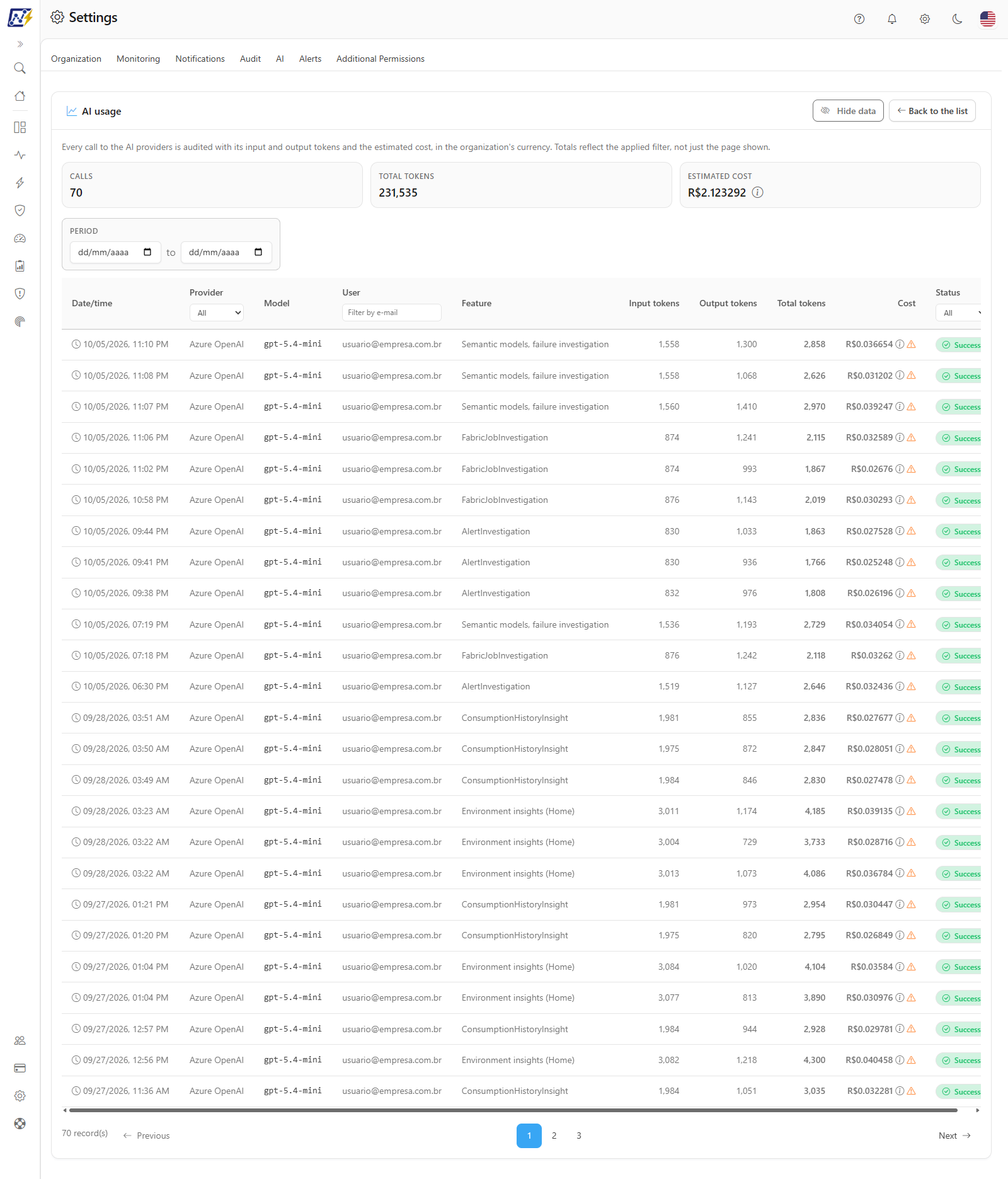
**What it is:** the **AI usage** screen (**View usage** button) audits every call to the providers, with input and output tokens and estimated cost in the organization's currency. At the top, three totals: **Calls**, **Total tokens** and **Estimated cost**.

**What it is for:** having a consolidated view of AI usage in the chosen period, to track budget and adoption.

<figure><picture><source srcset="/files/EQxSIXZmddjZEt16GxPW" media="(prefers-color-scheme: dark)"><img src="https://3938213054-files.gitbook.io/~/files/v0/b/gitbook-x-prod.appspot.com/o/spaces%2FH2bFRBmIfyK3kwVKbldl%2Fuploads%2Fgit-blob-d62f737c6d502531e3a6ea8c91e6867357c4612c%2Fpm-configuracoes-ia-consumo-en.png?alt=media" alt="AI usage screen with totals, filters and the table of calls"></picture><figcaption><p>AI usage</p></figcaption></figure>

<figure><picture><source srcset="/files/TgOTNDQ5oaI6qYLkleNj" media="(prefers-color-scheme: dark)"><img src="https://3938213054-files.gitbook.io/~/files/v0/b/gitbook-x-prod.appspot.com/o/spaces%2FH2bFRBmIfyK3kwVKbldl%2Fuploads%2Fgit-blob-9759d65d36ae62ecef3a21f4653aacdac40e050e%2Fpm-configuracoes-ia-consumo-totais-en.png?alt=media" alt="Calls, Total tokens and Estimated cost totals of the AI usage screen"></picture><figcaption><p>Usage totals</p></figcaption></figure>

**How to use:**

1. In *Settings › AI*, click **View usage** in the header of the **Artificial Intelligence (AI) models** card.
2. Read the totals; they follow the applied filters.
3. To return to the configuration, click **Back to the list**. Next to it is the **Hide data** button (see below).

**How it works / rules:** the totals reflect **the entire applied filter**, not just the page displayed. When there are calls with no known price, the cost total indicates how many were left out.

### AI usage: filters and calls table

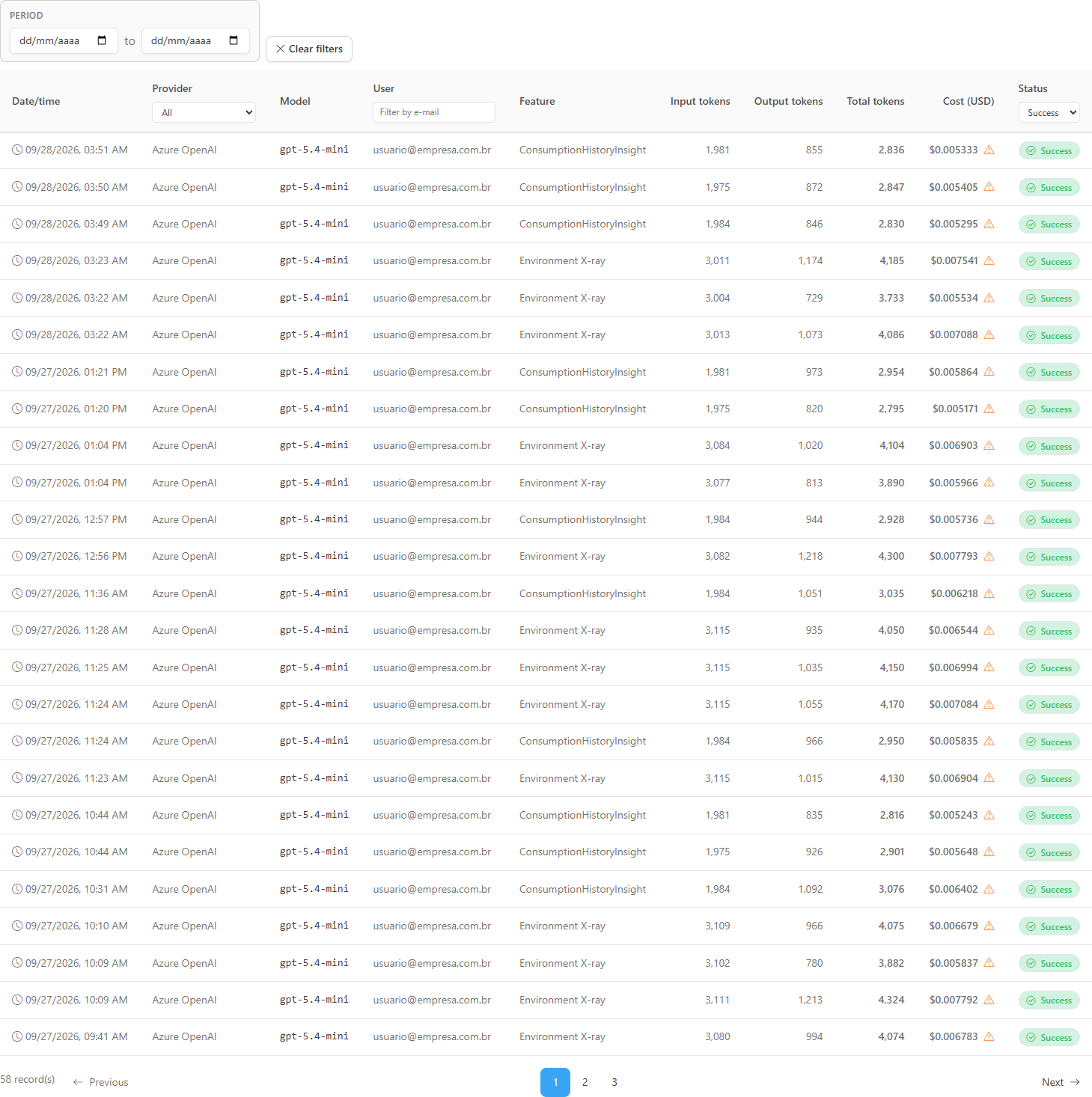
**What it is:** the table with one row per call, with a period filter above it and filters in the column headers.

**What it is for:** answering questions such as "who used AI the most this month?", "which calls failed?" or "how much did the assistant cost last week?".

<figure><picture><source srcset="/files/IC70oSHTxJeeePkHfpWQ" media="(prefers-color-scheme: dark)"><img src="https://3938213054-files.gitbook.io/~/files/v0/b/gitbook-x-prod.appspot.com/o/spaces%2FH2bFRBmIfyK3kwVKbldl%2Fuploads%2Fgit-blob-f7a601457d5fdf7fdb5da00289281bd9493decf4%2Fpm-configuracoes-ia-consumo-filtro-status-en.png?alt=media" alt="AI calls table filtered by status"></picture><figcaption><p>Calls table with a filter applied</p></figcaption></figure>

**How to use:**

1. In **Period**, choose the start and end dates (with no period, the screen shows all calls).
2. In the table headers, filter by **Provider** (list), user (**Filter by e-mail**) and **Status** (**All**, **Success** or **Failed**).
3. To return to the default, click **Clear filters** (shown when a filter is active).
4. Navigate through the pages in the footer (25 calls per page by default); the total number of records is shown next to it. In the **Items per page** selector, choose **10**, **25**, **50**, or **100**; changing the number returns to the first page. The footer appears whenever there is at least one call, even with a single page.

**How it works / rules:**

| Column                                                  | Content                                                                                                                                                                                                     |
| ------------------------------------------------------- | ----------------------------------------------------------------------------------------------------------------------------------------------------------------------------------------------------------- |
| **Date/time**                                           | Time of the call.                                                                                                                                                                                           |
| **Provider** / **Model**                                | Who responded.                                                                                                                                                                                              |
| **User**                                                | Who made the call (**System** for automatic calls).                                                                                                                                                         |
| **Feature**                                             | Where the AI was used (see table below).                                                                                                                                                                    |
| **Input tokens** / **Output tokens** / **Total tokens** | Usage reported by the provider. A yellow icon indicates that the provider did not report it and the values are estimated.                                                                                   |
| **Cost**                                                | Estimated cost of the call, in the organization's currency. A yellow icon indicates an estimated or unknown price (the tooltip explains). The call detail also shows the **Original estimated cost (US$)**. |
| **Status**                                              | **Success** (green) or **Failed** (red).                                                                                                                                                                    |

| Feature (Feature column)                   | Where it comes from                                                     |
| ------------------------------------------ | ----------------------------------------------------------------------- |
| **Capacity analysis**                      | **Explain with AI** on the Capacity Dashboard.                          |
| **Anomaly analysis**                       | **Explain with AI** on Consumption Anomalies.                           |
| **Environment insights (Home)**            | **Explain with AI** on the main Dashboard.                              |
| **Environment X-Ray, summary**             | **Summarize with AI** on the Environment X-Ray dashboard.               |
| **Efficiency analysis**                    | **Explain with AI** on the Efficiency Dashboard.                        |
| **Assistant, routing**                     | First stage of each question to the assistant (choice of data sources). |
| **Assistant, answer**                      | Assistant's answer.                                                     |
| **Performance assessment, suggestion**     | **AI suggestion** of the Performance Assessment.                        |
| **Semantic models, failure investigation** | **Investigate** a refresh failure in Semantic Models.                   |

{% hint style="info" %}
The **Investigate** actions in Fabric Items and Alerts and **Explain with AI** in Consumption History are also recorded but, for now, may appear in the **Feature** column with the technical code (for example, *FabricJobInvestigation*, *AlertInvestigation*, and *ConsumptionHistoryInsight*) instead of a friendly name.
{% endhint %}

{% hint style="info" %}
Each question to the assistant generates **two** usage rows (routing and answer). Calls that fail are also recorded, as the provider may charge for the input tokens.
{% endhint %}

### AI usage: Hide data

**What it is:** the **Hide data** button, in the header of the **AI usage** screen, next to **Back to the list**. Once turned on, it is renamed **Show data**.

**What it is for:** sharing the screen or taking a screenshot of the calls table without exposing who used the AI.

**How it works:** the names and email addresses in the **User** column and in the call detail are shown masked. The button is the same one used on the other Power Monitor screens: your choice applies to all of them and is remembered in this browser. The mask is visual only and does not replace access control. The fields that show who saved an AI setting (*Saved at* and *Updated on*) also respect the choice.

### AI usage: call detail

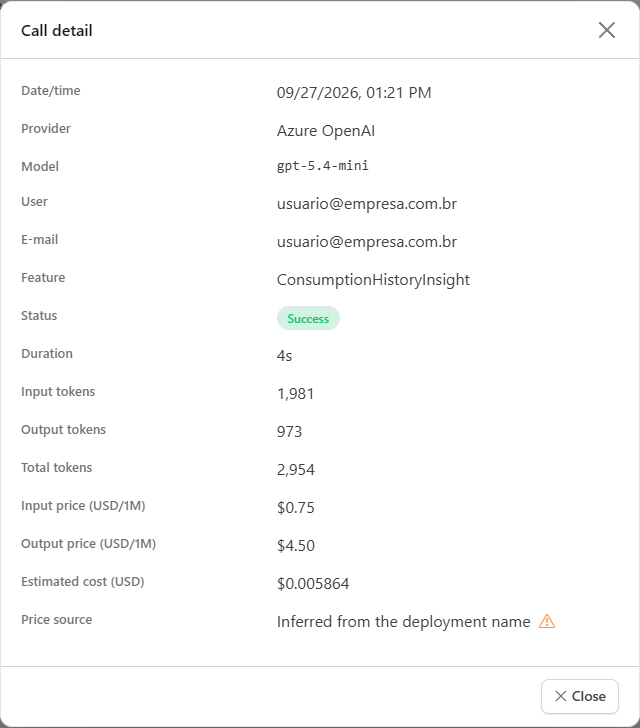
**What it is:** the **Call detail** window, opened by clicking a row in the table.

**What it is for:** investigating a specific call: why it failed, how long it took and how the cost was calculated.

<figure><picture><source srcset="/files/vImefFYWHwP0HpF5IKpd" media="(prefers-color-scheme: dark)"><img src="https://3938213054-files.gitbook.io/~/files/v0/b/gitbook-x-prod.appspot.com/o/spaces%2FH2bFRBmIfyK3kwVKbldl%2Fuploads%2Fgit-blob-08e88426ad8e5e06235b7b4b5289521f0e7be2b7%2Fpm-configuracoes-ia-consumo-detalhe-en.png?alt=media" alt="Call detail window with tokens, prices per million and price source"></picture><figcaption><p>Call detail</p></figcaption></figure>

**How to use:**

1. Click a row in the table (or select it and press Enter).
2. Read the call data.
3. Click **Close** (or outside the window) to go back.

**How it works / rules:** the window shows **Date/time**, **Provider**, **Model**, **User**, **E-mail**, **Feature**, **Status**, **Failure reason** (when it failed), **Duration**, **Input tokens**, **Output tokens**, **Total tokens** (marked *estimated* when the provider did not report them), **Input price (USD/1M)**, **Output price (USD/1M)**, **Estimated cost** (in the organization's currency), **Original estimated cost (US$)** and the **Price source**:

| Price source                          | Meaning                                                                 |
| ------------------------------------- | ----------------------------------------------------------------------- |
| **Provider catalog**                  | Price obtained from the market price catalog.                           |
| **Table versioned in the code**       | Price estimated by an internal reference table.                         |
| **Inferred from the deployment name** | Price deduced from the deployment name (Azure OpenAI/Foundry).          |
| **Unknown**                           | No known price: the cost is not displayed, but the tokens remain valid. |

## Frequently asked questions

<details>

<summary>I registered two keys. Which provider responds?</summary>

The first one in the precedence (Claude, OpenAI, Azure OpenAI, Microsoft Foundry, Google Gemini) that is active, with a key and model defined.

</details>

<details>

<summary>In Azure OpenAI, which name goes in the Deployment field?</summary>

The name of the deployment you created in the resource (Azure AI Foundry), not the name of the underlying model.

</details>

<details>

<summary>Does the cost shown match the provider's bill?</summary>

It is an estimate based on market prices and the reported tokens. Discounts or specific contracts with the provider are not taken into account.

</details>

<details>

<summary>Does the data sent to the AI include data from my tables?</summary>

The AI features send metadata and indicators collected by Power Monitor (consumption, alerts, model structure and best practices, permissions and accesses), not the content of your tables. Power Query is only sent, already masked, if sharing is active. Even so, instruct users not to paste sensitive or customer data into questions to the assistant.

</details>

## Related pages

* [AI Assistant](/en/power-monitor/assistente-de-ia.md)
* [Users › Individual AI limit](/en/power-monitor/usuarios.md#individual-ai-spend-limit)
* [Performance Assessment](/en/power-monitor/performance/avaliacao-de-performance.md)
* [Consumption Anomalies](/en/power-monitor/monitoramento/anomalias-de-consumo.md)


---

# Agent Instructions
This documentation is published with GitBook. GitBook is the documentation platform designed so that both humans and AI agents can read, navigate, and reason over technical content effectively. Learn more at gitbook.com.

## Querying This Documentation
If you need additional information that is not directly available in this page, you can query the documentation by asking a question.

Perform an HTTP GET request on the following URL with the `ask` and `goal` query parameters:

```
GET https://docs.powermonitor.com.br/en/power-monitor/configuracoes/ia.md?ask=<question>&goal=<user_goal>
```

`ask` is the immediate question: it should be specific, self-contained, and written in natural language.
`goal` is what the user is ultimately trying to achieve, the reason they need the answer. Sharing it helps GitBook give you a better, more relevant answer. A goal is most helpful when it describes the outcome the user wants rather than restating the question. For example, with `ask=how do I create an API token`, a goal like `automate deployments from our CI pipeline` lets GitBook tailor the answer to that use case.

The response will contain a direct answer to the question and relevant excerpts and sources from the documentation.

Use this mechanism when the answer is not explicitly present in the current page, you need clarification or additional context, or you want to retrieve related documentation sections.