> For the complete documentation index, see [llms.txt](https://docs.powermonitor.com.br/llms.txt). Markdown versions of documentation pages are available by appending `.md` to page URLs; this page is available as [Markdown](https://docs.powermonitor.com.br/en/power-monitor/configuracoes/organizacao.md).

# Organization

Organization details, integration with Microsoft Entra ID / Power BI and secure replacement of the Service Principal, the secret and the security group.

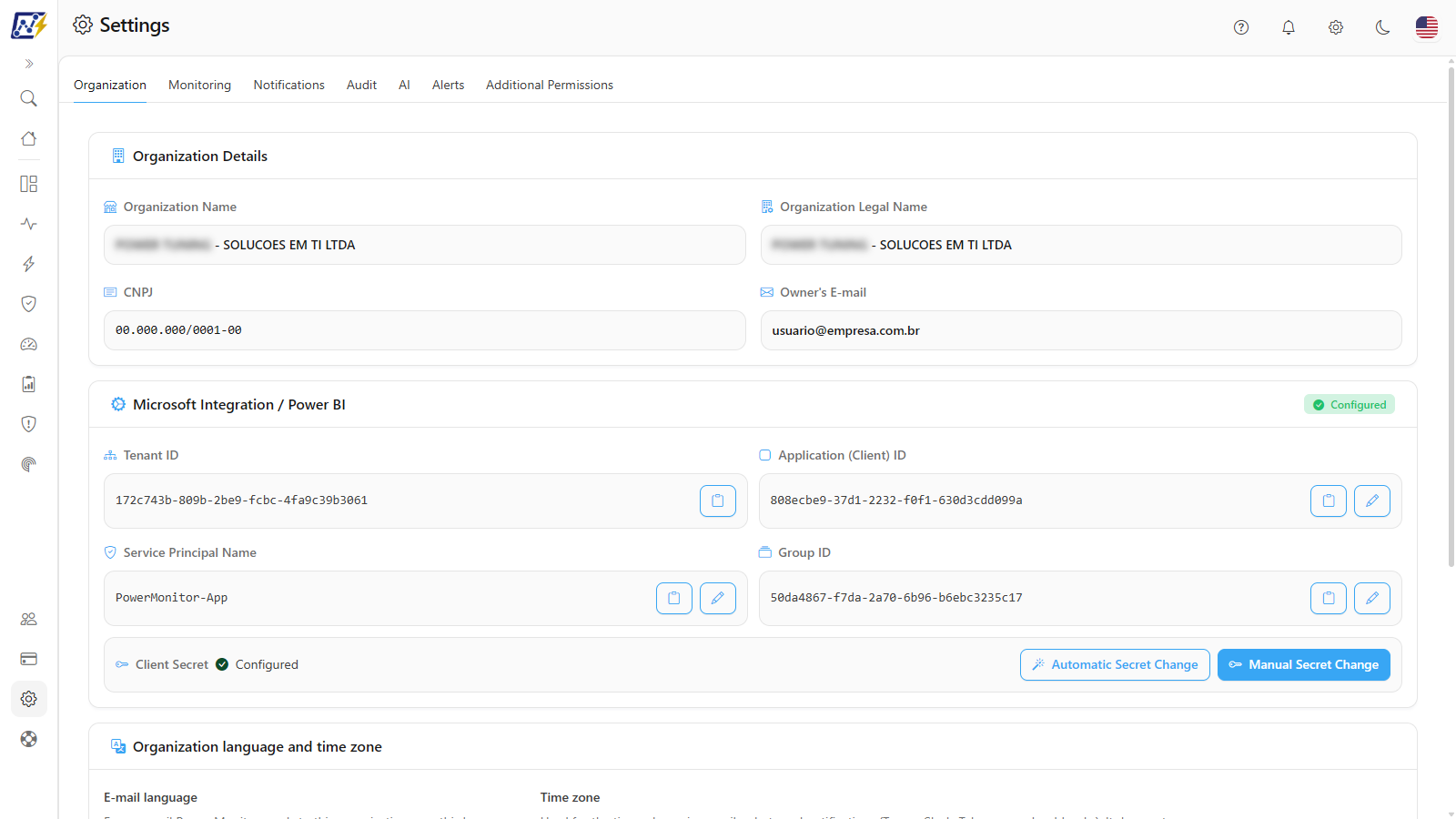
The **Organization** tab shows your organization's registration data and the **integration with Microsoft Entra ID / Power BI**, that is, the application identity (Service Principal) that Power Monitor uses to collect data and perform actions in your tenant. This is also where you replace that credential, renew the secret before it expires and adjust the concurrency of the refresh retry queue.

**How to access:** *Settings › Organization* (or the gear icon at the top of the page). Exclusive to **Administrators**.

<figure><picture><source srcset="/files/A1imemd5PwQJuIDPEw4l" media="(prefers-color-scheme: dark)"><img src="https://3938213054-files.gitbook.io/~/files/v0/b/gitbook-x-prod.appspot.com/o/spaces%2FH2bFRBmIfyK3kwVKbldl%2Fuploads%2Fgit-blob-bead0dcef31109daa91d2ba3445427ae2bac9fb5%2Fpm-configuracoes-abas-en.png?alt=media" alt="Organization tab with the Organization Details and Microsoft Integration / Power BI cards"></picture><figcaption><p>Organization tab</p></figcaption></figure>

## What it is for

* Quickly checking the Tenant ID, App ID and security group used by Power Monitor (useful for opening tickets or reviewing permissions in Entra ID).
* **Renewing the application's client secret** before it expires, without stopping collection.
* **Replacing the Service Principal** or the **security group** (for example, during a reorganization of the tenant's identities).
* Adjusting how many failed refreshes are retried at the same time.
* Setting the **e-mail language** and the **time zone** used in the organization's communications.

## Features

### Organization Details

**What it is:** the **Organization Details** card, with the registration data filled in during installation. The fields are read-only.

**What it is for:** confirming which organization you are in and who is responsible for it.

<figure><picture><source srcset="/files/RW5ob9lRVc7G6ohh6si1" media="(prefers-color-scheme: dark)"><img src="https://3938213054-files.gitbook.io/~/files/v0/b/gitbook-x-prod.appspot.com/o/spaces%2FH2bFRBmIfyK3kwVKbldl%2Fuploads%2Fgit-blob-2e7da9f1d8b9cdac4b47004ce9c7291bed8eec3d%2Fpm-configuracoes-organizacao-dados-en.png?alt=media" alt="Organization Details card with Trade Name, Legal Name, CNPJ and Owner&#x27;s E-mail"></picture><figcaption><p>Organization Details card</p></figcaption></figure>

| Field              | Content                                                                      |
| ------------------ | ---------------------------------------------------------------------------- |
| **Trade Name**     | The organization's trade name.                                               |
| **Legal Name**     | Legal name.                                                                  |
| **CNPJ**           | The organization's Brazilian company registration number, already formatted. |
| **Owner's E-mail** | E-mail of the person who installed/is responsible for the organization.      |

**How to use:** just open *Settings › Organization*. Fields with no value appear as **Not provided**.

**Rules:** the data used for billing and invoicing is maintained in [Billing › Fiscal Data](/en/power-monitor/faturamento.md), not here.

### Microsoft Integration / Power BI

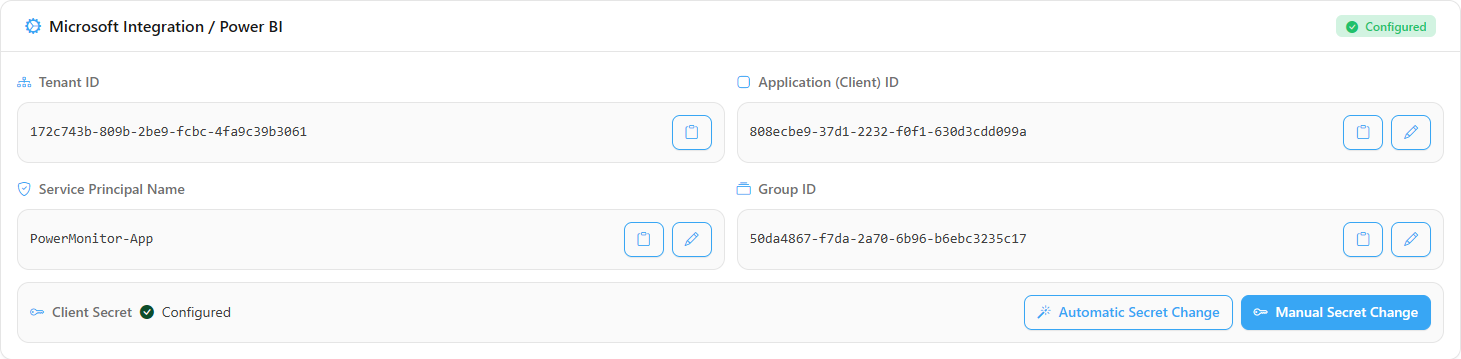
**What it is:** the **Microsoft Integration / Power BI** card, which shows the identifiers of Power Monitor's connection with your tenant and the status badge in the header: **Configured** (green) or **Not configured**.

**What it is for:** knowing at a glance whether the integration is active and which identifiers it uses, for example to check permissions in the Entra ID portal or to inform support.

<figure><picture><source srcset="/files/sqF4xA7Tbh2ZJnTj0JOj" media="(prefers-color-scheme: dark)"><img src="https://3938213054-files.gitbook.io/~/files/v0/b/gitbook-x-prod.appspot.com/o/spaces%2FH2bFRBmIfyK3kwVKbldl%2Fuploads%2Fgit-blob-1e24ac92cea25e134a1a1933f5461130a28ad66c%2Fpm-configuracoes-organizacao-integracao-en.png?alt=media" alt="Microsoft Integration / Power BI card with Tenant ID, Application (Client) ID, Service Principal Name, Group ID and Client Secret"></picture><figcaption><p>Microsoft Integration / Power BI card</p></figcaption></figure>

| Field                       | Description                                                                      | Edit action                                              |
| --------------------------- | -------------------------------------------------------------------------------- | -------------------------------------------------------- |
| **Tenant ID**               | Identifier of your tenant in Microsoft Entra ID.                                 | —                                                        |
| **Application (Client) ID** | App ID (Client ID) of the registered application that Power Monitor uses.        | Pencil: **Replace Service Principal**                    |
| **Service Principal Name**  | Display name of the application on Power Monitor screens.                        | Pencil: **Change Service Principal Name**                |
| **Group ID**                | Object ID of the Entra ID security group included in the Fabric tenant settings. | Pencil: **Replace Group ID**                             |
| **Client Secret**           | Shows only whether a secret is **Configured**; the value is never displayed.     | **Automatic Secret Change** and **Manual Secret Change** |

**How it works:**

* When there is no integration yet, the card shows **Integration not configured** and guidance for configuring the integration with Microsoft Entra ID.
* For security reasons, the client secret is never sent back to the browser after it is saved. The screen only shows whether it exists.
* No replacement is saved before it is validated against Microsoft Entra ID (see the replacement features below).
* The edit buttons (pencil and Client Secret buttons) only appear for **Administrators**.

### Copy an identifier

**What it is:** the copy button next to **Tenant ID**, **Application (Client) ID**, **Service Principal Name** and **Group ID**.

**What it is for:** taking the exact identifier to a ticket, an Azure portal lookup or a script, with no risk of typos.

**How to use:**

1. In the **Microsoft Integration / Power BI** card, find the field.
2. Click the copy button (clipboard icon) next to the value. The icon turns into a check mark and the tooltip shows **Copied!**; the value is on the clipboard.

### Automatic Secret Change

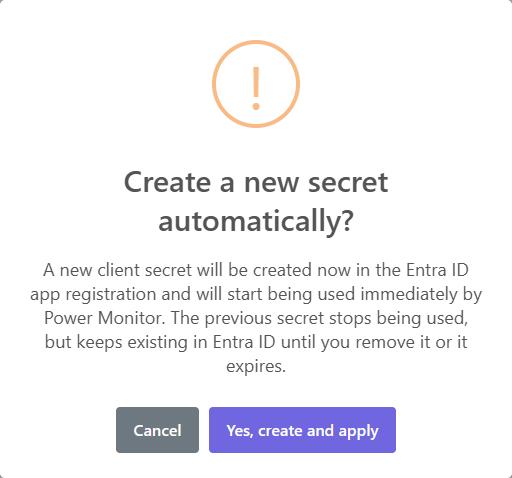
**What it is:** the **Automatic Secret Change** button, in the **Client Secret** field. It creates a **new client secret** in the application registration in Entra ID, valid for 24 months, and starts using it immediately, without you having to paste anything.

**What it is for:** renewing the secret before it expires (or when the expiring secret notice appears) in the fastest and safest way. This is the recommended path.

<figure><picture><source srcset="/files/j3ygbLzM9Arey5nn5VwJ" media="(prefers-color-scheme: dark)"><img src="https://3938213054-files.gitbook.io/~/files/v0/b/gitbook-x-prod.appspot.com/o/spaces%2FH2bFRBmIfyK3kwVKbldl%2Fuploads%2Fgit-blob-900fc45be66417e14ac2302dad64ffc19f456b22%2Fpm-configuracoes-organizacao-alteracao-automatica-secret-en.png?alt=media" alt="Create a new secret automatically? confirmation"></picture><figcaption><p>Automatic Secret Change confirmation</p></figcaption></figure>

**How to use:**

{% stepper %}
{% step %}

### Open the Organization tab

Go to *Settings › Organization* (or click **Change secret** in the notice at the top of the page).
{% endstep %}

{% step %}

### Generate the new secret

In the **Client Secret** field, click **Automatic Secret Change**. In the **Create a new secret automatically?** window, click **Yes, create and apply** (or **Cancel** to give up). If the Microsoft consent window appears, complete it.
{% endstep %}

{% step %}

### Confirm

Wait for the message *New secret created and applied automatically.* The expiration notice stops appearing when the new expiration date is confirmed.
{% endstep %}

{% step %}

### Clean up (optional)

In the Microsoft Entra ID portal, remove the old secret from the application registration when you are sure that nothing else uses it.
{% endstep %}
{% endstepper %}

**Rules:**

* Requires **your Microsoft account** to be **Application Administrator**, **Cloud Application Administrator** or **owner** of the application registration. Otherwise, a message says that your account does not have permission to create a new secret; use the manual change or ask someone who has the role.
* The previous secret is no longer used, but it still exists in Entra ID until you remove it or until it expires.
* Microsoft may take a few minutes to accept a new secret. In the first 15 minutes after any secret change (automatic or manual), collections that find the secret not yet accepted wait and continue once it takes effect, instead of failing.
* The first time, Power Monitor may open a **Microsoft consent** window to act with your account. If it is closed without being completed, *Microsoft Graph consent was not completed. Try again and finish the consent window.* is displayed.

### Manual Secret Change

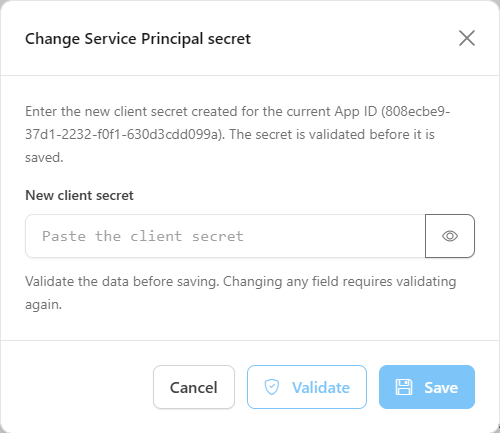
**What it is:** the **Manual Secret Change** button, which opens the **Change Service Principal secret** modal so that you can paste a secret you created in the portal.

**What it is for:** replacing the secret when you have already generated a new client secret for the **current App ID** in Microsoft Entra ID (for example, because of an internal secret creation policy).

<figure><picture><source srcset="/files/2lnTI2iufBsVrOneLi7k" media="(prefers-color-scheme: dark)"><img src="https://3938213054-files.gitbook.io/~/files/v0/b/gitbook-x-prod.appspot.com/o/spaces%2FH2bFRBmIfyK3kwVKbldl%2Fuploads%2Fgit-blob-b9b43b691f37fd3d0ce89398084b5a8c17cac69a%2Fpm-configuracoes-organizacao-trocar-secret-en.png?alt=media" alt="Change Service Principal secret modal"></picture><figcaption><p>Manual secret change</p></figcaption></figure>

**How to use:**

{% stepper %}
{% step %}

### Open the modal

In the **Client Secret** field, click **Manual Secret Change**. The **Change Service Principal secret** modal opens.
{% endstep %}

{% step %}

### Paste and validate

Paste the value in **New client secret** (use **Show secret** to check it) and click **Validate**. If the secret is accepted, *Secret accepted for the Service Principal …* is displayed; if not, the message indicates the reason (for example, *The client secret entered has already expired. Generate a new one in Entra ID.*).
{% endstep %}

{% step %}

### Save

Click **Save** and confirm with **Save secret**. *Service Principal secret changed.* is displayed and the new secret is used immediately in all collections.
{% endstep %}
{% endstepper %}

**Rules:** the **Save** button is only enabled after a successful validation; changing the field requires validating again. Closing the modal discards what was typed.

### Replace Service Principal

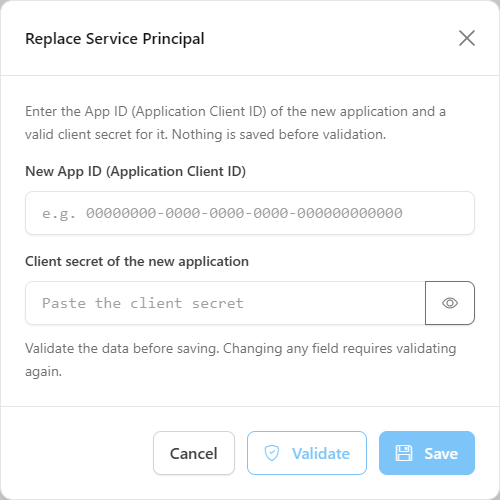
**What it is:** the pencil next to **Application (Client) ID**, which opens the **Replace Service Principal** modal to point Power Monitor to **another registered application**.

**What it is for:** migrating to a new application registration (for example, during a reorganization of the tenant's identities or when the old application needs to be decommissioned).

<figure><picture><source srcset="/files/OxkN2AnQSAyV1xZdxHXd" media="(prefers-color-scheme: dark)"><img src="https://3938213054-files.gitbook.io/~/files/v0/b/gitbook-x-prod.appspot.com/o/spaces%2FH2bFRBmIfyK3kwVKbldl%2Fuploads%2Fgit-blob-b0157b4c584a63142c4c0070e15e1d401a767a7c%2Fpm-configuracoes-organizacao-trocar-service-principal-en.png?alt=media" alt="Replace Service Principal modal with the App ID and client secret fields"></picture><figcaption><p>Replace Service Principal modal</p></figcaption></figure>

**How to use:**

{% stepper %}
{% step %}

### Open the modal

In the **Application (Client) ID** field, click the pencil. The **Replace Service Principal** modal opens.
{% endstep %}

{% step %}

### Enter App ID and secret

Fill in **New App ID (Application Client ID)** (GUID format, for example `00000000-0000-0000-0000-000000000000`) and **Client secret of the new application**.
{% endstep %}

{% step %}

### Validate

Click **Validate**. Power Monitor looks for the application in your tenant and tests the credential. If it succeeds, *Service Principal found and credential accepted: …* is displayed. If you change any field after that, you will need to validate again.
{% endstep %}

{% step %}

### Confirm the replacement

Click **Save**. The **Replace the Service Principal?** window lists the impacts; click **Yes, replace the Service Principal**.
{% endstep %}

{% step %}

### Grant the permissions to the new application

Go to [Additional Permissions](/en/power-monitor/configuracoes/permissoes-adicionais.md) and grant the permissions (use **Grant all needed permissions**). Also add the new Service Principal to the workspaces, gateways and connections. Until then, collection, alerts and automatic actions are stopped.
{% endstep %}
{% endstepper %}

**Rules:**

* All permissions must be granted again to the new Service Principal: Fabric tenant settings, workspaces, Microsoft Graph, gateways and connections, Azure capacities and costs.
* The previous application is no longer used, but it still exists in Entra ID with the permissions it already had.
* Common validation errors: *No Service Principal with this App ID was found in your tenant.*, *The application belongs to another Microsoft Entra ID tenant.* and *The client secret is not valid for this App ID.*

{% hint style="danger" %}
Replacing the Service Principal is **irreversible**: Power Monitor does not keep the previous credentials. Plan the maintenance window and have at hand the people who can grant permissions in Fabric, Entra ID and Azure.
{% endhint %}

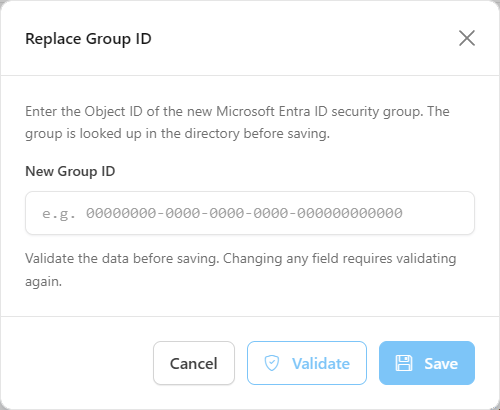
### Replace Group ID

**What it is:** the pencil next to **Group ID**, which opens the **Replace Group ID** modal to change the Entra ID security group used in the Fabric tenant settings.

**What it is for:** starting to use another security group, for example when the identity team consolidates groups or renames the tenant's structure.

<figure><picture><source srcset="/files/LS0FSnmbWLP7n45iGfYq" media="(prefers-color-scheme: dark)"><img src="https://3938213054-files.gitbook.io/~/files/v0/b/gitbook-x-prod.appspot.com/o/spaces%2FH2bFRBmIfyK3kwVKbldl%2Fuploads%2Fgit-blob-6e451656e7b0458349ab88238d071bd19fc0a57e%2Fpm-configuracoes-organizacao-trocar-group-id-en.png?alt=media" alt="Replace Group ID modal with the New Group ID field"></picture><figcaption><p>Replace Group ID modal</p></figcaption></figure>

**How to use:**

{% stepper %}
{% step %}

### Prepare the group

In Microsoft Entra ID, confirm that the Power Monitor Service Principal is a member of the new security group.
{% endstep %}

{% step %}

### Enter and validate

In the **Group ID** field, click the pencil. In the **Replace Group ID** modal, fill in **New Group ID** (Object ID of the group) and click **Validate**. If it succeeds, *Group found: …* is displayed.
{% endstep %}

{% step %}

### Confirm

Click **Save** and, in the **Replace the security group?** window, click **Yes, replace the group**.
{% endstep %}

{% step %}

### Reapply the Fabric settings

In [Additional Permissions](/en/power-monitor/configuracoes/permissoes-adicionais.md), use **Apply settings** in the Fabric basic permissions card to point the tenant settings to the new group.
{% endstep %}
{% endstepper %}

**Rules:** until the tenant settings are reapplied to the new group, collection and automatic actions may fail. The replacement is also **irreversible**: Power Monitor does not keep the previous group.

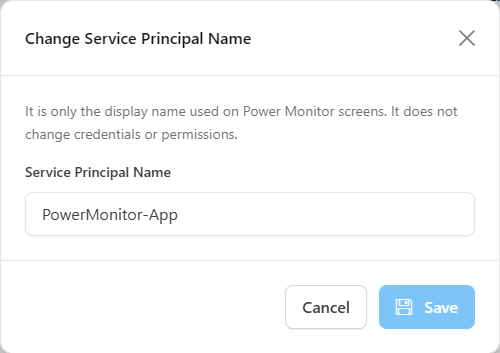
### Change Service Principal Name

**What it is:** the pencil next to **Service Principal Name**, which opens the **Change Service Principal Name** modal.

**What it is for:** correcting or standardizing the name with which the application appears on Power Monitor screens. It does not change credentials or permissions.

<figure><picture><source srcset="/files/gNCJaFB08VUJa05EDhZo" media="(prefers-color-scheme: dark)"><img src="https://3938213054-files.gitbook.io/~/files/v0/b/gitbook-x-prod.appspot.com/o/spaces%2FH2bFRBmIfyK3kwVKbldl%2Fuploads%2Fgit-blob-fbe08dc5b0759087098e3109de4367028ff8d7eb%2Fpm-configuracoes-organizacao-nome-entidade-en.png?alt=media" alt="Change Service Principal Name modal"></picture><figcaption><p>Change Service Principal Name modal</p></figcaption></figure>

**How to use:**

1. In the **Service Principal Name** field, click the pencil.
2. In the **Change Service Principal Name** modal, type the new name and click **Save**.
3. Confirm with **Save name**. *Service Principal Name changed.* is displayed.

**Rules:** the name is required, has a maximum of 256 characters and cannot contain line breaks, tabs or other control characters.

### Organization language and time zone

**What it is:** the **Organization language and time zone** card, with the **E-mail language** and **Time zone** fields.

**What it is for:** making e-mails arrive in your team's language and showing the times in communications on the organization's local clock.

<figure><picture><source srcset="/files/YN7vCWx4FaHDkGBvN67l" media="(prefers-color-scheme: dark)"><img src="https://3938213054-files.gitbook.io/~/files/v0/b/gitbook-x-prod.appspot.com/o/spaces%2FH2bFRBmIfyK3kwVKbldl%2Fuploads%2Fgit-blob-40070b76a9c6ee40487b53bd8b67b8a050035e33%2Fpm-configuracoes-organizacao-idioma-fuso-en.png?alt=media" alt="Organization language and time zone card with the E-mail language and Time zone fields"></picture><figcaption><p>Organization language and time zone card</p></figcaption></figure>

| Field               | Description                                                                                                                                                                                                                                                                                                          |
| ------------------- | -------------------------------------------------------------------------------------------------------------------------------------------------------------------------------------------------------------------------------------------------------------------------------------------------------------------- |
| **E-mail language** | Language of every e-mail Power Monitor sends to the organization: alerts, trial notices, reports and other notifications. The options show the flag and the language name in the language itself (Português, English, Español, Italiano and 日本語).                                                                    |
| **Time zone**       | Time zone used for the times in e-mails, alerts and notifications in Microsoft Teams, Slack, Telegram and webhooks. The list can be searched by city, region or offset (for example, *sao paulo*, *tokyo* or *-03*), and **Now in this time zone** below the field shows the current time in the selected time zone. |

**How to use:**

1. In *Settings › Organization*, choose the **E-mail language** and the **Time zone**.
2. Check the time in **Now in this time zone**.
3. Click **Save**. *Language and time zone updated.* is displayed.

**Rules:**

* Only **Administrators** change the language and the time zone. Other users see the fields disabled, with the notice *Only administrators can change the organization language and time zone.*
* The time zone does not change the day of the metrics or schedule times (such as refresh schedules and capacity pause schedules), which have their own time zone.
* The time zone is first set during installation, in the **Organization** step, with a default that follows the selected country. When no time zone is set, Brasília time (America/Sao\_Paulo) applies; when no language is set, Portuguese applies.
* The e-mail language does not change the interface language, which each user chooses for themselves.

### Refresh retry

**What it is:** the **Refresh retry** card, with the **Concurrent items in the retry queue** field: how many failed semantic model refreshes are retried at the same time by your organization.

**What it is for:** balancing the speed of recovery from failures with the load on the capacity. A higher value processes the queue faster; a lower value avoids triggering many refreshes at the same time.

<figure><picture><source srcset="/files/uBxLzQh6vqBRXI3iURSv" media="(prefers-color-scheme: dark)"><img src="https://3938213054-files.gitbook.io/~/files/v0/b/gitbook-x-prod.appspot.com/o/spaces%2FH2bFRBmIfyK3kwVKbldl%2Fuploads%2Fgit-blob-63ea21f410f689151a8bde06190bce9c15f1a61e%2Fpm-configuracoes-organizacao-reprocessamento-refresh-en.png?alt=media" alt="Refresh retry card with the Concurrent items in the retry queue field"></picture><figcaption><p>Refresh retry card</p></figcaption></figure>

**How to use:**

1. In the **Refresh retry** card, enter in **Concurrent items in the retry queue** a whole number from **1 to 10**.
2. Click **Save**. *Retry queue concurrency saved successfully.* is displayed. Values outside the range show *Enter an integer between 1 and 10.* and the button is disabled.

**How it works:** the queue itself (which refreshes are waiting for a new attempt) is tracked in [Monitoring › Semantic Models](/en/power-monitor/monitoramento/modelos-semanticos.md).

## Rules and behavior

### Validation before saving

Service Principal, secret (manual) and Group ID replacements follow the same pattern: you enter the new value, click **Validate**, and Power Monitor checks the format, looks for the object in the directory and (when applicable) actually tests the credential. Only then is the **Save** button enabled, and a confirmation summarizes the impacts. Changing any field requires validating again.

To query the directory, Power Monitor uses your account: the first time, it may open a **Microsoft consent** window. Complete the window to continue.

| Replacement                       | When to use                                                          | What happens                                                                                             |
| --------------------------------- | -------------------------------------------------------------------- | -------------------------------------------------------------------------------------------------------- |
| **Automatic Secret Change**       | Renewing the secret without having to create it in the Azure portal. | Creates a new client secret (24 months) in the application registration and starts using it immediately. |
| **Manual Secret Change**          | You have already created a new secret in Entra ID.                   | The pasted secret is validated against the **current App ID** and is used immediately.                   |
| **Replace Service Principal**     | Switching to another registered application.                         | Requires granting all permissions again. Irreversible.                                                   |
| **Replace Group ID**              | Changing the security group used in the Fabric tenant settings.      | Requires reapplying the tenant settings to the new group. Irreversible.                                  |
| **Change Service Principal Name** | Correcting the displayed name.                                       | Only changes the label on the screens.                                                                   |

### App secret expiration

* Power Monitor checks **once a day** the expiration date of the client secret in use, reading the application registration in Microsoft Graph. For this, the Service Principal needs the `Application.Read.All` (or `Directory.Read.All`) permission, which can be verified in the **App secret expiration** card in [Additional Permissions](/en/power-monitor/configuracoes/permissoes-adicionais.md).
* When there are **fewer than 30 days** left until expiration (or the secret has already expired), a **notice appears at the top of every page**, for all users. Administrators see the **Change secret** button; other users are instructed to notify an administrator. The notice can be closed, but it comes back when you change pages while the problem persists.
* While within this window, the **organization's administrators receive one e-mail per day** (around 09:00, Brasília time, UTC-3) reminding them of the expiration.
* If the secret expires, **all data collection stops** until it is replaced. Therefore, renew it in advance, preferably through **Automatic Secret Change**.
* After a secret or Service Principal replacement, the expiration is checked again and the notice disappears when the new date is confirmed.

### Permissions

* The screen and all replacements are exclusive to Administrators; directory actions use the Microsoft Entra ID account of whoever clicks.

## Frequently asked questions

<details>

<summary>The Automatic Secret Change failed saying that my account does not have permission. What now?</summary>

Creating a secret in the application registration requires being an **Application Administrator** (or **Cloud Application Administrator**) in Microsoft Entra ID, or being an owner of the registration. Ask someone who has this role to perform the action, or create the secret manually in the portal and use **Manual Secret Change**.

</details>

<details>

<summary>Can I see the current secret?</summary>

No. The secret is stored encrypted and is never displayed. If you need a new one, generate it with the change buttons.

</details>

<details>

<summary>I replaced the Service Principal and the data stopped arriving. Why?</summary>

The new application does not yet have the old one's permissions. Grant them in [Additional Permissions](/en/power-monitor/configuracoes/permissoes-adicionais.md) (use **Grant all needed permissions**) and add the Service Principal to the workspaces.

</details>

<details>

<summary>I clicked Validate and the Save button is still disabled.</summary>

**Save** is only enabled when validation succeeds for the current field values. Read the message displayed below the fields, correct the value and click **Validate** again. Any change after validating requires a new validation.

</details>

## Related pages

* [Additional Permissions](/en/power-monitor/configuracoes/permissoes-adicionais.md)
* [Monitoring](/en/power-monitor/configuracoes/monitoramento.md)
* [Configuring Azure permissions for Power Monitor](/en/readme/como-instalar-o-power-monitor/configuracao-de-permissoes-no-azure-para-o-power-monitor.md)
* [Interface and navigation](/en/power-monitor/interface-e-navegacao.md): notices displayed at the top of the pages.


---

# Agent Instructions
This documentation is published with GitBook. GitBook is the documentation platform designed so that both humans and AI agents can read, navigate, and reason over technical content effectively. Learn more at gitbook.com.

## Querying This Documentation
If you need additional information that is not directly available in this page, you can query the documentation by asking a question.

Perform an HTTP GET request on the following URL with the `ask` and `goal` query parameters:

```
GET https://docs.powermonitor.com.br/en/power-monitor/configuracoes/organizacao.md?ask=<question>&goal=<user_goal>
```

`ask` is the immediate question: it should be specific, self-contained, and written in natural language.
`goal` is what the user is ultimately trying to achieve, the reason they need the answer. Sharing it helps GitBook give you a better, more relevant answer. A goal is most helpful when it describes the outcome the user wants rather than restating the question. For example, with `ask=how do I create an API token`, a goal like `automate deployments from our CI pipeline` lets GitBook tailor the answer to that use case.

The response will contain a direct answer to the question and relevant excerpts and sources from the documentation.

Use this mechanism when the answer is not explicitly present in the current page, you need clarification or additional context, or you want to retrieve related documentation sections.