> For the complete documentation index, see [llms.txt](https://docs.powermonitor.com.br/llms.txt). Markdown versions of documentation pages are available by appending `.md` to page URLs; this page is available as [Markdown](https://docs.powermonitor.com.br/en/power-monitor/dashboards/dashboard-de-permissoes.md).

# Permissions Dashboard

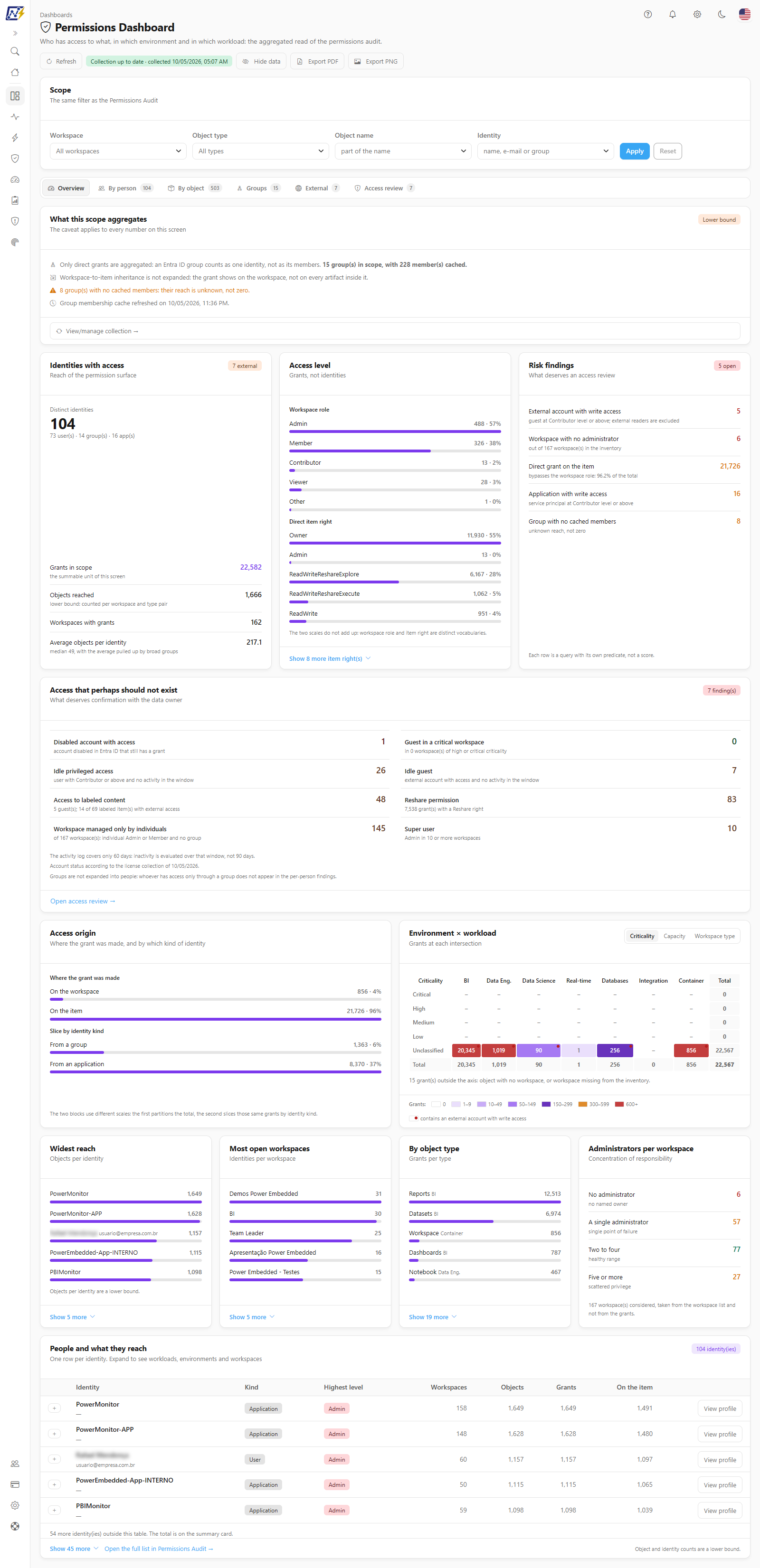
Aggregated view of tenant permissions: who has access to what, in which environment and in which workload, with risk findings, Entra ID group reach and external accounts.

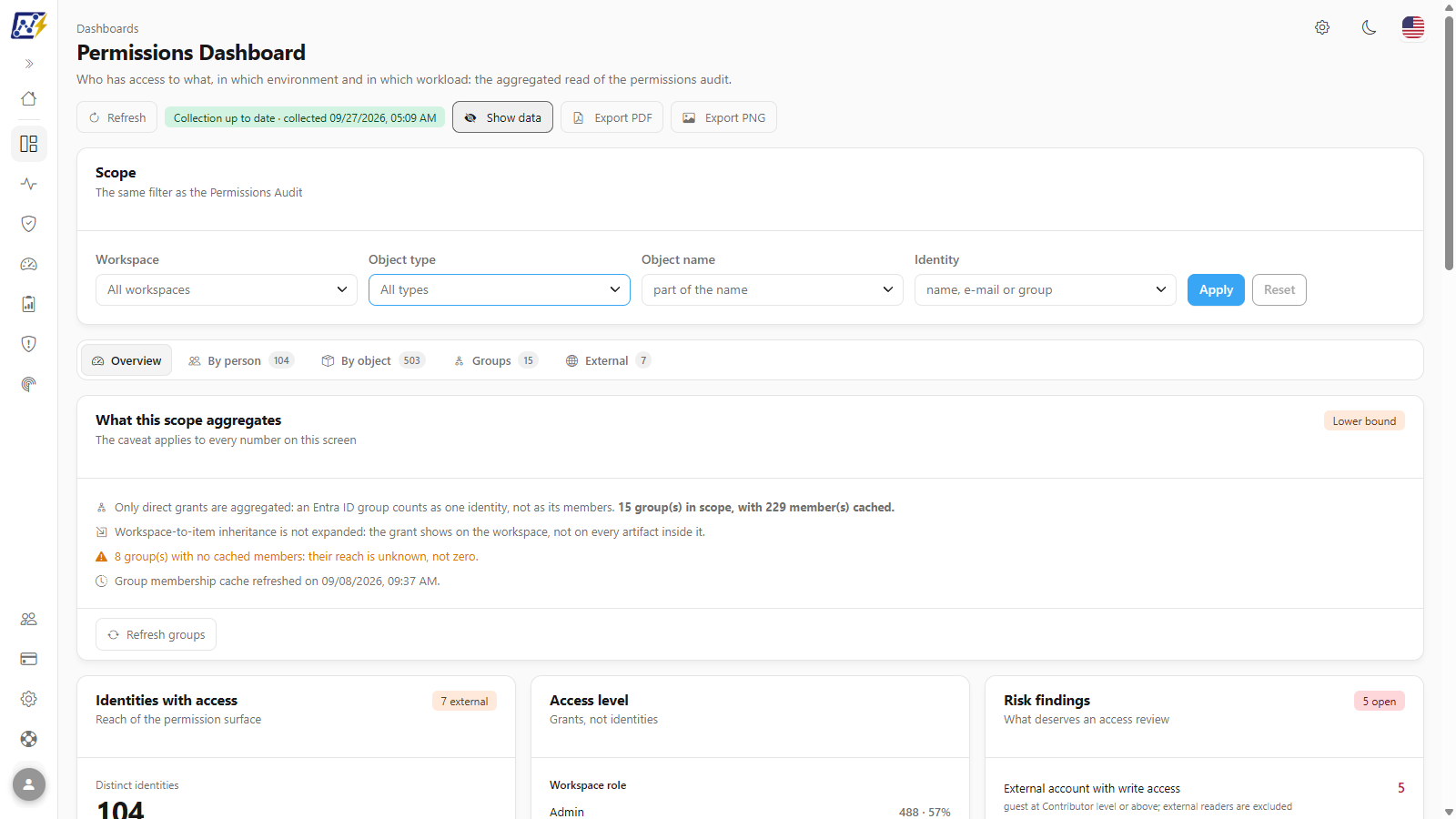
The **Permissions Dashboard** answers the "plural" questions about tenant permissions: how many identities have access, where the access surface is concentrated, who reaches the most objects, which workspaces are the most open and how many external accounts or applications have write permission. It uses the **same data universe and the same filter** as the [Permissions Audit](/en/power-monitor/auditoria/auditoria-de-permissoes.md) screen, which lists the same permissions row by row.

**How to access:** menu **Dashboards › Permissions Dashboard**.

**Who can access:** anyone who has the page enabled in their access profile (administrators always have access). The screen does not change any permission in Fabric/Power BI; the group membership cache it uses is refreshed automatically once a day and, on demand, in [Mapping › Inventory › Group Members](/en/power-monitor/mapeamento/membros-de-grupos.md), which the screen reaches through the **View/manage collection →** link. The data respects the user's **workspace scope**, and an administrator can **block the page** for specific users on the [Users](/en/power-monitor/usuarios.md) screen.

<figure><picture><source srcset="/files/QC9dvumy44d7wtec4ZmL" media="(prefers-color-scheme: dark)"><img src="https://3938213054-files.gitbook.io/~/files/v0/b/gitbook-x-prod.appspot.com/o/spaces%2FH2bFRBmIfyK3kwVKbldl%2Fuploads%2Fgit-blob-bbe8e5863f52c0c4c32ba2cc7802d68555fed152%2Fpm-dashboards-permissoes-visao-geral-en.png?alt=media" alt="Permissions Dashboard on the Overview tab, with scope filters, caveat and summary cards"></picture><figcaption><p>Permissions Dashboard: Overview tab</p></figcaption></figure>

## What it is for

* **Periodic access review:** measure the tenant's access surface and track the **risk findings** (external account with write access, workspace with no administrator, application with write access, direct grants on items).
* **Principle of least privilege:** find the identities with the **widest reach** and the **most open workspaces**, and check how much of the access is granted directly on the item, bypassing the workspace role.
* **Assessment by environment:** cross the workspace criticality (or capacity type, or workspace type) with the workload (BI, Data Engineering, Data Science etc.) to see where grants are concentrated.
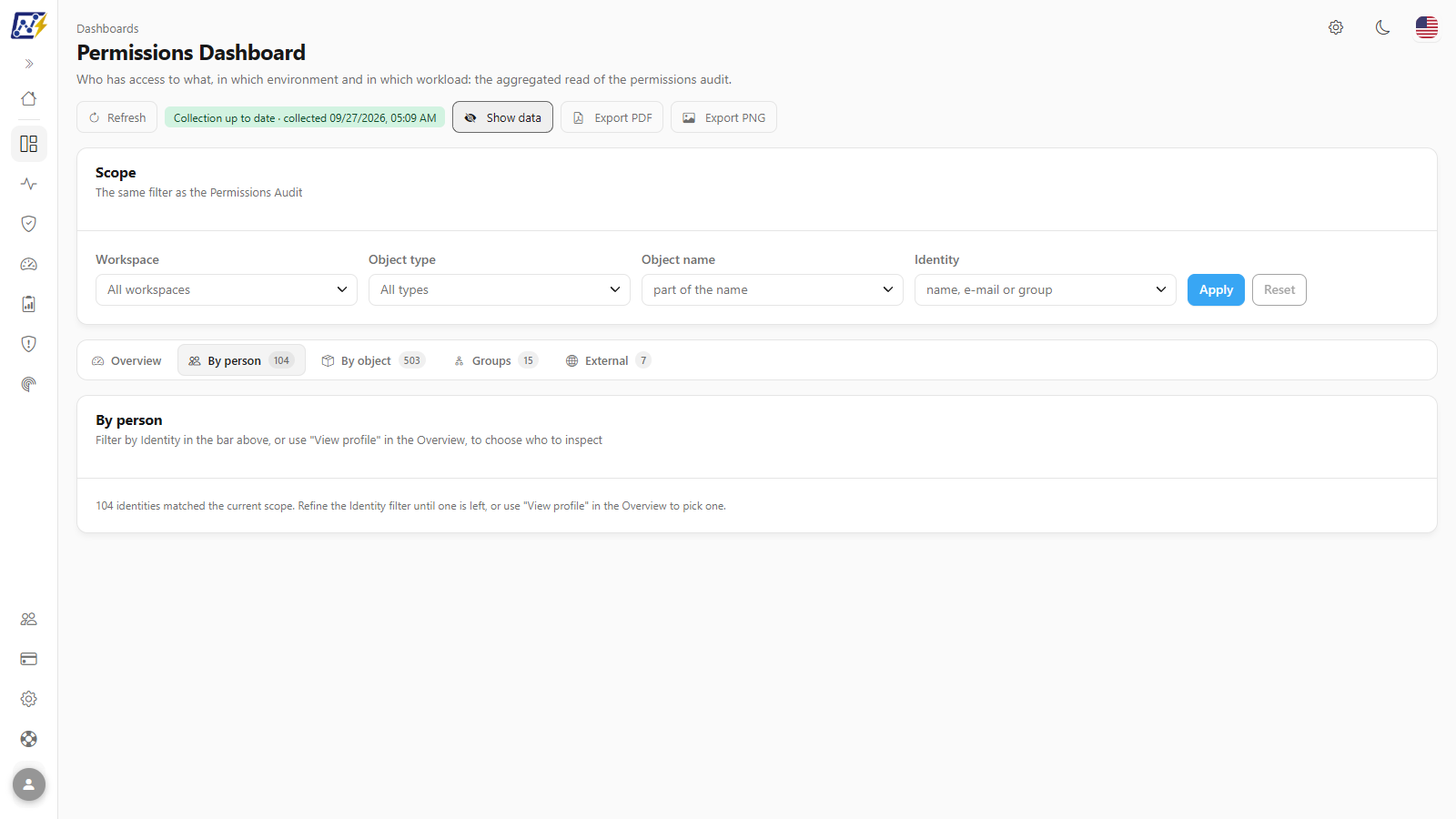
* **Investigating a person:** filter by an email and see, on the **By person** tab, all the workspaces and paths through which that identity has access.
* **Entra ID groups and external accounts:** assess the potential reach of each group and review all guest accounts.

## Features

### Refresh and collection badge

**What it is:** the **Refresh** button and the permission collection freshness badge, in the header.

**What it is for:** knowing whether the numbers reflect the current state of the tenant before making a decision (for example, before an audit) and reloading the screen after a new collection.

<figure><picture><source srcset="/files/pmr8a66hhRPKakWIwIhS" media="(prefers-color-scheme: dark)"><img src="https://3938213054-files.gitbook.io/~/files/v0/b/gitbook-x-prod.appspot.com/o/spaces%2FH2bFRBmIfyK3kwVKbldl%2Fuploads%2Fgit-blob-ede5174024f6e4ecc77417486f800b7fc1bcce69%2Fpm-dashboards-permissoes-cabecalho-en.png?alt=media" alt="Permissions Dashboard header with Refresh, collection badge, Hide data, Export PDF and Export PNG"></picture><figcaption><p>Header with the collection badge and actions</p></figcaption></figure>

**How to use:** click **Refresh** to reload the dashboard with the applied scope. Read the badge next to it:

| Badge                             | Meaning                                        |
| --------------------------------- | ---------------------------------------------- |
| **Collection up to date** (green) | Last permission collection up to 24 hours ago. |
| **Collection behind** (amber)     | Last collection between 24 and 72 hours ago.   |
| **Collection badly behind** (red) | Last collection more than 72 hours ago.        |
| **No collection**                 | No collection recorded.                        |

The badge also shows the collection date ("collected {date}").

**How it works:** **Refresh** rereads the data already collected; it does not trigger a new collection in Fabric. Permissions come from the [Mapping › Inventory › Inventory](/en/power-monitor/mapeamento/inventarios.md) and from the gateway and connection scans.

### Hide data

**What it is:** the **Hide data** / **Show data** button, which masks identity names and emails across the whole screen (e.g. `j•••a@e•••.com`), including in files exported from it.

**What it is for:** presenting the access review, sharing the screen or taking screenshots without exposing people.

**How to use:**

1. Click **Hide data**. The button is highlighted and changes to **Show data**.
2. Browse the tabs normally: tables, rankings, profile and group members are masked.
3. Click **Show data** to undo. The choice is saved in the browser and also applies to the other screens that have the button (for example, the [Report Access Dashboard](/en/power-monitor/dashboards/dashboard-de-visualizacoes.md) and the [Permissions Audit](/en/power-monitor/auditoria/auditoria-de-permissoes.md)).

{% hint style="warning" %}
**Hide data** is a presentation feature, not a security feature: it only hides the information on the screen, and the data remains loaded in the browser. Turn it on before sharing the screen or exporting the page, especially on the **Groups** and **External** tabs, which display emails of real people.
{% endhint %}

### Export PDF and Export PNG

**What it is:** the **Export PDF** and **Export PNG** buttons in the header, which generate a file of the page as it appears on the screen.

**What it is for:** attaching the access review to audit minutes, an email or a presentation.

**How to use:**

1. Choose the scope and the tab you want to record (the file includes only the open tab).
2. If you are going to share it, click **Hide data** first.
3. Click **Export PDF** or **Export PNG**. While the file is being generated, the button shows **Exporting…** and both buttons are disabled.
4. The file `dashboard-permissoes-YYYY-MM-DD` is downloaded by the browser.

**How it works:** the controls (header buttons, filter fields, tabs, matrix axis selector and "Show more" buttons) are omitted from the file, which shows only the data. There is no CSV export here; for row-by-row permissions, use the [Permissions Audit](/en/power-monitor/auditoria/auditoria-de-permissoes.md).

### Scope (filters)

**What it is:** the **Scope** card ("The same filter as the Permissions Audit"), with four filters and the **Apply** and **Reset** buttons. A badge shows *"N filter(s) applied"*.

**What it is for:** restricting the whole analysis to a set of workspaces, an object type (for example, only Lakehouses), objects with a given name or a person or group.

<figure><picture><source srcset="/files/Dq8SWw0HiOSRS1ATwQ0R" media="(prefers-color-scheme: dark)"><img src="https://3938213054-files.gitbook.io/~/files/v0/b/gitbook-x-prod.appspot.com/o/spaces%2FH2bFRBmIfyK3kwVKbldl%2Fuploads%2Fgit-blob-e07c1e17b4ac867a83794d865a43cd117116f126%2Fpm-dashboards-permissoes-recorte-en.png?alt=media" alt="Scope card with the Workspace, Object type, Object name and Identity filters and the type list open"></picture><figcaption><p>Scope card with the object type list open</p></figcaption></figure>

| Filter          | Behavior                                                                                                                                                                                                                     |
| --------------- | ---------------------------------------------------------------------------------------------------------------------------------------------------------------------------------------------------------------------------- |
| **Workspace**   | Multiple selection with search; empty means "All workspaces".                                                                                                                                                                |
| **Object type** | Multiple selection among the 25 covered types: the 21 artifact types (Report, Dataset, Lakehouse, Warehouse, Notebook etc.) plus **Workspace**, **Gateway**, **Connection** and **Power Embedded**. Empty means "All types". |
| **Object name** | Type **part of the name** and select the results (multiple selection). The search runs on the server.                                                                                                                        |
| **Identity**    | Type **name, e-mail or group** and select the results (multiple selection). The search runs on the server.                                                                                                                   |

**How to use:**

{% stepper %}
{% step %}

### Choose the filters

Fill in one or more filters and check the desired options. In the **Object type** list, **Clear selection** unchecks all types.
{% endstep %}

{% step %}

### Apply

Click **Apply**. All tabs are recalculated and the badge shows how many filters are applied. Your choices do not take effect until you click **Apply**.
{% endstep %}

{% step %}

### Return to the full scope

Click **Reset** to clear all filters.
{% endstep %}
{% endstepper %}

**How it works:** every number on every tab reflects the applied scope. The exception is the base for "workspaces with no administrator", explained in *Risk findings*.

### Tabs and counters

**What it is:** the tab strip **Overview**, **By person**, **By object**, **Groups** and **External**, with the total for each one next to its name.

| Tab               | Content                                                                                         | Counter                      |
| ----------------- | ----------------------------------------------------------------------------------------------- | ---------------------------- |
| **Overview**      | Scope caveat, KPIs, matrix, rankings and identity table.                                        | -                            |
| **By person**     | Full profile of one identity.                                                                   | Distinct identities in scope |
| **By object**     | One row per workspace × object type pair.                                                       | Total pairs                  |
| **Groups**        | Entra ID groups with grants and their cached members.                                           | Total groups                 |
| **External**      | Guest accounts with access.                                                                     | Total external accounts      |
| **Access review** | Findings of access that perhaps should not exist (see [Access review tab](#access-review-tab)). | Open findings                |

**How to use:** click the tab name. The tabs use the same loaded data; switching tabs does not rerun the query.

**How it works:** the counters always show the **total** for the scope, even when the tab's table displays only the first rows.

### What this scope aggregates

**What it is:** the first card of the **Overview**, with the **Lower bound** badge, which explains what the numbers on the screen include and what they do not.

**What it is for:** avoiding misreadings (for example, thinking that a group with 500 members is "one person") and showing whether the group membership cache is up to date.

<figure><picture><source srcset="/files/wX527xiksT2BNw3lTNAj" media="(prefers-color-scheme: dark)"><img src="https://3938213054-files.gitbook.io/~/files/v0/b/gitbook-x-prod.appspot.com/o/spaces%2FH2bFRBmIfyK3kwVKbldl%2Fuploads%2Fgit-blob-522eda4140b90f0da8743ea1c18caa41ffe93ee4%2Fpm-dashboards-permissoes-escopo-coleta-en.png?alt=media" alt="What this scope aggregates card with the Lower bound badge and the View/manage collection link"></picture><figcaption><p>What this scope aggregates card</p></figcaption></figure>

**How it works:**

* **Only direct grants are aggregated:** an Entra ID group counts as one identity, not as its members. The card reports how many groups are in scope and how many members are cached.
* **Workspace inheritance is not expanded:** a permission granted on the workspace appears on the workspace, not repeated on each artifact inside it.
* **Groups with no cached members** (in amber): the reach of these groups is unknown, not zero.
* It shows the date of the last group membership cache refresh, or a notice that it has never been refreshed.

**How to use:** if there are groups without cache or the cache is old, click **View/manage collection →** in the card footer, which opens the Group Members screen (see *Refresh the group cache*, below).

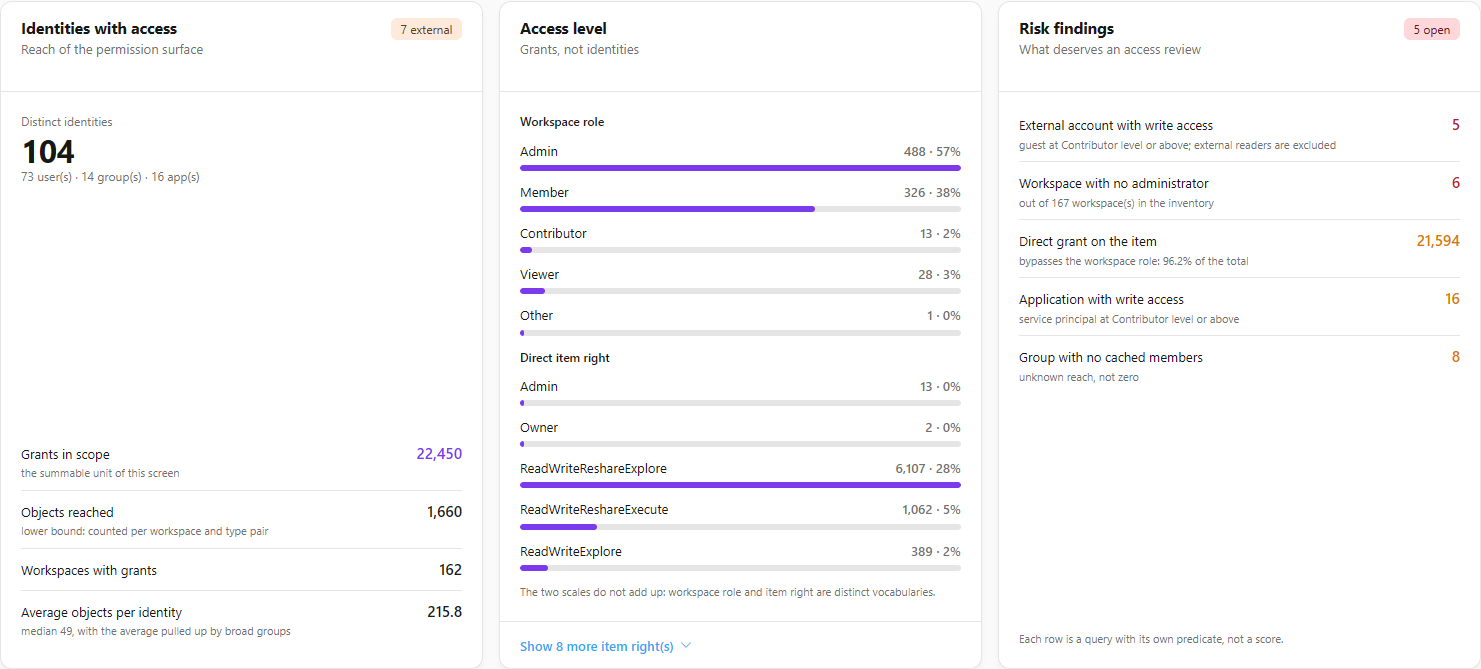
### Identities with access

**What it is:** the first card of the summary strip, with the size of the access surface.

**What it is for:** tracking, review after review, whether the number of identities and grants is growing or shrinking.

<figure><picture><source srcset="/files/OFk9uKzklangFIv6GEmv" media="(prefers-color-scheme: dark)"><img src="https://3938213054-files.gitbook.io/~/files/v0/b/gitbook-x-prod.appspot.com/o/spaces%2FH2bFRBmIfyK3kwVKbldl%2Fuploads%2Fgit-blob-eafc4916c41a837788956df879442e5655218b55%2Fpm-dashboards-permissoes-kpis-en.png?alt=media" alt="Identities with access, Access level and Risk findings cards"></picture><figcaption><p>Overview summary strip</p></figcaption></figure>

| Indicator                        | Meaning and calculation                                                                                                                                                                                                                                                                    |
| -------------------------------- | ------------------------------------------------------------------------------------------------------------------------------------------------------------------------------------------------------------------------------------------------------------------------------------------ |
| **Distinct identities**          | Distinct users, groups and applications with at least one grant in scope, with the breakdown "*N* user(s) · *N* group(s) · *N* app(s)". Records of the same person with the same email are consolidated into one identity. The "*N* external" badge appears when there are guest accounts. |
| **Grants in scope**              | Total permissions (grants) found. This is the "summable" unit of the screen: matrix, origin and levels are counted in grants.                                                                                                                                                              |
| **Objects reached**              | Distinct objects with at least one grant. It is a lower bound, because the count is made per workspace and object type pair.                                                                                                                                                               |
| **Workspaces with grants**       | Workspaces with at least one grant in scope.                                                                                                                                                                                                                                               |
| **Average objects per identity** | Average number of objects each identity reaches, with the **median** in the footer. An average far above the median indicates a few identities (usually broad groups) with very large reach.                                                                                               |

### Access level

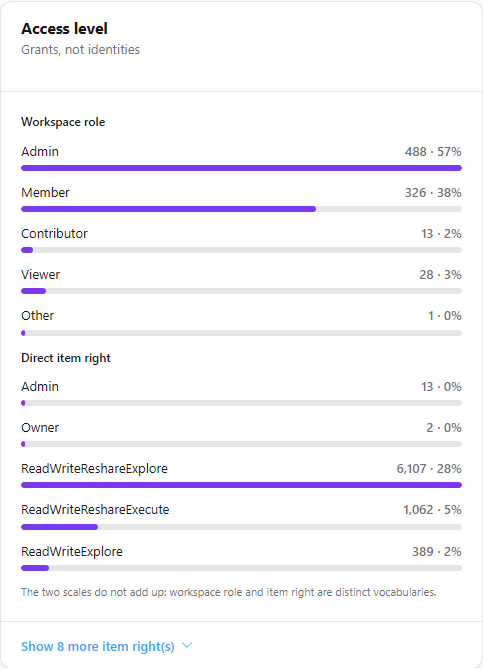
**What it is:** the **Access level** card ("Grants, not identities"), with the distribution of **grants** by level on two separate scales.

**What it is for:** seeing how much of the access is administration or write and how much is read-only.

<figure><picture><source srcset="/files/CzE66AGIGTcVnzUTUjWv" media="(prefers-color-scheme: dark)"><img src="https://3938213054-files.gitbook.io/~/files/v0/b/gitbook-x-prod.appspot.com/o/spaces%2FH2bFRBmIfyK3kwVKbldl%2Fuploads%2Fgit-blob-23e620f722a21ef4bb617def875d493793b7a19b%2Fpm-dashboards-permissoes-nivel-acesso-en.png?alt=media" alt="Access level card with the Workspace role and Direct item right scales"></picture><figcaption><p>Access level card</p></figcaption></figure>

* **Workspace role:** Admin, Member, Contributor, Viewer and Other.
* **Direct item right:** the right reported by the API for each artifact, gateway or connection (e.g. Owner, ReadWrite, Read). It shows the first five; **Show&#x20;*****N*****&#x20;more item right(s)** expands the list.

**How it works:** the two scales do not add up: workspace role and item right are different vocabularies.

### Risk findings

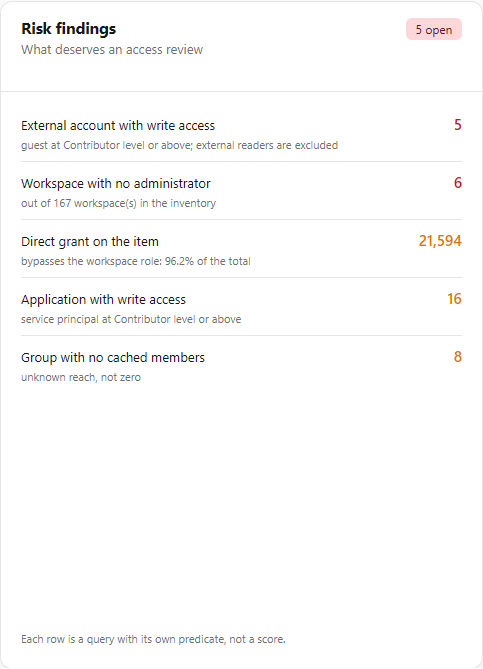
**What it is:** the **Risk findings** card, in which each row is a count with its own rule (it is not a score). The header badge shows how many findings are open: red if there is an external account with write access or a workspace with no administrator; amber for the others; "No findings" in green.

**What it is for:** building the list of fixes for an access review.

<figure><picture><source srcset="/files/zF8VI30DQJnndXcSNa20" media="(prefers-color-scheme: dark)"><img src="https://3938213054-files.gitbook.io/~/files/v0/b/gitbook-x-prod.appspot.com/o/spaces%2FH2bFRBmIfyK3kwVKbldl%2Fuploads%2Fgit-blob-9c3ab40c6fe771fa4c5f28e4295f8f77b3fccfc1%2Fpm-dashboards-permissoes-achados-risco-en.png?alt=media" alt="Risk findings card with the counts for each finding"></picture><figcaption><p>Risk findings card</p></figcaption></figure>

| Finding                                | Rule                                                                                                                          |
| -------------------------------------- | ----------------------------------------------------------------------------------------------------------------------------- |
| **External account with write access** | Guest identities with **Contributor level or higher** anywhere. External readers are not included.                            |
| **Workspace with no administrator**    | Inventory workspaces of type *Workspace* with no identity holding the Admin role, "out of *N* workspace(s) in the inventory". |
| **Direct grant on the item**           | Grants made directly on artifacts, which bypass the workspace role, with the percentage of total grants.                      |
| **Application with write access**      | Service principals (applications) with Contributor level or higher.                                                           |
| **Group with no cached members**       | Groups with grants whose reach has not been resolved yet.                                                                     |

**How to use:**

1. Check each count on the card.
2. For external accounts, open the **External** tab and prioritize the rows with the **write** badge.
3. For workspaces with no administrator, use the **Administrators per workspace** card and fix the assignment in the Fabric/Power BI portal.
4. For groups without cache, use **View/manage collection →** (see *Refresh the group cache*, below).

**How it works:** the base for "workspace with no administrator" is the **workspace list** of type *Workspace* from the inventory (including those with no recorded grants), not the grants. This base respects the **Workspace** filter, but not the other filters. When the scope contains no workspace roles, the finding is zero, because there is no way to assess it. Fixes made in the portal appear after the next permission collection.

### Access origin

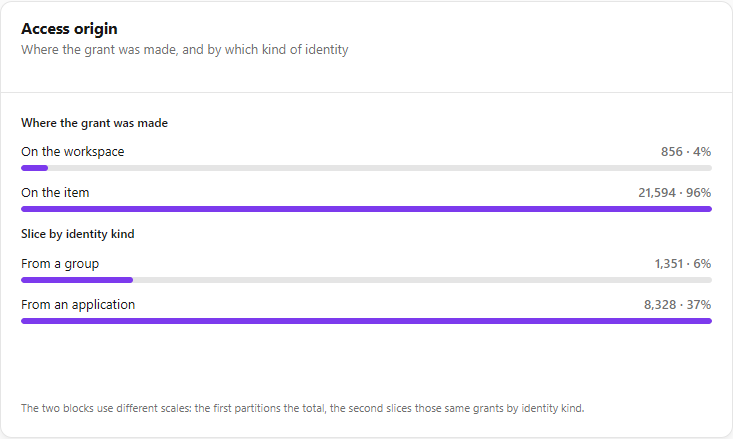
**What it is:** the **Access origin** card, which shows where the grants were made.

**What it is for:** measuring how much of the access escapes the "workspace role" model (direct grants on items) and how much depends on groups and applications.

<figure><picture><source srcset="/files/2ffk7oIhoCq3VL0Vwk2S" media="(prefers-color-scheme: dark)"><img src="https://3938213054-files.gitbook.io/~/files/v0/b/gitbook-x-prod.appspot.com/o/spaces%2FH2bFRBmIfyK3kwVKbldl%2Fuploads%2Fgit-blob-344acc7846877d2afcd9fc419e94a4160874fa65%2Fpm-dashboards-permissoes-origem-en.png?alt=media" alt="Access origin card"></picture><figcaption><p>Access origin card</p></figcaption></figure>

* **Where the grant was made:** splits the total grants among **On the workspace**, **On the item** and **Power Embedded**.
* **Slice by identity kind:** how many of those same grants were given **From a group** and **From an application**, as a percentage of the total.

**How it works:** the two blocks have different scales: the first partitions the total; the second slices the same grants by identity kind.

### Environment × workload

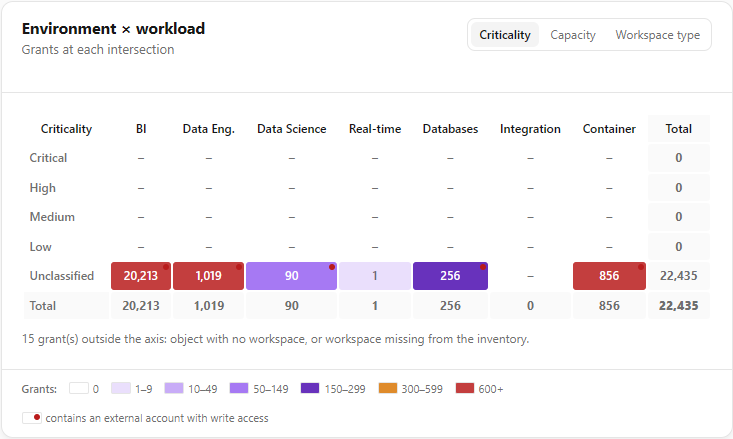
**What it is:** a heat map with the number of **grants** at each intersection of environment (rows) and workload (columns), with row and column totals.

**What it is for:** finding out, for example, whether there are many grants in **Critical** Data Engineering workspaces, or external accounts with write access in sensitive environments.

<figure><picture><source srcset="/files/MMv5eu8nlK6fpw8fzHb2" media="(prefers-color-scheme: dark)"><img src="https://3938213054-files.gitbook.io/~/files/v0/b/gitbook-x-prod.appspot.com/o/spaces%2FH2bFRBmIfyK3kwVKbldl%2Fuploads%2Fgit-blob-5acffba4255d424c6e6e961bccc0ee10a1cd80a8%2Fpm-dashboards-permissoes-matriz-en.png?alt=media" alt="Environment × workload card"></picture><figcaption><p>Environment × workload matrix</p></figcaption></figure>

**How to use:**

1. In the card header, choose the **Environment axis**:
   * **Criticality** (default): Critical, High, Medium, Low and Unclassified, according to the criticality assigned to the workspace in [Workspaces](/en/power-monitor/governanca/workspaces.md);
   * **Capacity:** dedicated or shared capacity;
   * **Workspace type:** Workspace, Admin workspace, Personal area and Personal.
2. Hover over a cell to see *"{environment} · {workload}: N grant(s)"* and, if applicable, the notice "contains an external account with write access".

| Column           | Object types                                                                               |
| ---------------- | ------------------------------------------------------------------------------------------ |
| **BI**           | Reports, semantic models, dashboards, dataflows and Power Embedded                         |
| **Data Eng.**    | Lakehouses, notebooks, pipelines, copy jobs, environments, variable libraries and dbt jobs |
| **Data Science** | ML models and experiments, data agents, graph models and ontologies                        |
| **Real-time**    | Eventstreams                                                                               |
| **Databases**    | SQL databases, warehouses, mirrored databases and app backends                             |
| **Integration**  | Gateways and connections                                                                   |
| **Container**    | Permissions on the workspace itself ("Workspace (container) and others")                   |

**How it works:**

* **Color legend:** 0, 1–9, 10–49, 50–149, 150–299, 300–599 and 600+ grants. Marked cells contain an **external account with write access**.
* Switching the axis is immediate (it does not rerun the query).
* Grants with no known environment (object without a workspace, such as gateways and connections, or a workspace outside the inventory) are not included in the cells; the card reports how many were "outside the axis".
* Each cell counts grants. Identities are not summed across cells, because the same person appears at several intersections.

### Rankings: Widest reach, Most open workspaces and By object type

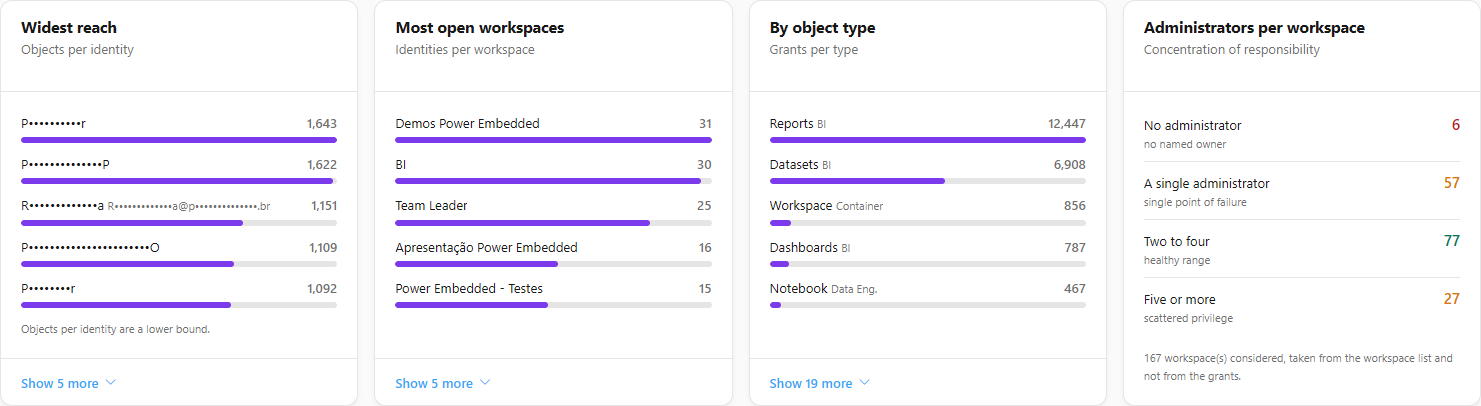
**What it is:** three ranking cards on the **Overview**, each displaying the first five items, with **Show {n} more** / **Show less** to expand.

| Card                     | What it ranks                                                                    |
| ------------------------ | -------------------------------------------------------------------------------- |
| **Widest reach**         | Up to 10 identities with the most objects reached (name and email). Lower bound. |
| **Most open workspaces** | Up to 10 workspaces with the most distinct identities.                           |
| **By object type**       | Object types with the most grants, with the workload of each.                    |

**What it is for:** applying the principle of least privilege starting with the most exposed identities and workspaces.

<figure><picture><source srcset="/files/aBFV5Ku2P1bUMcQvA05i" media="(prefers-color-scheme: dark)"><img src="https://3938213054-files.gitbook.io/~/files/v0/b/gitbook-x-prod.appspot.com/o/spaces%2FH2bFRBmIfyK3kwVKbldl%2Fuploads%2Fgit-blob-3e57db6c861054aa516d67a2772c8d1e336d467b%2Fpm-dashboards-permissoes-rankings-en.png?alt=media" alt="Widest reach, Most open workspaces, By object type and Administrators per workspace cards"></picture><figcaption><p>Overview rankings</p></figcaption></figure>

**How to use:** click **Show more** in the card footer to see the full list (up to 10) and **Show less** to collapse it.

### Administrators per workspace

**What it is:** a card that distributes the inventory workspaces by number of administrators.

**What it is for:** finding workspaces with no owner and single points of failure.

| Range                      | Reading                                        |
| -------------------------- | ---------------------------------------------- |
| **No administrator**       | No named owner.                                |
| **A single administrator** | Single point of failure (vacation, departure). |
| **Two to four**            | Healthy range.                                 |
| **Five or more**           | Scattered privilege.                           |

**How it works:** when the scope contains no workspace role (for example, filtering only by Reports), the card reports that the question has no answer in that scope.

### People and what they reach

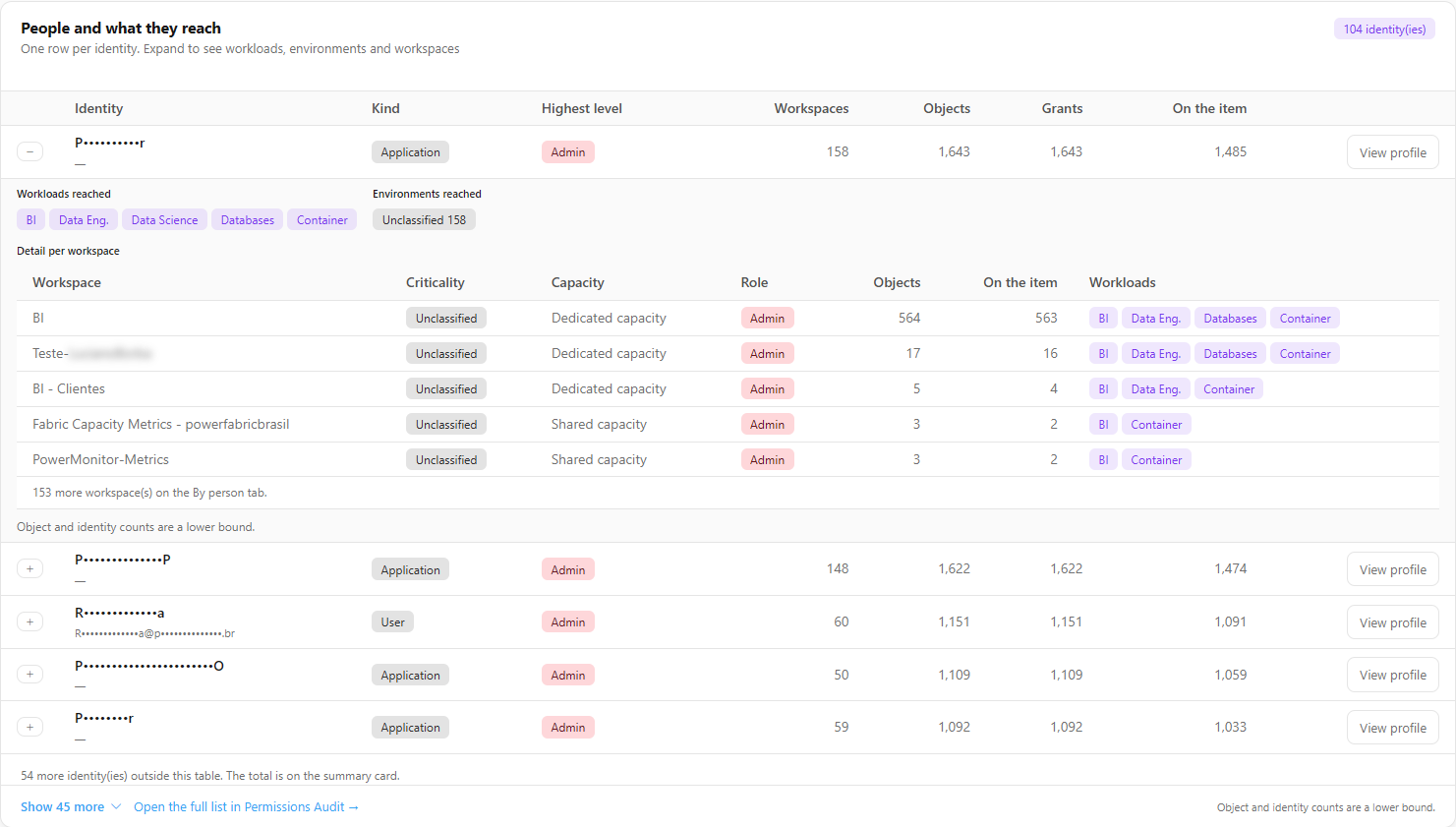
**What it is:** a full-width table on the **Overview**, with one row per identity, sorted by objects reached and grants.

**What it is for:** quickly seeing who has access to the most things and opening the detail for each identity without leaving the screen.

<figure><picture><source srcset="/files/dOulWWiNQC2eAsqYcMTA" media="(prefers-color-scheme: dark)"><img src="https://3938213054-files.gitbook.io/~/files/v0/b/gitbook-x-prod.appspot.com/o/spaces%2FH2bFRBmIfyK3kwVKbldl%2Fuploads%2Fgit-blob-26c03416311dd3bd60fb62134e6665890f154c16%2Fpm-dashboards-permissoes-tabela-identidades-en.png?alt=media" alt="People and what they reach table with an expanded row showing workloads, environments and the detail per workspace"></picture><figcaption><p>People and what they reach table with an expanded row</p></figcaption></figure>
| Column            | Content                                                           |
| ----------------- | ----------------------------------------------------------------- |
| **Identity**      | Name and email (masked with **Hide data**).                       |
| **Kind**          | User, Group, Application, Guest or Not reported.                  |
| **Highest level** | Highest level reached anywhere.                                   |
| **Workspaces**    | Workspaces in which the identity has a grant.                     |
| **Objects**       | Objects reached (lower bound).                                    |
| **Grants**        | Total grants.                                                     |
| **On the item**   | Grants made directly on items.                                    |
| **Actions**       | **View profile**: opens the **By person** tab with this identity. |

**How to use:**

1. Click **Show more** to expand the list from 5 to up to 50 rows.
2. Click the row arrow to **expand the detail**: **Workloads reached**, **Environments reached** and the **Detail per workspace** (Workspace, Criticality, Capacity, Role, Objects, On the item, Workloads), with up to five workspaces. The **Item only** badge indicates that the identity has no role in the workspace, only direct grants on its items.
3. Click **View profile** to open the **By person** tab with that identity.
4. Click **Open the full list in Permissions Audit** to see the grants row by row in the [Permissions Audit](/en/power-monitor/auditoria/auditoria-de-permissoes.md).

**How it works:** above 50 identities, the footer reports how many were left out of the table (the total is on the summary card). The detail for each row is loaded when you expand it.

### By person tab

**What it is:** the full profile of **one** identity: where it reaches and through which paths the access arrives.

**What it is for:** answering requests such as "what does this person have access to?" during an offboarding, a department change or an audit.

<figure><picture><source srcset="/files/KI7KLGo5N7xuNEGFMwW9" media="(prefers-color-scheme: dark)"><img src="https://3938213054-files.gitbook.io/~/files/v0/b/gitbook-x-prod.appspot.com/o/spaces%2FH2bFRBmIfyK3kwVKbldl%2Fuploads%2Fgit-blob-c425c84d33736c3e52c64265a40c30ed263bbac3%2Fpm-dashboards-permissoes-por-pessoa-en.png?alt=media" alt="By person tab with the profile of an identity"></picture><figcaption><p>By person tab</p></figcaption></figure>

| Card                            | Content                                                                                                                                                                   |
| ------------------------------- | ------------------------------------------------------------------------------------------------------------------------------------------------------------------------- |
| **Profile**                     | Name, email, kind and highest level, with the totals **Objects reached**, **Workspaces**, **Grants** and **Grants on items**, and the workloads and environments reached. |
| **Where this identity reaches** | Workspaces, from the most severe case to the least severe: Workspace (with type and capacity), Environment (criticality), Role, Objects, On the item and Workloads.       |
| **How the access arrives**      | Paths that grant access, split into **Workspace role** and **Direct item right**: Right, Highest level, Grants, Objects and Workspaces.                                   |

**How to use:**

{% stepper %}
{% step %}

### Choose the identity

There are two ways: click **View profile** in the **Overview** table; or, in the **Scope** card, type part of the name or email in **Identity**, select the result and click **Apply**, when you open the **By person** tab with exactly one identity in scope, it is selected automatically.
{% endstep %}

{% step %}

### Refine, if necessary

If the scope has several identities, the tab reports how many matched and asks you to refine the filter. **Choose in the overview** returns to the **Overview** table.
{% endstep %}

{% step %}

### Analyze the reach

Check in **Where this identity reaches** the most critical workspaces and in **How the access arrives** whether the access comes from the workspace role or from direct grants on items.
{% endstep %}

{% step %}

### Check the groups

If the person has less access than expected, they may receive access through a group. Open the **Groups** tab and expand the groups to see the cached members.
{% endstep %}
{% endstepper %}

{% hint style="info" %}
In this version, the tab shows only **direct** grants. If the person has access only through an Entra ID group, the tab reports that they have no direct grant in scope. In that case, see the **Groups** tab.
{% endhint %}

### By object tab

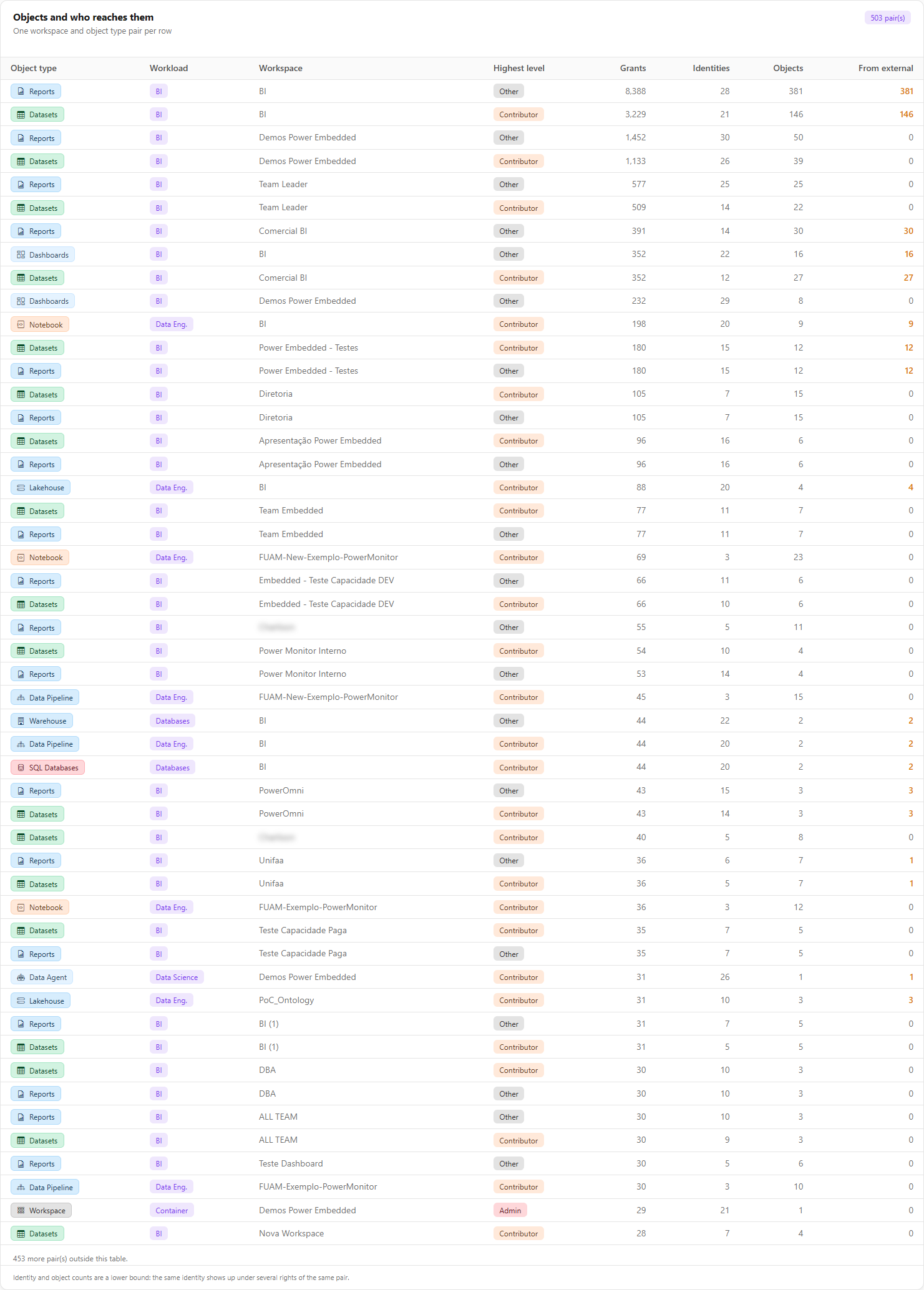
**What it is:** the **Objects and who reaches them** table, with one row per workspace × object type pair (up to 50 rows, sorted by grants).

**What it is for:** finding, in each workspace, the object types with the most grants and those accessed by external accounts.

<figure><picture><source srcset="/files/CgX3PWD79hO5nqGAvDMx" media="(prefers-color-scheme: dark)"><img src="https://3938213054-files.gitbook.io/~/files/v0/b/gitbook-x-prod.appspot.com/o/spaces%2FH2bFRBmIfyK3kwVKbldl%2Fuploads%2Fgit-blob-060ac7a6d4c95a1aa9e29bf4b233c52acefa1346%2Fpm-dashboards-permissoes-por-objeto-en.png?alt=media" alt="By object tab with the Objects and who reaches them table"></picture><figcaption><p>By object tab</p></figcaption></figure>

| Column            | Content                                                              |
| ----------------- | -------------------------------------------------------------------- |
| **Object type**   | Type of the artifact or object.                                      |
| **Workload**      | Workload the type belongs to.                                        |
| **Workspace**     | Workspace of the pair ("No workspace" for gateways and connections). |
| **Highest level** | Highest level granted in the pair.                                   |
| **Grants**        | Total grants.                                                        |
| **Identities**    | Distinct identities in the pair (lower bound).                       |
| **Objects**       | Distinct objects of that type in the workspace (lower bound).        |
| **From external** | Grants given to external accounts.                                   |

**How to use:** click the **By object** tab and read the table from top to bottom (largest concentrations first). To restrict it to a type or workspace, use the **Scope** card.

### Groups tab

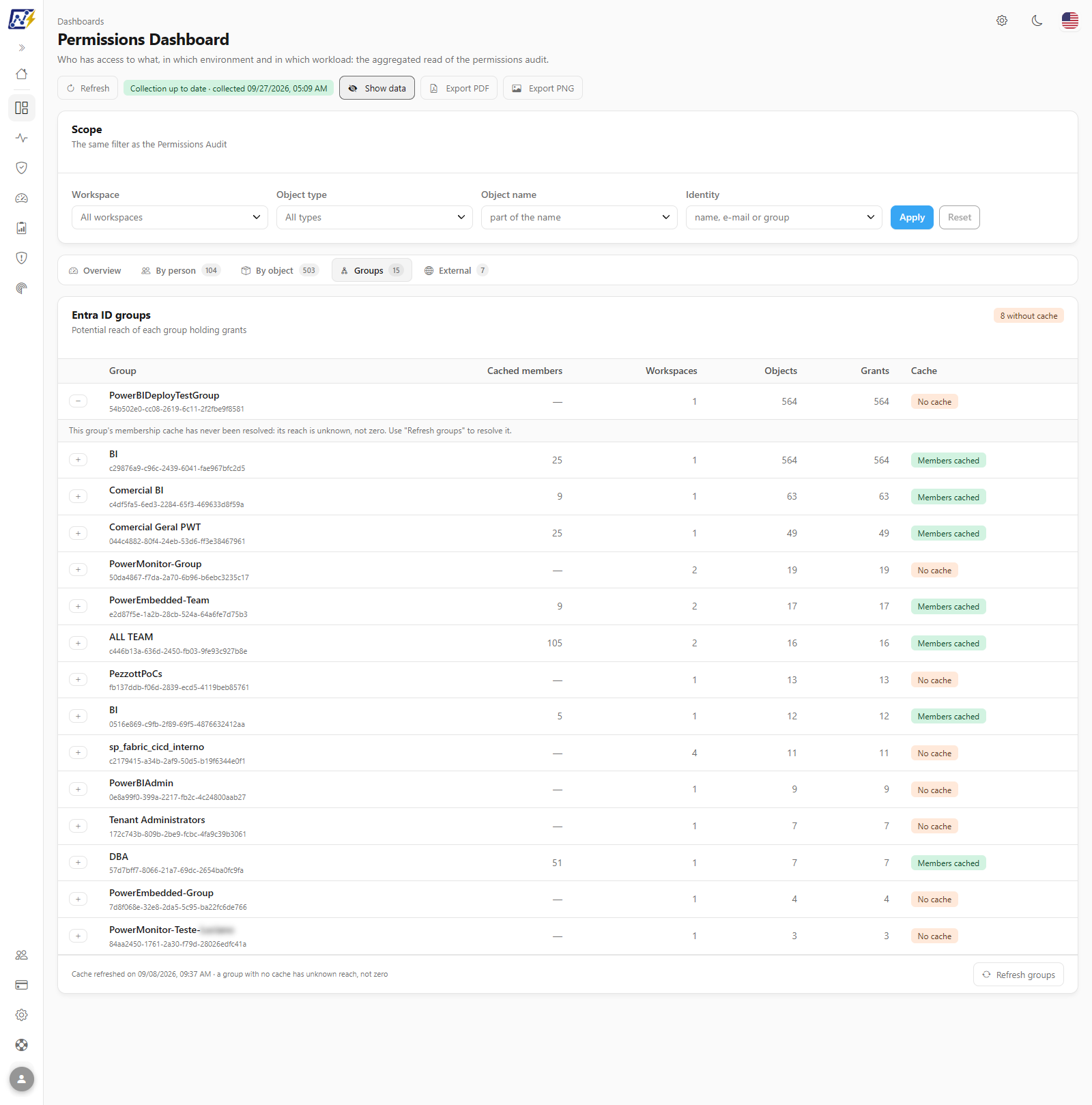
**What it is:** the **Entra ID groups** table with the potential reach of each group that has a grant (up to 50, sorted by grants). The "*N* without cache" badge appears when there are groups not yet resolved.

**What it is for:** finding out who is actually behind each group with access, and which groups have broad reach.

<figure><picture><source srcset="/files/MmXkipUobSpFkbkqscep" media="(prefers-color-scheme: dark)"><img src="https://3938213054-files.gitbook.io/~/files/v0/b/gitbook-x-prod.appspot.com/o/spaces%2FH2bFRBmIfyK3kwVKbldl%2Fuploads%2Fgit-blob-889789ff640a1dd28930a791a8da7d41ddec5cf1%2Fpm-dashboards-permissoes-grupos-en.png?alt=media" alt="Groups tab with an expanded row showing the cached members"></picture><figcaption><p>Groups tab with cached members</p></figcaption></figure>

| Column                                    | Content                                                                     |
| ----------------------------------------- | --------------------------------------------------------------------------- |
| **Group**                                 | Group name ("Group with no resolved name" when the API does not report it). |
| **Cached members**                        | Number of known members.                                                    |
| **Workspaces** / **Objects** / **Grants** | Reach of the group's grants.                                                |
| **Cache**                                 | **Members cached** or **No cache**.                                         |

**How to use:**

1. Click the **Groups** tab.
2. Click the arrow on a row to see the emails of the cached members (masked with **Hide data**) and the cache refresh date for that group.
3. Groups without cache indicate that the reach is unknown; use **View/manage collection →**, available in the tab footer.

### External tab

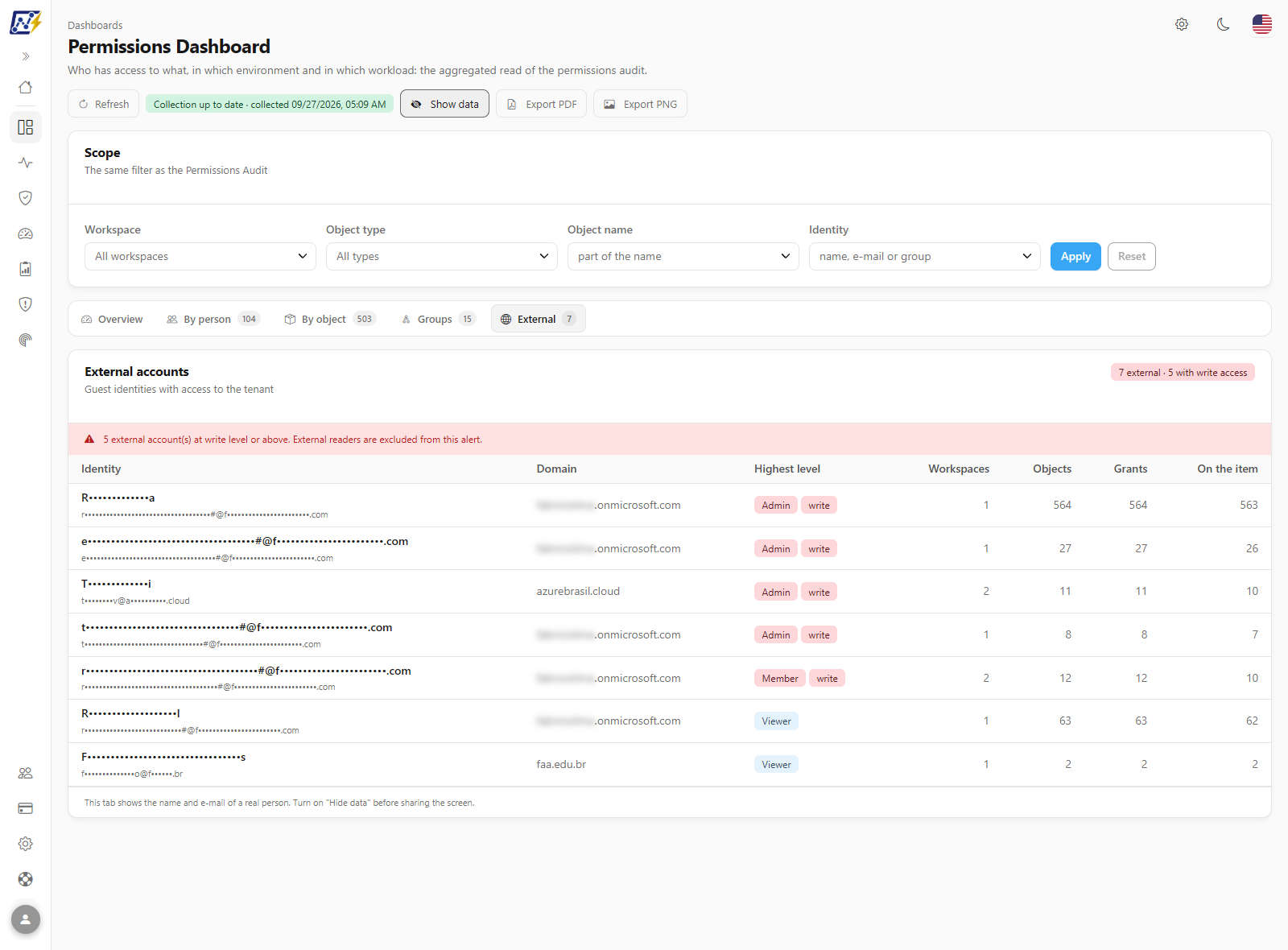
**What it is:** the **External accounts** table with the guest identities (up to 50, sorted by level and objects). The header badge shows "*N* external · *N* with write access", and an alert highlights accounts with write level or higher (external readers are not included in the alert).

**What it is for:** periodically reviewing guests from other organizations and removing access that is no longer needed.

<figure><picture><source srcset="/files/mYv4PfZwpp27ybs1dQwI" media="(prefers-color-scheme: dark)"><img src="https://3938213054-files.gitbook.io/~/files/v0/b/gitbook-x-prod.appspot.com/o/spaces%2FH2bFRBmIfyK3kwVKbldl%2Fuploads%2Fgit-blob-3853144511bee67ce397381602e3c583adf1dae2%2Fpm-dashboards-permissoes-externos-en.png?alt=media" alt="External tab with the list of guest accounts"></picture><figcaption><p>External tab</p></figcaption></figure>

| Column                                                      | Content                                                                   |
| ----------------------------------------------------------- | ------------------------------------------------------------------------- |
| **Identity**                                                | Name and email of the account.                                            |
| **Domain**                                                  | Email domain (the guest's home organization).                             |
| **Highest level**                                           | Highest level, with the **write** badge when it is Contributor or higher. |
| **Workspaces** / **Objects** / **Grants** / **On the item** | Reach of the account.                                                     |

**How to use:** click the **External** tab, prioritize the rows with the **write** badge and group by **Domain** to handle each partner organization at once. Access removal is done in the Fabric/Power BI portal.

### Refresh the group cache

**What it is:** the **View/manage collection →** link, in the footer of the **What this scope aggregates** card (**Overview** tab) and of the **Groups** tab. It leads to the [Mapping › Inventory › Group Members](/en/power-monitor/mapeamento/membros-de-grupos.md) screen, where the **Refresh groups** action lives; it queries Microsoft Graph and resolves the members of all groups seen in the organization's permissions.

**What it is for:** making the reach of groups reflect the current state of Entra ID before an access review.

**Prerequisite:** the organization's registered application needs the **application** permission `GroupMember.Read.All` (or `Directory.Read.All`) with tenant administrator consent.

**How to use:**

{% stepper %}
{% step %}

### Open the collection screen

On the **What this scope aggregates** card or in the footer of the **Groups** tab, click **View/manage collection →**.
{% endstep %}

{% step %}

### Refresh the groups

On **Group Members**, click **Refresh groups** and read the message at the end (for example, *"N group(s) refreshed, N failed."*). In case of partial failure, the groups that failed keep an outdated reach. If the permission is missing in Entra ID, the screen warns that a tenant administrator needs to grant it; clicking again does not fix it.
{% endstep %}

{% step %}

### Go back and check the members

Go back to the dashboard and use **Refresh** to reload it. On the **Groups** tab, expand a group to see the members' emails and the cache date.
{% endstep %}
{% endstepper %}

**How it works:**

* The group membership cache is refreshed **automatically once a day** (at around 07:35, Brasília time, if the **Group members** scan is on) and on demand when someone clicks **Refresh groups** on the Group Members screen. With the scan off or at a weekly or monthly frequency, the cache may be older.
* A failure in one group does not prevent the others from being refreshed.
* The same action also refreshes Power Embedded permissions, when configured.

### Access review tab

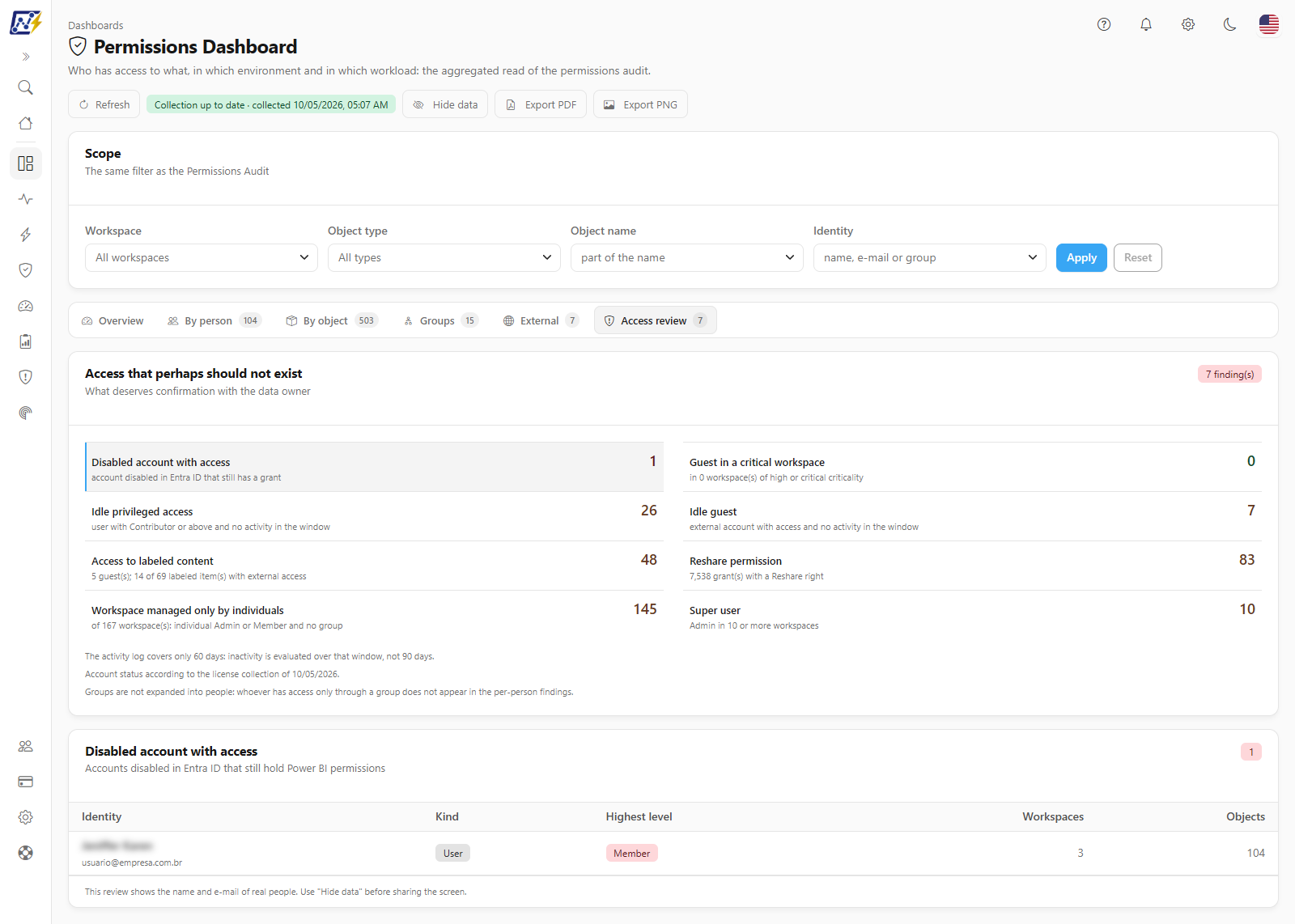
**What it is:** the **Access review** tab (titled *Access that perhaps should not exist*), with what deserves confirmation with the data owner. On the **Overview**, a summary card shows the *N finding(s)* or *No findings* badge and the **Open access review →** link.

**What it is for:** the periodic review of access: finding permissions that may no longer make sense, without leaving the dashboard.

<figure><picture><source srcset="/files/r5wgD6f4H4S5KxK2WsjW" media="(prefers-color-scheme: dark)"><img src="https://3938213054-files.gitbook.io/~/files/v0/b/gitbook-x-prod.appspot.com/o/spaces%2FH2bFRBmIfyK3kwVKbldl%2Fuploads%2Fgit-blob-9eda8bf1677b088705f367a7ebfe9e5a585e1a5c%2Fpm-dashboards-permissoes-revisao-acesso-en.png?alt=media" alt="Access review tab with the finding cards and the identities table"></picture><figcaption><p>Access review tab</p></figcaption></figure>

| Finding                                   | What it shows                                                                         |
| ----------------------------------------- | ------------------------------------------------------------------------------------- |
| **Idle privileged access**                | Users with Contributor or above and no activity in the evaluated window               |
| **Disabled account with access**          | Accounts disabled in Entra ID that still hold a grant                                 |
| **Idle guest**                            | External accounts with access and no activity in the window                           |
| **Guest in a critical workspace**         | External accounts in workspaces of high or critical criticality                       |
| **Access to labeled content**             | Who reaches items with a sensitivity label, through an item grant or a workspace role |
| **Reshare permission**                    | Item grants with the Reshare right, which allow passing access on                     |
| **Workspace managed only by individuals** | Workspaces where only individual users hold the Admin or Member role, with no group   |
| **Super user**                            | Identities with the Admin role in many workspaces                                     |

**How to use:** click a finding card to see the matching table. When you open the tab, the first open finding is already selected; the **Disabled account with access** and **Guest in a critical workspace** findings appear in red and the others in amber. The columns change according to the finding:

| Finding                              | Table columns                                                                                      |
| ------------------------------------ | -------------------------------------------------------------------------------------------------- |
| **Idle privileged access**           | Identity, Kind, Highest level, Workspaces, Objects, Last activity                                  |
| **Disabled account with access**     | Identity, Kind, Highest level, Workspaces, Objects                                                 |
| **Idle guest**                       | Identity, Highest level, Workspaces, Objects, Last activity                                        |
| **Guest in a critical workspace**    | Identity, Workspace, Criticality, Highest level, Access (*Workspace role* or *Item only*), Objects |
| **Access to labeled content**        | Identity, Kind, Highest level, Labeled items, Workspaces with labels                               |
| **Reshare permission**               | Identity, Kind, Rights, Grants                                                                     |
| **Workspace managed only by people** | Workspace, Criticality, Individual admins, Individual members                                      |
| **Super user**                       | Identity, Kind, Workspaces as Admin                                                                |

Under **Last activity**, someone with no activity in the window appears as *No activity in the window*. The tables show up to 50 rows. When the list is larger than the table, the screen warns *N more row(s) outside this table* and the total stays in the summary. Use the **Hide data** button before sharing, because the review shows the name and e-mail of real people.

**How it works:**

* **Inactivity** is measured in the activity log (up to 90 days). If the log covers fewer days, the coverage strip reports the real window; with no collected log, a stalled log or fewer than 7 days, inactivity appears as **Not evaluated** instead of claiming everything is fine.
* The **account state** (disabled) comes from the Power BI license collection and is only visible to **administrators**; without the collection, it shows *Not evaluated*.
* **Guest in a critical workspace** considers workspaces with **High** or **Critical** criticality; a workspace with no criticality defined is never treated as critical. **Super user** is anyone with the Admin role in **10 or more workspaces**. **Workspace managed only by people** requires the slice to include workspace roles: without the **Workspaces** type in the filter, the finding appears as *Not evaluated*.
* **Groups are not expanded** into people: whoever has access only through a group does not appear in the per-person findings.
* Those whose access is restricted to some workspaces see the note that activity outside them does not enter the calculation.
* It is a **read-only** review: Power Monitor never changes permissions in the tenant.

## Rules and behavior

* **Data source:** workspace and artifact permissions come from the [Mapping › Inventory › Inventory](/en/power-monitor/mapeamento/inventarios.md) (Fabric/Power BI Admin Scan API); gateway and connection permissions come from the corresponding scans; Power Embedded permissions come from the Power Embedded integration, when configured. The header badge indicates the age of the last collection.
* **Scope:** all direct grants in **all of the organization's workspaces** (monitored or not, of any type, including personal areas and already deleted artifacts), plus gateways, connections and Power Embedded, always within the user's workspace scope. Because it is a different scope, the numbers do not match the [Governance Dashboard](/en/power-monitor/dashboards/dashboard-de-governanca.md), which considers only monitored workspaces of type *Workspace*.
* **Direct grants only:** groups are not expanded into people and workspace inheritance is not repeated on each item. That is why identity and object counts are **lower bounds**.
* **Access levels:** the raw permission is classified as Admin (admin/owner), Member, Contributor (write/contributor), Viewer (read/viewer) or Other. "Write" means Contributor or higher.
* **List limits:** tables show up to **50** rows and rankings up to **10** items; the excess is reported in the footer of each card.
* **Load failure:** if the data cannot be loaded, the screen shows "Could not load the permission data." with the **Retry** button, instead of stating that there are no permissions.
* **Read-only:** Power Monitor does not change permissions in Fabric/Power BI. Fixes are made in the portal and appear after the next collection.

## Frequently asked questions

<details>

<summary>A user was given access through an Entra ID group, but does not appear in the identity table. Why?</summary>

The screen aggregates only **direct** grants: someone who received access through a group does not appear as an individual identity. The group appears as one identity, and its members can be viewed on the **Groups** tab, as long as the cache is up to date. Use **View/manage collection →** to open the Group Members screen and click **Refresh groups**, which resolves the members in Microsoft Graph.

</details>

<details>

<summary>I clicked "Refresh groups" (on Group Members) and received a permission warning. What should I do?</summary>

Your organization's registered application needs the application permission `GroupMember.Read.All` (or `Directory.Read.All`) in Microsoft Entra ID, with administrator consent. A tenant administrator needs to grant it in the Azure portal. It cannot be fixed by clicking again on the screen.

</details>

<details>

<summary>Why are the numbers called a "lower bound"?</summary>

Because groups count as one identity (without their members), workspace inheritance is not expanded to each item, and objects and identities are counted per workspace × object type pair. The actual number of people and objects reached may be higher.

</details>

<details>

<summary>The numbers do not match the Governance Dashboard. Which one is right?</summary>

Both are correct, but they use different scopes. This dashboard considers all of the organization's workspaces, of any type and monitored or not, plus gateways, connections and Power Embedded. The Governance Dashboard considers only monitored workspaces of type *Workspace*.

</details>

<details>

<summary>Does "Hide data" protect the information?</summary>

No. It only masks names and emails on the screen and in files exported from it. The data remains loaded in the browser. Use it for presentations, screenshots and screen sharing.

</details>

<details>

<summary>Can I export the tables to CSV?</summary>

This dashboard exports the page as **PDF** or **PNG**. To export permissions row by row, use the [Permissions Audit](/en/power-monitor/auditoria/auditoria-de-permissoes.md) screen, which has the same filter.

</details>

<details>

<summary>The matrix shows grants "outside the axis". What are they?</summary>

They are grants with no known environment: objects that do not belong to a workspace (such as gateways and connections) or workspaces that are not in the inventory. They are still included in the total grants, but not in a matrix cell.

</details>

## Related pages

* [Permissions Audit](/en/power-monitor/auditoria/auditoria-de-permissoes.md)
* [Governance Dashboard](/en/power-monitor/dashboards/dashboard-de-governanca.md)
* [Workspaces](/en/power-monitor/governanca/workspaces.md)
* [Gateways](/en/power-monitor/governanca/infraestrutura/gateways.md)
* [Connections](/en/power-monitor/governanca/infraestrutura/conexoes.md)
* [Mapping › Inventory › Inventory](/en/power-monitor/mapeamento/inventarios.md)
* [Users](/en/power-monitor/usuarios.md)


---

# Agent Instructions
This documentation is published with GitBook. GitBook is the documentation platform designed so that both humans and AI agents can read, navigate, and reason over technical content effectively. Learn more at gitbook.com.

## Querying This Documentation
If you need additional information that is not directly available in this page, you can query the documentation by asking a question.

Perform an HTTP GET request on the following URL with the `ask` and `goal` query parameters:

```
GET https://docs.powermonitor.com.br/en/power-monitor/dashboards/dashboard-de-permissoes.md?ask=<question>&goal=<user_goal>
```

`ask` is the immediate question: it should be specific, self-contained, and written in natural language.
`goal` is what the user is ultimately trying to achieve, the reason they need the answer. Sharing it helps GitBook give you a better, more relevant answer. A goal is most helpful when it describes the outcome the user wants rather than restating the question. For example, with `ask=how do I create an API token`, a goal like `automate deployments from our CI pipeline` lets GitBook tailor the answer to that use case.

The response will contain a direct answer to the question and relevant excerpts and sources from the documentation.

Use this mechanism when the answer is not explicitly present in the current page, you need clarification or additional context, or you want to retrieve related documentation sections.