> For the complete documentation index, see [llms.txt](https://docs.powermonitor.com.br/llms.txt). Markdown versions of documentation pages are available by appending `.md` to page URLs; this page is available as [Markdown](https://docs.powermonitor.com.br/en/power-monitor/favoritos-e-busca.md).

# Favorites and page search

How to reach any Power Monitor screen faster with Favorites (star in the menu, Favorites menu and Manage favorites page) and with Page search (Ctrl+K or slash).

Power Monitor has many screens. Two features help you reach the ones you use most: **Favorites**, which place your preferred screens at the top of the menu and on the [Home page](/en/power-monitor/pagina-inicial.md), and **Page search**, which finds any screen by name or by topic, without your needing to know which menu domain it belongs to.

**How to access:** both features are available on every screen of the side menu. The search is at the top of the menu (and also on the [Home page](/en/power-monitor/pagina-inicial.md)); the favorites star appears next to the name of each screen in the menu. The management page (**Manage favorites**) opens from the **Manage** link, in the **Favorites** menu or in the **Favorites** section of the Home page. All profiles can use both features, and the **Manage favorites** page is never blocked for anyone.

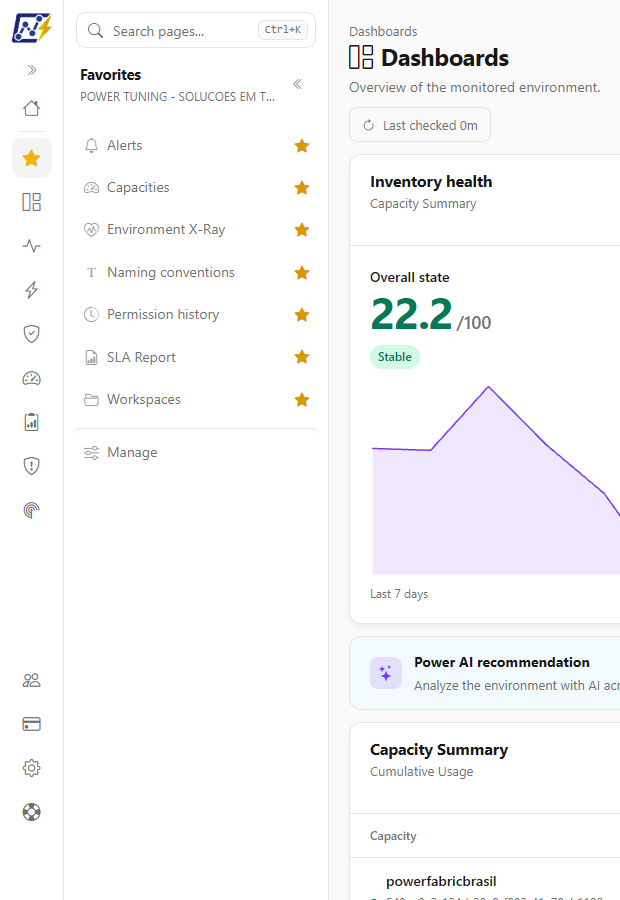
<figure><picture><source srcset="/files/I9XAFiNVmPrlWHoqgaMn" media="(prefers-color-scheme: dark)"><img src="https://3938213054-files.gitbook.io/~/files/v0/b/gitbook-x-prod.appspot.com/o/spaces%2FH2bFRBmIfyK3kwVKbldl%2Fuploads%2Fgit-blob-22cdb3e0a9dd4c7af1ee974f2a2c23a51c683aa8%2Fpm-interface-favoritos-menu-en.png?alt=media" alt="Side menu with the Favorites domain open, showing the favorite screens and the Manage link"></picture><figcaption><p>Favorites menu with the favorite screens and the Manage link</p></figcaption></figure>

## What it is for

* **Return to your everyday screens with one click**, without navigating domain by domain.
* **Find a screen without remembering where it is:** type part of the name or a topic (for example, "lgpd" or "cost") and Power Monitor shows the related screens.
* **Build your own work shortcut:** the favorites list is yours, has the order you choose and follows you to any browser.

## Favorites

### Favorite a screen

**What it is:** the star that appears to the right of each screen name in the module menu (and also in the search results).

**What it is for:** mark a screen as a favorite or remove the mark.

**How to use:**

{% stepper %}
{% step %}

### Open the domain menu

In the main menu, click the domain of the screen, for example **Monitoring**.
{% endstep %}

{% step %}

### Click the star

Hover over the screen name and click the star that appears on the right (tooltip **Add to favorites**). The star turns yellow and filled.
{% endstep %}

{% step %}

### To remove, click again

Click the yellow star (tooltip **Remove from favorites**). The screen stops being a favorite right away.
{% endstep %}
{% endstepper %}

**How it works:**

* On computers, the star of a screen that is not yet a favorite only appears when you hover over the row (or move through it with the keyboard). The star of favorite screens is always visible.
* On phones and tablets, the star is always shown, discreetly, next to each screen.
* The **Home** page and the **Manage favorites** page cannot be favorited.
* The star is on the screens of the module menus. **Users**, **Billing**, **Settings** and **Support**, which are in the footer of the main menu, have no star, but they can also be favorited: use the **Add favorite** button on the [Manage favorites](#manage-favorites) page or the star in the search result.
* Some screens appear in two domains (for example, the **Capacity Dashboard**, in **Dashboards** and in **Capacities**). Each entry is a favorite of its own: favoriting one does not mark the other.
* The limit is **50 favorites** per user. When you reach the limit, Power Monitor warns you and asks you to remove one before adding another.
* Favorites are saved in your account (per organization), not in the browser: when you sign in on another computer, they are there.

### The Favorites menu

**What it is:** an extra domain in the main menu, named **Favorites** and shown with a yellow star, right below **Home**. It only exists when you have at least one favorite that you can open.

**What it is for:** have, in a single menu, all your favorite screens, in the order you defined, even if they belong to different domains.

**How to use:**

1. In the main menu, click **Favorites**. The module menu shows the list of your favorite screens.
2. Click a screen to open it. The favorites list stays open, so you can go on to the next favorite.
3. At the end of the list, click **Manage** to open the [Manage favorites](#manage-favorites) page.

**How it works:** if you remove the last favorite while the **Favorites** menu is open, it disappears from the main menu. Favorites of screens you can no longer open (for example, a page that an administrator blocked) are kept but not shown, and they show up again, in the same position, if access is granted again.

### Favorites on the Home page

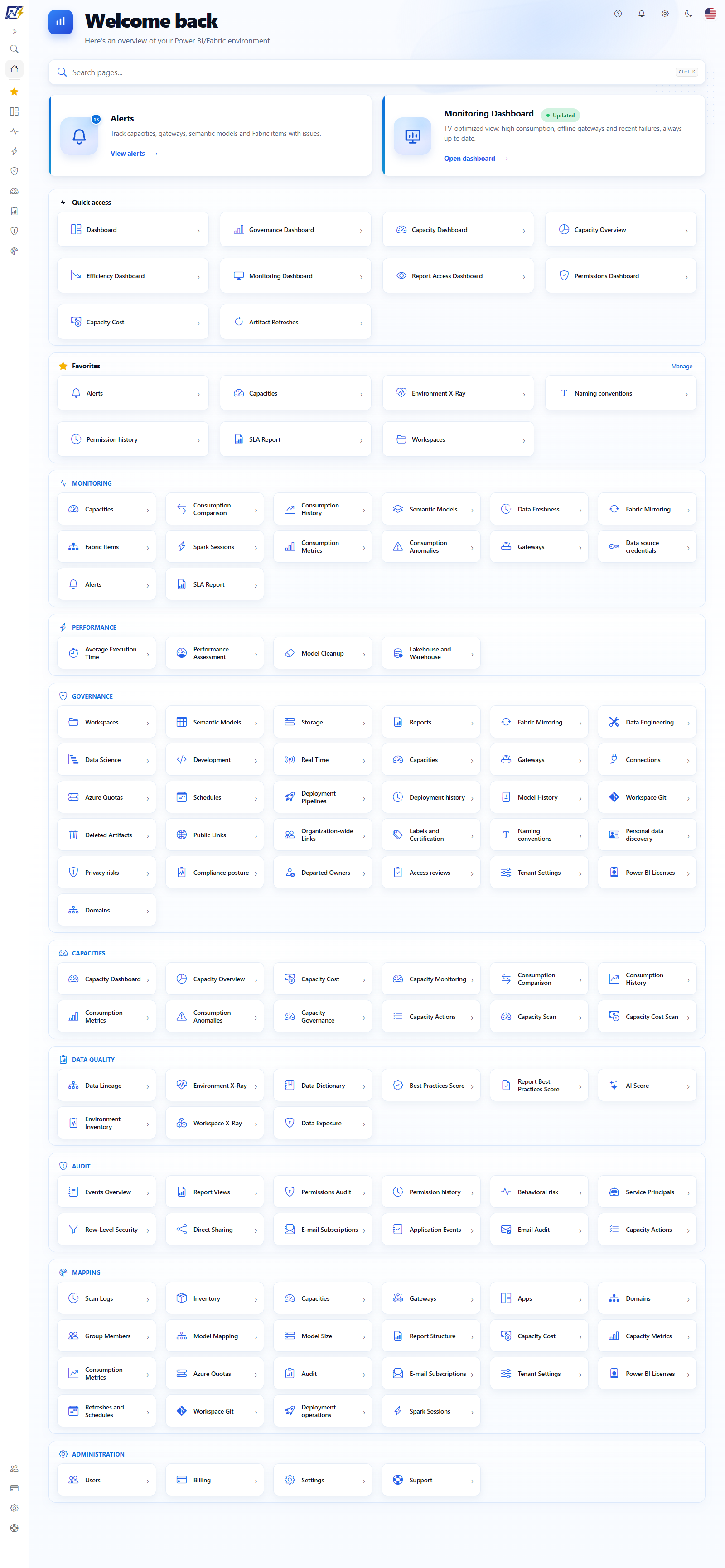
**What it is:** the **Favorites** section of the [Home page](/en/power-monitor/pagina-inicial.md), right after the **Quick access** panel, with a shortcut for each favorite and the **Manage** link.

**What it is for:** open a favorite right after signing in, without even opening the menu.

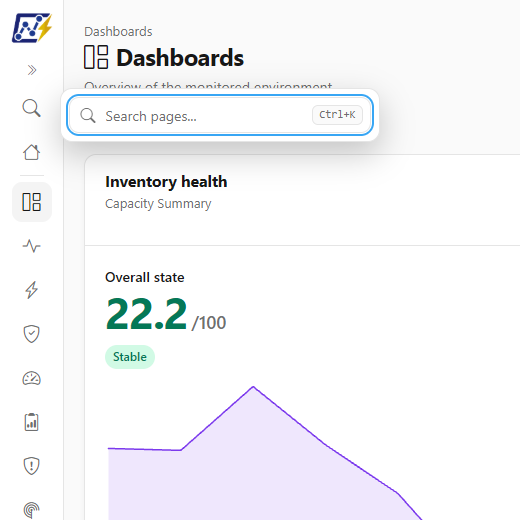
<figure><picture><source srcset="/files/crtDb9wrgpwjFWEolvsf" media="(prefers-color-scheme: dark)"><img src="https://3938213054-files.gitbook.io/~/files/v0/b/gitbook-x-prod.appspot.com/o/spaces%2FH2bFRBmIfyK3kwVKbldl%2Fuploads%2Fgit-blob-549fe72157ff8977dcce5fc673bc54ba5f40ec1d%2Fpm-inicio-visao-geral-en.png?alt=media" alt="Home page with the search field at the top and the Favorites section after Quick access"></picture><figcaption><p>Search and favorites on the Home page</p></figcaption></figure>

### Manage favorites

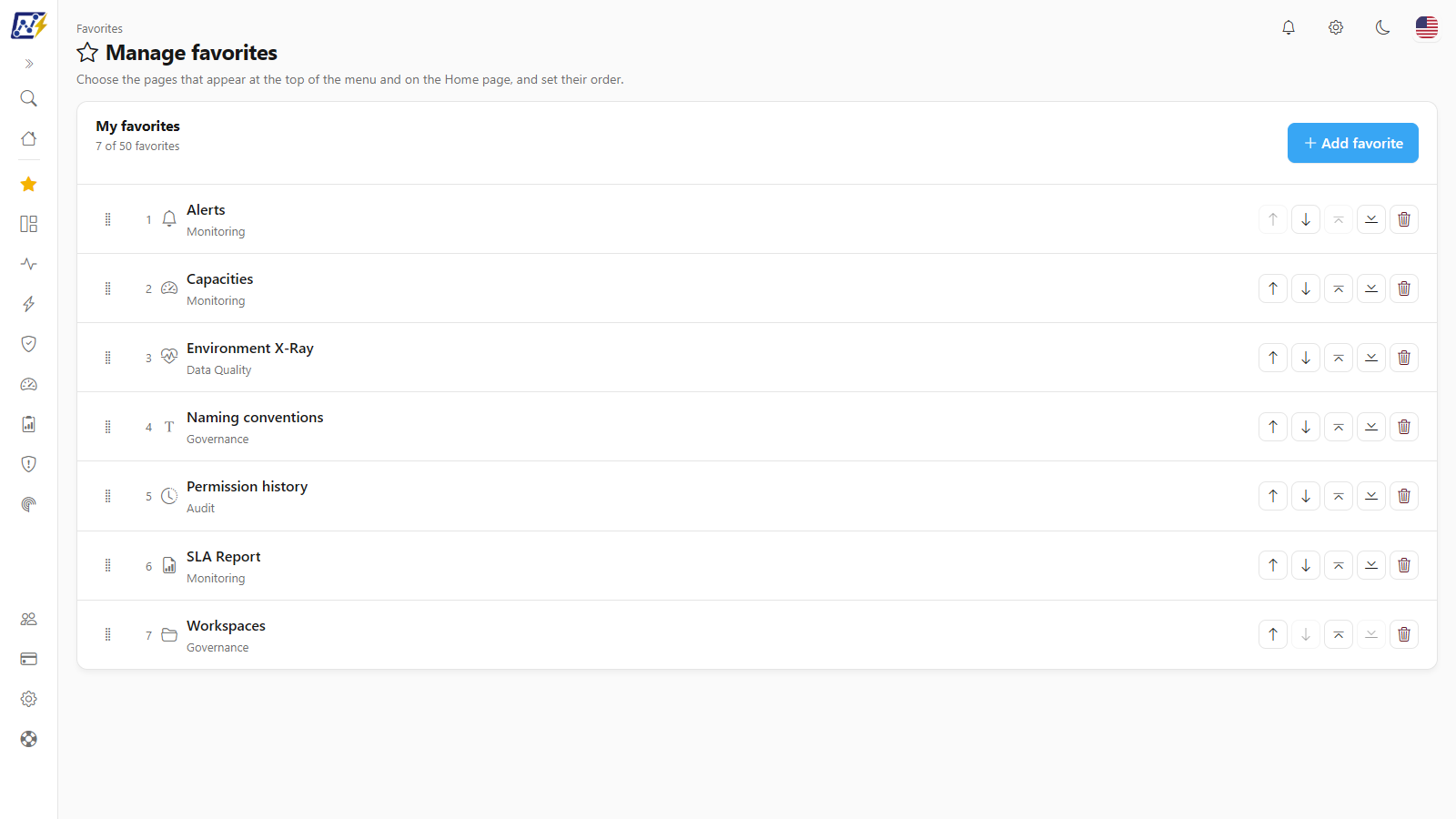
**What it is:** the **Manage favorites** page (*Choose the pages that appear at the top of the menu and on the Home page, and set their order.*), where you see the **My favorites** list, with the **N of 50 favorites** counter.

**What it is for:** add several favorites at once, reorder them and remove them.

<figure><picture><source srcset="/files/O71GlhyR5bL8zDVOaPgM" media="(prefers-color-scheme: dark)"><img src="https://3938213054-files.gitbook.io/~/files/v0/b/gitbook-x-prod.appspot.com/o/spaces%2FH2bFRBmIfyK3kwVKbldl%2Fuploads%2Fgit-blob-0d828a6a02815971f1b698c80c0332856b1837d9%2Fpm-favoritos-gerenciar-en.png?alt=media" alt="Manage favorites page with the My favorites list, the counter and the ordering buttons"></picture><figcaption><p>Manage favorites page</p></figcaption></figure>

Each row shows the position, the icon, the screen name (a link that opens the screen) and its domain. The row actions are:

| Action                                      | What it does                                                                                                               |
| ------------------------------------------- | -------------------------------------------------------------------------------------------------------------------------- |
| Drag handle                                 | Drag the row to another position. With the keyboard, focus the handle and use the arrow keys, **Home** and **End**.        |
| **Move up** / **Move down**                 | Swaps the row with its neighbor.                                                                                           |
| **Move to the start** / **Move to the end** | Takes the row to the first or the last position.                                                                           |
| **Remove from favorites**                   | Asks for confirmation (*Remove "{screen}" from favorites?*) and removes it. You can favorite the screen again at any time. |

**How to use:**

{% stepper %}
{% step %}

### Open the page

In the **Favorites** menu, click **Manage** (or use the **Manage** link on the Home page).
{% endstep %}

{% step %}

### Add screens

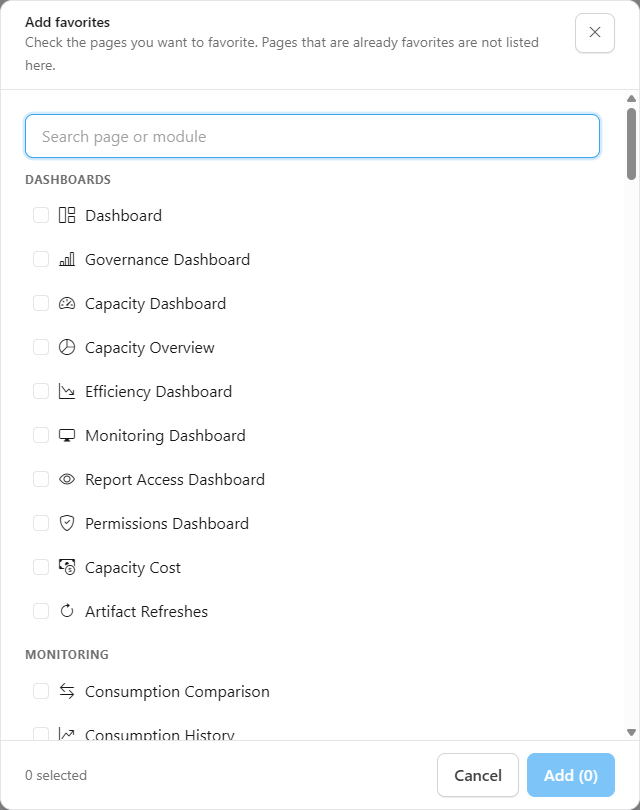
Click **Add favorite**. In the **Add favorites** window, search in **Search page or module** (the text matches the screen name or the domain name), check the screens you want (they are grouped by domain, and the **Administration** group gathers Users, Billing, Settings and Support; screens that are already favorites are not listed) and click **Add (N)**.
{% endstep %}

{% step %}

### Set the order

Drag the rows or use the move buttons until the list is in the order you want. The new order applies right away, in the menu and on the Home page.
{% endstep %}
{% endstepper %}

<figure><picture><source srcset="/files/8dKo3toB5O9ZtcBAUXL5" media="(prefers-color-scheme: dark)"><img src="https://3938213054-files.gitbook.io/~/files/v0/b/gitbook-x-prod.appspot.com/o/spaces%2FH2bFRBmIfyK3kwVKbldl%2Fuploads%2Fgit-blob-aa7d446c6dee6d558296631f1669a51ecc6c7d2b%2Fpm-favoritos-adicionar-modal-en.png?alt=media" alt="Add favorites window with the search field and the screens grouped by domain"></picture><figcaption><p>Add favorites window</p></figcaption></figure>

**How it works:**

* If the list is empty, the page shows the text *You have no favorites yet* and the **Add favorite** button.
* At the limit of 50, the **Add favorite** button is disabled and the page shows *You have reached the limit of 50 favorites. Remove one to add another.*
* In the **Add favorites** window, the number of remaining slots limits the selection: when you check the last slot, the other checkboxes are disabled and *The limit of 50 favorites is reached with this selection.* appears. The window shows how many screens are checked and closes by itself when all of them are added, with the message *N page(s) added to favorites.* If any of them fails, the window stays open with the failed ones still checked. **Esc**, the close button and a click outside the window close it (not while it is saving).
* **Move up** and **Move to the start** are disabled on the first row, and **Move down** and **Move to the end** on the last one.
* The drag handle only appears on computers with a mouse. On phones and tablets, each row becomes a card with the move and remove buttons identified by text; use those buttons to reorder.
* If a change cannot be saved (for example, because of a lost connection), Power Monitor warns you and undoes only that change, so the list does not differ from what is stored.
* When there are favorites for screens you cannot open, the page tells you how many (*favorites for pages you cannot access are kept and show up again if the page becomes accessible*).

## Page search

**What it is:** the **Search pages...** field that finds Power Monitor screens. On wide screens the empty field shows the shortcut badge (**Ctrl+K**, or **⌘K** on a Mac); screen readers announce the hint *Shortcuts: Ctrl+K or slash (/)*.

**What it is for:** go straight to a screen by typing its name, part of its name or a topic, instead of looking for it in the menu.

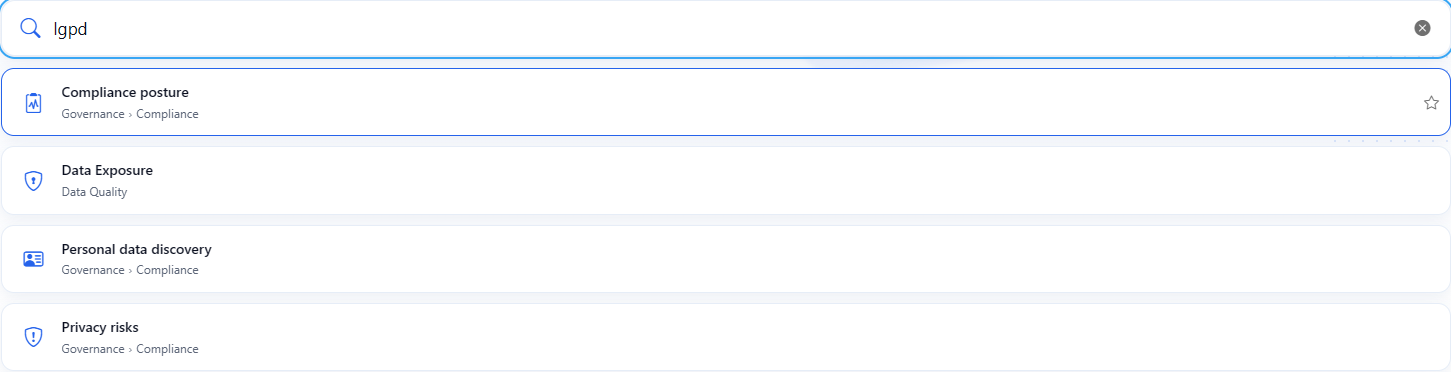
<figure><picture><source srcset="/files/6jbe5eDqxyCzOZy9OzLp" media="(prefers-color-scheme: dark)"><img src="https://3938213054-files.gitbook.io/~/files/v0/b/gitbook-x-prod.appspot.com/o/spaces%2FH2bFRBmIfyK3kwVKbldl%2Fuploads%2Fgit-blob-023a8a3277584cf18f2d6ff533741d0b180195c6%2Fpm-interface-busca-paginas-en.png?alt=media" alt="Search pages field with the word lgpd typed and the list of screens found with the Domain and group path"></picture><figcaption><p>Search results for "lgpd"</p></figcaption></figure>

**Where the field is:**

| Situation                                        | Where the search is                                                         |
| ------------------------------------------------ | --------------------------------------------------------------------------- |
| Module menu open (computer)                      | At the top of the module menu, above the domain name.                       |
| Main menu expanded                               | Inline in the main menu, above **Home**.                                    |
| Main menu with icons only and no module menu     | A magnifier button (**Search pages**) opens the field next to the menu.     |
| Phone and tablet                                 | At the top of the menu that opens with the **Open menu** icon.              |
| [Home page](/en/power-monitor/pagina-inicial.md) | A large field in the first block of the page, with the results right below. |

<figure><picture><source srcset="/files/34TorgFyGLmIS0DjvBIf" media="(prefers-color-scheme: dark)"><img src="https://3938213054-files.gitbook.io/~/files/v0/b/gitbook-x-prod.appspot.com/o/spaces%2FH2bFRBmIfyK3kwVKbldl%2Fuploads%2Fgit-blob-68fced98fa1bd3cb80efb21ea25d90e6f031cf6f%2Fpm-interface-busca-menu-recolhido-en.png?alt=media" alt="Main menu collapsed into icons with the magnifier button open showing the search field"></picture><figcaption><p>Search opened from the magnifier of the collapsed menu</p></figcaption></figure>

**How to use:**

{% stepper %}
{% step %}

### Open the search

Click the field or use the shortcut: **Ctrl+K** (**⌘K** on a Mac) at any time, or **/** (slash) when you are not typing in a field.
{% endstep %}

{% step %}

### Type

Write part of the screen name or a topic, for example "capacity", "alert" or "lgpd". The matching parts are highlighted.
{% endstep %}

{% step %}

### Choose the result

Click the result, or use **↑** and **↓** (and **Home** and **End**) and **Enter**. **Esc** clears the search; with the field already empty, **Esc** closes the search.
{% endstep %}
{% endstepper %}

**How it works:**

* Each result shows the icon, the screen name and the menu path (**Domain › Group**, for example *Governance › Compliance*).
* The search ignores uppercase and accents and requires **all** the typed words to match (up to 6 words are considered). It shows at most **12 results**: to reach another one, refine the text.
* The search covers every screen in the menus (including **Users**, **Billing**, **Settings** and **Support**, when your user can open them), the **Home** page and the **Manage favorites** page. The last two have no star.
* Results are ranked by screen name first (starts with the term, then a word of the name, then any part), and only then by related topics, group name or domain name. Ties follow the alphabetical order of the screen name.
* Besides the name, the search understands **related topics**: "lgpd" finds the privacy screens, "cost" finds the capacity cost screens, "failure" finds the alerts screens, and so on. The topics exist in each interface language.
* The search only finds screens you **can open**. Administrator-only screens, or screens blocked for your user, do not appear (the search never reveals what the menu hides).
* You can also favorite a screen straight from the star in the result.
* **Ctrl+K** works from anywhere on the screen, even with the cursor inside a text field. The slash (**/**) only triggers the search when you are not typing: in a text field it writes the slash normally.
* With a window (modal) open, the **Ctrl+K** and **/** shortcuts do not work.
* On phones and tablets (narrow screens), the shortcut opens the menu and puts the cursor in the search field.
* A screen that appears in two domains (such as the capacity ones) shows up as two results, each with its own menu path.
* When nothing matches, the search shows *No pages found*.

## Frequently asked questions

<details>

<summary>The star does not appear next to a screen. Why?</summary>

On computers, the star of a screen that is not yet a favorite only appears when you hover over the row. If it still does not appear, the screen may be the **Home** page or the **Manage favorites** page, which cannot be favorited.

</details>

<details>

<summary>The Favorites menu disappeared. What happened?</summary>

The **Favorites** menu only appears when there is at least one favorite that you can open. If you removed them all, or if the favorite screens were blocked for your user, it disappears. To create a new favorite, click the star of any screen.

</details>

<details>

<summary>A favorite disappeared from the list, but I did not remove it.</summary>

The screen probably stopped being available to your user (for example, an administrator blocked the page or changed your profile). The favorite is still stored and comes back, in the same position, when access is granted again. The **Manage favorites** page tells you how many favorites are in this situation.

</details>

<details>

<summary>The same screen appears twice in the picker and in the search. Why?</summary>

Some capacity screens exist in two domains (for example, in **Dashboards** and in **Capacities**). Each entry has its own menu path and its own favorite, but both open the same screen. Favorite the one you prefer.

</details>

<details>

<summary>Can other people see my favorites?</summary>

No. Each user has their own list, and it applies only to your account in the organization.

</details>

<details>

<summary>The Ctrl+K shortcut opens the browser address bar.</summary>

Inside Power Monitor the shortcut is captured by the page search. If the focus is outside the page (for example, in the address bar), click an area of the screen first. If you prefer, use the slash (**/**) or the magnifier button.

</details>

<details>

<summary>I looked for a screen that I know exists and the search did not find it.</summary>

The screen may be Administrator-only or blocked for your user. See [What each person sees in the menu](/en/power-monitor/interface-e-navegacao.md#what-each-person-sees-in-the-menu). Also try another term: the search matches the screen name, the group and related topics.

</details>

## Related pages

* [Interface and navigation](/en/power-monitor/interface-e-navegacao.md)
* [Home](/en/power-monitor/pagina-inicial.md)
* [Overview](/en/power-monitor/visao-geral.md)
* [Users](/en/power-monitor/usuarios.md) (page blocking per user)


---

# Agent Instructions
This documentation is published with GitBook. GitBook is the documentation platform designed so that both humans and AI agents can read, navigate, and reason over technical content effectively. Learn more at gitbook.com.

## Querying This Documentation
If you need additional information that is not directly available in this page, you can query the documentation by asking a question.

Perform an HTTP GET request on the following URL with the `ask` and `goal` query parameters:

```
GET https://docs.powermonitor.com.br/en/power-monitor/favoritos-e-busca.md?ask=<question>&goal=<user_goal>
```

`ask` is the immediate question: it should be specific, self-contained, and written in natural language.
`goal` is what the user is ultimately trying to achieve, the reason they need the answer. Sharing it helps GitBook give you a better, more relevant answer. A goal is most helpful when it describes the outcome the user wants rather than restating the question. For example, with `ask=how do I create an API token`, a goal like `automate deployments from our CI pipeline` lets GitBook tailor the answer to that use case.

The response will contain a direct answer to the question and relevant excerpts and sources from the documentation.

Use this mechanism when the answer is not explicitly present in the current page, you need clarification or additional context, or you want to retrieve related documentation sections.