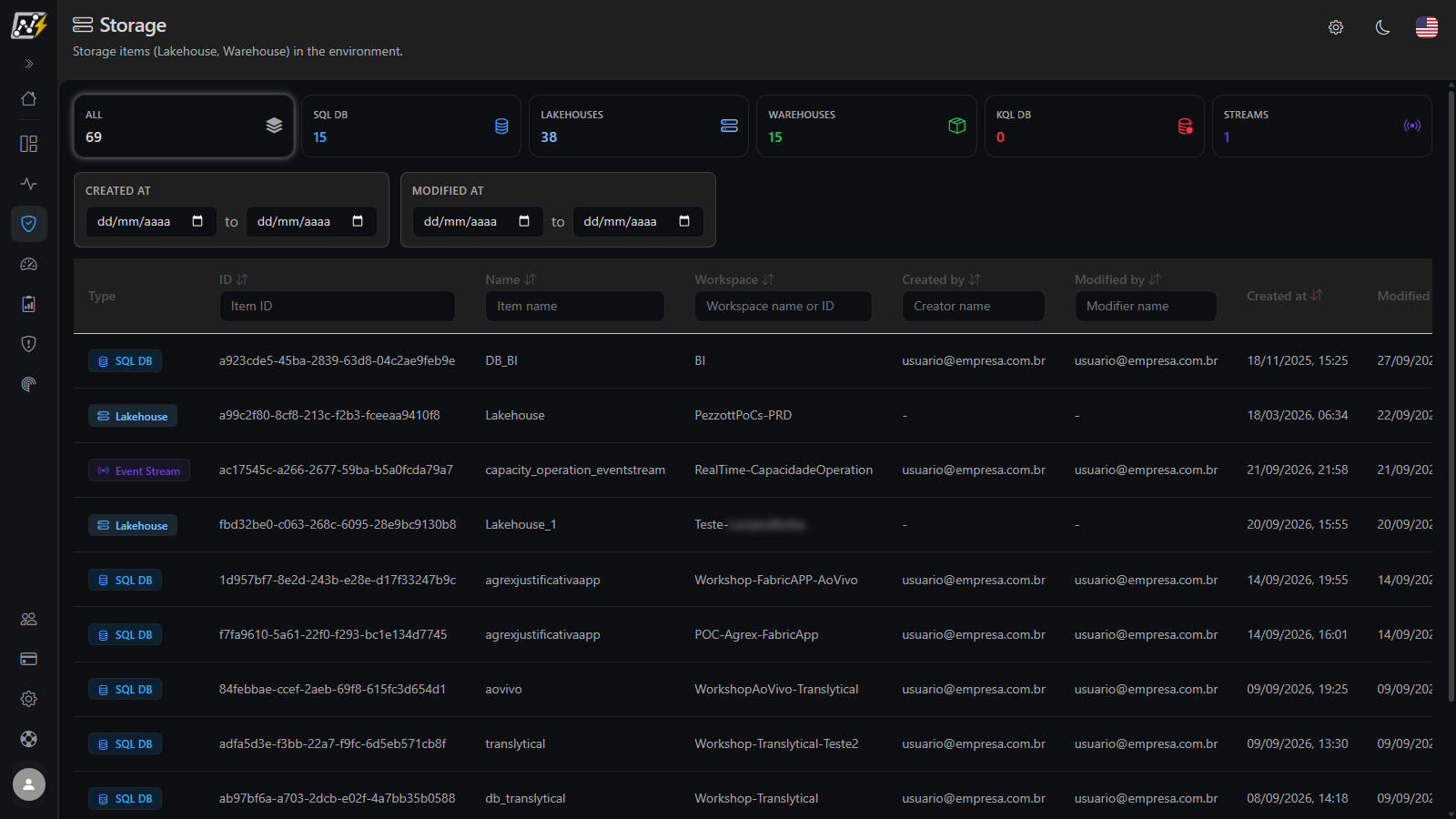
# Storage

The **Storage** screen brings together in a single list the Microsoft Fabric data persistence items in the monitored workspaces: **SQL Databases**, **Lakehouses**, **Warehouses**, **KQL databases** and **Eventstreams**. For Lakehouses and Warehouses, it is also the entry point for two important analyses: **reverse lineage** ("who consumes this storage?") and the SQL endpoint [Performance Analysis](analise-de-performance-sql.md).

**How to access:** menu *Governance › Storage*. Available to all profiles. The screen is view-only; the only exception is the modal's **OneLake roles** (Lakehouse) and **SQL permissions** (Warehouse) tabs, exclusive to **Administrators**, which change permissions in Fabric.

<figure><picture><source srcset="../../assets/pm-governanca-armazenamento-en-dark.png" media="(prefers-color-scheme: dark)"><img src="../../assets/pm-governanca-armazenamento-en.png" alt="Storage screen with the cards by type and the unified item table"></picture><figcaption><p>Storage inventory</p></figcaption></figure>

{% hint style="info" %}
Mirrored databases (**Mirrored Databases**) have their own screen: [Fabric Mirroring](fabric-mirroring.md). Real-time artifacts that are not storage (Eventhouse, Reflex, Event subscriptions, KQL Querysets) are in [Real Time](tempo-real.md).
{% endhint %}

## What it is for

* **Mapping the data layers** (for example, Bronze/Silver/Gold) and which workspaces each Lakehouse or Warehouse is in.
* **Analyzing impact before a change:** before changing a Lakehouse schema or decommissioning a Warehouse, seeing which semantic models and reports depend on it.
* **Investigating slowness and consumption** of a Warehouse or of a Lakehouse SQL analytics endpoint, with the [Performance Analysis](analise-de-performance-sql.md).
* **Auditing access** to storage items: who is a member, who is an external guest, which applications have access.
* **Managing data access** (Administrators): OneLake data access roles on Lakehouses and T-SQL permissions (GRANT/DENY) on Warehouses, from rules.

## Features

The screen follows the [common structure of the Governance lists](relatorios.md#common-structure-of-the-lists), with the particularities described below.

### Cards by storage type

**What it is:** the strip of six cards at the top (**All**, **SQL DB**, **Lakehouses**, **Warehouses**, **KQL DB** and **Streams**) shows how many items of each type exist in the monitored workspaces you can see. Each card also works as a **tab** for the table.

**What it is for:** getting the count of the storage estate at a glance (for example, "how many Warehouses do we have?") and isolating a type with one click.

<figure><picture><source srcset="../../assets/pm-governanca-armazenamento-cards-en-dark.png" media="(prefers-color-scheme: dark)"><img src="../../assets/pm-governanca-armazenamento-cards-en.png" alt="Strip of All, SQL DB, Lakehouses, Warehouses, KQL DB and Streams cards with the count for each type"></picture><figcaption><p>Cards by storage type</p></figcaption></figure>

| Card | Content |
| --- | --- |
| **All** | Total storage items (sum of the five types). |
| **SQL DB** | Fabric SQL Databases. |
| **Lakehouses** | Lakehouses. |
| **Warehouses** | Warehouses. |
| **KQL DB** | KQL databases. |
| **Streams** | Eventstreams. |

**How to use:**

1. In *Governance › Storage*, click a card: **SQL DB**, **Lakehouses**, **Warehouses**, **KQL DB** or **Streams**.
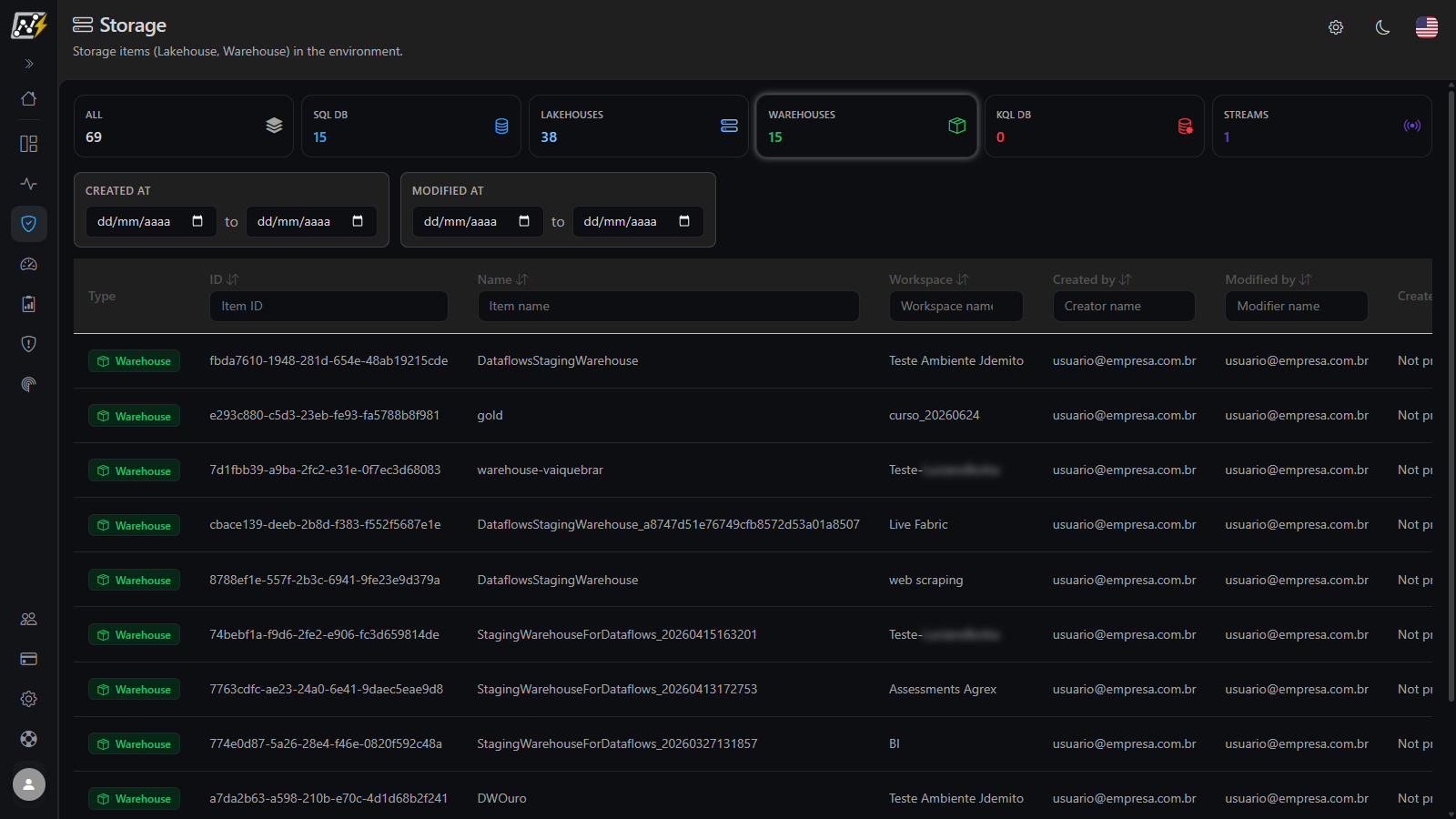
2. The card is highlighted and the table lists only that type, returning to the first page.
3. Click **All** to return to the full list.

<figure><picture><source srcset="../../assets/pm-governanca-armazenamento-filtro-tipo-en-dark.png" media="(prefers-color-scheme: dark)"><img src="../../assets/pm-governanca-armazenamento-filtro-tipo-en.png" alt="Warehouses card selected and the table showing only Warehouses"></picture><figcaption><p>Table filtered by the Warehouses card</p></figcaption></figure>

**How it works:** the card numbers show the total for each type and **do not change** with the column filters. Column filters apply together with the selected card: for example, the **Lakehouses** card + the **Workspace** filter shows only the Lakehouses in that workspace.

### Item table

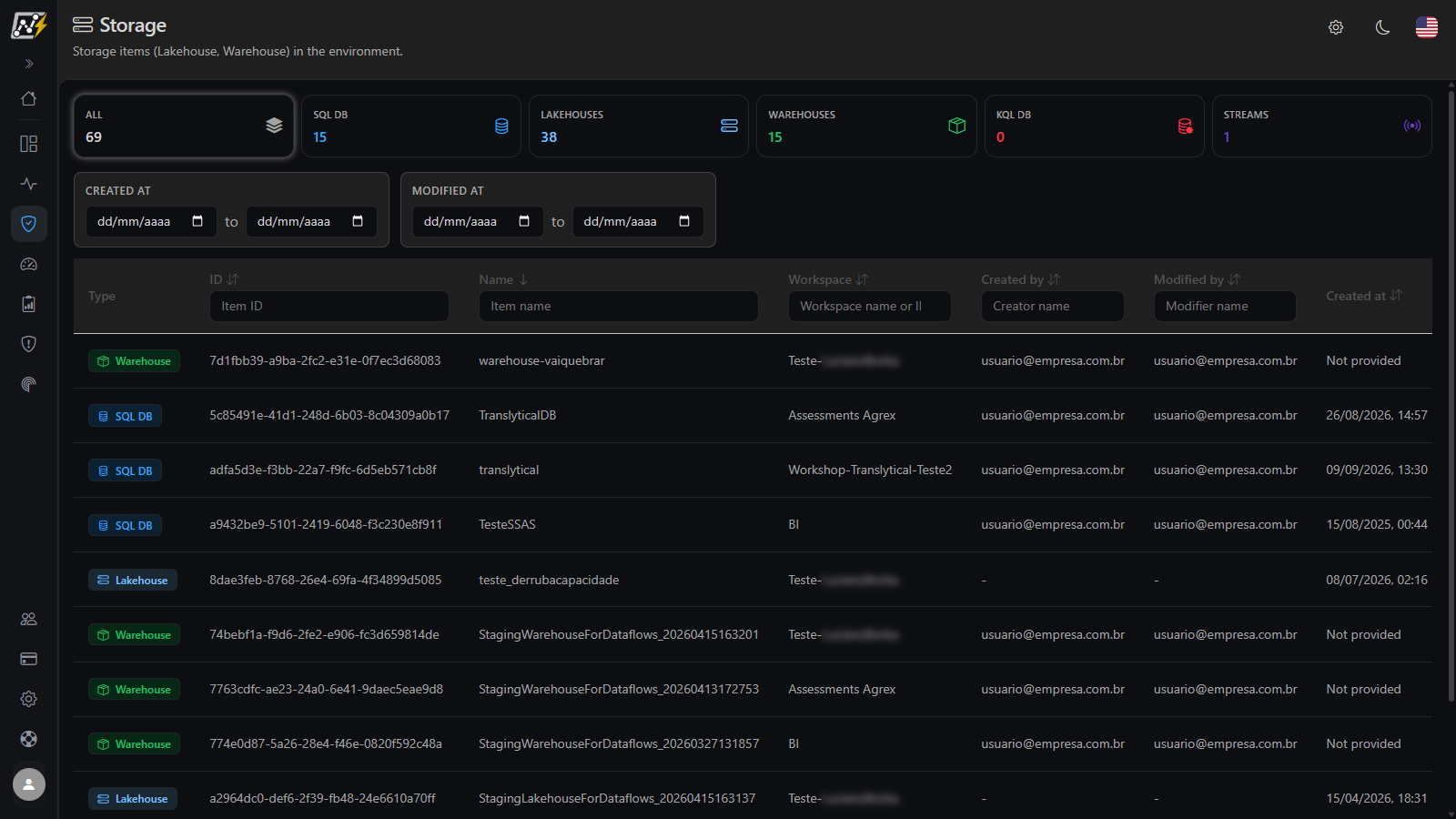
**What it is:** the unified list of storage items, one row per item, with the type in a colored badge.

**What it is for:** locating an item, knowing which workspace it is in and who created or last changed it.

<figure><picture><source srcset="../../assets/pm-governanca-armazenamento-colunas-filtros-en-dark.png" media="(prefers-color-scheme: dark)"><img src="../../assets/pm-governanca-armazenamento-colunas-filtros-en.png" alt="Storage table header with the columns and the text filter boxes"></picture><figcaption><p>Table columns and text filters</p></figcaption></figure>

| Column | Description | Filter |
| --- | --- | --- |
| **Type** | Badge with the item type: SQL DB, Lakehouse, Warehouse, KQL DB or Event Stream. | — |
| **ID** | Identifier (GUID) of the item in Fabric. | Text (*Item ID*) |
| **Name** | Item name. | Text (*Item name*) |
| **Workspace** | Item's workspace. | Text (*Workspace name or ID*) |
| **Created by** | Account that created the item. | Text (*Creator name*) |
| **Modified by** | Account of the last change. | Text (*Modifier name*) |
| **Created at** | Creation date. | Date range (above the table) |
| **Modified at** | Date of the last change. | Date range (above the table) |

**How to use:** click a row to open the item details modal, or use the **⋮** button at the end of the row to open the actions menu (both described below).

**How it works:**

* Not every type has all fields. **Lakehouses** do not include *Created by* / *Modified by* in the inventory, and **Warehouses** do not include *Created at*: for a Warehouse, the *Created by* column shows the account that configured the item. Missing fields appear as "-".
* When there are no items, the table shows "No storage artifacts found".

### Text filters by column

**What it is:** search boxes just below the headers of the **ID**, **Name**, **Workspace**, **Created by** and **Modified by** columns.

**What it is for:** quickly finding an item by name or GUID, or listing everything a given user created or changed.

**How to use:**

1. Type the term in the column's filter box (part of the text is enough; the search is case-insensitive).
2. The table is filtered automatically, a fraction of a second after you stop typing, and returns to the first page.
3. Delete the text to remove the filter. Filters on different columns are combined.

**How it works:** the **Workspace** filter accepts both the workspace name and ID; the **ID** filter accepts the item's GUID in Fabric.

### Date filters (Created at and Modified at)

**What it is:** two date range selectors above the table (**Created at** and **Modified at**), each with a start date and an end date.

**What it is for:** answering questions such as "which Lakehouses were created this month?" or "what was changed since the last change window?".

<figure><picture><source srcset="../../assets/pm-governanca-armazenamento-filtros-data-en-dark.png" media="(prefers-color-scheme: dark)"><img src="../../assets/pm-governanca-armazenamento-filtros-data-en.png" alt="Created at and Modified at date range selectors above the table"></picture><figcaption><p>Date range filters</p></figcaption></figure>

**How to use:**

1. In the **Created at** (or **Modified at**) selector, choose the start date and/or the end date. You can enter just one of the two.
2. The table shows only the items within the range.
3. Clear the dates to remove the filter.

**How it works:**

* Dates are interpreted in your browser's **local day**: the end date includes the whole day (up to 23:59:59).
* Items without the corresponding date (for example, Warehouses in **Created at**) are excluded when that date filter is filled in.
* When you fill in a date filter, the table is sorted by that date: **from oldest to newest** when there is a start date, and from newest to oldest when there is only an end date.

### Sorting and pagination

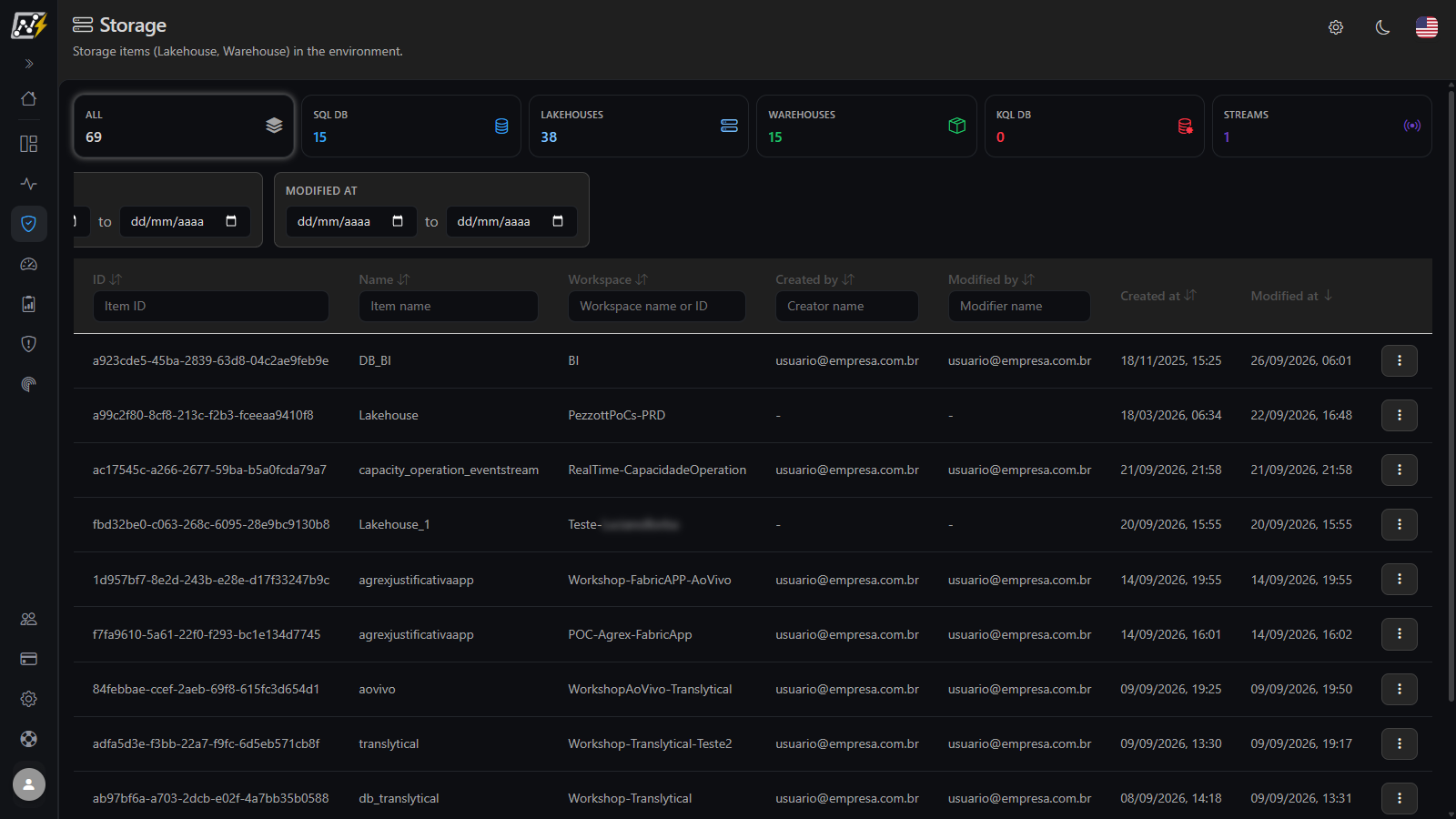
**What it is:** click a column header to sort the table; the footer has the pagination.

**What it is for:** seeing what changed most recently first, grouping items from the same workspace or sorting by name.

<figure><picture><source srcset="../../assets/pm-governanca-armazenamento-ordenacao-paginacao-en-dark.png" media="(prefers-color-scheme: dark)"><img src="../../assets/pm-governanca-armazenamento-ordenacao-paginacao-en.png" alt="Storage table sorted by the Name column, with pagination in the footer"></picture><figcaption><p>Table sorted by the Name column</p></figcaption></figure>

**How to use:**

1. Click a column header (**ID**, **Name**, **Workspace**, **Created by**, **Modified by**, **Created at** or **Modified at**). The first click sorts in descending order; click again to reverse. The **Type** column cannot be sorted.
2. Use the pagination in the footer to move between pages.

**How it works:** the default sort is **Modified at**, from newest to oldest. There are 10 items per page. When sorting by date, items without that date go to the end of the list.

### Actions menu

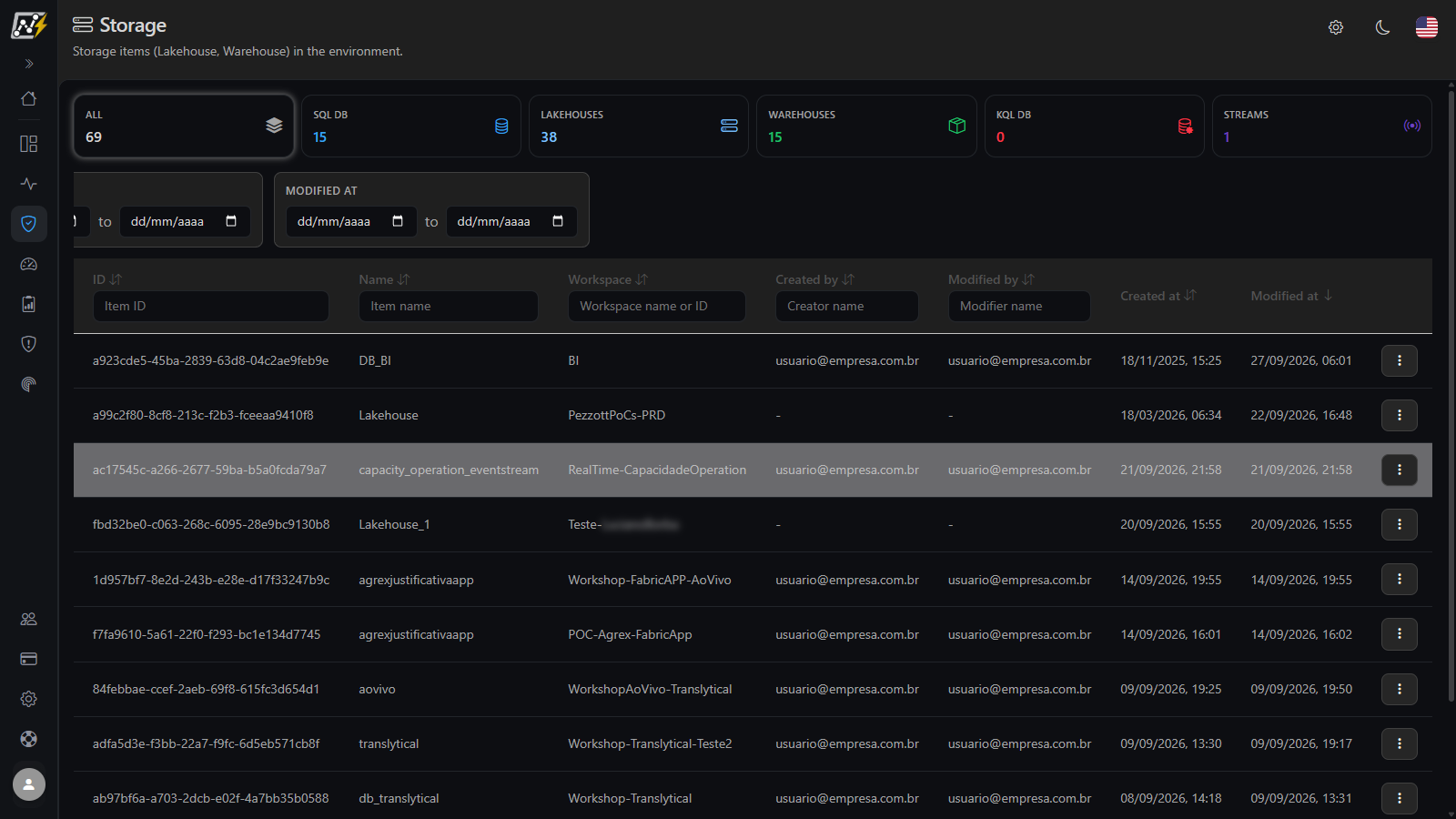
**What it is:** the menu opened by the **⋮** button at the end of the row, or by right-clicking the row.

**What it is for:** opening the details modal directly on the desired tab and reaching the Performance Analysis.

<figure><picture><source srcset="../../assets/pm-governanca-armazenamento-menu-acoes-en-dark.png" media="(prefers-color-scheme: dark)"><img src="../../assets/pm-governanca-armazenamento-menu-acoes-en.png" alt="Actions menu of a Warehouse with Open details and Performance Analysis"></picture><figcaption><p>Actions menu of a Warehouse</p></figcaption></figure>

| Action | What it does | Available for |
| --- | --- | --- |
| **Open details** | Direct click: opens the modal on the **Overview** tab. On hover, it opens the submenu *Overview*, *Users & Permissions* and *Lineage*. | SQL DB, Lakehouse, Warehouse, Event Stream |
| **Performance Analysis** | Opens the item's [Performance Analysis](analise-de-performance-sql.md) page (below the menu divider). | Lakehouse and Warehouse |

<figure><picture><source srcset="../../assets/pm-governanca-armazenamento-menu-submenu-detalhes-en-dark.png" media="(prefers-color-scheme: dark)"><img src="../../assets/pm-governanca-armazenamento-menu-submenu-detalhes-en.png" alt="Actions menu of a Lakehouse with the Open details submenu open showing Overview, Users and Permissions and Lineage"></picture><figcaption><p>Open details submenu</p></figcaption></figure>

**How to use:**

1. Click the row's **⋮** button (or right-click the row).
2. Click **Open details** to open the **Overview**, or hover over **Open details** and choose **Overview**, **Users & Permissions** or **Lineage** in the submenu.
3. On Warehouses and Lakehouses, choose **Performance Analysis** to open the SQL endpoint diagnosis.

**How it works:** **KQL databases** have no actions menu or details modal: they appear only in the inventory. Near the edge of the screen, the submenu opens to the side or upward, so as not to leave the visible area.

### Details modal: Overview

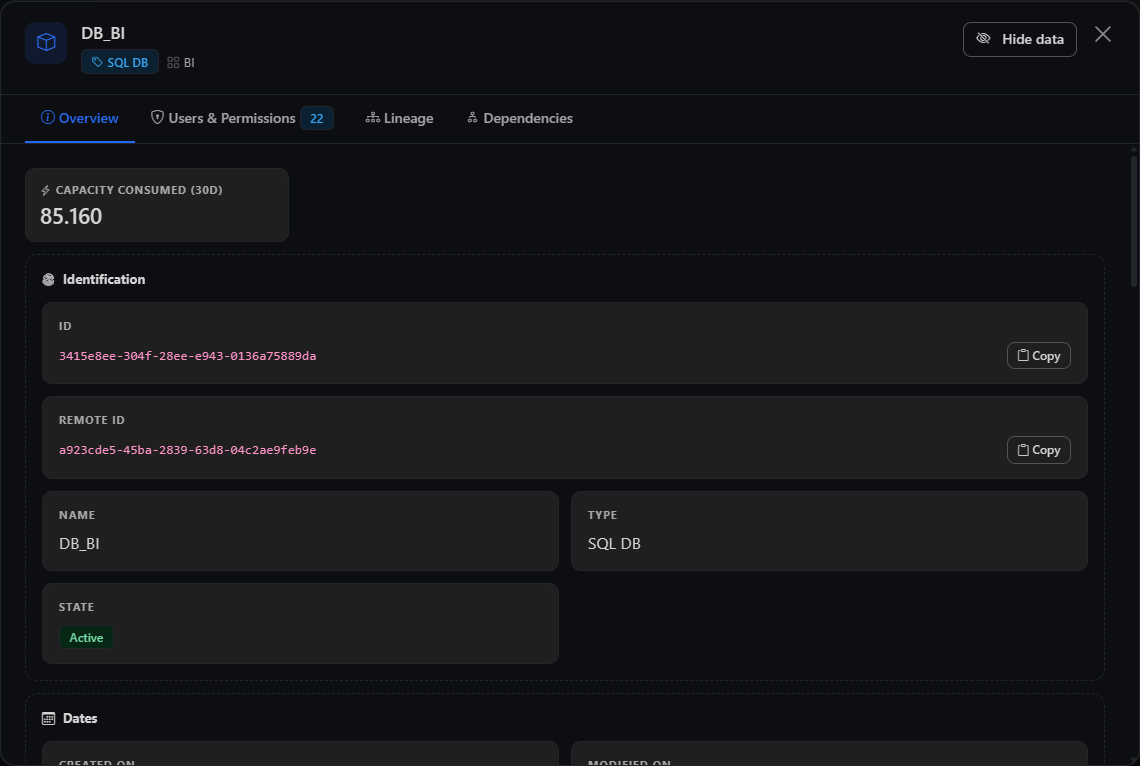
**What it is:** the modal opened by clicking a row, with the item's registration data. The tabs at the top are **Overview**, **Users & Permissions**, **Lineage** and **Dependencies**; for Administrators, the Lakehouse modal also has the **OneLake roles** tab and the Warehouse modal, the **SQL permissions** tab.

**What it is for:** checking the item identifier, which workspace it is in and who created and changed it.

<figure><picture><source srcset="../../assets/pm-governanca-armazenamento-modal-visao-geral-en-dark.png" media="(prefers-color-scheme: dark)"><img src="../../assets/pm-governanca-armazenamento-modal-visao-geral-en.png" alt="Details modal of a Lakehouse on the Overview tab with ID, name, type, workspace and dates"></picture><figcaption><p>Details modal: Overview tab</p></figcaption></figure>

**How to use:**

1. Click the item's row (any type, except KQL DB). The modal opens on the **Overview** tab.
2. Use **Copy** next to the ID to copy the item identifier (the button shows **Copied!**).
3. Switch between the tabs at the top; close with the **X**.

**How it works:** the tab shows **ID**, **Name**, **Type**, **Workspace**, **Created on**, **Modified on**, **Created by** and **Modified by**. Fields with no value in the inventory (for example, *Created on* for a Warehouse) are not displayed.

### Users & Permissions

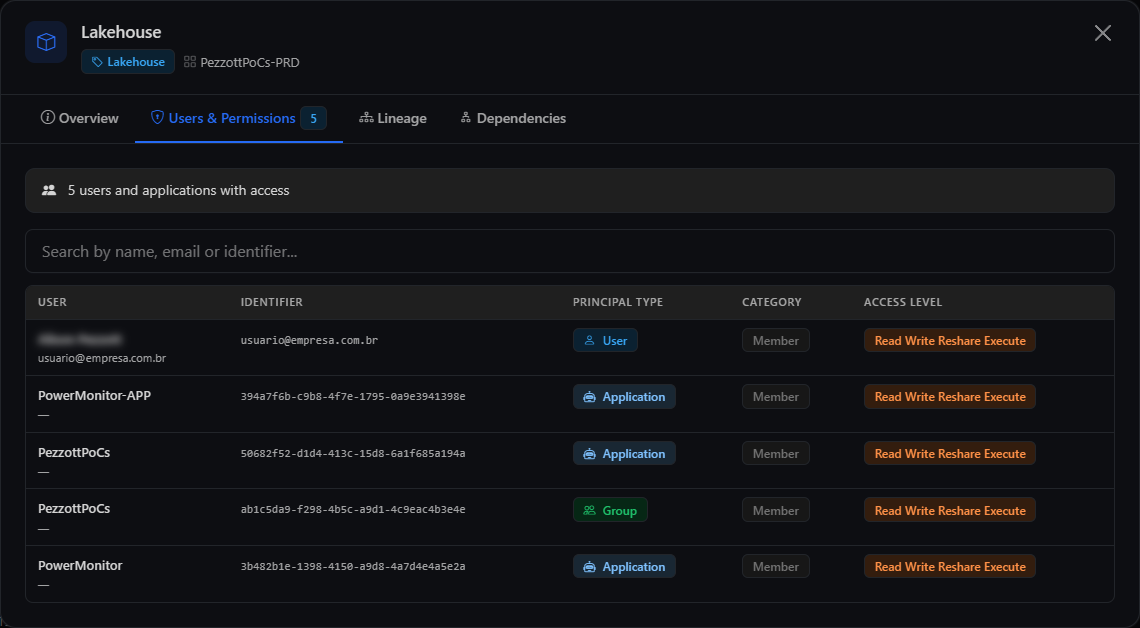
**What it is:** the modal tab that lists the people, groups and applications (Service Principals) with access to the item.

**What it is for:** reviewing access during audits, identifying external guests and confirming whether an application has permission on the item.

<figure><picture><source srcset="../../assets/pm-governanca-armazenamento-modal-usuarios-en-dark.png" media="(prefers-color-scheme: dark)"><img src="../../assets/pm-governanca-armazenamento-modal-usuarios-en.png" alt="Users and Permissions tab with the search and the User, Identifier, Principal Type, Category and Access Level columns"></picture><figcaption><p>Users &#x26; Permissions tab</p></figcaption></figure>

**How to use:**

1. In the row's **⋮** menu, hover over **Open details** and choose **Users & Permissions** (or open the modal and click the tab).
2. See the summary "*N* users and applications with access".
3. Type in the **Search by name, email or identifier...** box to find someone.

**How it works:** the columns are **User**, **Identifier**, **Principal Type** (*User*, *Application* or *Group*), **Category** (*Member* or *Guest/External*) and **Access Level**. With no recorded access, the tab shows "No users found.".

{% hint style="warning" %}
This tab displays user names and emails. Be careful when copying, pasting or sharing screenshots and lists, especially when they involve customer data.
{% endhint %}

### Reverse lineage

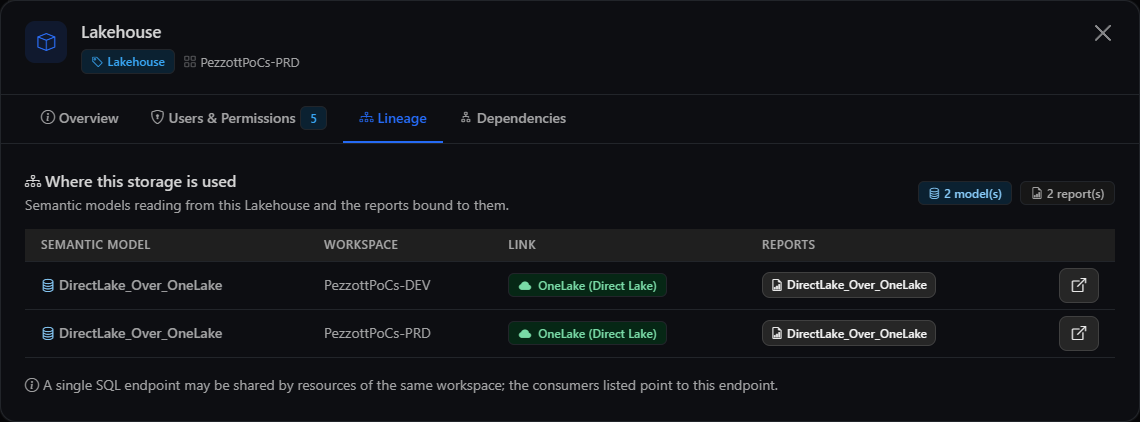
**What it is:** the **Lineage** tab of the modal, titled **Where this storage is used**. It lists the semantic models that read from the Lakehouse or Warehouse and the reports bound to them.

**What it is for:** answering "if I change this Lakehouse/Warehouse, what breaks?" before a schema change, migration or decommissioning.

<figure><picture><source srcset="../../assets/pm-governanca-armazenamento-modal-linhagem-en-dark.png" media="(prefers-color-scheme: dark)"><img src="../../assets/pm-governanca-armazenamento-modal-linhagem-en.png" alt="Lineage tab of a Lakehouse listing the consuming semantic models and their reports"></picture><figcaption><p>Reverse lineage: where this storage is used</p></figcaption></figure>

**How to use:**

{% stepper %}
{% step %}
#### Locate the item

Click the **Lakehouses** (or **Warehouses**) card and type the name in the **Name** column filter.
{% endstep %}

{% step %}
#### Open the lineage

In the row's **⋮** menu, hover over **Open details** and choose **Lineage**. The tab shows the counters "*N* model(s)" and "*N* report(s)".
{% endstep %}

{% step %}
#### Assess the impact

Review the table: the **Link** column indicates whether the model reads through the **SQL endpoint** or through **OneLake (Direct Lake)**. Use **Open model in Power BI** and **Open report in Power BI** to check each consumer.
{% endstep %}

{% step %}
#### Identify whom to notify

Open the semantic model in [Semantic Models](modelos-semanticos.md) to see the owner and the users with access, and coordinate the change with them.
{% endstep %}
{% endstepper %}

| Column | Description |
| --- | --- |
| **Semantic model** | Model that reads from this storage, with the **Open model in Power BI** shortcut. |
| **Workspace** | Model's workspace. |
| **Link** | How the model connects: **SQL endpoint** (connection through the SQL analytics endpoint address) or **OneLake (Direct Lake)** (direct reading of the tables in OneLake). |
| **Reports** | Reports bound to the model, each with the **Open report in Power BI** shortcut ("No reports" when there are none). |

**How it works:**

* The lineage is built from what the scans have already collected (model connections, Power Query expressions and OneLake paths): a model that has not yet gone through the model mapping scan may not appear. With no known consumers, the tab shows "No known semantic model consumes this storage."
* If reading fails, the tab shows "Could not load the lineage of this storage." with the option to try again.

{% hint style="warning" %}
**Available for Lakehouses and Warehouses.** For SQL Databases and Eventstreams the tab shows that reverse lineage is not available yet: the Fabric inventory does not provide, for these types, the connection identification needed to match consumers.

A single SQL endpoint can be shared by items in the same workspace; in that case the listed consumers point to the endpoint, and not necessarily to that specific item.
{% endhint %}

### Dependencies

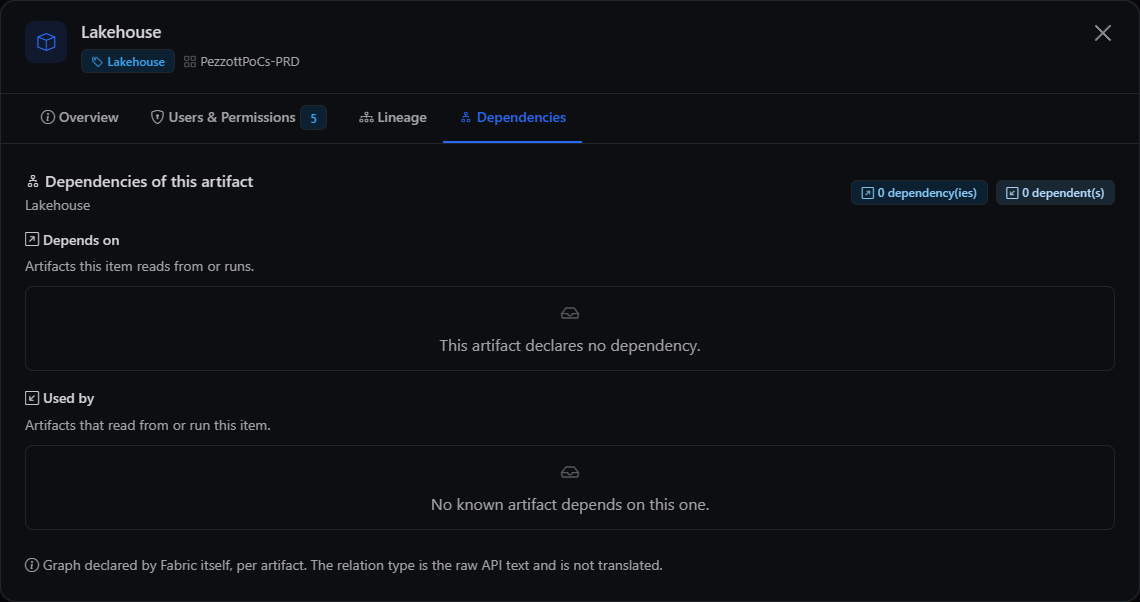
**What it is:** the **Dependencies** tab of the modal (**Dependencies of this artifact**) shows the relations that Fabric itself declares between the item and other artifacts, in two lists: **Depends on** (artifacts this item reads from or runs) and **Used by** (artifacts that read from or run this item).

**What it is for:** finding out which pipelines, notebooks, Dataflows, Copy Jobs and other items write to or read from the Lakehouse/Warehouse: it complements reverse lineage, which covers semantic models and reports.

<figure><picture><source srcset="../../assets/pm-governanca-armazenamento-modal-dependencias-en-dark.png" media="(prefers-color-scheme: dark)"><img src="../../assets/pm-governanca-armazenamento-modal-dependencias-en.png" alt="Dependencies tab with the dependency and dependent counters and the Depends on and Used by lists"></picture><figcaption><p>Dependencies tab</p></figcaption></figure>

**How to use:**

1. Click the item's row to open the details modal.
2. Click the **Dependencies** tab.
3. See the counters "*N* dependency(ies)" and "*N* dependent(s)" and review the **Depends on** and **Used by** lists, with the **Artifact**, **Type**, **Relation type** and **Identifier** columns.

**How it works:**

* The graph comes from the dependencies declared by Fabric for each artifact. The **Relation type** is the original API text and is not translated.
* When the other end is outside the monitored scope (unmonitored workspace, type not collected or item not yet scanned), it appears as "Unidentified artifact", with the GUID, and the counter "*N* outside the monitored scope". The dependency is real; only the name is not available.
* An item that declares no dependencies and that no other item references shows "There is no dependency graph for this artifact."

### OneLake roles and SQL permissions

**What it is:** two modal tabs, visible only to **Administrators**: **OneLake roles**, the last tab of a **Lakehouse** modal, and **SQL permissions**, the last tab of a **Warehouse** modal. Both manage data access from rules.

**What it is for:**

* **OneLake roles:** creating, changing or deleting OneLake data access roles, defining which tables and folders (`Tables/...`, `Files/...` or the whole item) each role sees and who the members are.
* **SQL permissions:** granting (GRANT), denying (DENY) or removing (REVOKE) explicit T-SQL permissions (SELECT, INSERT, UPDATE, DELETE, EXECUTE) for users and groups on the Warehouse's schemas and objects.

**How to use:**

1. Click the Lakehouse or Warehouse row and, in the modal, click the **OneLake roles** or **SQL permissions** tab.
2. Click **New rule**, fill in the role (name, paths and members) or the permission (user or group, schema or object, state and permissions) and click **Save rule**.
3. Click **Apply rules**, check the confirmation window and click **Confirm**. High-risk changes (**DefaultReader**/**DefaultReadWriter** roles, item-permission members and any **DENY**) require ticking the **High-risk confirmation** box.
4. Follow the result at the top of the **Rules** card and in the **History** card.

**How it works:**

* The changes are made by the organization's Service Principal, which must be Member (or higher) of the Lakehouse's workspace, or Admin, Member or Contributor of the Warehouse's workspace.
* In **OneLake roles**, paths that do not exist in the Lakehouse yet are flagged with the **Does not exist in the Lakehouse today** badge, without blocking the apply: the role grants access once the path is created. Roles with row- or column-level security (RLS/CLS) are not rewritten.
* In **SQL permissions**, the tab shows only explicit permissions; schema and object names are case-sensitive and are checked when applying.
* Access without a rule is never removed automatically. Rules, confirmation, history and limits are detailed in [Direct Access](acesso-direto.md#onelake-roles-tab-lakehouse) and [Direct Access › SQL permissions](acesso-direto.md#sql-permissions-tab-warehouse).

### Access to Performance Analysis

**What it is:** the **Performance Analysis** item in the **⋮** menu, available for **Warehouses** and **Lakehouses**.

**What it is for:** investigating T-SQL queries, Capacity Units consumption and scheduled tasks of a Warehouse or a Lakehouse SQL analytics endpoint. See the [Performance Analysis](analise-de-performance-sql.md) page.

**How to use:**

1. Click the **Warehouses** or **Lakehouses** card and locate the item.
2. Click the row's **⋮** button and choose **Performance Analysis** (below the menu divider). The option does not appear for SQL DB, KQL DB and Event Stream.
3. The analysis page opens with the **Last 24 hours** period. To go back, use the **Storage** link in the path at the top of the page.

**How it works:** the Performance Analysis is opened **only** from this menu (it has no item of its own in the side menu) and follows the same access as the Storage screen, including per-user page blocking.

### Loading error messages

**What it is:** notices displayed in the upper right corner when one of the storage types could not be loaded, for example "Failed to load warehouses.".

**What it is for:** knowing that the list is incomplete at that moment, without losing the other types.

**How it works:** each type is loaded independently. If one fails, the others remain in the list and in the cards; reload the page to try again.

## Rules and behavior

* Only items from **monitored workspaces** appear; items deleted in the tenant leave the list and go to [Deleted Artifacts](artefatos-excluidos.md).
* Users with a restricted scope see only the items in the workspaces granted to them.
* The inventory is updated by the inventory scans: see [Inventory Scan](../mapeamento/inventarios.md).
* The screen has no export of its own (CSV, Excel, PNG or PDF).
* The **OneLake roles** and **SQL permissions** tabs are exclusive to Administrators and appear only on Lakehouses and Warehouses with Fabric identifiers registered in the inventory.

## Frequently asked questions

<details>

<summary>Why doesn't the Mirrored Database appear here anymore?</summary>

Mirrored databases got a dedicated screen, with synchronization status: [Fabric Mirroring](fabric-mirroring.md).

</details>

<details>

<summary>A Lakehouse was deleted in Fabric but still appears in the list.</summary>

The deletion is detected by the inventory scan. After the next cycle that reaches the workspace, the item leaves the list and starts appearing in [Deleted Artifacts](artefatos-excluidos.md).

</details>

<details>

<summary>Why don't I see the Performance Analysis option for a SQL Database?</summary>

The Performance Analysis is based on the SQL analytics endpoint's Query Insights and is available for **Warehouses** and **Lakehouses**.

</details>

<details>

<summary>Why can't I open the details of a KQL database?</summary>

KQL databases appear only in the inventory: they have no details modal or actions menu on this screen.

</details>

<details>

<summary>I filtered by Created at and the Warehouses disappeared.</summary>

The Fabric inventory does not report the creation date of Warehouses. Items without the date are excluded when that date filter is filled in; use **Modified at** for them.

</details>

<details>

<summary>A Lakehouse's Lineage tab is empty, but I know there are reports using it.</summary>

Check whether the semantic models that read from the Lakehouse are in monitored workspaces and whether they have already gone through the model mapping scan. Models that connect through a server address different from the registered SQL endpoint (for example, through an alias) cannot be matched.

</details>

## Related pages

* [Performance Analysis](analise-de-performance-sql.md)
* [Direct Access](acesso-direto.md)
* [Fabric Mirroring](fabric-mirroring.md)
* [Real Time](tempo-real.md)
* [Semantic Models](modelos-semanticos.md)
* [Data Lineage](../qualidade-de-dados/linhagem-de-dados.md)