> For the complete documentation index, see [llms.txt](https://docs.powermonitor.com.br/llms.txt). Markdown versions of documentation pages are available by appending `.md` to page URLs; this page is available as [Markdown](https://docs.powermonitor.com.br/en/power-monitor/governanca/conformidade/convencao-de-nomes.md).
# Naming conventions
Define naming rules (prefix, suffix, regular expression, forbidden words and allowed characters) and see which workspaces, reports, models and other items in the environment do not follow them.
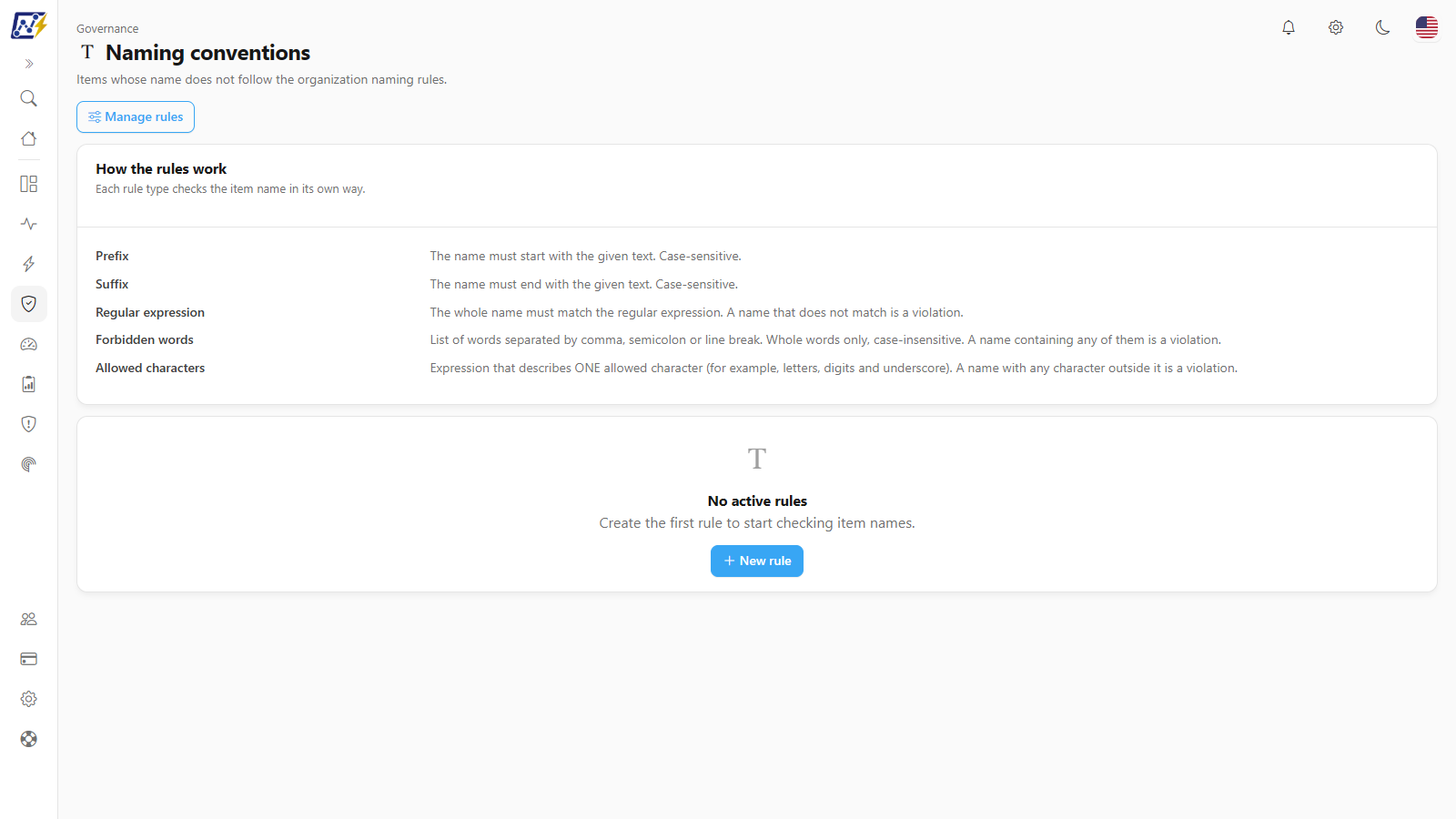
The **Naming conventions** screen shows the items in your environment (workspaces, reports, semantic models, dataflows, lakehouses, notebooks, data pipelines and warehouses) whose **name does not follow the organization's naming rules**. An Administrator registers the rules; the screen calculates the violations over the inventory already collected and presents them in indicators, charts and a list.
**How to access:** menu *Governance › Compliance › Naming conventions*.
**Who can use it:** reading is open to **all profiles**, within each user's **workspace scope**. The **Manage rules** button is for **Administrators** (for everyone else, the tooltip is *Only administrators manage the rules.*). An administrator can block the page for specific users in [Users](/en/power-monitor/usuarios.md).
Governance › Compliance › Naming conventions
## What it is for
* **Standardize** names to make search, governance and report reading easier (for example, the *PRD\_* prefix on production items).
* **Prevent clutter** such as the words *test*, *copy* or *final* in official items.
* **Track adherence** to the convention over time and prioritize what to fix.
## Screen components
1. **Header** with **Manage rules**.
2. **How the rules work** card (*Each rule type checks the item name in its own way*), always visible right below the header, with one line explaining each rule type (**Prefix**, **Suffix**, **Regular expression**, **Forbidden words** and **Allowed characters**).
3. **Notice about Microsoft standard artifacts** ignored, when applicable (see [Privacy and compliance](/en/power-monitor/governanca/conformidade/privacidade-e-conformidade.md#microsoft-standard-artifacts-are-left-out)). For Administrators, the notice has a **Configure** button that opens the **Microsoft standard artifacts** window, with the **Ignore Microsoft standard artifacts** switch and the organization's name patterns.
4. **Notices** of limited evaluation (see below).
5. **KPI cards.**
6. **By rule** and **By item type.**
7. **List of violations.**
With no active rule, the screen shows **No active rules**: Administrators see *Create the first rule to start checking item names.* and the others see *Ask an administrator to set up the naming rules.*
### KPI cards
| Card | What it shows |
| --------------------------------------------------------- | ---------------------------------------------------------------------------------------------------------------------------- |
| **Violations** (*Items outside the convention*) | **Total violations**, broken down into **Error** and **Warning**. The card turns to a warning tone when there are violations |
| **Active rules** (*Rules being evaluated*) | Number of rules |
| **Items evaluated** (*Items that went through the rules*) | Number of items |
### By rule and by item type
Two bar charts: **By rule** (*Rules with the most violations*) and **By item type** (*Where violations concentrate*). With no violations, each one shows *No violations.*
### List of violations
Each row is a combination of an item and a violated rule.
| Column | Content |
| ------------ | ---------------------------------------------------------------------------------------------------------------------------- |
| **Item** | Item name and, below it, the workspace it belongs to |
| **Type** | **Workspace**, **Report**, **Semantic model**, **Dataflow**, **Lakehouse**, **Notebook**, **Data pipeline** or **Warehouse** |
| **Rule** | Violated rule |
| **Severity** | **Warning** or **Error** |
| **Reason** | Explanation of the violation |
No column is sortable. The filters are in the table headers: search by **Item, workspace or rule**, **All types** and **All rules**; changing a filter goes back to the first page. The **More actions** menu (also opened by right-clicking the row) offers **Open in Power BI** (enabled only for workspace-type items; for the others the tooltip is *Available for workspaces only.*) and **Copy name**.
The table is paginated (25 items by default, with the **Items per page** selector) and the export menu generates **CSV** or **JSON** of the displayed page, with the columns Item, Type, Workspace, Rule, Severity and Reason.
### Evaluation notices
| Notice | When it appears |
| ----------------------------------------------------------------------------------- | --------------------------------------------------------------------- |
| *The evaluation was limited to N items. There may be violations beyond that limit.* | The organization has more items than the evaluation limit (50,000) |
| *N invalid rule(s) were ignored. Review their pattern.* | A saved rule stopped passing validation and was not run |
| *N rule(s) exceeded the evaluation time and are incomplete.* | A very slow regular expression was switched off during the evaluation |
### Manage rules (Administrator)
Naming rules
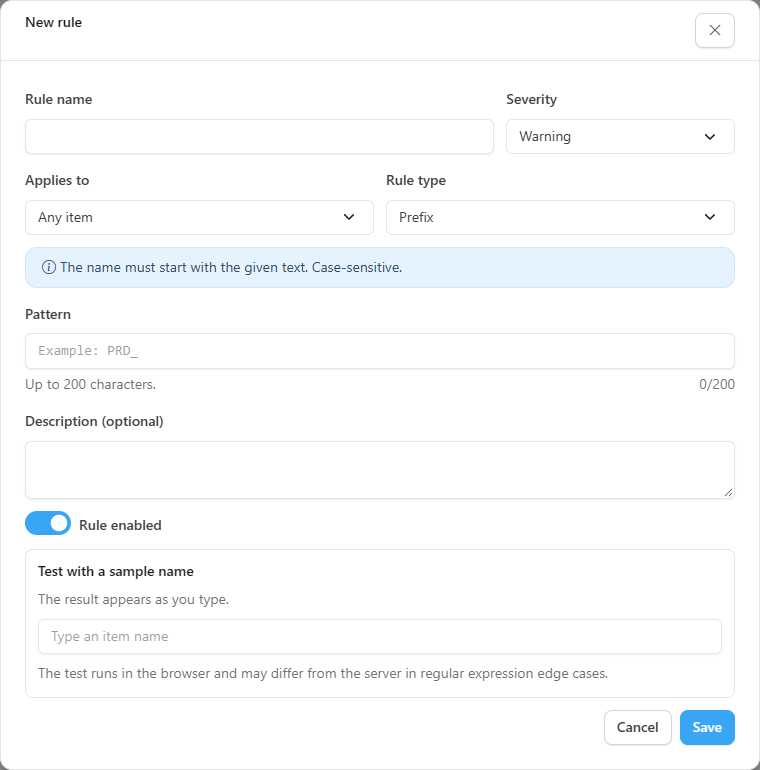
The **Manage rules** button opens the **Naming rules** window (*N of 100 rules*), with the list of rules (enable or disable with the switch, **Edit rule**, delete) and the **New rule** button. Deleting a rule removes it from the evaluation and its violations disappear from the list.
| Field | Notes |
| -------------------------- | ------------------------------------------------------------------- |
| **Rule name** | Up to 120 characters |
| **Severity** | **Warning** or **Error** |
| **Applies to** | An item type or **Any item** (all eight types, including workspace) |
| **Rule type** | See the table below |
| **Pattern** | Up to 200 characters |
| **Description (optional)** | Up to 500 characters |
| **Rule enabled** | Turns the evaluation on or off |
| Rule type | The name violates when... |
| ---------------------- | ---------------------------------------------------------------------------------------------------------------------------------------------- |
| **Prefix** | It does not start with the given text. Case sensitive |
| **Suffix** | It does not end with the given text. Case sensitive |
| **Regular expression** | The whole name does not match the expression |
| **Forbidden words** | It contains any word in the list (separated by comma, semicolon or line break; up to 50 words of 100 characters). Whole word, case insensitive |
| **Allowed characters** | It contains any character outside the given expression, which describes **one** allowed character (for example, `[A-Za-z0-9_]`) |
The **Test with a sample name** block shows right away whether the name *complies with the rule* or *violates the rule* (for regular expressions, click **Test**). The test runs in the browser and may differ from the server in edge cases; the server validates the pattern on save and rejects expressions that would stall the evaluation.
## Rules and behavior
* Violations are **not stored**: they are calculated on read, over the last collected inventory. There is no violation history and no date when an item started violating.
* The result is cached for about 1 minute and recalculated when the rules change.
* Items without a name are ignored. Deleted items are not included.
* **Microsoft standard artifacts** are left out.
* Users with a restricted workspace scope see only violations in their scope.
## Step by step
### How to create the first rule (Administrator)
{% stepper %}
{% step %}
### Open the manager
In *Governance › Compliance › Naming conventions*, click **Manage rules** and then **New rule**.
{% endstep %}
{% step %}
### Define the rule
Give it a name (for example, *Production reports start with PRD\_*), choose **Applies to** *Report*, the **Prefix** type and the pattern `PRD_`.
{% endstep %}
{% step %}
### Test
Type a sample name in **Test with a sample name** and check the result.
{% endstep %}
{% step %}
### Save
Save. The list of violations is updated with the items that do not start with `PRD_`.
{% endstep %}
{% endstepper %}
## Frequently asked questions
Does the screen change the names of my items?
No. It is read-only: Power Monitor points out the violations, but names are fixed in Power BI/Fabric.
Why is a rule not generating violations?
Check that it is enabled, that **Applies to** matches the right type and that there is no notice of an invalid rule or one that exceeded the time. For regular expressions, remember there is no automatic anchor: use `^` and `$`.
I changed a name in Power BI and the violation remains.
The evaluation uses the last collected inventory. The violation disappears after the next inventory collection.
## Related pages
* [Privacy and compliance](/en/power-monitor/governanca/conformidade/privacidade-e-conformidade.md)
* [Compliance](/en/power-monitor/governanca/conformidade.md)
* [Labels and Certification](/en/power-monitor/governanca/conformidade/rotulos-e-certificacao.md)
* [Workspaces](/en/power-monitor/governanca/workspaces.md)
* [Semantic Models](/en/power-monitor/governanca/modelos-semanticos.md)
* [Users](/en/power-monitor/usuarios.md)
---
# Agent Instructions
This documentation is published with GitBook. GitBook is the documentation platform designed so that both humans and AI agents can read, navigate, and reason over technical content effectively. Learn more at gitbook.com.
## Querying This Documentation
If you need additional information that is not directly available in this page, you can query the documentation by asking a question.
Perform an HTTP GET request on the following URL with the `ask` and `goal` query parameters:
```
GET https://docs.powermonitor.com.br/en/power-monitor/governanca/conformidade/convencao-de-nomes.md?ask=&goal=
```
`ask` is the immediate question: it should be specific, self-contained, and written in natural language.
`goal` is what the user is ultimately trying to achieve, the reason they need the answer. Sharing it helps GitBook give you a better, more relevant answer. A goal is most helpful when it describes the outcome the user wants rather than restating the question. For example, with `ask=how do I create an API token`, a goal like `automate deployments from our CI pipeline` lets GitBook tailor the answer to that use case.
The response will contain a direct answer to the question and relevant excerpts and sources from the documentation.
Use this mechanism when the answer is not explicitly present in the current page, you need clarification or additional context, or you want to retrieve related documentation sections.