> For the complete documentation index, see [llms.txt](https://docs.powermonitor.com.br/llms.txt). Markdown versions of documentation pages are available by appending `.md` to page URLs; this page is available as [Markdown](https://docs.powermonitor.com.br/en/power-monitor/governanca/conformidade/descoberta-de-dados-pessoais.md).
# Personal data discovery
Find semantic models with columns that look like personal data (tax ID, e-mail, health and more), identified by column name, and see whether they have a label, RLS and exposure. Decision support, not
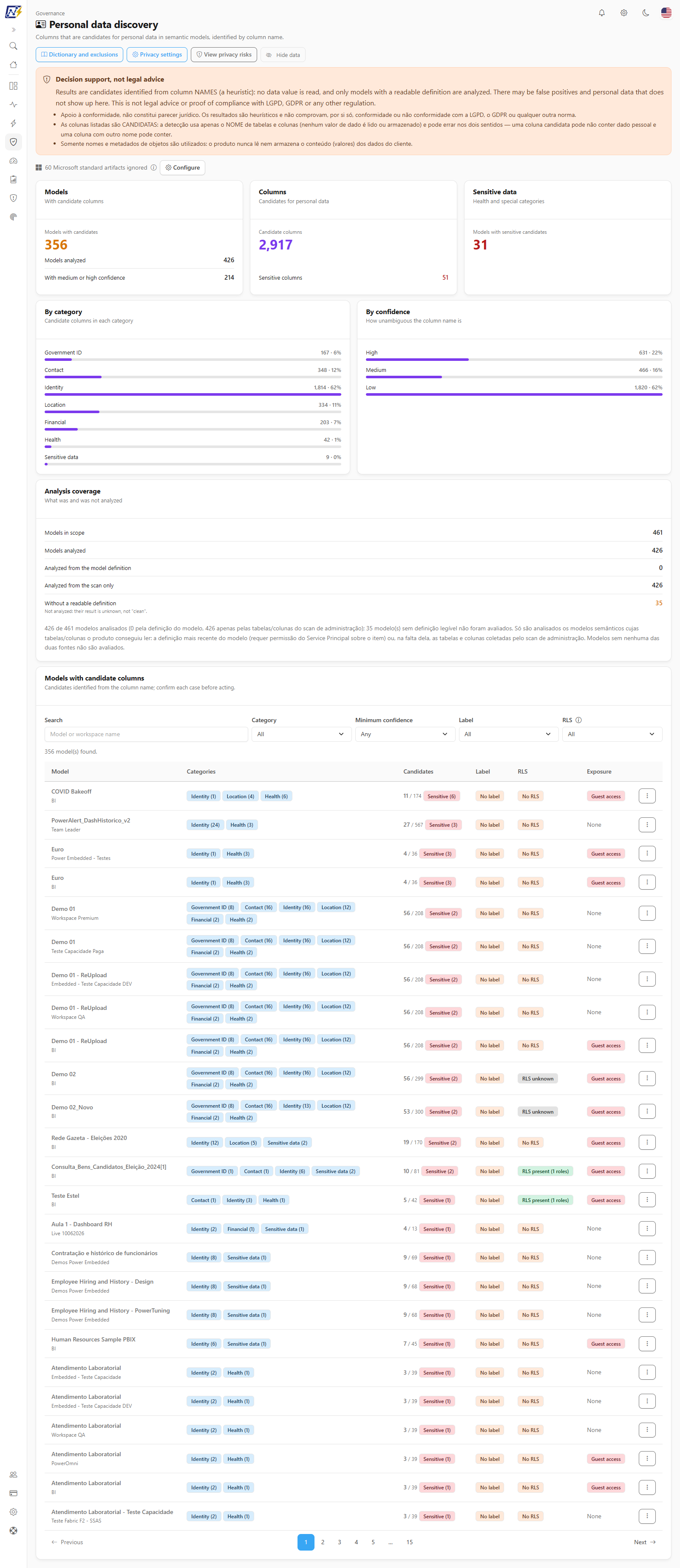
The **Personal data discovery** screen points out, among the semantic models in your environment, which ones have **columns that are candidates for personal data**: tax IDs, e-mail, phone, address, date of birth, health information and other categories covered by LGPD and GDPR. Identification is based on the **column name**: Power Monitor **never reads the values** in your data.
**How to access:** menu *Governance › Compliance › Personal data discovery*.
**Who can use it:** all profiles can see the screen. The **Dictionary and exclusions** and **Privacy settings** buttons appear for everyone, but only **Administrators** can use them (for everyone else they are dimmed, with the tooltip *Only administrators can manage the dictionary and the privacy settings.*). The screen respects each user's **workspace scope**: a model in a workspace outside your scope simply does not appear, and the numbers reflect only your slice. An administrator can block the page for specific users in [Users](/en/power-monitor/usuarios.md); the block also applies to [Privacy risks](/en/power-monitor/governanca/conformidade/riscos-de-privacidade.md), which shares the same access control.
Governance › Compliance › Personal data discovery
{% hint style="warning" %}
**Decision support, not legal advice.** The results are candidates (a heuristic over column names): there may be false positives and personal data that does not show up here. The screen is not legal advice and is not proof of compliance with LGPD, GDPR or any other regulation. Confirm each case before acting.
{% endhint %}
## What it is for
* **Map where personal data may be** in your semantic models, without opening model after model.
* **Prioritize protection:** see which models with candidates have **no sensitivity label**, **no RLS** or are exposed to guests, public links or organization-wide links.
* **Find sensitive data** (health, biometrics, racial or ethnic origin, religion and other special categories), which deserves extra care.
* **Prepare answers** for the data protection officer (DPO) and audits, together with the [Compliance posture](/en/power-monitor/governanca/conformidade/postura-de-conformidade.md).
## Screen components
From top to bottom:
1. **Header** with the **Dictionary and exclusions**, **Privacy settings**, **View privacy risks** and **Hide data** buttons.
2. **"Decision support, not legal advice" notice.**
3. **Microsoft standard artifacts notice** (when applicable). See [Privacy and compliance](/en/power-monitor/governanca/conformidade/privacidade-e-conformidade.md#microsoft-standard-artifacts-are-left-out).
4. **KPI cards.**
5. **By category** and **By confidence**.
6. **Analysis coverage.**
7. **Models with candidate columns**, the list with filters.
### KPI cards
| Card | What it shows |
| ---------------------------------------------------- | ----------------------------------------------------------------------------------------------------- |
| **Models** (*With candidate columns*) | **Models with candidates**, with the **Models analyzed** and **With medium or high confidence** lines |
| **Columns** (*Candidates for personal data*) | **Candidate columns**, with the **Sensitive columns** line |
| **Sensitive data** (*Health and special categories*) | **Models with sensitive candidates** |
The **Models** card turns yellow when there are candidates and the **Sensitive data** card turns red; with no candidates, both are green.
### By category and by confidence
Two bar charts with the number of candidate columns:
* **By category:** **Government ID**, **Contact**, **Identity**, **Location**, **Financial**, **Health** and **Sensitive data**.
* **By confidence** (*How unambiguous the column name is*): **High**, **Medium** and **Low**.
Confidence indicates how clearly the column name shows that it is personal data:
| Confidence | When it happens |
| ---------- | ----------------------------------------------------------------------------------------------------------------------------------------------------------------------------------------------------------------------------------------------------------------------------------------------- |
| **High** | Unambiguous term, written as a whole word or as a known compound (for example, *DateOfBirth*, *TaxId\_Customer*) |
| **Medium** | Partial match (for example, *customerphone*) or an inherently ambiguous term |
| **Low** | Generic word, such as *name* or *account*. It is discarded when the column carries non-personal context (for example, *ProductName*). It appears on this screen, but it **does not feed** the cross-cuts in [Privacy risks](/en/power-monitor/governanca/conformidade/riscos-de-privacidade.md) |
A model is considered a **candidate** when it has at least one column with **Medium** or **High** confidence.
### Analysis coverage
The **Analysis coverage** card (*What was and was not analyzed*) shows:
| Line | Meaning |
| -------------------------------------- | -------------------------------------------------------------------- |
| **Models in scope** | Models you can see |
| **Models analyzed** | How many were evaluated |
| **Analyzed from the model definition** | The analysis used the full model definition (tables and columns) |
| **Analyzed from the scan only** | The analysis used only the column list from the inventory collection |
| **Without a readable definition** | **Not analyzed**: their result is unknown, not "clean" |
{% hint style="info" %}
A model's definition can only be read when the Power Monitor Service Principal has write permission on it. Models without a readable definition fall under **Without a readable definition** and are never treated as free of personal data.
{% endhint %}
If the organization has more models than the analysis limit, the notice *The analysis stopped at the limit of N models. The numbers below are partial.* appears.
### "Models with candidate columns" list
Each row is a semantic model. The filters sit above the table:
| Filter | Options |
| ---------------------- | ---------------------------------------- |
| **Search** | Model or workspace name |
| **Category** | All or one of the categories above |
| **Minimum confidence** | Any, Low, Medium or High |
| **Label** | All, **With label** or **Without label** |
| **RLS** | All, **With RLS** or **Without RLS** |
**Clear filters** restores the full list. The columns are:
| Column | Content |
| -------------- | --------------------------------------------------------------------------------------------------------------------------------------------------------------------------------------------------------------------------------------------------------------------------------------------- |
| **Model** | Model and workspace name |
| **Categories** | Categories of the candidates found (sensitive ones carry the **Sensitive** badge) |
| **Candidates** | Number of candidate columns |
| **Label** | **Labeled**, **No label** or **Not evaluated** |
| **RLS** | **RLS present (N roles)**, **No RLS** or **RLS unknown** |
| **Exposure** | **Guest access** (guests have access to the model or to the workspace) or **None**. Public links and organization-wide links do not appear here: they are cross-checked in [Privacy risks](/en/power-monitor/governanca/conformidade/riscos-de-privacidade.md), in the **Exposure** cross-cut |
Table details:
* The **Categories** column shows one badge per category with the number of columns, for example *Contact (3)*, or *No candidates*.
* The **Candidates** column shows *candidates / analyzed* (for example, *4 / 120*) and the red **Sensitive (N)** badge when there are sensitive columns.
* The **Label** column shows the name of the applied sensitivity label, when there is one.
* The columns are not sortable: the list order comes ready from the server.
* The list is paginated (25 items by default) and has the **Items per page** selector (10, 25, 50 or 100). Above the table you see the count *N model(s) found.* With no result, the message is *No model matches the filters.*
* The search waits for a short pause in typing before filtering. When any filter is active, the **Clear filters** button appears.
* The information icon next to the **RLS** filter reminds you that *RLS present means RLS roles exist in the model. It does not prove that the rules protect the data.*
* Clicking the row opens **View candidate columns**. The **More actions** menu (or right-click) offers **View candidate columns**, **Open in Power BI** and **Copy name**. **Open in Power BI** is dimmed, with the tip *There are not enough identifiers to open this item in Power BI.*, when the model identifiers are missing.
Candidate columns of a model
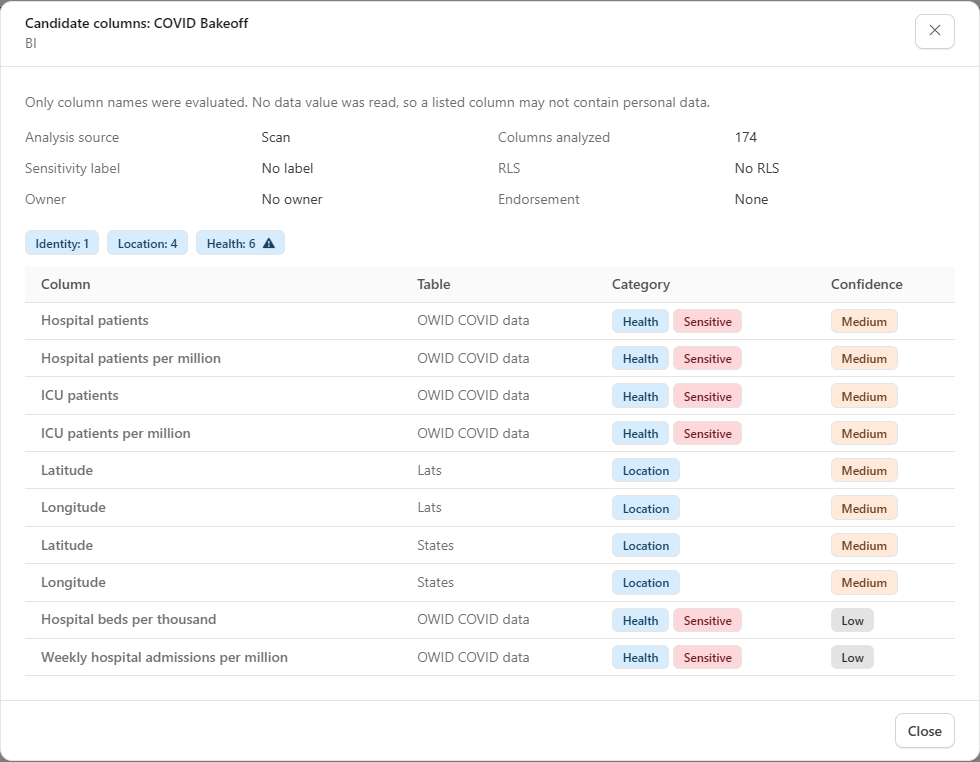
**View candidate columns** opens a window with the **Analysis source** (*Model definition* or *Scan*, with the capture date), the **Columns analyzed**, the **Sensitivity label**, the **RLS**, the **Owner** (*No owner* when there is none; masked by **Hide data**), the **Endorsement**, the category badges (with a warning icon on the sensitive ones) and the table of columns with **Column**, **Table**, **Category** (with the **Sensitive** badge) and **Confidence**. The window reminds you: *Only column names were evaluated. No data value was read, so a listed column may not contain personal data.*
The window lists the **10 most relevant candidate columns** of the model; when there are more, it shows *Showing 10 of N candidate columns.* Power Monitor considers at most 500 candidates per model. In this window the label shows only **Labeled** (or the label name) and **No label**; the **Not evaluated** state appears in the main table.
{% hint style="info" %}
**"Not evaluated" label.** When Power Monitor does not have permission to read the sensitivity label catalog (or the catalog is unavailable), it cannot state that a model has no label. In that case the **Label** column shows **Not evaluated** and the screen explains why.
{% endhint %}
### Dictionary and exclusions (Administrator)
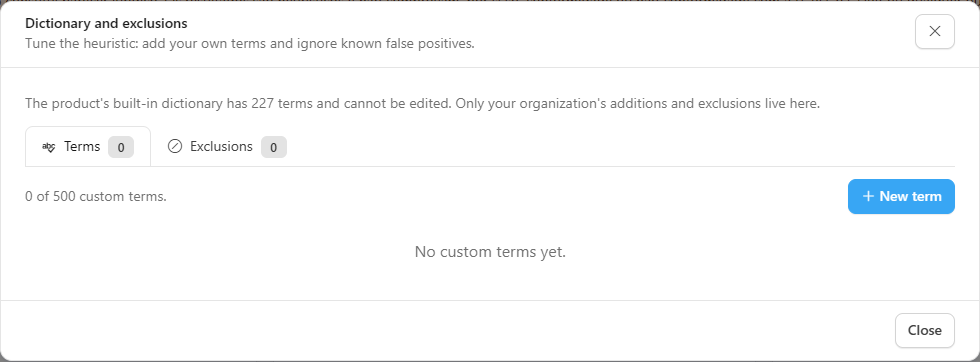
The **Dictionary and exclusions** button opens a window to tune the heuristic to your organization's reality:
Dictionary and exclusions
* **Terms:** the product's built-in dictionary (in Portuguese, English and Spanish) cannot be edited, but you can add **custom terms**: a column name fragment (for example, *employee\_id* or *holder\_ssn*), the **Category**, the **Confidence** and whether it should be **treated as sensitive**. You can enable or disable (switch on each row), edit and delete (with confirmation) each term. The limit is 500 custom terms, shown in the window itself (*N of M custom terms*); when it is reached, the **New term** button is disabled. A term has up to 100 characters and 6 words. When you choose the category of a new term, **Treat as sensitive** comes checked for the sensitive categories (you can change it). The window also tells you how many terms the product's built-in dictionary has, and the **Terms** and **Exclusions** tabs show a counter.
* **Exclusions:** column name patterns to **ignore** (known false positives), with **Column name pattern** and a required **Reason**. The only wildcard is `*` (any sequence of characters), for example `*_internal` or `Product*`; regular expressions are not accepted. The pattern must have letters or digits besides the wildcard, up to 200 characters and up to 5 wildcards; the reason has up to 300 characters. The limit is 500 exclusions. Columns that match an exclusion are evaluated again if you delete it.
After saving, the candidates are recalculated.
### Privacy settings (Administrator)
The **Privacy settings** button stores the organization context used by the cross-cuts in [Privacy risks](/en/power-monitor/governanca/conformidade/riscos-de-privacidade.md#cross-border-access):
| Field | What it is for |
| ------------------------------------------------ | ------------------------------------------------------------------------------------------------------------------------------------------------------------------------------------------------------------------------------------------------------------------------------------------------------------ |
| **Home countries** | Countries where the organization legitimately operates. The country in the organization profile is always considered. Access from outside them appears in the **Cross-border access** cross-cut |
| **Additional allowed countries** | Countries also accepted as an access origin, for example by contract or an adequacy decision. Each list accepts up to 50 countries |
| **Legal basis note** | Short free text (up to 500 characters, with a counter) about the legal basis of the processing. The window warns: *Do not enter personal data in this field.* Feeds the **Documented legal basis** control in the [Compliance posture](/en/power-monitor/governanca/conformidade/postura-de-conformidade.md) |
| **Data protection officer (DPO) contact e-mail** | Feeds the **Data protection officer (DPO) appointed** control |
| **LGPD applies** / **GDPR applies** | Records which regulations the organization considers applicable |
Countries are picked from a list (**Add country**) and removed with the button on each badge. At the top of the window you see **Countries considered:** and where they came from (*defined in the settings*, *from the organization profile* or *no country defined*); while there is none, the window warns *No home country defined. Enter the home countries or complete the organization profile to enable the cross-border access cross-cut.* The DPO e-mail must be valid (up to 254 characters). The buttons are **Cancel** and **Save**; after saving, the risks screen is recalculated.
### How this is calculated
On the [Privacy risks](/en/power-monitor/governanca/conformidade/riscos-de-privacidade.md#how-this-is-calculated) screen there is a collapsible **How this is calculated** card (**Show** button), with the rules, windows and limits used by the discovery and the risk cross-cuts.
## Rules and behavior
* **Where the data comes from:** the semantic model inventory already collected by Power Monitor (columns captured in the scan and, when the Service Principal can read it, the model definition). No query is made against your data.
* **What is not used:** data values, DAX or M expressions, RLS filters, table and measure names. Only **column names** go into detection.
* **How it detects:** the column name is compared, **whole word**, with a dictionary in Portuguese, English and Spanish, ignoring accents, case and separators (camelCase, snake\_case, spaces). For example, *zip* never matches inside *unzipped*.
* **Refresh:** results follow the inventory and are cached for 5 minutes per organization and workspace scope.
* **Microsoft standard artifacts** are left out of the analysis.
* **RLS present** means the model has RLS roles; it does not prove that the rules protect the data.
## Step by step
### How to prioritize models with personal data
{% stepper %}
{% step %}
### See the overview
Open *Governance › Compliance › Personal data discovery* and read the **Models** and **Sensitive data** cards.
{% endstep %}
{% step %}
### Focus on what matters
In **Minimum confidence**, choose **Medium** and, in **Label**, **Without label**. For more critical data, also filter **Without RLS**.
{% endstep %}
{% step %}
### Confirm each case
Open **View candidate columns** and validate with the model owner whether the columns really contain personal data.
{% endstep %}
{% step %}
### Act
Apply sensitivity labels and RLS in Power BI and track progress in [Privacy risks](/en/power-monitor/governanca/conformidade/riscos-de-privacidade.md) and in the [Compliance posture](/en/power-monitor/governanca/conformidade/postura-de-conformidade.md).
{% endstep %}
{% endstepper %}
### How to reduce false positives (Administrator)
1. Click **Dictionary and exclusions**.
2. On the **Exclusions** tab, click **New exclusion**, enter the column name pattern (for example, `*_internal`) and the reason, and save.
3. The list is recalculated and the columns that match the pattern stop being candidates.
## Frequently asked questions
Does Power Monitor read the data in my tables?
No. Detection uses only column names. No data value is read or stored.
A model does not appear in the list. Does that mean it has no personal data?
Not necessarily. The model may be outside your workspace scope, may have no readable definition (see the **Analysis coverage** card) or may hold personal data in columns whose names the heuristic does not recognize. The absence of a result is never proof of compliance.
Why does the Label column show "Not evaluated"?
Power Monitor could not read the sensitivity label catalog (missing permission or unavailability). Without the catalog, it does not state that the model has "no label".
Can I add terms from my business?
Yes, an Administrator can register custom terms in **Dictionary and exclusions**, with category and confidence, and also exclude column names that are known false positives.
## Related pages
* [Privacy and compliance](/en/power-monitor/governanca/conformidade/privacidade-e-conformidade.md): overview of the set of screens
* [Privacy risks](/en/power-monitor/governanca/conformidade/riscos-de-privacidade.md)
* [Compliance posture](/en/power-monitor/governanca/conformidade/postura-de-conformidade.md)
* [Labels and Certification](/en/power-monitor/governanca/conformidade/rotulos-e-certificacao.md)
* [Data Exposure](/en/power-monitor/qualidade-de-dados/exposicao-de-dados.md)
* [Users](/en/power-monitor/usuarios.md)
---
# Agent Instructions
This documentation is published with GitBook. GitBook is the documentation platform designed so that both humans and AI agents can read, navigate, and reason over technical content effectively. Learn more at gitbook.com.
## Querying This Documentation
If you need additional information that is not directly available in this page, you can query the documentation by asking a question.
Perform an HTTP GET request on the following URL with the `ask` and `goal` query parameters:
```
GET https://docs.powermonitor.com.br/en/power-monitor/governanca/conformidade/descoberta-de-dados-pessoais.md?ask=&goal=
```
`ask` is the immediate question: it should be specific, self-contained, and written in natural language.
`goal` is what the user is ultimately trying to achieve, the reason they need the answer. Sharing it helps GitBook give you a better, more relevant answer. A goal is most helpful when it describes the outcome the user wants rather than restating the question. For example, with `ask=how do I create an API token`, a goal like `automate deployments from our CI pipeline` lets GitBook tailor the answer to that use case.
The response will contain a direct answer to the question and relevant excerpts and sources from the documentation.
Use this mechanism when the answer is not explicitly present in the current page, you need clarification or additional context, or you want to retrieve related documentation sections.