> For the complete documentation index, see [llms.txt](https://docs.powermonitor.com.br/llms.txt). Markdown versions of documentation pages are available by appending `.md` to page URLs; this page is available as [Markdown](https://docs.powermonitor.com.br/en/power-monitor/governanca/conformidade/links-para-toda-a-organizacao.md).
# Organization-wide Links
Inventory of the active "People in your organization" sharing links in the Power BI tenant, with the permission granted, who shared and the sensitivity label, and export to CSV and JSON.
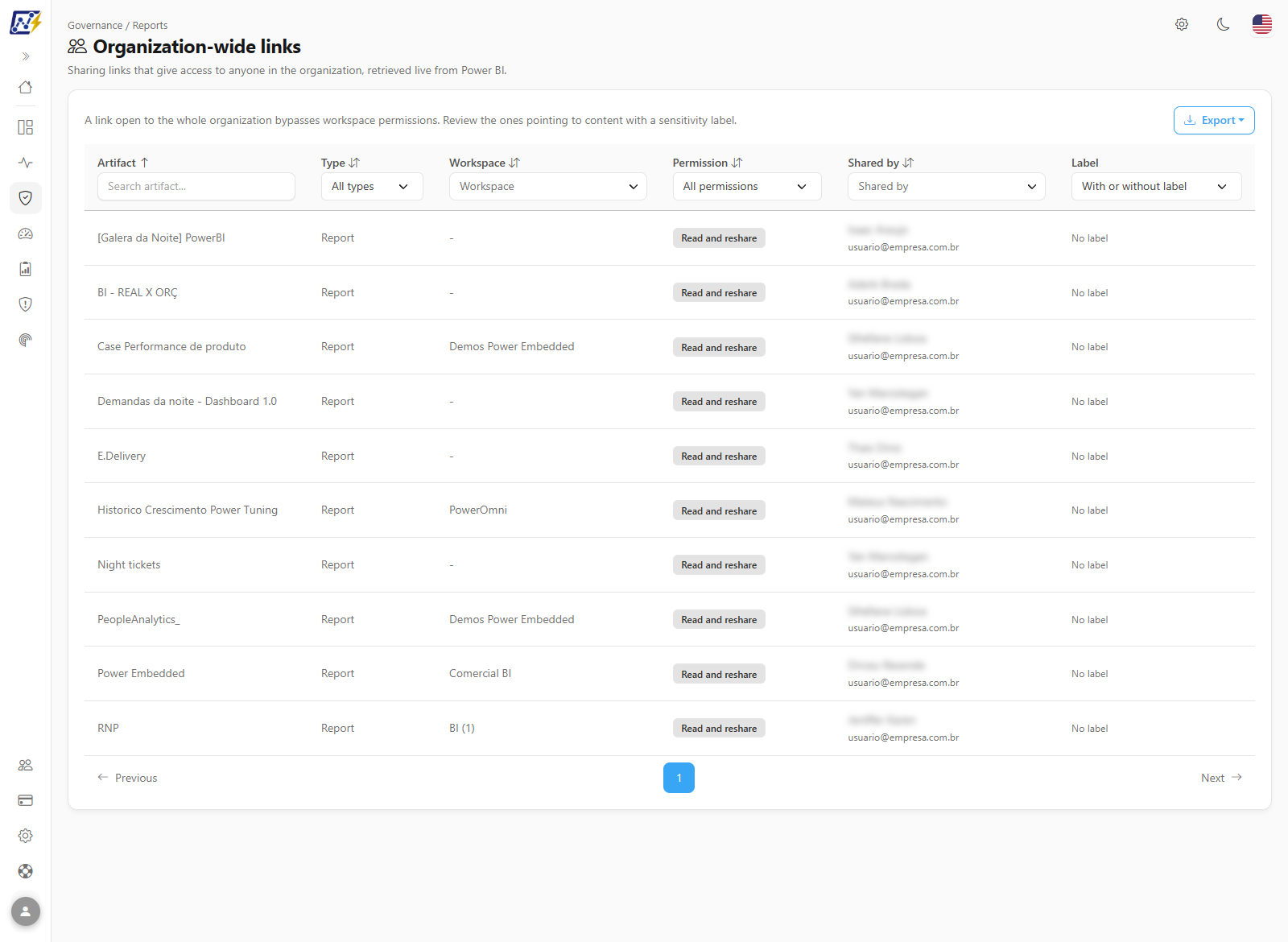
The **Organization-wide Links** screen lists the Power BI sharing links configured as **People in your organization**: links that give access to the content to **anyone in the tenant** who has the link, regardless of workspace permissions. The list is retrieved live from Power BI and shows, for each link, the artifact, the workspace, the permission level granted, who shared it and whether the content has a sensitivity label.
**How to access:** menu *Governance › Compliance › Organization-wide Links* (right below [Public Links](/en/power-monitor/governanca/conformidade/links-publicos.md)). Available to all profiles, respecting each user's workspace scope and page lock (see [Rules and behavior](#rules-and-behavior)).
Sharing links open to the whole organization
{% hint style="warning" %}
**A link open to the whole organization bypasses workspace permissions.** Any employee who receives the link (by email, chat or forwarding) can open the content. Pay special attention to rows with **Labeled** in the **Label** column: they are content classified as confidential that is accessible to the whole organization.
{% endhint %}
## What it is for
* **Broad access review:** discover which reports are accessible to the whole organization by link, and not only to the people and groups with permission on the workspace.
* **Sensitive content exposed internally:** filter the links to content with a sensitivity label: the highest-risk scenario on this screen.
* **Excessive permissions:** identify links that grant more than read access (for example, resharing), allowing access to spread even further.
* **Compliance (LGPD) and audits:** export the list as evidence or as the basis for a periodic review process with the owners.
The screen follows the [common structure of the Governance lists](/en/power-monitor/governanca/relatorios.md#common-structure-of-the-lists), but it is **read-only**: it has no KPIs, details modal, actions menu, bulk selection or link to open the artifact.
## Features
All the features below start from the menu *Governance › Compliance › Organization-wide Links* and are available to all profiles (within each user's workspace scope).
### Header and guidance
**What it is:** the top of the screen, with the path *Governance / Reports*, the title **Organization-wide links**, the subtitle "Sharing links that give access to anyone in the organization, retrieved live from Power BI." and, above the table, a guidance text.
**What it is for:** remind whoever reviews the list that the link bypasses workspace permissions and that links to content with a sensitivity label deserve priority review.
**How to use:** read the guidance before starting the review; it summarizes the screen's risk criterion.
**How it works:** the text is fixed and appears whenever the list loads successfully.
### Links table
**What it is:** the list of artifacts shared by a link open to the whole organization, with the permission level granted, who shared it and whether the content has a sensitivity label.
**What it is for:** see, in one place, all the content that any employee can open by having the link: regardless of workspace permissions.
**How to use:** read the columns; the table shows 10 rows per page and starts sorted by **Artifact**, in alphabetical order.
**How it works:**
| Column | Description |
| -------------- | --------------------------------------------------------------------------------------------------------------------------------------------------------------------------------------------------------------- |
| **Artifact** | Name of the shared content. When the artifact is in the Power Monitor inventory, the inventory name is shown; otherwise, the name reported by Power BI. |
| **Type** | Artifact type reported by Power BI (usually report). |
| **Workspace** | Workspace of the artifact, when it is known to Power Monitor. "-" is shown when the artifact has not yet been collected by the scan. |
| **Permission** | Access level the link grants, for example **Read**, **Read and reshare** or **Read, write and explore**. New Microsoft values that Power Monitor does not translate yet appear as Power BI returns them. |
| **Shared by** | Name and, right below, email of whoever created the link. "Not provided" is shown when Power BI does not return this information. |
| **Label** | Indicates whether the content has a sensitivity label. With a label, it shows a highlighted tag with the label name (or **Labeled**, when the name cannot be obtained); without a label, it shows **No label**. |
When no link is found, the table shows "No organization-wide links found".
### Filters and sorting
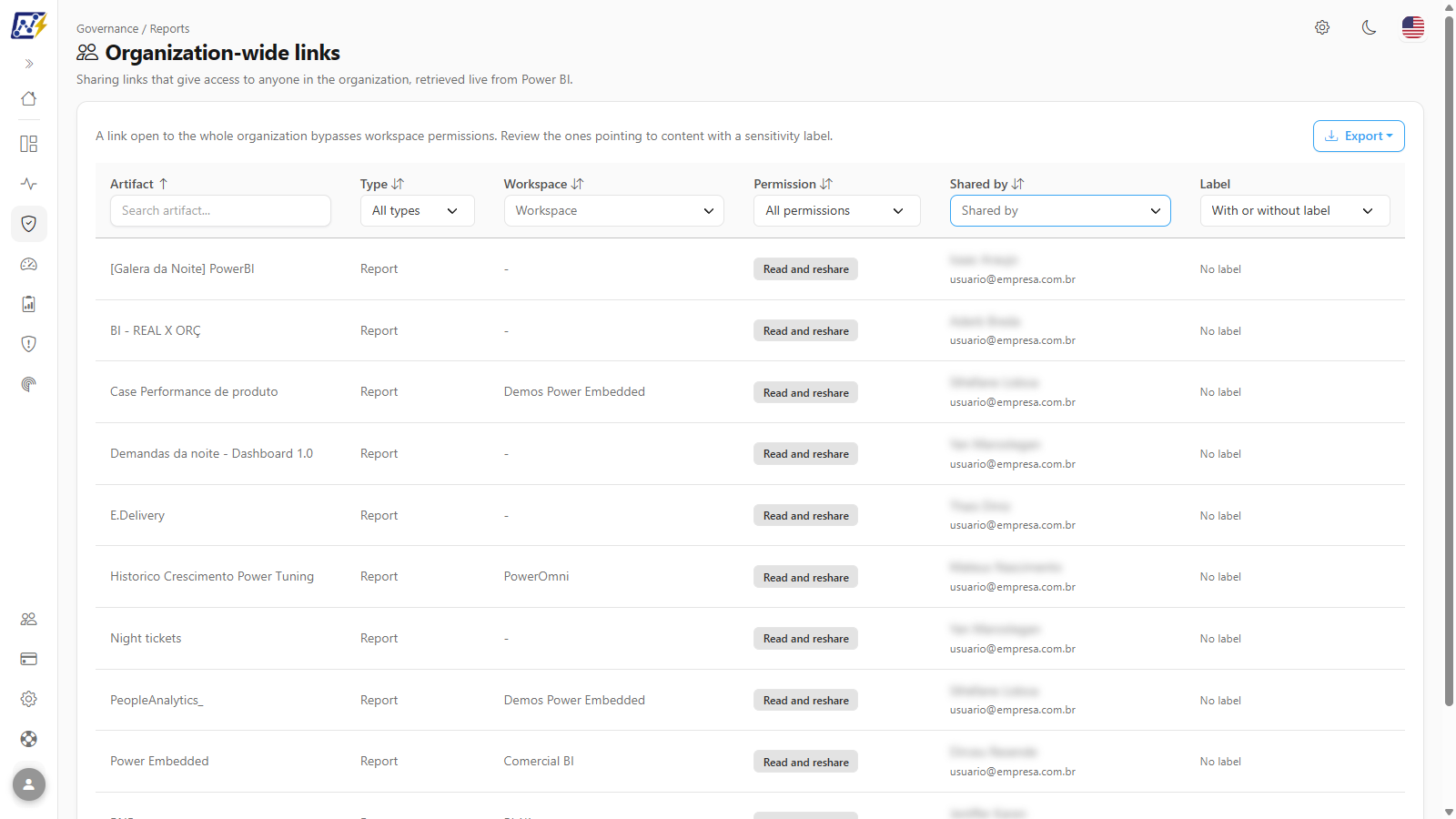
**What it is:** the filters right below each column title (text in **Artifact**, multiple selection with search in **Workspace** and **Shared by**, and single-choice lists in **Type**, **Permission** and **Label**) and sorting by the column titles.
**What it is for:** build review subsets: the links of an area, those created by a person, those that grant more than read access or those that expose labeled content.
Shared by filter
**How to use:**
1. Type part of the name in the *Search artifact...* box, below the **Artifact** column title. The table is filtered automatically as you type.
2. In the **Workspace** and **Shared by** columns, open the list, type to search and select one or more values. In the **Type**, **Permission** and **Label** columns, choose a value from the list (*All types*, *All permissions*, *With or without label*).
3. Click a column title to sort (except **Label**). When you click another column, the first click sorts in descending order and the second reverses the order.
**How it works:** the options of the selection filters are built from the values present in the loaded list. The filters are combined with each other and, at each change, the table returns to the first page. The **Label** column is not sortable.
### Sensitivity label filter
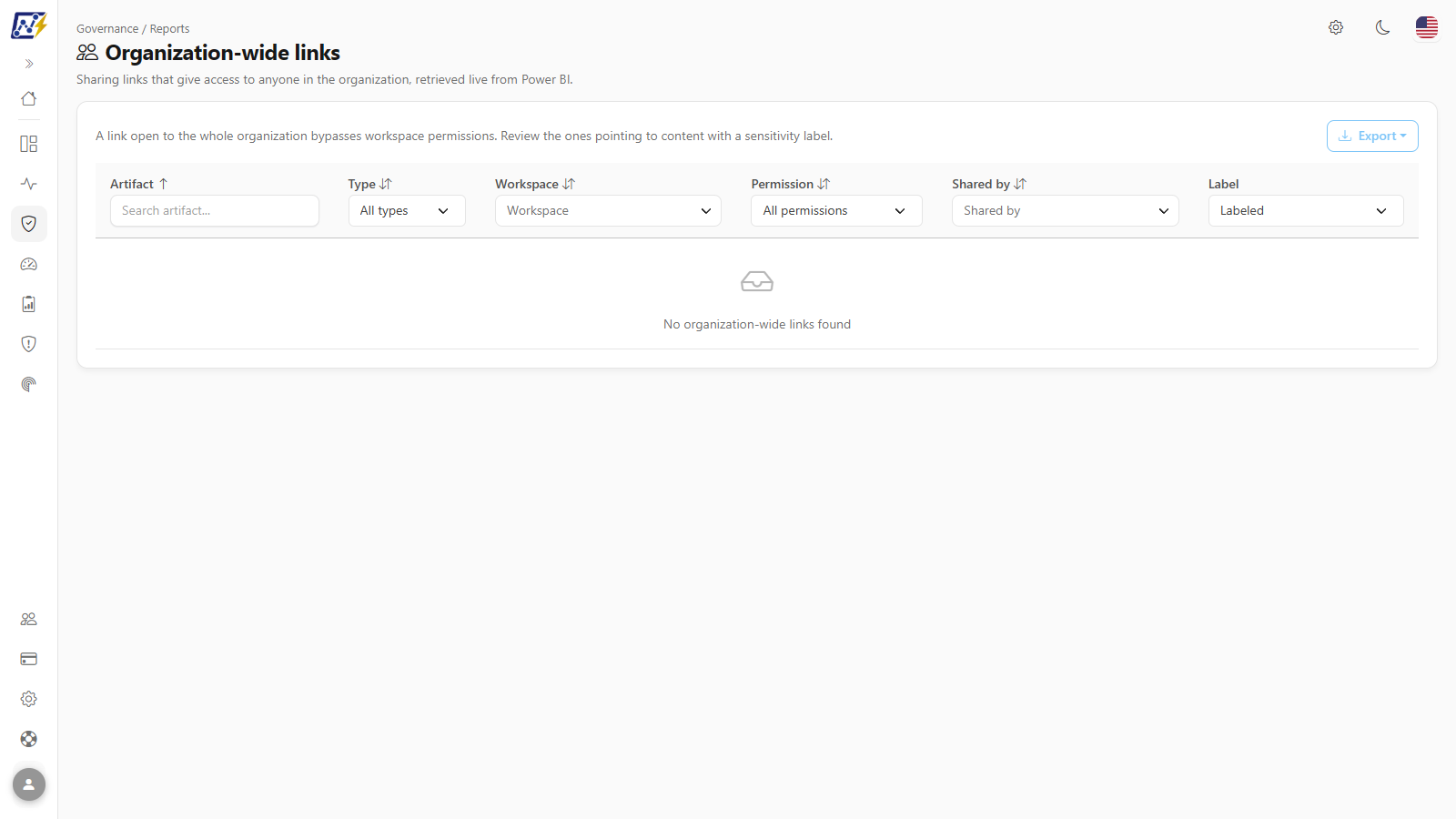
**What it is:** the **Label** column filter, with the options **Labeled** and **No label** (*With or without label* removes the filter).
**What it is for:** find the highest-risk scenario on this screen: content classified as confidential accessible to the whole organization.
Label filter › Labeled (no links to labeled content in this environment)
**How to use:**
{% stepper %}
{% step %}
#### Filter by label
In the **Label** column filter, select **Labeled**. The table then shows only the links to classified content.
{% endstep %}
{% step %}
#### Assess the label and the permission
Check the label name on each row's tag and the access level in the **Permission** column. Links with resharing or write access to confidential content are the highest priority.
{% endstep %}
{% step %}
#### Identify the owner
Use the **Shared by** column to find out who created each link and contact them.
{% endstep %}
{% endstepper %}
**How it works:** the label comes from the Power Monitor inventory (last scan) and the label name depends on the optional Microsoft Graph permission (see [Rules and behavior](#rules-and-behavior)).
### Permission filter
**What it is:** the **Permission** column filter (*All permissions*), with the access levels present in the list.
**What it is for:** identify links that grant more than read access (for example, resharing) which allow access to spread even further.
**How to use:**
1. Open the **Permission** column filter (*All permissions*).
2. Select a level that goes beyond **Read** (for example, **Read and reshare**) and repeat for the other levels that appear in the list.
3. Review the resulting rows: these links allow whoever receives them to also share (or change) the content.
**How it works:** the list shows the translated levels; values not yet translated appear as Power BI returns them.
### Export
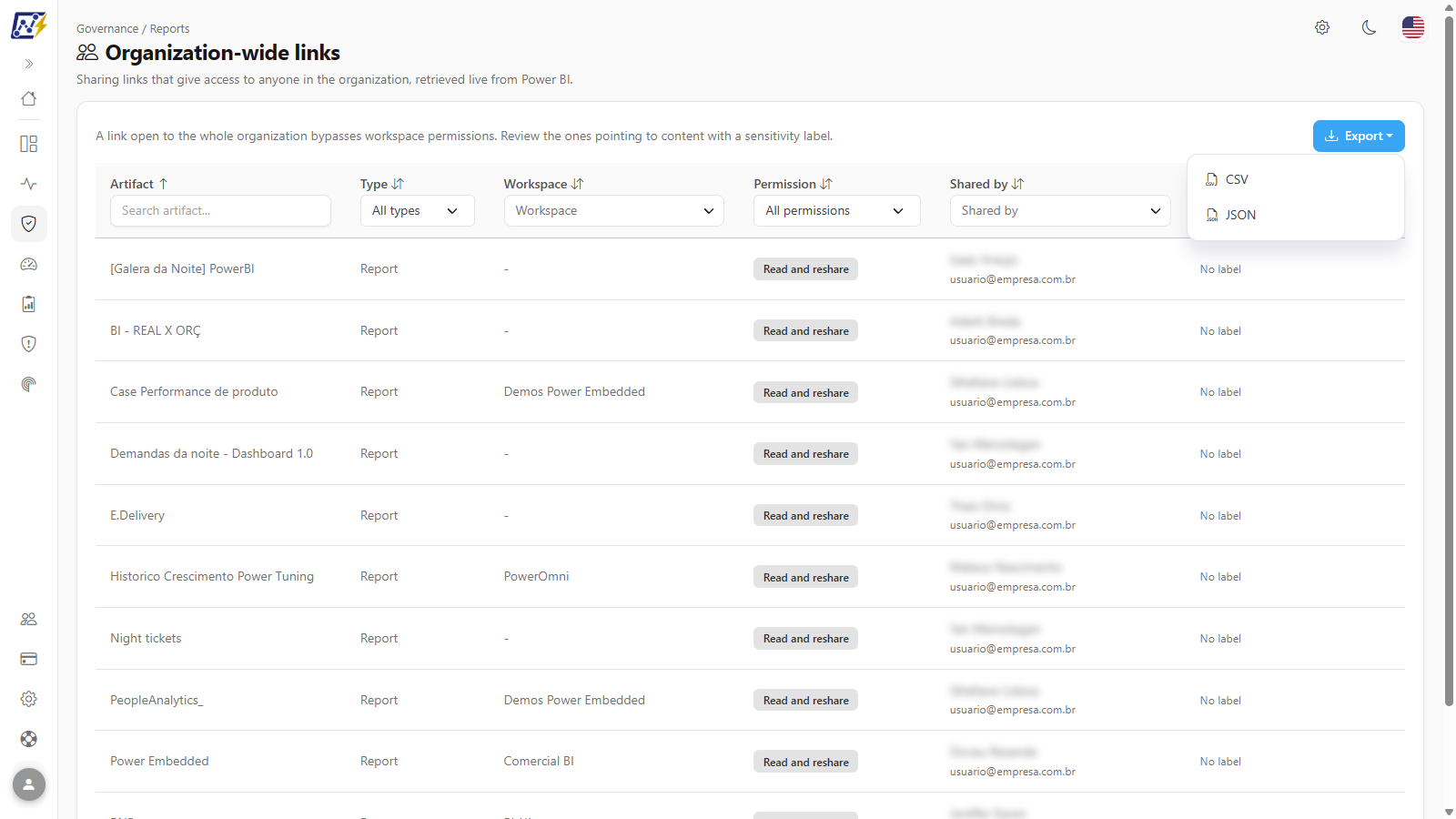
**What it is:** the **Export** button (above the table, on the right), with the **CSV** and **JSON** options.
**What it is for:** generate a file for a review process or to document the situation in an audit.
Export menu of the Organization-wide links screen
**How to use:**
1. (Optional) Apply the desired filters: the export includes **all rows visible with the filters applied**, not only the current page.
2. Click **Export**, above the table, and choose **CSV** or **JSON**.
3. The file `links-toda-organizacao-YYYY-MM-DD` is downloaded by the browser.
**How it works:**
* The button is disabled when there are no visible rows.
* **CSV:** columns Artifact, Type, Workspace, Permission (translated), Shared by (name and email) and Label (label name, **Labeled** or **No label**).
* **JSON:** the complete records, including the identifiers of the artifact, the workspace and the label, and the permission level in the original Power BI format (for example, `ReadReshare`). Useful for integrating with other tools.
{% hint style="warning" %}
The exported file contains employee names and emails. Treat it as internal information and be careful when sharing it or pasting it into other tools.
{% endhint %}
### Review and restrict links open to the organization
**What it is:** the recommended periodic review flow, which combines this screen's filters and export with the adjustment in Power BI.
**What it is for:** reduce broad access to the minimum necessary, prioritizing confidential content.
**How to use:**
{% stepper %}
{% step %}
#### Export the list
Click **Export › CSV** to generate the current list: if you prefer, filter by **Labeled** first to prioritize confidential content.
{% endstep %}
{% step %}
#### Validate with the owners
Use the **Shared by** column to confirm with whoever created each link whether broad access is still needed and whether the permission granted is appropriate.
{% endstep %}
{% step %}
#### Adjust in Power BI
For links that should not exist, delete the link or replace it with sharing to specific people in Power BI itself (report permission management). Power BI administrators can also restrict this type of link in the tenant settings.
{% endstep %}
{% step %}
#### Check the result
Reopen the screen: since the list is retrieved live, the removed link no longer appears.
{% endstep %}
{% endstepper %}
**How it works:** Power Monitor does not change or revoke links; the change is always made in Power BI.
### Error notices
**What it is:** the notice that replaces the table when the list cannot be loaded.
**What it is for:** indicate the probable cause and how to resolve it.
**How to use:**
1. If **Finish the installation to use this audit** appears, an Administrator must click **Go to Settings** and complete the configuration of the organization's Service Principal (see [Organization](/en/power-monitor/configuracoes/organizacao.md)).
2. Return to the screen and click **Try again**.
3. If **Could not load the audit** appears, confirm that the Service Principal has read permission on the Power BI Admin APIs and click **Try again**.
**How it works:**
| Notice | When it appears | Actions |
| --------------------------------------------- | ------------------------------------------------------------------------------------------------------------------------------------------------ | ----------------------------------------------------------- |
| **Finish the installation to use this audit** | The organization's Service Principal is not configured. | **Go to Settings** (Administrators only) and **Try again**. |
| **Could not load the audit** | The query to Power BI failed: for example, the Service Principal lacks permission for the Admin APIs, or the service is temporarily unavailable. | **Try again**. |
## Rules and behavior
* **Live query:** the list is read directly from Power BI (Admin API) each time the screen is opened: it does not depend on the inventory scan and reflects the current state of the tenant. To see changes made in Power BI, just reopen the screen.
* **Enrichment with the inventory:** name, workspace and sensitivity label come from the Power Monitor inventory. Therefore, a newly created report or one in an unmonitored workspace may appear without a workspace and as **No label** until it is collected by the scan. The label shown is the one recorded in the last scan, not a live reading.
* **Label name:** the sensitivity label name (in the "Parent / Child" format) is obtained from the Microsoft Purview catalog and depends on the optional Microsoft Graph permission to read labels (see [Additional Permissions](/en/power-monitor/configuracoes/permissoes-adicionais.md)). Without this permission, the column shows only **Labeled**.
* **Workspace scope:** users with visibility restricted to some workspaces see only the links to artifacts in those workspaces. Links whose workspace is not known to Power Monitor are hidden from these users, since they may be outside their scope. Unrestricted users see the whole tenant.
* **Page lock:** the page can be locked for specific users in the per-page access control; the **Audit** access profile has it locked by default.
* **Prerequisite:** the Power Monitor Service Principal must be configured and have read permission on the Power BI Admin APIs: the same one used by the inventory scan.
* **Read-only:** it is not possible to revoke a link or change its permission through Power Monitor. Do this in Power BI itself, in the report's permission management option.
## Frequently asked questions
The list is empty. Does that mean there are no organization-wide links?
If there is no error message and you have no workspace restriction, yes: Power BI did not return any link of this type. If your user has visibility restricted to some workspaces, you see only the links from your workspaces.
What is the difference from the Public Links screen?
[Public Links](/en/power-monitor/governanca/conformidade/links-publicos.md) lists the reports in **Publish to Web**, accessible to anyone on the internet, without sign-in. This screen lists the **People in your organization** links, which require sign-in but grant access to any employee in the tenant who has the link, bypassing workspace permissions.
Why does an artifact appear without a workspace or as "No label"?
Workspace and label come from the Power Monitor inventory. If the artifact has not yet been collected by the scan (for example, it was created recently or is in an unmonitored workspace), the workspace is blank and the label is unknown. After the next scan, the information starts to appear.
Why does "Labeled" appear instead of the label name?
The label name depends on the optional Microsoft Graph permission to read sensitivity labels. Without it, Power Monitor knows the content has a label, but cannot show its name. An Administrator can grant it in [Additional Permissions](/en/power-monitor/configuracoes/permissoes-adicionais.md).
Why is there no button to open or copy the link?
The Power BI API reports the artifact, the permission and who shared it, but not the link URL. To manage it, use the report's permission management option in Power BI.
## Related pages
* [Reports](/en/power-monitor/governanca/relatorios.md)
* [Public Links](/en/power-monitor/governanca/conformidade/links-publicos.md)
* [Labels and Certification](/en/power-monitor/governanca/conformidade/rotulos-e-certificacao.md): labeled content exposed through Publish to Web or an organization-wide link
* [Direct Sharing](/en/power-monitor/auditoria/compartilhamento-direto.md)
* [Permissions Audit](/en/power-monitor/auditoria/auditoria-de-permissoes.md)
* [Additional Permissions](/en/power-monitor/configuracoes/permissoes-adicionais.md)
---
# Agent Instructions
This documentation is published with GitBook. GitBook is the documentation platform designed so that both humans and AI agents can read, navigate, and reason over technical content effectively. Learn more at gitbook.com.
## Querying This Documentation
If you need additional information that is not directly available in this page, you can query the documentation by asking a question.
Perform an HTTP GET request on the following URL with the `ask` and `goal` query parameters:
```
GET https://docs.powermonitor.com.br/en/power-monitor/governanca/conformidade/links-para-toda-a-organizacao.md?ask=&goal=
```
`ask` is the immediate question: it should be specific, self-contained, and written in natural language.
`goal` is what the user is ultimately trying to achieve, the reason they need the answer. Sharing it helps GitBook give you a better, more relevant answer. A goal is most helpful when it describes the outcome the user wants rather than restating the question. For example, with `ask=how do I create an API token`, a goal like `automate deployments from our CI pipeline` lets GitBook tailor the answer to that use case.
The response will contain a direct answer to the question and relevant excerpts and sources from the documentation.
Use this mechanism when the answer is not explicitly present in the current page, you need clarification or additional context, or you want to retrieve related documentation sections.