# Public Links
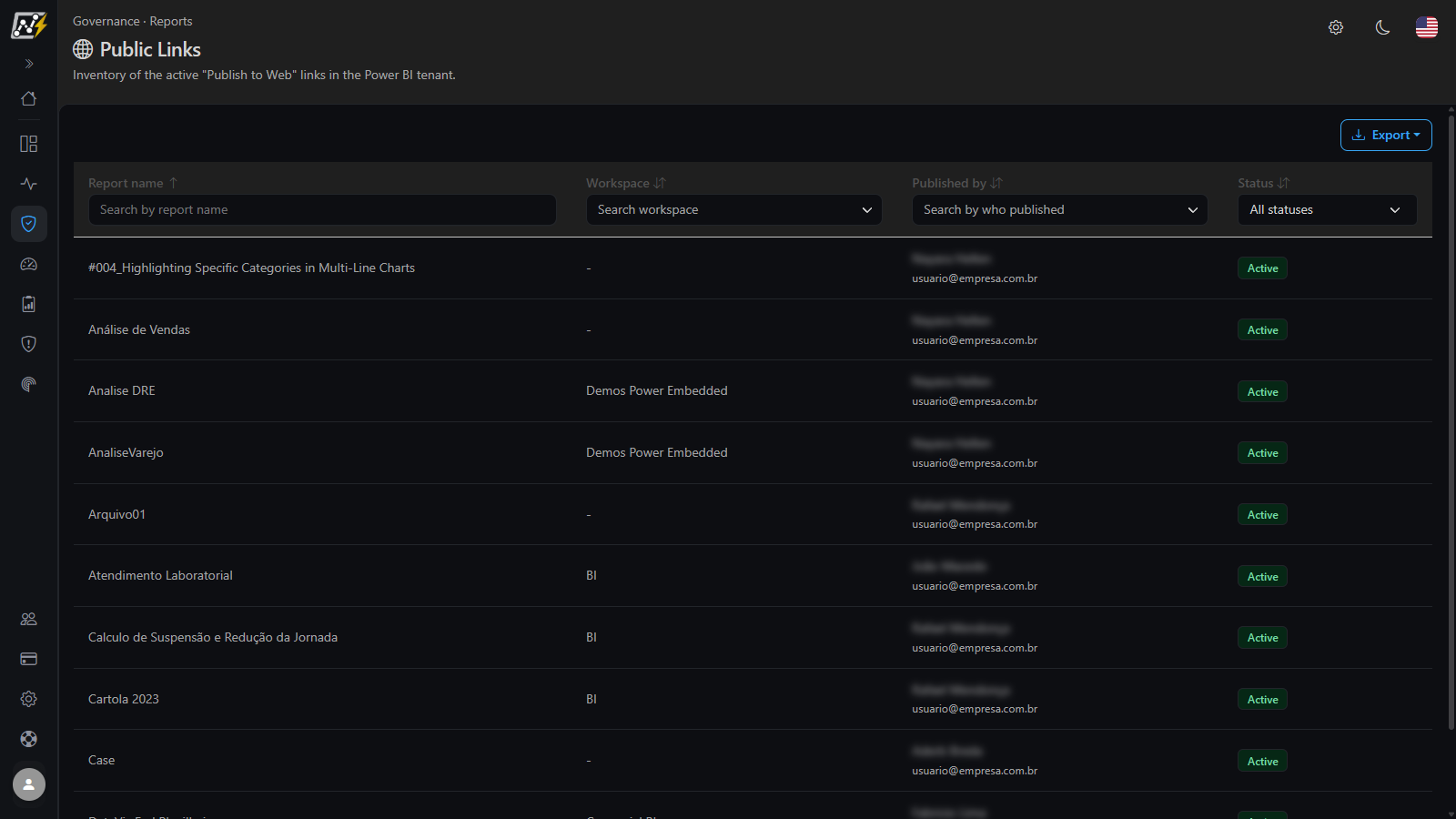
The **Public Links** screen lists the active **Publish to Web** links in the Power BI tenant: reports that anyone on the internet, without sign-in, can open through a link or embed code. It is the same list the Power BI administrator sees in *Admin portal › Embed codes*, available here without requiring the Fabric administrator role.
**How to access:** menu *Governance › Compliance › Public Links*. Available to all profiles.
Active "Publish to Web" links in the tenant
{% hint style="danger" %}
**Publish to Web exposes the report data publicly, without authentication and without row-level security.** Review this list periodically: each row is a report that may be accessible to anyone on the internet. When sharing the exported file, remember that it contains employee names and emails: treat it as internal information.
{% endhint %}
## What it is for
* **Data exposure audit:** discover which reports are public and who published them.
* **Compliance (LGPD):** demonstrate, for audits, that no sensitive data is published to the web, or identify the links that need to be revoked.
* **Follow-up:** export the list for a periodic review process with the report owners.
The screen follows the [common structure of the Governance lists](../relatorios.md#common-structure-of-the-lists), but it is **read-only**: it has no details modal, actions menu, bulk selection or link to open the report.
## Features
All the features below start from the menu *Governance › Compliance › Public Links* and are available to all profiles.
### Public links table
**What it is:** the list of reports with an active Publish to Web link, with the workspace, who published it and the status of the link.
**What it is for:** have, in one place, all the reports exposed on the internet and the person responsible for each exposure.
**How to use:** read the table columns; it starts sorted by **Report name**, in alphabetical order, with 10 rows per page.
**How it works:**
| Column | Description |
| --- | --- |
| **Report name** | Report published to the web. |
| **Workspace** | Workspace of the report, when it is known to Power Monitor. |
| **Published by** | Name and email of whoever created the link. |
| **Status** | Status of the link. Currently Power BI returns only **Active** links. |
The list is read live from Power BI each time the screen is opened (see [Rules and behavior](#rules-and-behavior)).
### Filters and sorting
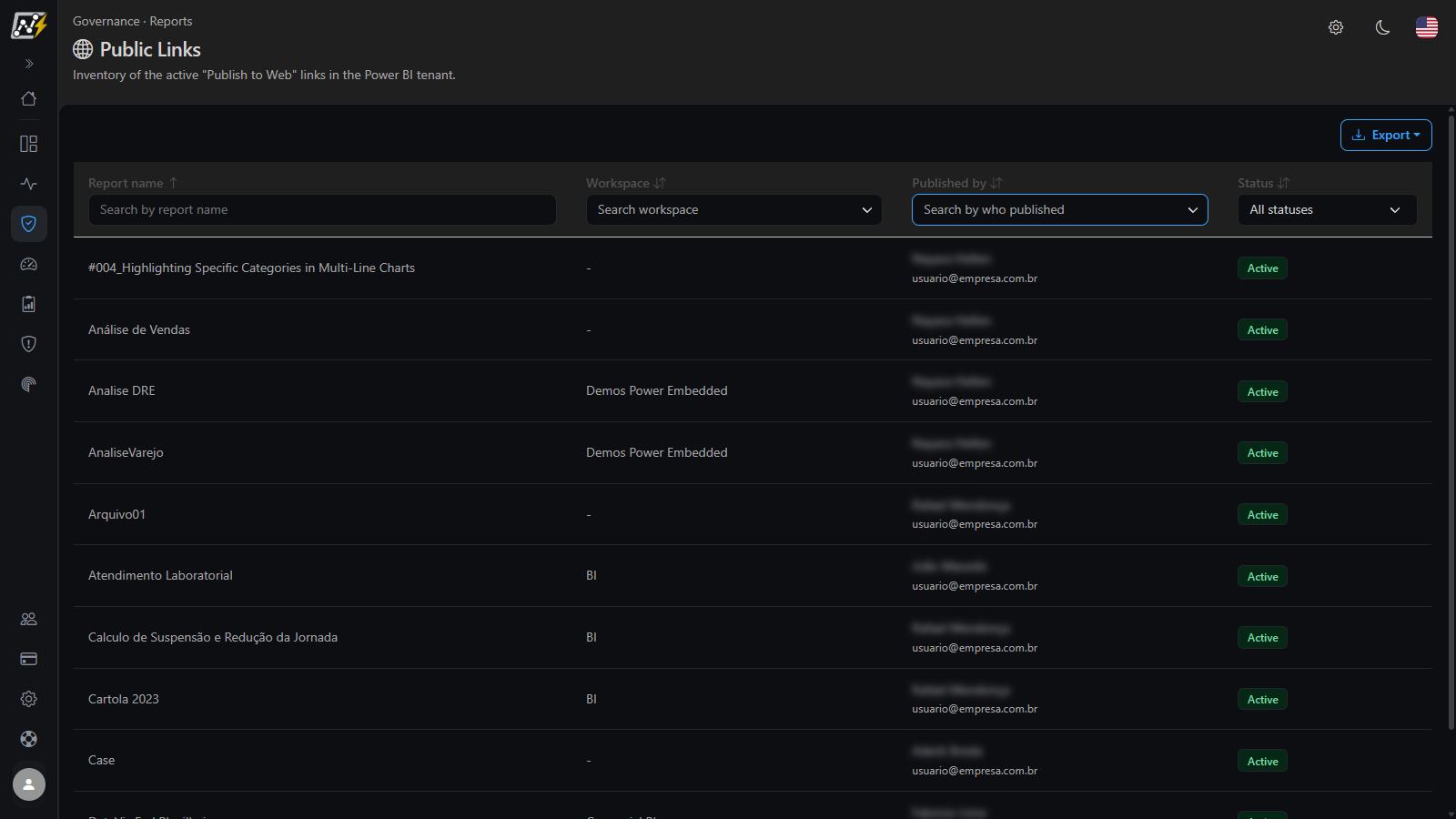
**What it is:** the text filter of the **Report name** column, the multiple-selection lists with search of the **Workspace** and **Published by** columns, the **Status** list and sorting by the column titles.
**What it is for:** separate the links of an area (workspace) or of a person to request the review directly from the person responsible.
Published by filter
**How to use:**
1. Type the term in the filter box below the **Report name** column title (*Search by report name*). The table is filtered automatically.
2. In the **Workspace** (*Search workspace*) and **Published by** (*Search by who published*) columns, open the list, type to search and select one or more values. In the **Status** column, choose a value in *All statuses*.
3. Click the column title to sort. When you click another column, the first click sorts in descending order and the second reverses it.
**How it works:** the list options are built from the values present in the loaded list. The filters are combined with each other and applied to the list already loaded, without a new query to Power BI.
### Export
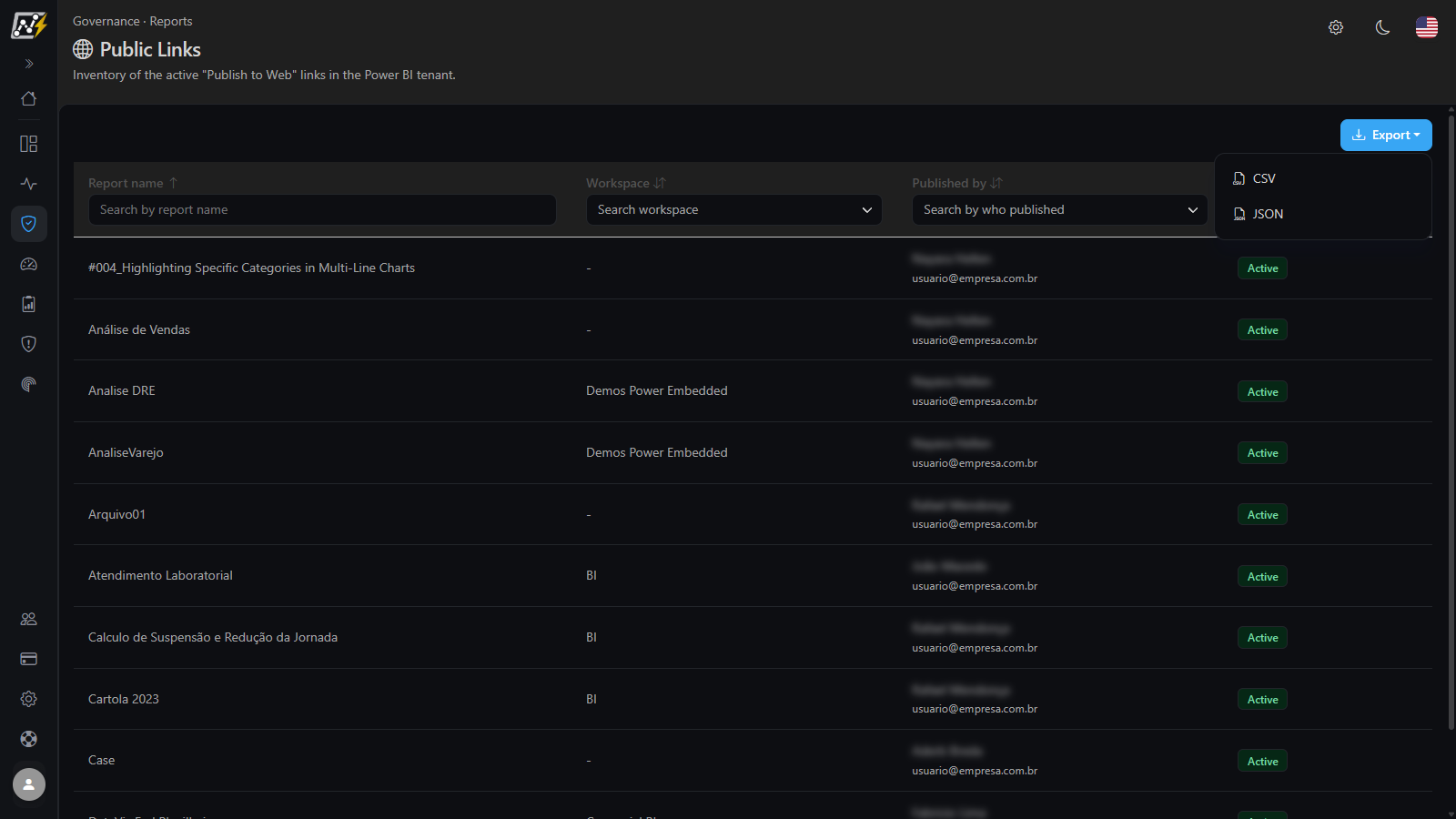
**What it is:** the **Export** button, at the top of the table, with the **CSV** and **JSON** options.
**What it is for:** generate a file for a review process with the owners or to document the situation in an audit.
Export menu of the Public Links screen
**How to use:**
1. (Optional) Apply the desired filters: the export includes **all rows visible with the filters applied**, not only the current page.
2. Click **Export**, at the top of the table, and choose **CSV** or **JSON**.
3. The file is downloaded by the browser.
**How it works:** the file contains the columns Report name, Workspace, Published by and Status.
{% hint style="warning" %}
The exported file contains employee names and emails. Treat it as internal information and be careful when sharing it or pasting it into other tools.
{% endhint %}
### Review and revoke public links
**What it is:** the recommended periodic review flow, which combines this screen's export with revocation in Power BI.
**What it is for:** keep on the internet only what can really be public.
**How to use:**
{% stepper %}
{% step %}
#### Export the list
Click **Export › CSV** to generate the current list of public links.
{% endstep %}
{% step %}
#### Validate with the owners
Use the **Published by** column to contact whoever created each link and confirm whether the publication is still needed and whether the content can be public.
{% endstep %}
{% step %}
#### Revoke in Power BI
For links that should not exist, delete the embed code in Power BI (*Admin portal › Embed codes*, or in the report settings). When you reopen this screen, the link no longer appears.
{% endstep %}
{% endstepper %}
**How it works:** revocation is not done by Power Monitor, because the Power BI API does not offer this operation.
## Rules and behavior
* **Live query:** the list is read directly from Power BI (Admin API) each time the screen is opened: it does not depend on the inventory scan. Therefore it reflects the current state of the tenant.
* **Prerequisite:** the Power Monitor Service Principal must be configured with read permission on the Power BI Admin APIs. Otherwise, the screen shows "Could not load the public links." with the **Retry** button.
* **Whole tenant:** the list covers the entire tenant, including reports in unmonitored workspaces. Name and workspace are complemented with the Power Monitor inventory; when the report is not in the inventory, the name reported by Power BI is shown and the workspace is blank.
* **Revoking a link** is not possible through Power Monitor: the Power BI API does not offer this operation. Revoke the embed code in Power BI itself (*Admin portal › Embed codes*, or in the report settings).
## Frequently asked questions
The list is empty. Does that mean there are no public links?
If there is no error message, yes: Power BI did not return any active link. If "Could not load the public links" appears, check the Service Principal configuration and the permission to use the Admin APIs in the tenant.
Why is there no button to open or copy the public link?
The Power BI API does not return the public URL of the link, only the report and who published it. To see the link, use the Power BI admin portal.
## Related pages
* [Reports](../relatorios.md)
* [Data Exposure](../../qualidade-de-dados/exposicao-de-dados.md)
* [Permissions Audit](../../auditoria/auditoria-de-permissoes.md)