> For the complete documentation index, see [llms.txt](https://docs.powermonitor.com.br/llms.txt). Markdown versions of documentation pages are available by appending `.md` to page URLs; this page is available as [Markdown](https://docs.powermonitor.com.br/en/power-monitor/governanca/conformidade/postura-de-conformidade.md).
# Compliance posture
Indicative score from 0 to 100 on security, privacy, governance, transfer and incidents, with 32 controls, governance coverage and credential hygiene. Decision support, not legal advice.
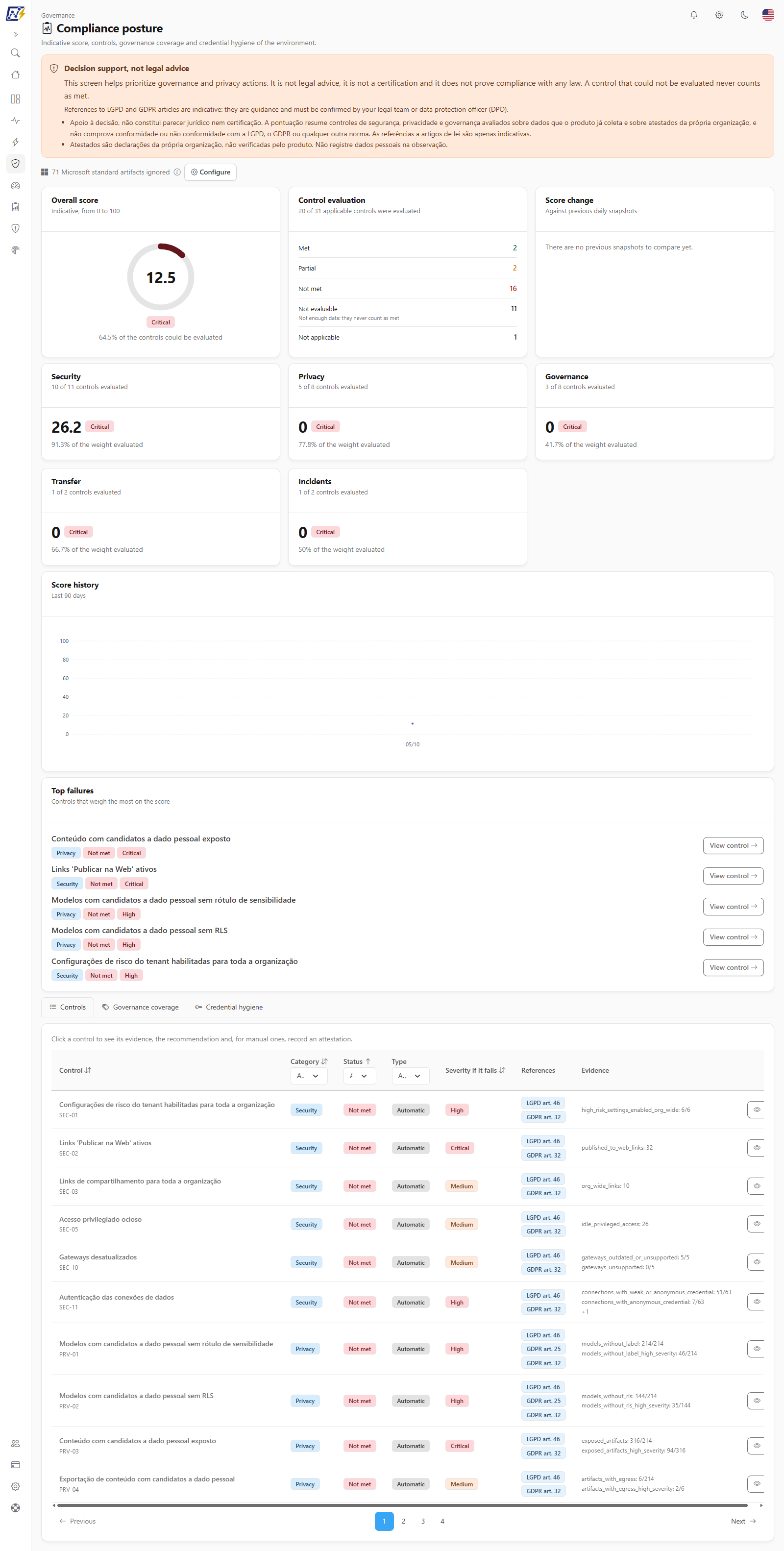
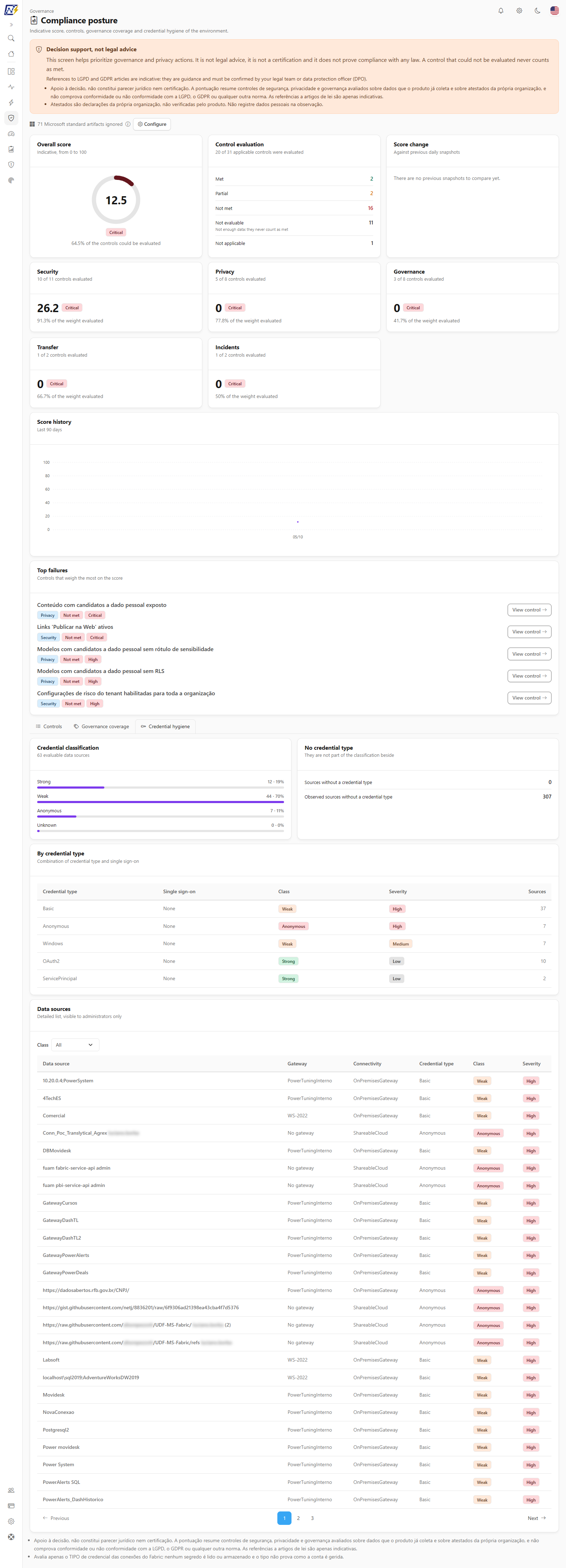
The **Compliance posture** screen summarizes, in an **indicative score from 0 to 100**, how your Power BI/Fabric environment stands against a set of **32 controls** covering security, privacy, governance, international transfer and incident response. It also shows **governance coverage** (how much of the environment has a label, endorsement, owner and criticality) and the **credential hygiene** of data sources.
**How to access:** menu *Governance › Compliance › Compliance posture*.
**Who can use it:** all profiles see the screen. For users with visibility restricted to some workspaces, the score and the counts reflect only that slice (the notice *You only see the workspaces in your scope...* appears). Recording or removing manual **attestations** is exclusive to **Administrators**, and the detailed list of data sources on the **Credential hygiene** tab is only shown to them. An administrator can block the page for specific users in [Users](/en/power-monitor/usuarios.md).
Governance › Compliance › Compliance posture
{% hint style="warning" %}
**Decision support, not legal advice.** The score helps prioritize governance and privacy actions. It is not legal advice, it is not a certification and it does not prove compliance with any law. **A control that could not be evaluated never counts as met.** References to LGPD and GDPR articles are indicative and must be confirmed by your legal team or data protection officer (DPO).
{% endhint %}
## What it is for
* **Have a simple thermometer** of the security and privacy posture, with change over time.
* **Prioritize**: the **Top failures** list shows the controls that weigh the most on the score.
* **Document** what the system cannot measure (such as retention policy and team training) through Administrator **attestations**.
* **Answer audits** with evidence: each control brings its evidence, recommendation and indicative references (LGPD and GDPR).
## Screen components
1. **Header**, the **Decision support, not legal advice** notice and the notice about [Microsoft standard artifacts](/en/power-monitor/governanca/conformidade/privacidade-e-conformidade.md#microsoft-standard-artifacts-are-left-out) being ignored (with the **Configure** button for Administrators). This screen has no **Hide data** button: it does not show people's names.
2. **Overall score**, **Control evaluation** and **Score change**.
3. **Category cards.**
4. **Score history.**
5. **Top failures.**
6. **Three tabs:** **Controls**, **Governance coverage** and **Credential hygiene**. On narrow screens the tabs become a drop-down list. The **Governance coverage** and **Credential hygiene** tabs load their data only on the first opening and stay loaded when you switch tabs.
Each block loads independently: if one fails, a message with the **Retry** button appears only in that block, and the others stay visible.
### Overall score
The **Overall score** gauge (*Indicative, from 0 to 100*) is a circular arc with the value in the center, a badge with the band name and the sentence *N% of the controls could be evaluated*. When there is no score, the center shows **Not evaluable** and the card explains *No control could be evaluated, so there is no score. This does not mean compliance or a lack of it.* The color band and the name follow this table:
| Band | Score |
| ----------------- | ------------------------------------------------------------------------------------------------ |
| **Excellent** | 85 or more |
| **Good** | 70 to 84.9 |
| **Attention** | 50 to 69.9 |
| **Critical** | below 50 |
| **Not evaluable** | No control could be evaluated: there is no score (this does not mean compliance or a lack of it) |
How the score is calculated: each control has a **weight**, and the result **Met** is worth 100%, **Partial** is worth 50% and **Not met** is worth 0%. The score is the weighted average of **only the evaluated controls**; **Not evaluable** and **Not applicable** controls are left out, which is why the screen also shows how many controls could be evaluated (*N% of the controls could be evaluated*).
### Control evaluation
The **Control evaluation** card (*N of M applicable controls were evaluated*) counts the controls by status:
| Status | Meaning |
| ------------------ | ---------------------------------------------------------------------------------------------------------- |
| **Met** | The control is in order |
| **Partial** | Partially met |
| **Not met** | There is a problem |
| **Not evaluable** | Not enough data: it never counts as met and is not part of the score |
| **Not applicable** | Does not apply (for example, no API keys or no gateways in the environment, or attested as not applicable) |
### Score change
The **Score change** card (*Against previous daily snapshots*) compares the current score with previous daily snapshots, in points (*Compared to 7 days ago* and *Compared to 30 days ago*; an increase in green and a drop in red). With no previous snapshot, the row shows **No baseline** and, if there is none at all, *There are no previous snapshots to compare yet.* appears.
### Category cards
One card per category, with its own score and band (**Excellent**, **Good**, **Attention**, **Critical** or **Not evaluable**), *N of M controls evaluated* and *N% of the weight evaluated*: **Security**, **Privacy**, **Governance**, **Transfer** and **Incidents**. A category with no evaluable control shows **Not evaluable**, never a zero score.
### Score history
A line chart of the **Overall score** for the last 90 days (*Last 90 days*; retention is 400 days), on a 0 to 100 scale and with a tip when you hover over each day. A day without a score appears as a gap in the line, never as zero; with no scored day at all, *There are no days with a score in the period yet.* appears. The history exists **only for the whole organization**: for users with access restricted to some workspaces it is not shown (*The history only exists for the whole organization and is not shown when your access is restricted to some workspaces.*). Days without a score do not mean zero risk.
### Top failures
The **Not met** or **Partial** controls that weigh the most on the score (up to 5), each with the category, status and severity badges and the **View control** button, which opens the details in the **Controls** tab. Controls that could not be evaluated are not listed; with none, *No evaluated control is failing.* appears.
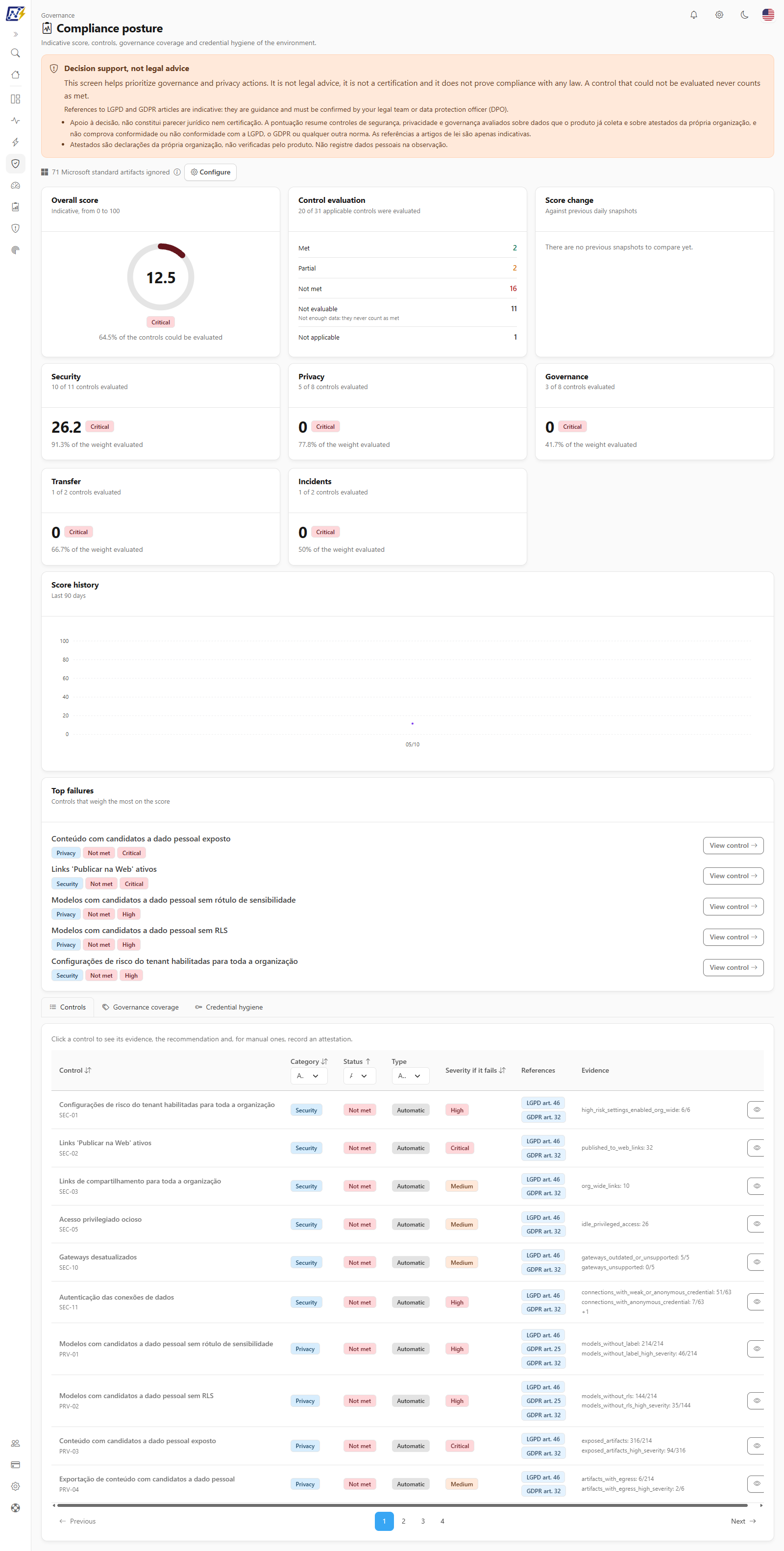
### Controls tab
Controls tab
The table lists the 32 controls with the columns **Control** (the title and, below, the control code), **Category**, **Status**, **Type** (**Automatic** or **Manual**), **Severity if it fails**, **References** (up to three badges and a *+N* counter; the tip reminds you that the reference is indicative and must be confirmed with your legal team or DPO) and **Evidence** (a summary of the main metrics used). The filters are in the header of the **Category**, **Status** and **Type** columns (option **All**). The table opens sorted by status, is paginated (10 by default, with the **Items per page** selector) and can be sorted by control, category, status and severity. Click a control (or the eye button of the row, **View control details**) to open its details. With no result, *No controls found with the current filters.* appears.
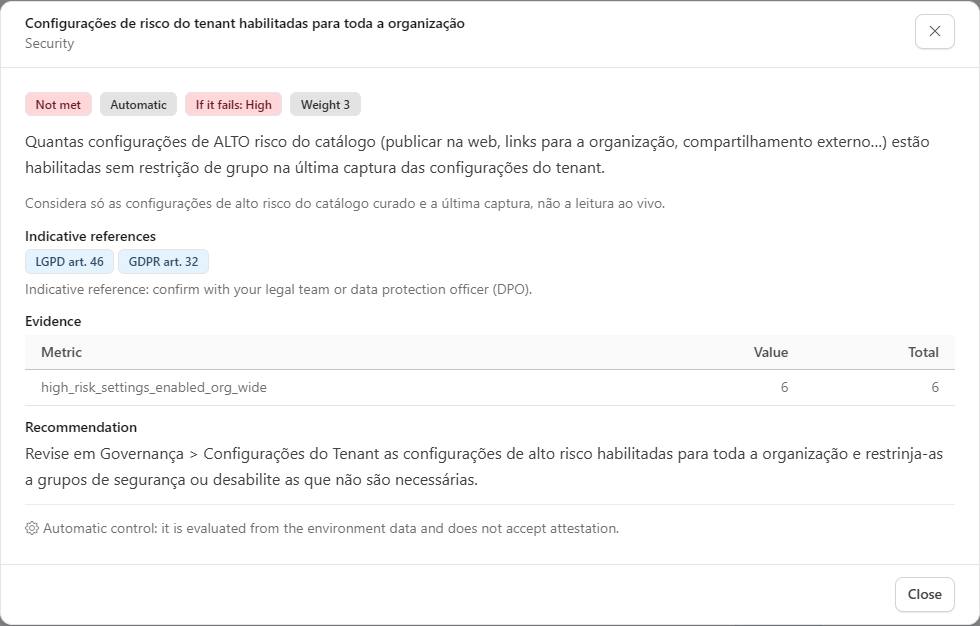
Control details
The details bring the status, type, severity-if-it-fails (*If it fails: High*) and **Weight** badges, the description of the control, the **Evidence** (a **Metric**, **Value** and **Total** table; *No total* when there is no denominator), the **Recommendation**, the **Indicative references** (LGPD and GDPR articles) and, at the end, the **Manual attestation** block (manual controls) or the notice *Automatic control: it is evaluated from the environment data and does not accept attestation.* A **Not evaluable** control shows the notice *This control could not be evaluated with the available data. It does not count as met and is not part of the score.*
{% hint style="info" %}
The texts of the control catalog (names, evidence and recommendations) are provided by the server and appear in Portuguese.
{% endhint %}
#### Control catalog
| Category | Controls | Type |
| -------------- | ------------------------------------------------------------------------------------------------------------------------------------------------------------------------------------------------------------------------------------------------------------------------------------------------------------------------------------------------------------------------------------------------------------------------ | --------- |
| **Security** | Tenant risk settings enabled for the whole organization; active "Publish to web" links; organization-wide sharing links; guests with access to critical workspaces; idle privileged access; disabled accounts with access; Service Principal secret close to expiry; API key hygiene; gateway data source credentials; outdated gateways; data connection authentication; tenant settings in line with the desired state | Automatic |
| **Privacy** | Models with personal data candidates without a label; without RLS; exposed content with candidates; export of content with candidates; idle candidates or candidates without an owner | Automatic |
| **Privacy** | Documented legal basis; data subject rights handling process; defined retention policy | Manual |
| **Governance** | Sensitivity label coverage; models with a defined owner; classified workspaces | Automatic |
| **Governance** | Data protection officer (DPO) appointed; record of processing activities (RoPA); impact assessment (DPIA); team training; contracts with processors and vendors | Manual |
| **Transfer** | Access to personal data candidates from other countries | Automatic |
| **Transfer** | Documented international transfers | Manual |
| **Incidents** | Activity log coverage | Automatic |
| **Incidents** | Incident response plan | Manual |
Two manual controls have an **automatic signal** that can replace the attestation: **Documented legal basis** (met when there is a legal basis note in the [Privacy settings](/en/power-monitor/governanca/conformidade/descoberta-de-dados-pessoais.md#privacy-settings-administrator)) and **Data protection officer (DPO) appointed** (met when there is a DPO e-mail in the same settings).
#### Manual attestation (Administrator)
For controls the system cannot measure, an Administrator **declares the situation and its validity**. It is a declaration by the organization, not proof: the product never verifies it.
| Field | Rule |
| ---------------------- | -------------------------------------------------------------------------------------------- |
| **Declared situation** | **Met**, **Not met** or **Not applicable** |
| **Validity** | Required for **Met**; optional for the others. It must be a future date, within **365 days** |
| **Note (optional)** | Up to 500 characters. Do not enter personal data |
The validity field is called **Validity (required for Met)** or **Validity (optional)**, depending on the situation chosen. Click **Save attestation** to record it or **Remove attestation** (with the confirmation *Remove attestation?*) to go back to the evaluation without the declaration. The block shows the **Current attestation:** (situation, *Recorded on ...*, *Valid until ...* and the note) or *No attestation recorded.* An **Expired** attestation stops counting and the control goes back to being treated as having no evidence. Automatic controls do not accept attestation. Other profiles see the block disabled, with the tip *Only administrators can record or remove attestations.* When you save or remove, the score and the control list are recalculated.
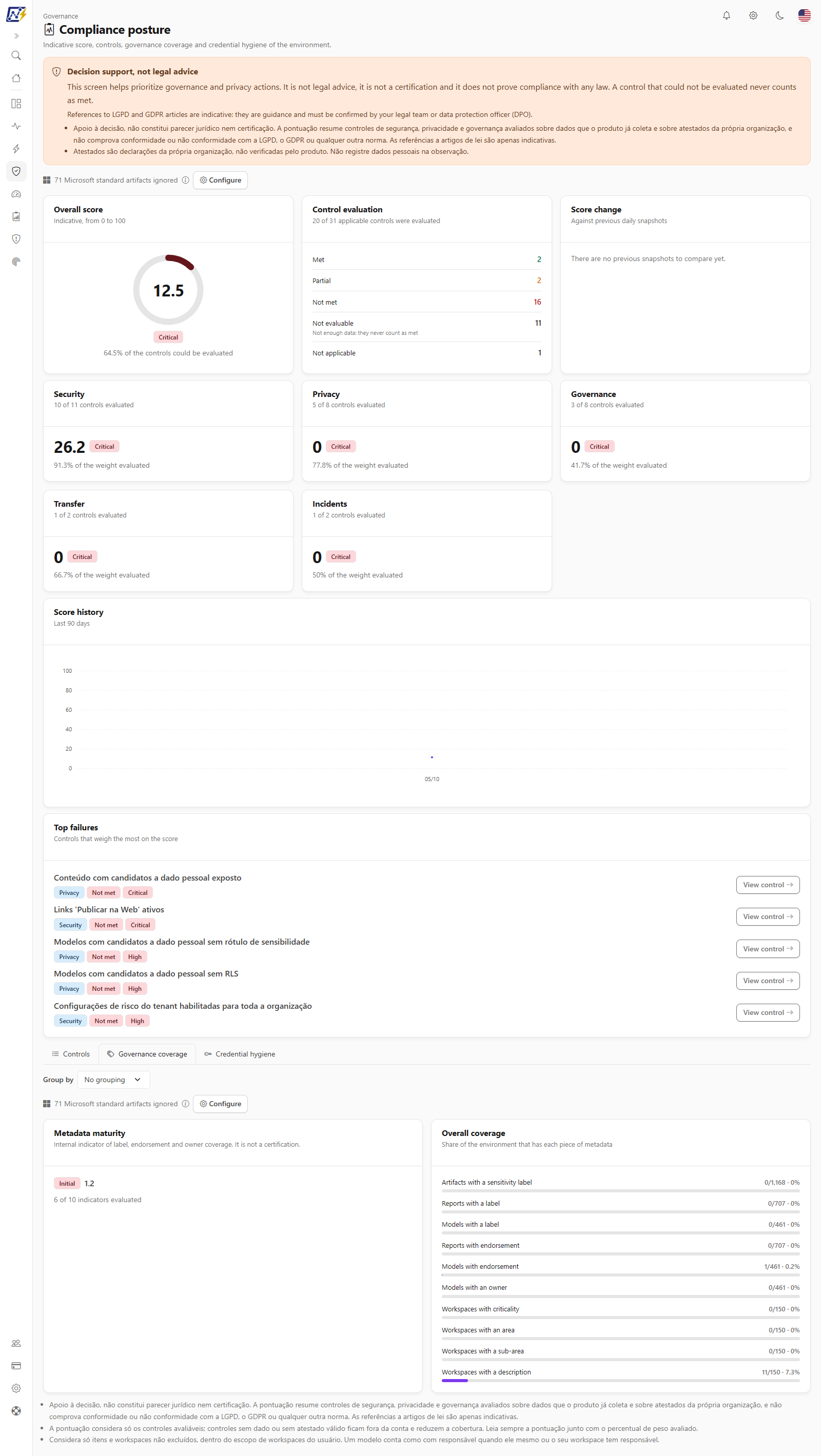
### Governance coverage tab
Governance coverage tab
It shows how much of the environment has each governance metadata:
* **Metadata maturity** (*internal indicator of label, endorsement and owner coverage; it is not a certification*): **Initial**, **Developing**, **Defined**, **Managed** or **Not evaluable**, with the score and the count *N of 10 indicators evaluated*.
* **Overall coverage** (*Share of the environment that has each piece of metadata*): one bar per indicator, in the format *covered/total · percentage*: **artifacts with a sensitivity label**, **reports with a label**, **models with a label**, **reports with endorsement**, **models with endorsement**, **models with an owner**, **workspaces with criticality**, **with an area**, **with a sub-area** and **with a description**.
* **Indicators not evaluable**: data or the denominator was missing; they **do not count as covered** (in the indicator, **Not evaluable** appears instead of 0%).
* **Group by**: **No grouping**, **Area** or **Workspace**. With grouping, a table appears with **Name**, **Workspaces**, **Reports**, **Semantic models** and a percentage column for each of the ten indicators; all columns are sortable (the initial order is by name) and the table is paginated (10 by default, with the **Items per page** selector). The workspace view shows up to 200 groups.
If the organization has many workspaces, the read is limited (5,000) and the numbers are partial, with the notice *The read was limited to N workspaces, so the numbers are partial.* For users with a restricted workspace scope, the scope notice appears, and the Microsoft standard artifacts notice also appears in this tab, when applicable.
### Credential hygiene tab
Credential hygiene tab
It classifies the credentials of the environment's data sources:
| Class | Meaning |
| ------------- | ------------------------------------------------------------------------------------------------------------------------------------- |
| **Strong** | Identity-based authentication: OAuth2, Service Principal, Workspace Identity or any credential with single sign-on (except anonymous) |
| **Weak** | Basic credential (high severity), shared key or shared access signature, or stored Windows credential (medium severity) |
| **Anonymous** | Anonymous credential (high severity) |
| **Unknown** | Unrecognized credential type |
The tab shows:
* **Credential classification** (*N evaluable data sources*): bars with the number of **Strong**, **Weak**, **Anonymous** and **Unknown** sources.
* **No credential type** (*They are not part of the classification beside*): **Sources without a credential type** and **Observed sources without a credential type**.
* **By credential type** (*Combination of credential type and single sign-on*): a table with **Credential type**, **Single sign-on**, **Class**, **Severity** and **Sources** (count).
* **Data sources**, the detailed list (*Detailed list, visible to administrators only*), with **Data source**, **Gateway** (*No gateway* when there is none), **Connectivity**, **Credential type**, **Class** and **Severity**, the **Class** filter (**All** or one of the four classes) and pagination (25 by default, with the **Items per page** selector). For other profiles, the list is replaced by *The detailed list of sources is only shown to administrators. The counts above apply to everyone.*
Without data, nothing is classified as strong. When there is no evaluable source or credential collection does not exist yet, the tab shows a notice (*No data source with an evaluable credential...* or *Credential collection is not available yet. Nothing was evaluated.*) instead of zeroed counts.
## Rules and behavior
* **On-demand calculation and daily snapshot:** the score and the controls are calculated when you open the screen, from data Power Monitor already collects; results are cached for up to 5 minutes. A **daily snapshot** of the score (one per organization per day) feeds the history and the change. This daily write can be turned off in *Settings › Monitoring* (**Compliance posture scoring**); this does not turn off the screen's read.
* **Nothing is enabled by this screen:** it only reads data from other collections (tenant settings, public links, privacy, permissions, credentials, activity log, API keys etc.). If a source was not collected, the control is **Not evaluable**.
* **Desired tenant state:** the control on tenant settings in line with the desired state uses the [Desired state](/en/power-monitor/governanca/tenant/configuracoes-do-tenant.md#desired-state-tab) defined by the organization.
* **Microsoft standard artifacts** are left out of the calculation.
* An attestation is a declaration: manual controls **only count** when attested and within validity.
## Step by step
### How to improve the score
{% stepper %}
{% step %}
### See what weighs the most
Open *Governance › Compliance › Compliance posture* and read **Top failures**.
{% endstep %}
{% step %}
### Open the control
Click **View control** and read the **Evidence** and the **Recommendation**.
{% endstep %}
{% step %}
### Fix it at the source
Follow the recommendation (for example, remove a public link, label models or renew a secret). The screen changes nothing in your tenant.
{% endstep %}
{% step %}
### Check the result
The screen calculates on the spot; the change against 7 and 30 days appears as daily snapshots accumulate.
{% endstep %}
{% endstepper %}
### How to attest a manual control (Administrator)
1. On the **Controls** tab, click the control (for example, *Defined retention policy*).
2. In the **Manual attestation** block, choose the **Declared situation**.
3. If you choose **Met**, enter the **Validity** (a future date, within 365 days).
4. Optionally, write a **Note** (without personal data) saying where the document is.
5. Click **Save attestation**.
## Frequently asked questions
Is the score a certification of compliance with LGPD or GDPR?
No. It is an internal indicator to prioritize actions. It is not a certification, legal advice or proof of compliance with any law.
Why does the score show "Not evaluable"?
No control could be evaluated with the available data (for example, no collection has run yet). This does not mean compliance or a lack of it.
Why does the score history not appear for me?
The history only exists for the whole organization. When your access is restricted to some workspaces, it is not shown.
Why is a manual control "Not evaluable"?
It depends on an Administrator attestation (or an automatic signal, when there is one) and there is no valid one yet. Controls that are not evaluable never count as met.
## Related pages
* [Privacy and compliance](/en/power-monitor/governanca/conformidade/privacidade-e-conformidade.md)
* [Personal data discovery](/en/power-monitor/governanca/conformidade/descoberta-de-dados-pessoais.md)
* [Privacy risks](/en/power-monitor/governanca/conformidade/riscos-de-privacidade.md)
* [Tenant Settings](/en/power-monitor/governanca/tenant/configuracoes-do-tenant.md)
* [Access reviews](/en/power-monitor/governanca/conformidade/revisoes-de-acesso.md)
* [Labels and Certification](/en/power-monitor/governanca/conformidade/rotulos-e-certificacao.md)
---
# Agent Instructions
This documentation is published with GitBook. GitBook is the documentation platform designed so that both humans and AI agents can read, navigate, and reason over technical content effectively. Learn more at gitbook.com.
## Querying This Documentation
If you need additional information that is not directly available in this page, you can query the documentation by asking a question.
Perform an HTTP GET request on the following URL with the `ask` and `goal` query parameters:
```
GET https://docs.powermonitor.com.br/en/power-monitor/governanca/conformidade/postura-de-conformidade.md?ask=&goal=
```
`ask` is the immediate question: it should be specific, self-contained, and written in natural language.
`goal` is what the user is ultimately trying to achieve, the reason they need the answer. Sharing it helps GitBook give you a better, more relevant answer. A goal is most helpful when it describes the outcome the user wants rather than restating the question. For example, with `ask=how do I create an API token`, a goal like `automate deployments from our CI pipeline` lets GitBook tailor the answer to that use case.
The response will contain a direct answer to the question and relevant excerpts and sources from the documentation.
Use this mechanism when the answer is not explicitly present in the current page, you need clarification or additional context, or you want to retrieve related documentation sections.