> For the complete documentation index, see [llms.txt](https://docs.powermonitor.com.br/llms.txt). Markdown versions of documentation pages are available by appending `.md` to page URLs; this page is available as [Markdown](https://docs.powermonitor.com.br/en/power-monitor/governanca/conformidade/responsaveis-desligados.md).

# Departed Owners

Find workspaces, semantic models and dataflows that depend on accounts blocked or deleted from Microsoft Entra ID, before the refresh fails or the workspace is left without an administrator.

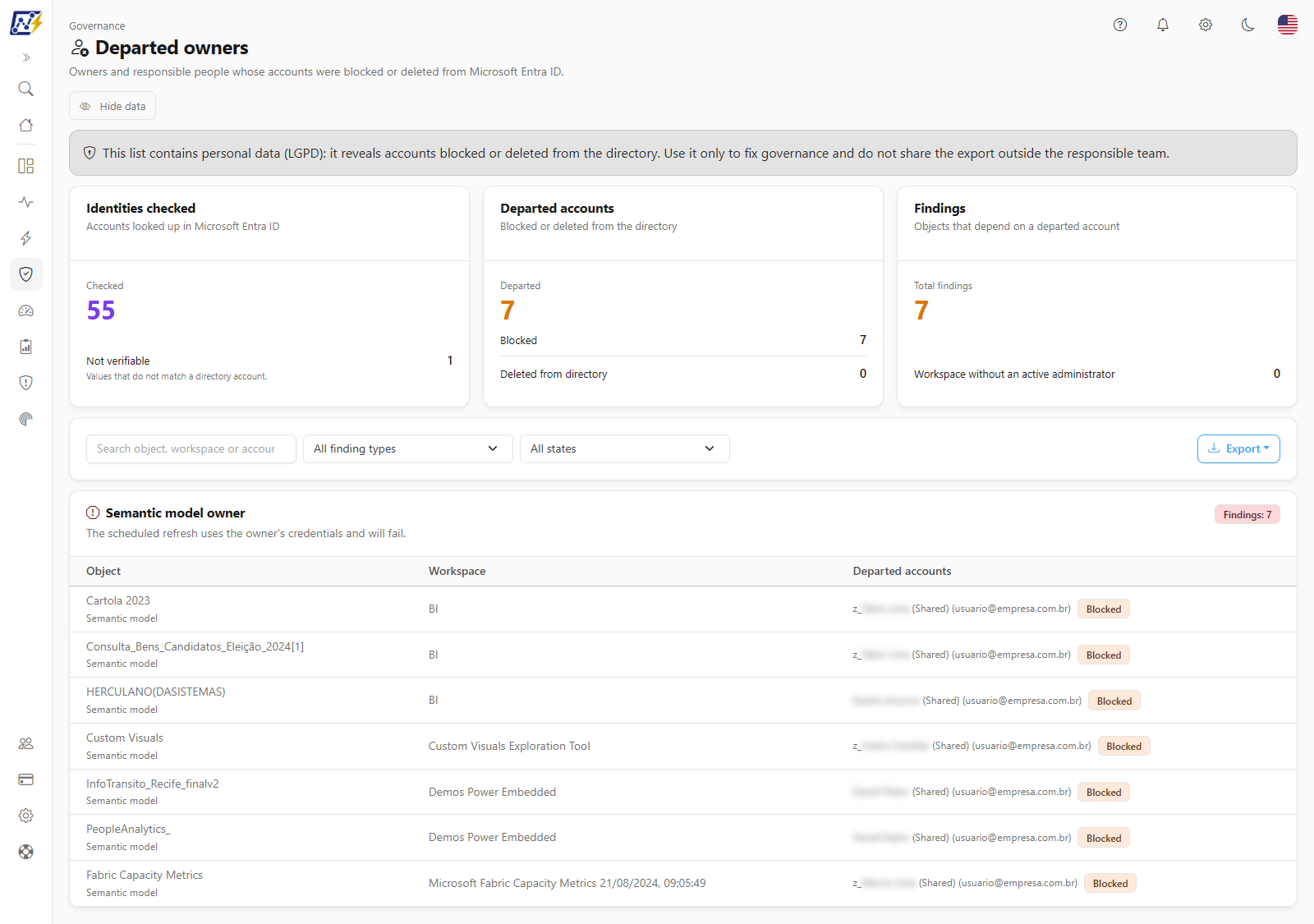
The **Departed Owners** screen cross-references the people Power Monitor knows as owners, responsible people or administrators of your artifacts with the state of their account in **Microsoft Entra ID**. When an account is **blocked** or has been **deleted from the directory**, usually because the person left the company, each object that depends on it appears here as a **finding**, grouped by type of problem.

**How to access:** menu *Governance › Compliance › Departed Owners*. The screen is exclusive to the **Administrator** profile: the item does not even appear in the menu for other profiles, and direct access by URL is also denied.

{% hint style="warning" %}
**Why administrators only?** The list reveals which accounts in the organization were blocked or deleted, that is, it indicates who left the company. This is personal data protected by the LGPD (Brazil's General Data Protection Law). That is why the query is restricted to administrators, the screen itself displays a fixed privacy notice, and the export carries the same care: use the list only to fix governance and do not share the file outside the responsible team.
{% endhint %}

<figure><picture><source srcset="/files/hkYndT1MnSZUqqCsW9J5" media="(prefers-color-scheme: dark)"><img src="https://3938213054-files.gitbook.io/~/files/v0/b/gitbook-x-prod.appspot.com/o/spaces%2FH2bFRBmIfyK3kwVKbldl%2Fuploads%2Fgit-blob-e925fe6a8f9896b9c9c7cba5388ecb5eb35c2dfc%2Fpm-governanca-responsaveis-desligados-en.png?alt=media" alt="Departed Owners screen with the privacy notice, the three KPIs, the filters and the finding groups"></picture><figcaption><p>Governance › Compliance › Departed Owners</p></figcaption></figure>

## What it is for

* **Avoid refresh failures**: the scheduled refresh of a semantic model or dataflow uses the owner's credentials. If the owner's account was blocked, the next refresh will fail. The screen shows these cases before the problem reaches users.
* **Do not lose administration of a workspace**: it detects workspaces in which **all** administrators are people whose account has been deactivated, with no administrator group or application. In these cases nobody can manage access to the workspace anymore.
* **Keep governance metadata up to date**: it points out the technical and business owners (registered in Power Monitor in Workspaces and Semantic Models) who are no longer with the company.
* **Support the offboarding process**: after employees leave, the administrator reviews the list, transfers ownership of the artifacts and updates the responsible people.

## Screen overview

1. **Header** with the title **Departed owners**, the subtitle *Owners and responsible people whose accounts were blocked or deleted from Microsoft Entra ID.* and the **Hide data** button.
2. **Privacy notice (LGPD)**, always visible.
3. **KPIs**: **Identities checked**, **Departed accounts** and **Findings**.
4. **Filter bar**: search, **Finding type**, **Account state** and **Export**.
5. **Finding cards**, one per type of problem, each with its own table.

## Features

### Privacy notice (LGPD)

**What it is:** a fixed banner right below the title: *This list contains personal data (LGPD): it reveals accounts blocked or deleted from the directory. Use it only to fix governance and do not share the export outside the responsible team.*

**What it is for:** remind whoever consults it that the list indicates who left the company and must be used only to fix governance.

<figure><picture><source srcset="/files/NC8gsBPUM5HfmW3Z4Ki6" media="(prefers-color-scheme: dark)"><img src="https://3938213054-files.gitbook.io/~/files/v0/b/gitbook-x-prod.appspot.com/o/spaces%2FH2bFRBmIfyK3kwVKbldl%2Fuploads%2Fgit-blob-95752d2e52c5e3b16d6ad521df19b88f9d239cc6%2Fpm-governanca-responsaveis-desligados-aviso-lgpd-en.png?alt=media" alt="LGPD privacy notice banner on the Departed Owners screen"></picture><figcaption><p>Fixed privacy notice</p></figcaption></figure>

**How it works:** the notice is always visible, regardless of the data, and also applies to the export.

### Identities checked card

**What it is:** it shows under **Checked** how many distinct accounts were looked up in Microsoft Entra ID and, under **Not verifiable**, how many could not have their state confirmed (footer: *Values that do not match a directory account.*).

**What it is for:** give the scale of the check and show whether any accounts went unanswered in this query.

<figure><picture><source srcset="/files/A0MRCSorPQjRuO7lXu4I" media="(prefers-color-scheme: dark)"><img src="https://3938213054-files.gitbook.io/~/files/v0/b/gitbook-x-prod.appspot.com/o/spaces%2FH2bFRBmIfyK3kwVKbldl%2Fuploads%2Fgit-blob-911c0300bc7007ecf3c28acf9538044446b7f980%2Fpm-governanca-responsaveis-desligados-kpis-en.png?alt=media" alt="Identities checked, Departed accounts and Findings cards"></picture><figcaption><p>KPIs of the Departed Owners screen</p></figcaption></figure>

**How to use:** read the two numbers when you open the screen. If **Not verifiable** is high, reload the page a few minutes later.

**How it works:** non-verifiable accounts **never** generate a finding and are not cached: they are looked up again the next time the screen is opened. The KPIs consider the complete result of the query; the filters affect only the list of findings and the export.

### Departed accounts card

**What it is:** total of blocked or deleted accounts (value **Departed**), broken down into **Blocked** and **Deleted from directory**.

**What it is for:** find out how many departed people are still linked to artifacts in the environment: a direct indicator of the quality of the offboarding process.

**How to use:** read the total and the breakdown. The card is **green** when the total is zero and in **warning** (yellow) when there are departed accounts.

**How it works:** see the **Blocked** and **Deleted from directory** states in [Rules and behavior](#rules-and-behavior).

### Findings card

**What it is:** total of objects that depend on a departed account (**Total findings**). Below, **Workspace without an active administrator** shows how many workspaces are in that situation, in **red** when it is greater than zero.

**What it is for:** prioritize the work: a workspace without an active administrator is the most urgent case.

**How to use:** if **Workspace without an active administrator** is red, filter **Finding type** by that type and start with it (see [How to resolve a workspace without an active administrator](#how-to-resolve-a-workspace-without-an-active-administrator)).

### Search

**What it is:** the *Search object, workspace or account...* field filters the findings by free text.

**What it is for:** see everything that depends on a specific person who left the company, or the findings of a workspace.

<figure><picture><source srcset="/files/Un3BZLuU4tFCq7JcClgE" media="(prefers-color-scheme: dark)"><img src="https://3938213054-files.gitbook.io/~/files/v0/b/gitbook-x-prod.appspot.com/o/spaces%2FH2bFRBmIfyK3kwVKbldl%2Fuploads%2Fgit-blob-4d4dddc72e024324c6faca211136a1b3baac9309%2Fpm-governanca-responsaveis-desligados-filtros-en.png?alt=media" alt="Bar with the search, the Finding type and Account state filters and the Export button"></picture><figcaption><p>Search, filters and Export</p></figcaption></figure>

**How to use:**

1. Type part of the name of the object, the workspace, the email or the person's name.
2. The list is filtered right after you stop typing; only the cards with matching findings remain.
3. Clear the text to return to the full list.

**How it works:** the search looks in the object name, the workspace name, the account email/identifier and the person's display name, case-insensitively.

### Finding type filter

**What it is:** a selector with **All finding types** or one of the seven finding types.

**What it is for:** handle one type of problem at a time (for example, only semantic model owners before the next refresh window).

**How to use:** in **Finding type**, choose the type. Only the card of that type remains visible. Go back to **All finding types** to see everything.

### Account state filter

**What it is:** a selector with **All states**, **Blocked** or **Deleted from directory**.

**What it is for:** separate recent departures (accounts still **Blocked**) from accounts already removed from the directory, or from incorrectly registered emails, which also appear as **Deleted from directory**.

**How to use:** in **Account state**, choose the state. The findings in which **at least one** account is in the chosen state remain.

### Finding cards

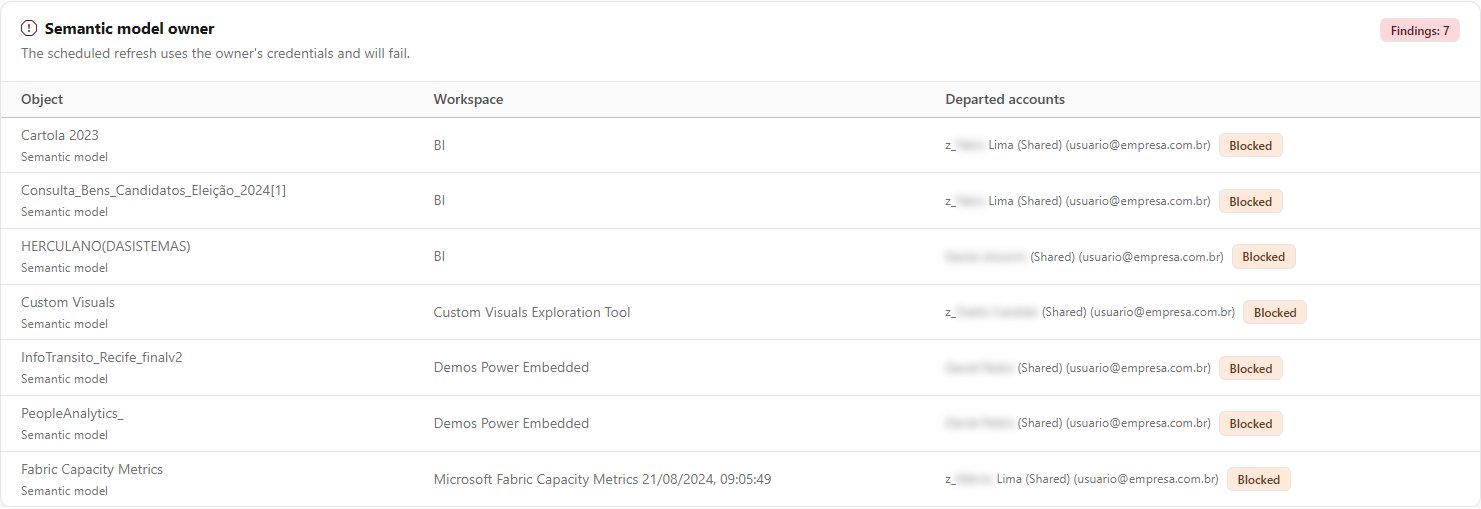
**What it is:** the findings appear in cards, one per type, in this order (first what already compromises operations, then what is outdated metadata). Each card shows the type title, a short explanation of the impact and the **Findings: N** badge. Only cards of types that have findings appear.

**What it is for:** understand the impact of each departed account and know where to fix it.

<figure><picture><source srcset="/files/4oOmtJJer3p7tiyQth3d" media="(prefers-color-scheme: dark)"><img src="https://3938213054-files.gitbook.io/~/files/v0/b/gitbook-x-prod.appspot.com/o/spaces%2FH2bFRBmIfyK3kwVKbldl%2Fuploads%2Fgit-blob-bc83fa72ffef281908247abbea16449ee27b9942%2Fpm-governanca-responsaveis-desligados-grupo-achados-en.png?alt=media" alt="Card of a finding type with the Object, Workspace and Departed accounts columns"></picture><figcaption><p>Findings card with blocked and deleted accounts</p></figcaption></figure>

| Finding type                                  | When it appears                                                                                                                                       | Impact                                                                                                         |
| --------------------------------------------- | ----------------------------------------------------------------------------------------------------------------------------------------------------- | -------------------------------------------------------------------------------------------------------------- |
| **Workspace without an active administrator** | All workspace administrators are users whose account is blocked or deleted, and there is no group, application or Service Principal as administrator. | Nobody can manage access to the workspace.                                                                     |
| **Semantic model owner**                      | The owner of the semantic model in Power BI (whoever configured the model) has a departed account.                                                    | The scheduled refresh uses the owner's credentials and will fail.                                              |
| **Dataflow owner**                            | The owner of the dataflow has a departed account.                                                                                                     | The dataflow's scheduled refresh will fail.                                                                    |
| **Workspace technical owner**                 | An email in the workspace's **Responsible Email** belongs to a departed account.                                                                      | Outdated governance metadata. Fix it in [Workspaces](/en/power-monitor/governanca/workspaces.md).              |
| **Workspace business owner**                  | An email in the workspace's **Business Responsible Email** belongs to a departed account.                                                             | Outdated governance metadata. Fix it in [Workspaces](/en/power-monitor/governanca/workspaces.md).              |
| **Semantic model technical owner**            | An email in the semantic model's **Responsible Email** belongs to a departed account.                                                                 | Outdated governance metadata. Fix it in [Semantic Models](/en/power-monitor/governanca/modelos-semanticos.md). |
| **Semantic model business owner**             | An email in the semantic model's **Business Responsible Email** belongs to a departed account.                                                        | Outdated governance metadata. Fix it in [Semantic Models](/en/power-monitor/governanca/modelos-semanticos.md). |

**How to use (reading the card):**

1. Go through the cards from top to bottom. The first three types (which affect operations) have an icon and badge in **red**; the governance metadata ones, in **yellow**.
2. On each row, read the **Object**, **Workspace** and **Departed accounts** columns (table below).
3. Follow the step-by-step fix corresponding to the type, in [How to use: common tasks](#how-to-use-common-tasks).

| Column                | Description                                                                                                                                                                                                                                                                          |
| --------------------- | ------------------------------------------------------------------------------------------------------------------------------------------------------------------------------------------------------------------------------------------------------------------------------------ |
| **Object**            | Name of the workspace, semantic model or dataflow and, below, the object type.                                                                                                                                                                                                       |
| **Workspace**         | Workspace in which the object is located.                                                                                                                                                                                                                                            |
| **Departed accounts** | Each departed account linked to the object: display name and, in parentheses, the email (accounts deleted from the directory show only the email or identifier, because there is no longer a name to read), with the **Blocked** (yellow) or **Deleted from directory** (red) badge. |

**How it works:** within each card, the list is sorted by workspace and then by object. Each account in the **Departed accounts** column has the **⋮** button (**More actions**), also opened by right-clicking, with **View account details** (see below). The fix is made in Power BI/Fabric or on the indicated governance screens.

### Account details

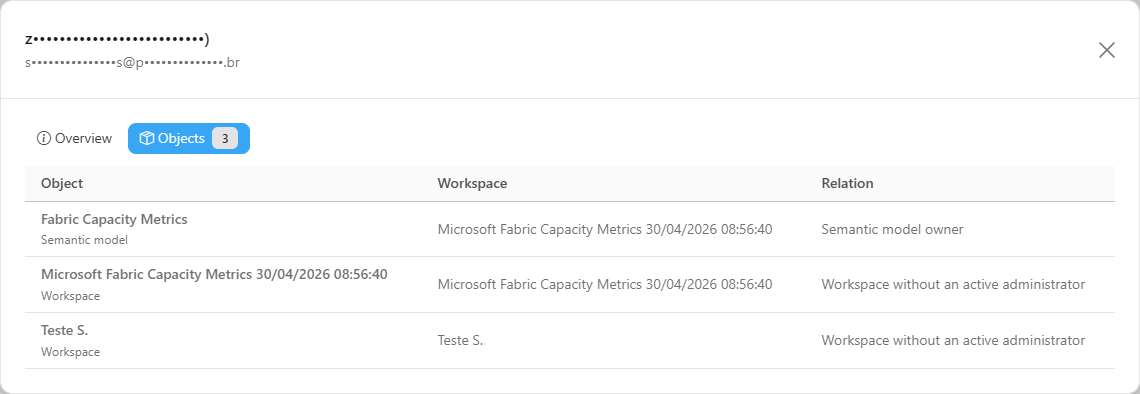
**What it is:** the modal of a departed account, opened by **⋮ › View account details**, with the **Overview** and **Objects** tabs.

**What it is for:** seeing, starting from a person who left, **everything** that still depends on them, without going through card after card.

<figure><picture><source srcset="/files/ZGNe9hUWnIlVRZa0YQRo" media="(prefers-color-scheme: dark)"><img src="https://3938213054-files.gitbook.io/~/files/v0/b/gitbook-x-prod.appspot.com/o/spaces%2FH2bFRBmIfyK3kwVKbldl%2Fuploads%2Fgit-blob-21913aa53cccd8fe1b102c23731893e3a85e5f43%2Fpm-governanca-responsaveis-desligados-modal-objetos-en.png?alt=media" alt="Objects tab of a departed account&#x27;s modal, with the Object, Workspace and Relation columns"></picture><figcaption><p>Objects linked to a departed account</p></figcaption></figure>

**How to use:**

1. In the **Departed accounts** column of any card, click the **⋮** button next to the account (or right-click) and choose **View account details**.
2. Read the **Overview** tab: the **Affected objects**, **Affected workspaces** and **Finding types** indicators, the **Account** section (Name, Identity and Account state) and the **Findings in this list** section.
3. Click the **Objects** tab to see each object linked to the account, with **Object**, **Workspace** and **Relation** (the finding type).

**How it works:**

* The **Overview** follows the [common structure](/en/power-monitor/governanca/relatorios.md#the-overview-tab) and uses the full list on the screen, without the applied filters.
* The **Objects** tab is loaded the first time you open it. If the account no longer appears as departed, the tab asks you to refresh the page; if the lookup fails, it shows "Could not look up the objects of this account right now.".
* With **Hide data** on, the account's name and identity appear masked in the header and in the Overview.

### Export (CSV or JSON)

**What it is:** the **Export** button offers **CSV** and **JSON** with the findings visible with the current filters.

**What it is for:** build an action plan for the team that will make the fixes.

**How to use:**

1. Apply the desired filters (the export respects the visible list).
2. Click **Export** and choose:
   * **CSV**: one row per combination of finding and account, with the columns **Finding type**, **Object type**, **Object**, **Workspace**, **Name**, **Account** and **Account state**.
   * **JSON**: the filtered findings with all fields, including the identifiers of the objects and workspaces.
3. The file is downloaded with a name starting with `responsaveis-desligados`.

**How it works:** the button is disabled when there is no finding in the list. With the **Hide data** button in the header on, account names and e-mails are masked in the CSV and the JSON, just as on screen.

{% hint style="danger" %}
The exported file contains personal data (names and emails of departed people). Store it in a location with restricted access, share it only with the team that will make the fixes and discard it once governance has been adjusted.
{% endhint %}

### Hide data button

**What it is:** the **Hide data** button, in the header, masks on screen the display names and e-mails/identifiers in the **Departed accounts** column, and also in the export (CSV and JSON).

**What it is for:** sharing the screen in a meeting or recording without exposing who left the company.

**How it works:** masking applies only to the display and the export: the search still compares against the real data. Object and workspace names are not masked.

### Special screen states

**What it is:** messages displayed in place of the KPIs and the list when there are no findings, a permission is missing or the query fails.

**What it is for:** know what is preventing the check and how to fix it.

| State                                  | What appears                                                                                                                       | What to do                                                                                                                                                                       |
| -------------------------------------- | ---------------------------------------------------------------------------------------------------------------------------------- | -------------------------------------------------------------------------------------------------------------------------------------------------------------------------------- |
| **No findings**                        | *No departed owners found* (or *No findings match the filters*, when the filters hide all of them).                                | Nothing, or adjust the filters.                                                                                                                                                  |
| **Missing Microsoft Graph permission** | **User read permission required** card, with the **Open Additional Permissions** button. In this case no account could be checked. | Grant the **Entra ID user import** card in [Additional Permissions](/en/power-monitor/configuracoes/permissoes-adicionais.md) (see *How to enable the check (first use)* below). |
| **Service Principal not configured**   | *Finish the installation to use this audit*, with **Go to Settings** and **Try again**.                                            | Complete the Service Principal installation in Settings.                                                                                                                         |
| **Access denied**                      | *Restricted to administrators*.                                                                                                    | Ask an administrator of the organization.                                                                                                                                        |
| **Load error**                         | *Could not load the audit*, with **Try again**.                                                                                    | Try again in a few moments.                                                                                                                                                      |

## Rules and behavior

* **What a "departed" account is.** Only two states generate a finding:

  * **Blocked**: the account exists in Entra ID, but sign-in is disabled.
  * **Deleted from directory**: no Entra ID account matches the email or identifier provided.

  Active accounts do not appear, and accounts whose state could not be confirmed (**Not verifiable**) are never treated as departed.
* **Who is checked.** Power Monitor gathers, from the data it already collects and from the registered metadata:
  * the owner of each semantic model and of each dataflow, as reported by Power BI;
  * the technical owner and business owner emails of the workspaces and semantic models, registered in [Workspaces](/en/power-monitor/governanca/workspaces.md) and [Semantic Models](/en/power-monitor/governanca/modelos-semanticos.md);
  * the direct administrators of each workspace (**Admin** role assigned in the workspace itself, the same information as in [Permissions Audit](/en/power-monitor/auditoria/auditoria-de-permissoes.md)).
* **Service Principals and groups are not evaluated as people.** Owners without an email format (typically a Service Principal or application) are ignored, so as not to generate false "deleted" results. A workspace that has a group, application or Service Principal among its administrators is never classified as **Workspace without an active administrator**.
* **How the account is located.** Each identity is looked up in Entra ID by the user identifier, by the user principal name (UPN) and, if still not found, by the email. This way, guests (B2B) and accounts whose email differs from the UPN are also recognized.
* **On-demand query.** The check is performed when the screen is opened, reading Microsoft Graph with the organization's Service Principal. There is no scheduled collection.
* **15-minute cache.** To avoid repeating the Entra ID query at every opening, the account state is reused for up to 15 minutes. An account blocked just now may take up to that long to appear. Non-verifiable accounts are not cached and are looked up again the next time the screen is opened.
* **Deleted artifacts are excluded.** Only workspaces, semantic models and dataflows that still exist in the environment are included (those detected as deleted are in [Deleted Artifacts](/en/power-monitor/governanca/operacao/artefatos-excluidos.md)).
* **Workspace scope.** If your user has visibility restricted to some workspaces, the check considers only the objects in those workspaces.
* **Prerequisites:**
  * Organization's Service Principal configured (installation completed).
  * Microsoft Graph application permission to read users: **User.Read.All** (or **Directory.Read.All**), granted by the **Entra ID user import** card in [Additional Permissions](/en/power-monitor/configuracoes/permissoes-adicionais.md).
  * **Administrator** profile in Power Monitor.

{% hint style="info" %}
**"Deleted from directory" can also be a mistyped email.** Since the state means "no account matches the email", an address with a typo or from outside the tenant registered as a responsible person also appears as deleted. It is worth checking the registration before concluding that the person left the company.
{% endhint %}

## How to use: common tasks

All the tasks below require the **Administrator** profile and start in *Governance › Compliance › Departed Owners*.

### How to enable the check (first use)

If the screen shows **User read permission required**, the Service Principal cannot yet read the Entra ID accounts.

{% stepper %}
{% step %}

#### Open Additional Permissions

Click **Open Additional Permissions**. You are taken to *Settings › Additional Permissions*.
{% endstep %}

{% step %}

#### Grant user read access

In the **Entra ID user import** card, click **Grant permissions** and complete the Microsoft consent window. A **Global Administrator** or **Privileged Role Administrator** account in the tenant is required. See the details in [How to grant the Microsoft Graph permissions](/en/power-monitor/configuracoes/permissoes-adicionais.md#how-to-grant-the-microsoft-graph-permissions).
{% endstep %}

{% step %}

#### Return to the screen

Open *Governance › Compliance › Departed Owners* again. The KPIs and findings are now displayed. If the permission has just been granted and the notice persists, wait a few minutes and reload the page.
{% endstep %}
{% endstepper %}

### How to review the findings

{% stepper %}
{% step %}

#### Read the KPIs

Check **Departed accounts** and **Findings**. If **Workspace without an active administrator** is red, start with it.
{% endstep %}

{% step %}

#### Go through the cards from top to bottom

The red cards (**Workspace without an active administrator**, **Semantic model owner**, **Dataflow owner**) indicate immediate operational risk. The yellow ones are governance owners to be updated.
{% endstep %}

{% step %}

#### Identify the account

In the **Departed accounts** column, see the name and email and the **Blocked** or **Deleted from directory** badge of each account.
{% endstep %}
{% endstepper %}

### How to see everything that depends on a person who left

{% stepper %}
{% step %}

#### Search for the account

Type the person's email (or name) in the **search**.
{% endstep %}

{% step %}

#### Keep all types

Keep **All finding types** selected: the remaining cards show all the workspaces, semantic models and dataflows linked to that account.
{% endstep %}

{% step %}

#### Export, if you need an action plan

Use **Export › CSV** to take the list to the team that will make the fixes (see the care with personal data in **Export (CSV or JSON)**).
{% endstep %}
{% endstepper %}

### How to resolve a workspace without an active administrator

{% stepper %}
{% step %}

#### Locate the workspace

In **Finding type**, select **Workspace without an active administrator** and note the workspace.
{% endstep %}

{% step %}

#### Assign a new administrator

Since no workspace administrator is active, the assignment must be made by a **Fabric/Power BI administrator** in the tenant (for example, through the Fabric admin portal, in the workspaces list). Prefer to assign a **security group** as administrator, so that the workspace does not depend on a single person.
{% endstep %}

{% step %}

#### Check the result

The new role is reflected in Power Monitor after the next permissions collection. Then open the screen again: the workspace no longer appears in the card.
{% endstep %}
{% endstepper %}

### How to resolve the departed owner of a semantic model or dataflow

{% stepper %}
{% step %}

#### Locate the artifact

In **Finding type**, select **Semantic model owner** or **Dataflow owner** and note the object and the workspace.
{% endstep %}

{% step %}

#### Take over ownership in Power BI

In Power BI/Fabric, open the settings of the semantic model (or dataflow) and use the option to **take over** ownership (*Take over*) with an active account or a service account. Then review the data source credentials, which become those of the new owner.
{% endstep %}

{% step %}

#### Check the result

After the next inventory collection, the new owner is recorded in Power Monitor and the finding disappears.
{% endstep %}
{% endstepper %}

### How to update a departed governance owner

{% stepper %}
{% step %}

#### Identify the object

In the **Workspace technical owner**, **Workspace business owner**, **Semantic model technical owner** or **Semantic model business owner** cards, note the object and the account.
{% endstep %}

{% step %}

#### Edit the metadata

For workspaces, follow [How to edit the governance metadata](/en/power-monitor/governanca/workspaces.md#how-to-edit-the-governance-metadata) in *Governance › Workspaces*. For semantic models, use **Edit governance** in the model's **⋮** menu in *Governance › Semantic Models* (or **Bulk edit governance** for several at once). Remove the email of the departed account from the **Responsible Email** or **Business Responsible Email** fields, add the new one and save.
{% endstep %}

{% step %}

#### Check the result

Open *Governance › Compliance › Departed Owners* again: the object no longer appears in the card.
{% endstep %}
{% endstepper %}

### How to refresh the check

The screen queries Entra ID every time it is opened. To refresh, reload the page (or leave and come back through the menu). Remember that the account state is reused for up to 15 minutes. If the screen shows a load error, click **Try again**.

## Frequently asked questions

<details>

<summary>Why can't I see the Departed Owners item in the menu?</summary>

The screen is exclusive to the **Administrator** profile, because it reveals who left the company (personal data protected by the LGPD). For other profiles the item does not appear in the menu and direct access is denied.

</details>

<details>

<summary>A person was offboarded today and does not appear yet. Why?</summary>

The account state is reused for up to 15 minutes. In addition, the account only appears if it is linked to some object: as owner of a semantic model or dataflow, as a responsible person registered in the governance metadata, or as a direct administrator of a workspace with no other active administrator.

</details>

<details>

<summary>What is the difference between "Blocked" and "Deleted from directory"?</summary>

**Blocked** means the account still exists in Entra ID, but sign-in is disabled (a common situation right after offboarding). **Deleted from directory** means no account matches the email or identifier, either because it was removed or because the registered address is wrong or is from outside the tenant.

</details>

<details>

<summary>What are "Not verifiable" identities?</summary>

They are accounts whose state could not be confirmed in this query, for example due to a temporary failure in communication with Microsoft Graph. They never generate a finding and are looked up again the next time the screen is opened.

</details>

<details>

<summary>The semantic model belongs to a Service Principal. Can it appear here?</summary>

No. Owners without an email format, such as Service Principals and applications, are ignored in the check.

</details>

<details>

<summary>A workspace has a departed administrator, but it does not appear as "without an active administrator".</summary>

This finding only appears when **all** direct administrators of the workspace are departed users and there is no group, application or Service Principal as administrator. If there is at least one active administrator, or a group, the workspace can still be administered.

</details>

<details>

<summary>Do I need to grant any new permission in Microsoft Graph?</summary>

The Service Principal must have the user read permission (**User.Read.All** or **Directory.Read.All**). It is granted by the **Entra ID user import** card in [Additional Permissions](/en/power-monitor/configuracoes/permissoes-adicionais.md), the same one that enables user import on the Users screen. If it has already been granted, nothing else is needed.

</details>

<details>

<summary>Can I take screenshots or share this screen?</summary>

Treat the screen and the export as personal data: avoid sharing outside the team responsible for governance and, in presentations or documentation, anonymize names and emails.

</details>

## Related pages

* [Workspaces](/en/power-monitor/governanca/workspaces.md)
* [Deployment Pipelines](/en/power-monitor/governanca/operacao/pipelines-de-implantacao.md): orphaned pipelines, without an administrator
* [Semantic Models](/en/power-monitor/governanca/modelos-semanticos.md)
* [Deleted Artifacts](/en/power-monitor/governanca/operacao/artefatos-excluidos.md)
* [Settings › Additional Permissions](/en/power-monitor/configuracoes/permissoes-adicionais.md)
* [Audit › Permissions Audit](/en/power-monitor/auditoria/auditoria-de-permissoes.md)
* [Users](/en/power-monitor/usuarios.md)


---

# Agent Instructions
This documentation is published with GitBook. GitBook is the documentation platform designed so that both humans and AI agents can read, navigate, and reason over technical content effectively. Learn more at gitbook.com.

## Querying This Documentation
If you need additional information that is not directly available in this page, you can query the documentation by asking a question.

Perform an HTTP GET request on the following URL with the `ask` and `goal` query parameters:

```
GET https://docs.powermonitor.com.br/en/power-monitor/governanca/conformidade/responsaveis-desligados.md?ask=<question>&goal=<user_goal>
```

`ask` is the immediate question: it should be specific, self-contained, and written in natural language.
`goal` is what the user is ultimately trying to achieve, the reason they need the answer. Sharing it helps GitBook give you a better, more relevant answer. A goal is most helpful when it describes the outcome the user wants rather than restating the question. For example, with `ask=how do I create an API token`, a goal like `automate deployments from our CI pipeline` lets GitBook tailor the answer to that use case.

The response will contain a direct answer to the question and relevant excerpts and sources from the documentation.

Use this mechanism when the answer is not explicitly present in the current page, you need clarification or additional context, or you want to retrieve related documentation sections.