> For the complete documentation index, see [llms.txt](https://docs.powermonitor.com.br/llms.txt). Markdown versions of documentation pages are available by appending `.md` to page URLs; this page is available as [Markdown](https://docs.powermonitor.com.br/en/power-monitor/governanca/conformidade/revisoes-de-acesso.md).
# Access reviews
Access review campaigns: the people responsible for each workspace confirm, person by person, who should keep access. Power Monitor records the decisions and exports the removal list, but never change
The **Access reviews** screen organizes the periodic check of **who has access to which workspaces**. An Administrator creates a **campaign** (choosing workspaces, access levels and a due date), Power Monitor generates an item for each person with access and sends the items to each workspace's **reviewer**, who marks each person as **Keep** or **Remove**. At the end, the Administrator exports the removal list and takes the accesses away in Power BI.
{% hint style="info" %}
**Power Monitor never removes access.** The **Remove** decision is only recorded and exported as a list: removing the access is done by you, manually, in the tenant. Nothing is changed in Power BI/Fabric by this screen.
{% endhint %}
**How to access:** menu *Governance › Compliance › Access reviews*. The reviewer notification e-mail points to this same screen.
**Who can use it:** the screen is open to **all profiles**, because the reviewer is not necessarily an Administrator. An Administrator can block the page for a profile or user in [Users](/en/power-monitor/usuarios.md); in that case it disappears from the menu and the direct address leads to the **Not allowed** screen (Administrators are never blocked).
| Tab | Who sees it | What it does |
| -------------- | ----------------------- | ------------------------------------------------------ |
| **My reviews** | All profiles | Items assigned to you as a reviewer |
| **Campaigns** | **Administrators** only | Creates, starts, follows, closes and exports campaigns |
Governance › Compliance › Access reviews
## What it is for
* Follow the **least privilege** principle and answer audits (LGPD, ISO 27001, SOC 2) with a record of who reviewed and decided what.
* Do the **periodic cleanup** of accesses: people who changed area, left the company, or external guests who no longer need access.
* Delegate the decision to whoever **knows the workspace**, instead of concentrating it in IT.
## The "How it works" card
The collapsible **How it works** card explains the process for your role (for Administrators: *Understand what happens when you create and start an access review campaign*; for reviewers: *What you need to do when you receive items to review*). Summary for the Administrator:
1. **You create the campaign:** you define the scope (all workspaces or some), the access levels to review and the due date. It stays as a **Draft**: nothing is generated or sent.
2. **You start the campaign:** the system takes a "snapshot" of the latest collected access of the workspaces and creates one item per person in each workspace. It assigns a reviewer to each workspace and sends them an e-mail.
3. **Reviewers decide:** for each item, they pick **Keep** or **Remove** and can leave a comment. They can also decide all pending items of a workspace at once.
4. **You follow up and close:** see the progress by reviewer, reassign a workspace if needed, close the campaign and export the **Remove** list to act in Power BI.
## My reviews tab (all profiles)
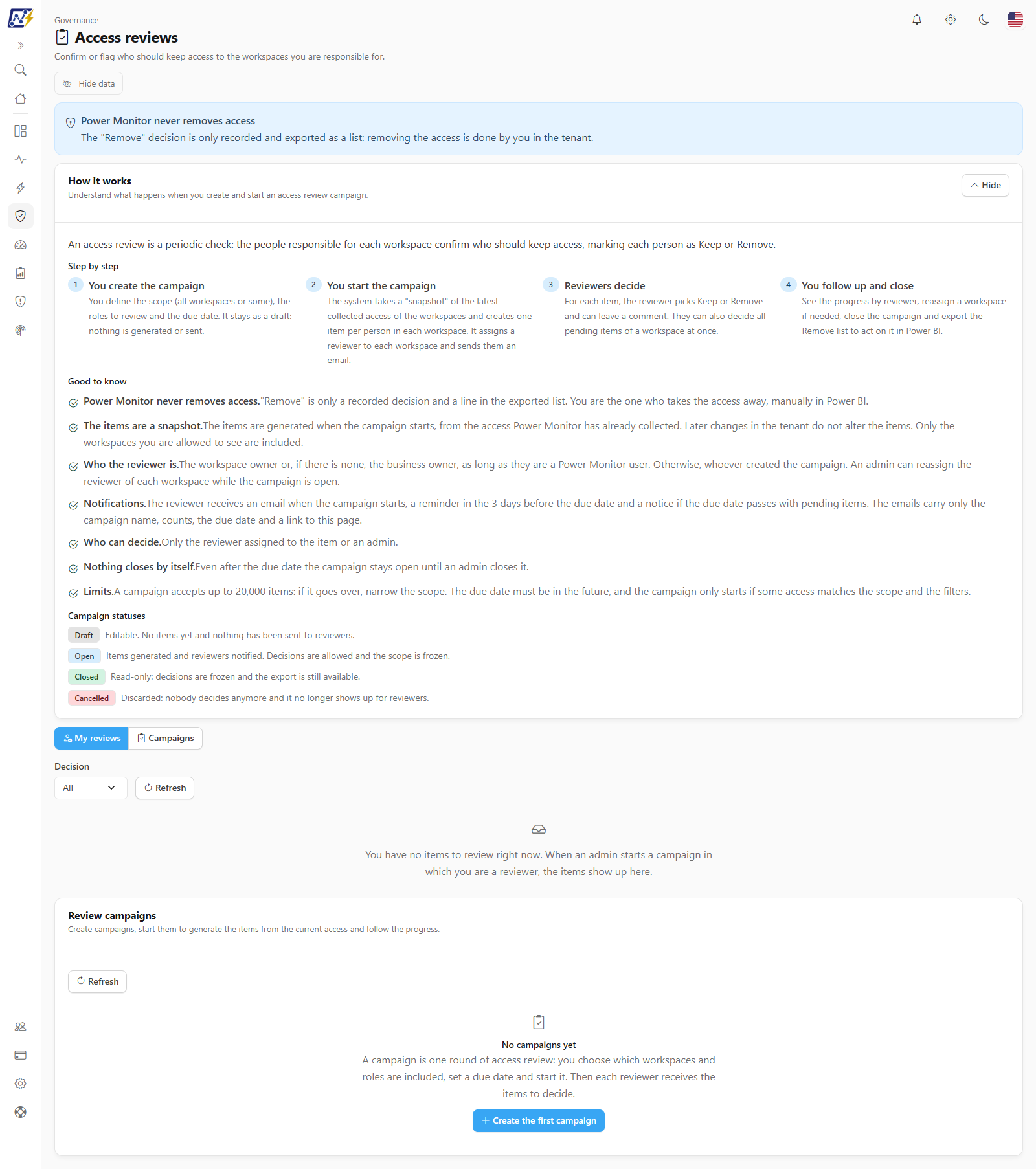
My reviews tab
It shows the items assigned to you, grouped by **campaign** and **workspace**, with the due date (*Due: date*), the **Pending: N** counter and the **Overdue** badge when the due date has passed. For each person it shows the **Principal** (user, group or app; guests carry the **Guest** badge), the **Role** (**Admin**, **Member**, **Contributor**, **Viewer** or **Other**), the **Decision** (**Pending**, **Keep** or **Remove**) and the **Comment** (a text field of up to 500 characters). Below the principal's name, its type is shown (**User**, **Group**, **App** or **Other**).
* **Decide one item:** click **Keep** or **Remove** (the comment is optional) and the decision is recorded.
* **Decide in bulk:** in a workspace, use **Keep pending** or **Remove pending** (with **Comment for the bulk decision**). The confirmation reminds you: *No access is removed in the tenant.* The bulk action covers the pending items loaded on screen; use **Load more** to bring the rest.
* **Decision filter:** **All**, **Pending**, **Keep** or **Remove**.
* **Hide data** masks the principal's name on screen.
* In campaigns that are not open, decisions are **read-only**.
If you have no items, the screen explains: *When an admin starts a campaign in which you are a reviewer, the items show up here.*
## Campaigns tab (Administrator)
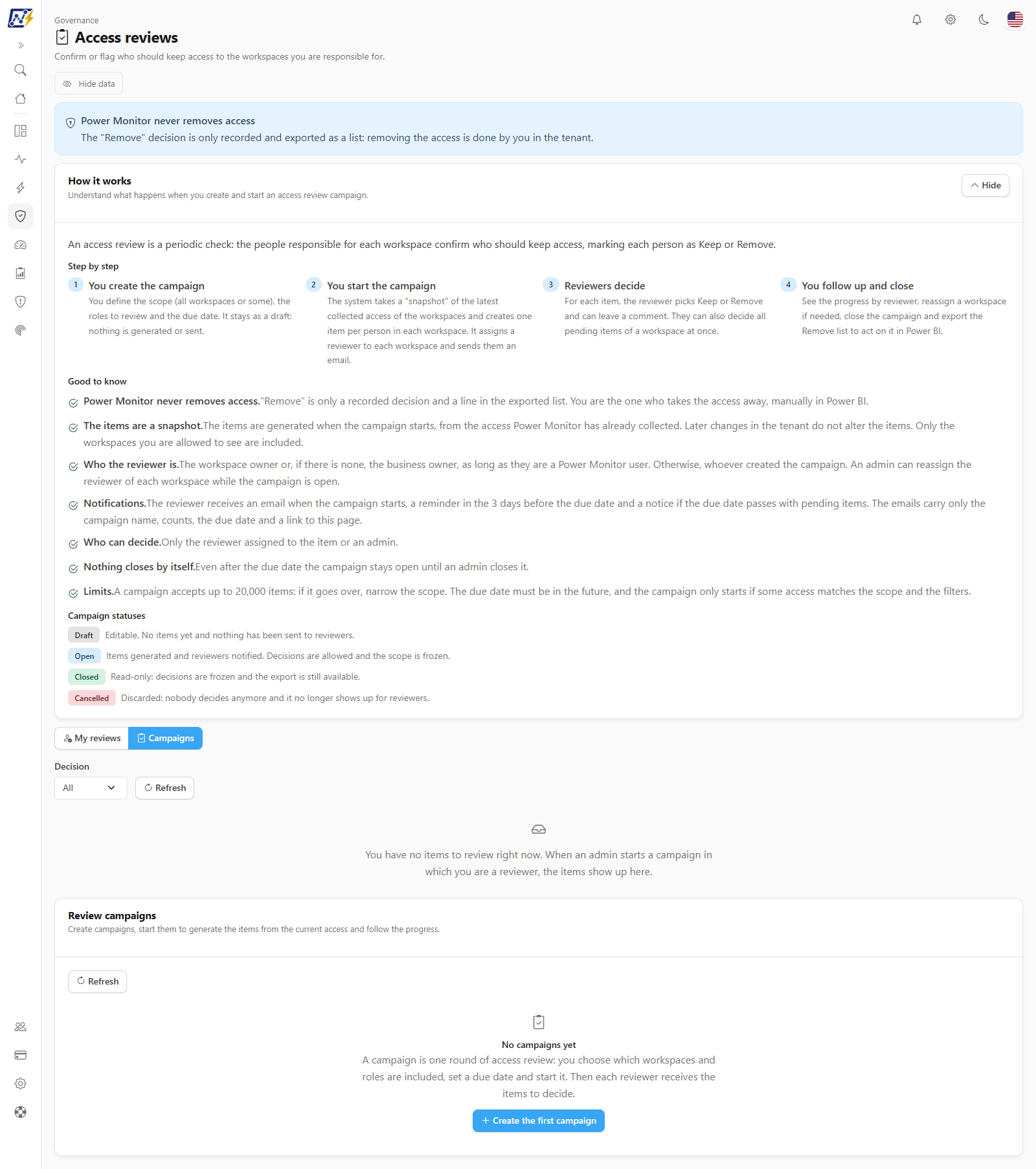
Campaigns tab
The **Review campaigns** list shows **Campaign**, **Status**, **Scope** (**All workspaces** or **N workspaces**), **Due** and **Items**, with the **Items per page** selector in the footer (the columns are not sortable). Clicking a row opens the campaign progress right below; right-clicking opens the same actions menu as the **More actions** button. With no campaigns, the screen shows *No campaigns yet* and the **Create the first campaign** button. The **New campaign** button creates a campaign and the **More actions** menu of each row offers the actions allowed for its status:
| Status | Meaning | Actions |
| ------------- | ------------------------------------------------------------------------------------- | ------------------------------------------------------------------------------- |
| **Draft** | Editable. No items yet and nothing has been sent to reviewers | **View details**, **Edit**, **Start campaign**, **Cancel campaign**, **Delete** |
| **Open** | Items generated and reviewers notified. Decisions are allowed and the scope is frozen | **View details**, **Close campaign**, **Cancel campaign** |
| **Closed** | Read-only: decisions are frozen and the export is still available | **View details** |
| **Cancelled** | Discarded: nobody decides anymore and it no longer shows up for reviewers | **View details**, **Delete** |
### Create or edit a campaign
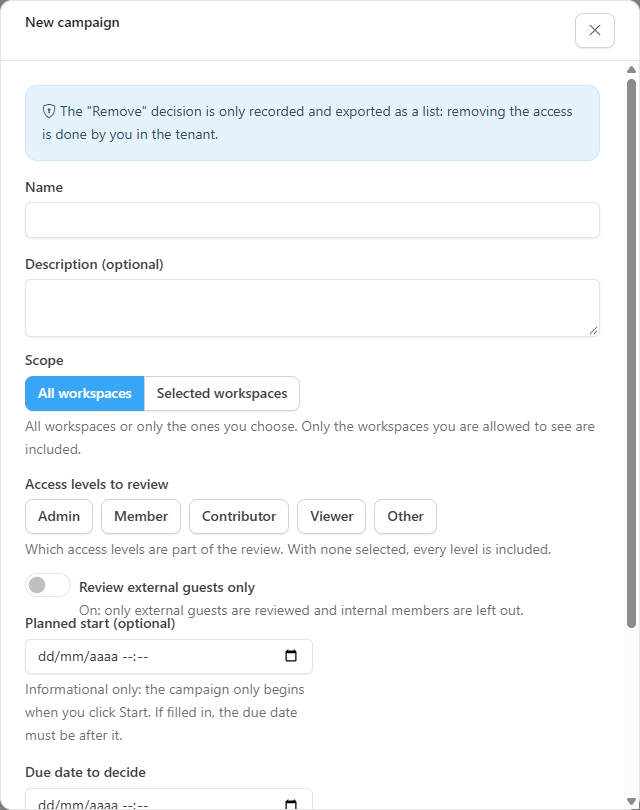
New campaign
| Field | Notes |
| ------------------------------- | --------------------------------------------------------------------------------------------------------------------------- |
| **Name** | Required |
| **Description (optional)** | |
| **Scope** | **All workspaces** or **Selected workspaces**, with search. Only the workspaces you are allowed to see are included |
| **Access levels to review** | Which access levels are part of the review. With none selected, every level is included |
| **Review external guests only** | On: only external guests are reviewed and internal members are left out |
| **Planned start (optional)** | Informational only: the campaign only begins when you click **Start campaign**. If filled in, the due date must be after it |
| **Due date to decide** | Required and in the future. Reviewers receive e-mail reminders before the due date and a notice if it passes |
Nothing is sent or generated until you start the campaign.
### Start, close, cancel and delete
* **Start campaign:** generates the items from the current access of the workspaces in scope, notifies the reviewers by e-mail and **freezes the scope**. A campaign accepts up to **20,000 items**: if it goes over, narrow the scope. It only starts if some access matches the scope and the filters.
* **Close campaign:** decisions are frozen and the campaign becomes read-only. Pending items stay undecided and the export is still available.
* **Cancel campaign:** discards the campaign; it no longer shows up for reviewers and can still be deleted later.
* **Delete:** removes the campaign permanently (it cannot be undone). It is only available for campaigns in **Draft** or **Cancelled**: closed ones are kept as a record.
In every case, **nothing is changed in Power BI**. The campaign **never closes by itself**: even after the due date it stays open until an Administrator closes it.
### Follow a campaign
The detail (**Progress of** *campaign name*) shows:
* **Status of this campaign** and **Next step** (for example, *Waiting for reviewers: N pending items*, *The due date has passed and N items are still pending* or *All items have been decided (100%). You can now close the campaign and export the Remove list.*);
* the **Campaign overdue** notice when there are pending items after the due date;
* the **Items**, **Pending** and **Complete** (percentage) indicators, the count by decision (**Keep**, **Remove**, **Pending**) and the **By reviewer** bars (decided/total for each reviewer, with the **Keep** and **Remove** parts);
* the item list with the **Workspace** (*All workspaces*), **Reviewer** (*All reviewers*) and **Decision** filters (columns **Principal**, **Workspace**, **Role**, **Reviewer**, **Decision** and **Decided at**, none sortable), with the **Items per page** selector and the **Load more** button to bring the rest;
* **Reassign workspace reviewer**: in the **More actions** menu of any row (or by right-clicking), enabled only while the campaign is open. Choose the **New reviewer** among the Power Monitor users: the **pending** items of that workspace move to the new reviewer and already decided ones do not change;
* **Export CSV** (all items) and **Export removal list** (only the **Remove** decisions). Both are enabled only for **Open** or **Closed** campaigns.
With **Hide data** on, principal names and reviewer e-mails are masked on screen.
{% hint style="warning" %}
The exported CSV comes from the server with the **real e-mails**, even with **Hide data** on. Treat the file as personal data.
{% endhint %}
## Rules and behavior
* **Who is each workspace's reviewer:** the workspace owner or, if there is none, the business owner, as long as they are a Power Monitor user. Otherwise, whoever created the campaign. An Administrator can reassign each workspace's reviewer while the campaign is open.
* **Who can decide an item:** only the reviewer assigned to it or an Administrator.
* **The items are a snapshot:** they are generated when the campaign starts, from the access Power Monitor has already collected. Later changes in the tenant do not alter the items.
* **Notifications:** the reviewer receives an e-mail when the campaign starts, a **reminder in the 3 days before the due date** and a notice if the due date passes with pending items. The e-mails carry only the campaign name, counts, the due date and a link to this page. Sending is checked once a day.
* **Microsoft standard artifacts** are not included in campaigns.
* **Scope:** the campaign only includes workspaces its creator can see.
## Step by step
### How to run an access review (Administrator)
{% stepper %}
{% step %}
### Create the campaign
In *Governance › Compliance › Access reviews › Campaigns*, click **New campaign**, define the name, scope, access levels and due date, and save.
{% endstep %}
{% step %}
### Start
In the campaign menu, click **Start campaign** and confirm. Reviewers are notified by e-mail.
{% endstep %}
{% step %}
### Follow
Open **View details** and follow the progress by reviewer. Reassign workspaces whose reviewer is not responding.
{% endstep %}
{% step %}
### Close and export
When everything is decided (or the due date passes), click **Close campaign** and then **Export removal list**.
{% endstep %}
{% step %}
### Remove the accesses
Manually take away, in Power BI, the accesses on the list. Power Monitor does not perform this step.
{% endstep %}
{% endstepper %}
### How to respond to a review (reviewer)
1. Open the link in the e-mail (or *Governance › Compliance › Access reviews*) and go to **My reviews**.
2. In each workspace, choose **Keep** (the person should keep access) or **Remove** (the person should no longer have access).
3. If needed, leave a comment and use **Keep pending** to decide the rest at once.
4. Decide by the campaign due date.
## Frequently asked questions
If I mark "Remove", is the access taken away?
No. The decision is only recorded. An Administrator exports the list and takes the access away manually in Power BI.
Can I edit the scope of a campaign that has already started?
No. On start, the scope is frozen and the items are generated. To change the scope, cancel the campaign and create another.
I did not receive items to review.
You only see items from **open** campaigns in which you are a reviewer. If you are the owner or the business owner of a workspace and a Power Monitor user, it will be assigned to you when a campaign includes it.
The campaign went past the due date. Does it close by itself?
No. It stays open, with the overdue notice, until an Administrator closes it.
## Related pages
* [Privacy and compliance](/en/power-monitor/governanca/conformidade/privacidade-e-conformidade.md)
* [Permission history](/en/power-monitor/auditoria/historico-de-permissoes.md)
* [Permissions Audit](/en/power-monitor/auditoria/auditoria-de-permissoes.md)
* [Permissions Dashboard](/en/power-monitor/dashboards/dashboard-de-permissoes.md)
* [Compliance posture](/en/power-monitor/governanca/conformidade/postura-de-conformidade.md)
* [Departed Owners](/en/power-monitor/governanca/conformidade/responsaveis-desligados.md)
* [Users](/en/power-monitor/usuarios.md)
---
# Agent Instructions
This documentation is published with GitBook. GitBook is the documentation platform designed so that both humans and AI agents can read, navigate, and reason over technical content effectively. Learn more at gitbook.com.
## Querying This Documentation
If you need additional information that is not directly available in this page, you can query the documentation by asking a question.
Perform an HTTP GET request on the following URL with the `ask` and `goal` query parameters:
```
GET https://docs.powermonitor.com.br/en/power-monitor/governanca/conformidade/revisoes-de-acesso.md?ask=&goal=
```
`ask` is the immediate question: it should be specific, self-contained, and written in natural language.
`goal` is what the user is ultimately trying to achieve, the reason they need the answer. Sharing it helps GitBook give you a better, more relevant answer. A goal is most helpful when it describes the outcome the user wants rather than restating the question. For example, with `ask=how do I create an API token`, a goal like `automate deployments from our CI pipeline` lets GitBook tailor the answer to that use case.
The response will contain a direct answer to the question and relevant excerpts and sources from the documentation.
Use this mechanism when the answer is not explicitly present in the current page, you need clarification or additional context, or you want to retrieve related documentation sections.