> For the complete documentation index, see [llms.txt](https://docs.powermonitor.com.br/llms.txt). Markdown versions of documentation pages are available by appending `.md` to page URLs; this page is available as [Markdown](https://docs.powermonitor.com.br/en/power-monitor/governanca/conformidade/rotulos-e-certificacao.md).
# Labels and Certification
Microsoft Purview sensitivity labels, endorsement (certified/promoted) and exposure (Publish to Web and organization-wide links) of each artifact, with the highest-risk findings highlighted.
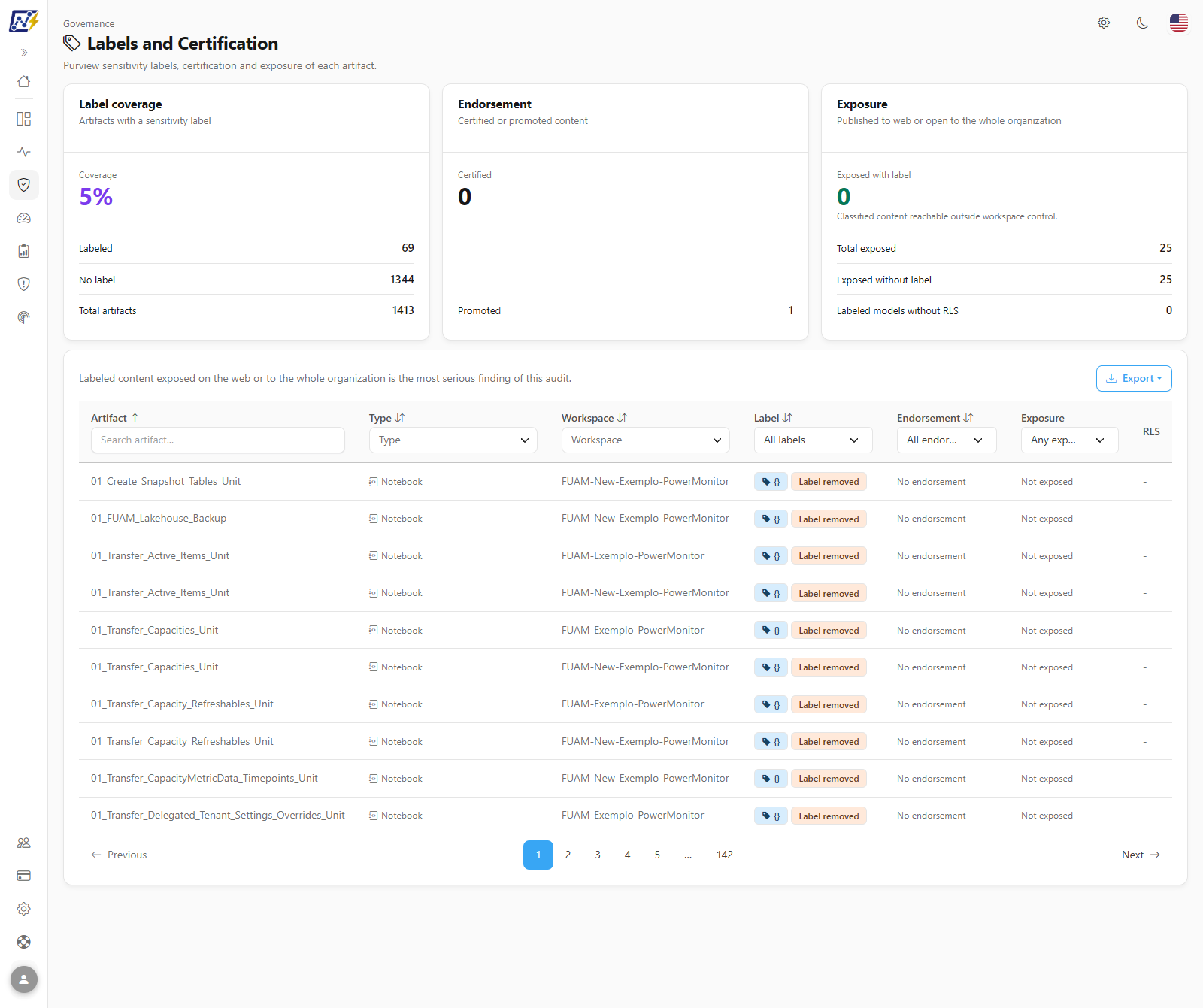
The **Labels and Certification** screen brings together, in a single list, three pieces of governance information about each artifact in your Microsoft Fabric/Power BI environment:
* the Microsoft Purview **sensitivity label** applied to the item;
* the item's **endorsement** (**Certified** or **Promoted**) and who certified it;
* the item's **exposure**: whether it is **published to web** (Publish to Web) or shared through an **organization-wide link**.
Cross-referencing this information reveals the most serious finding of this audit: **classified (labeled) content exposed on the web or to the whole organization**, that is, accessible outside the workspace's access control.
**How to access:** menu *Governance › Compliance › Labels and Certification* (right after **Organization-wide Links**). The screen is **read-only** and is available to **all** user **profiles**. It has no write actions: nothing is changed in Fabric/Power BI from here.
Governance › Compliance › Labels and Certification
## What it is for
* **Measure label coverage:** find out what percentage of the content has already been classified in Purview and which artifacts are still **No label**.
* **Find exposed classified content:** list reports, models and other labeled items that are published to the web or open by link to the whole organization, to revoke the exposure or review the classification.
* **Find exposure without classification:** items published to the web or open to the organization that do not even have a label.
* **Track the certification program:** see how many artifacts are **Certified** or **Promoted**, and by whom each item was certified.
* **Review the security of labeled models:** identify semantic models with a sensitivity label that **have no RLS** (row-level security) defined.
* **Detect obsolete labels:** items that point to a label that **no longer exists** in Purview.
* **Generate evidence for audits and LGPD:** export the filtered list to CSV or JSON.
## Screen overview
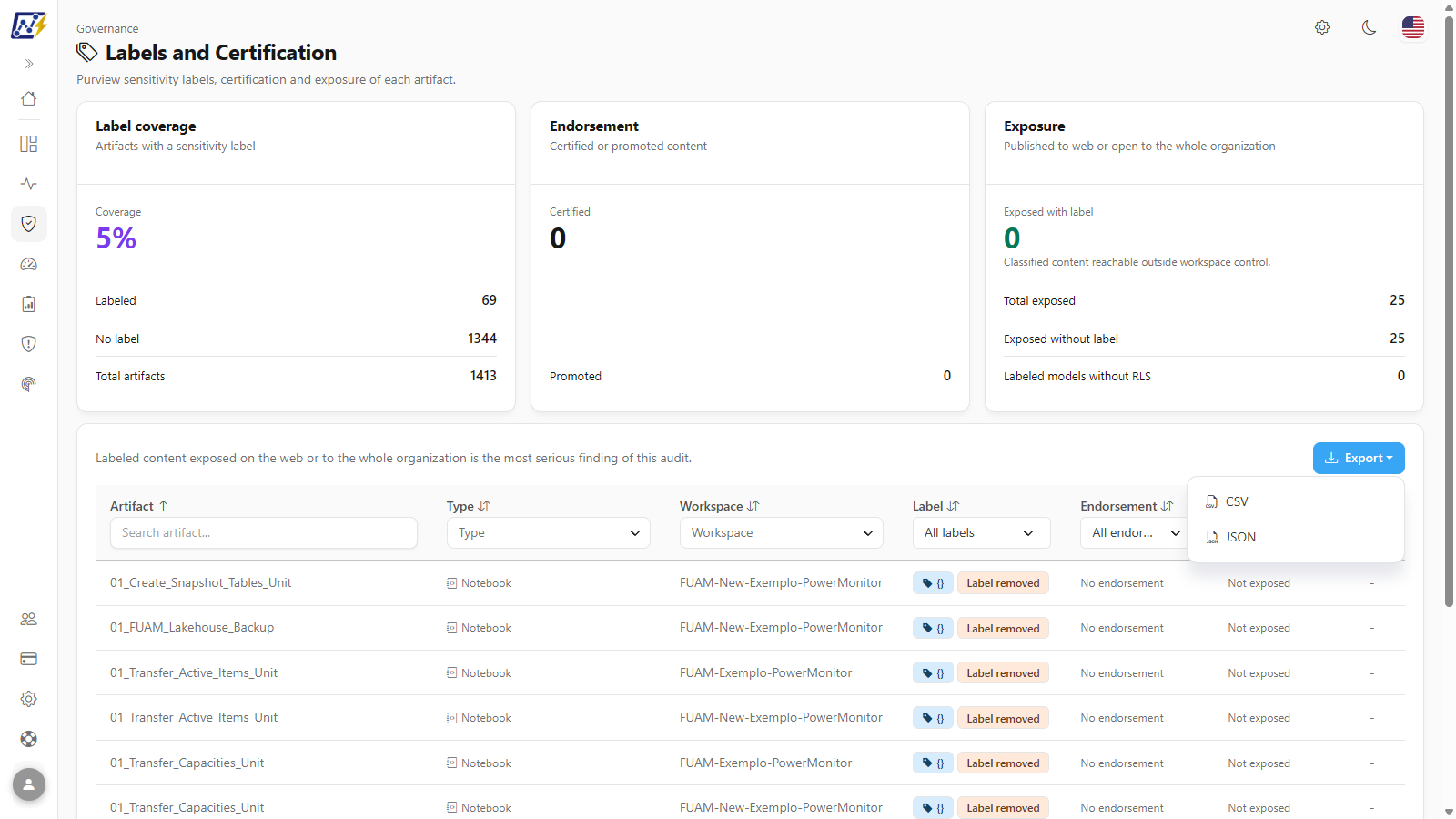
1. **Header**: path **Governance**, title **Labels and Certification** and the subtitle *Purview sensitivity labels, certification and exposure of each artifact.*
2. **Indicator cards**: **Label coverage**, **Endorsement** and **Exposure**.
3. **Notices** (when some optional information could not be obtained).
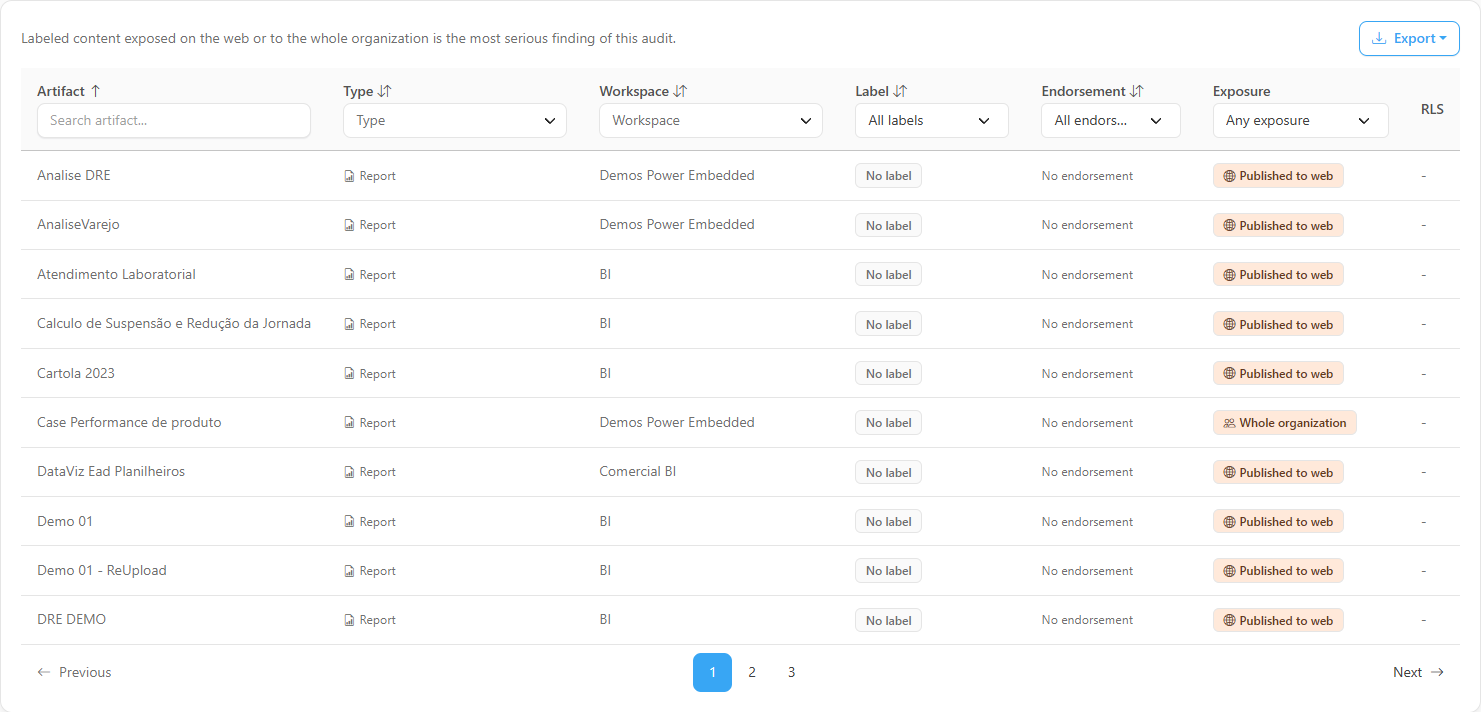
4. **Artifacts table** with filters in the column headers, the tip *Labeled content exposed on the web or to the whole organization is the most serious finding of this audit.* and the **Export** button.
## Features
### Label coverage card
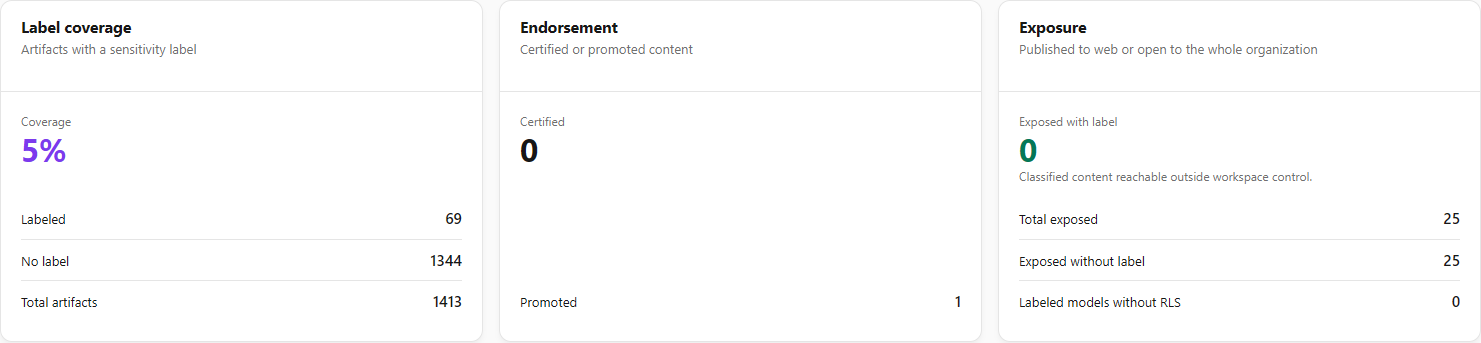
**What it is:** the **Label coverage** card (*Artifacts with a sensitivity label*) shows, under **Coverage**, the percentage of artifacts that have a label, and in the detail lines **Labeled**, **No label** and **Total artifacts**.
**What it is for:** track the progress of the information classification program (for example, the goal of labeling 100% of the content of sensitive areas) and size the pending work.
Indicator cards
**How to use:**
1. Open *Governance › Compliance › Labels and Certification*.
2. Read the percentage under **Coverage** and the count under **No label**.
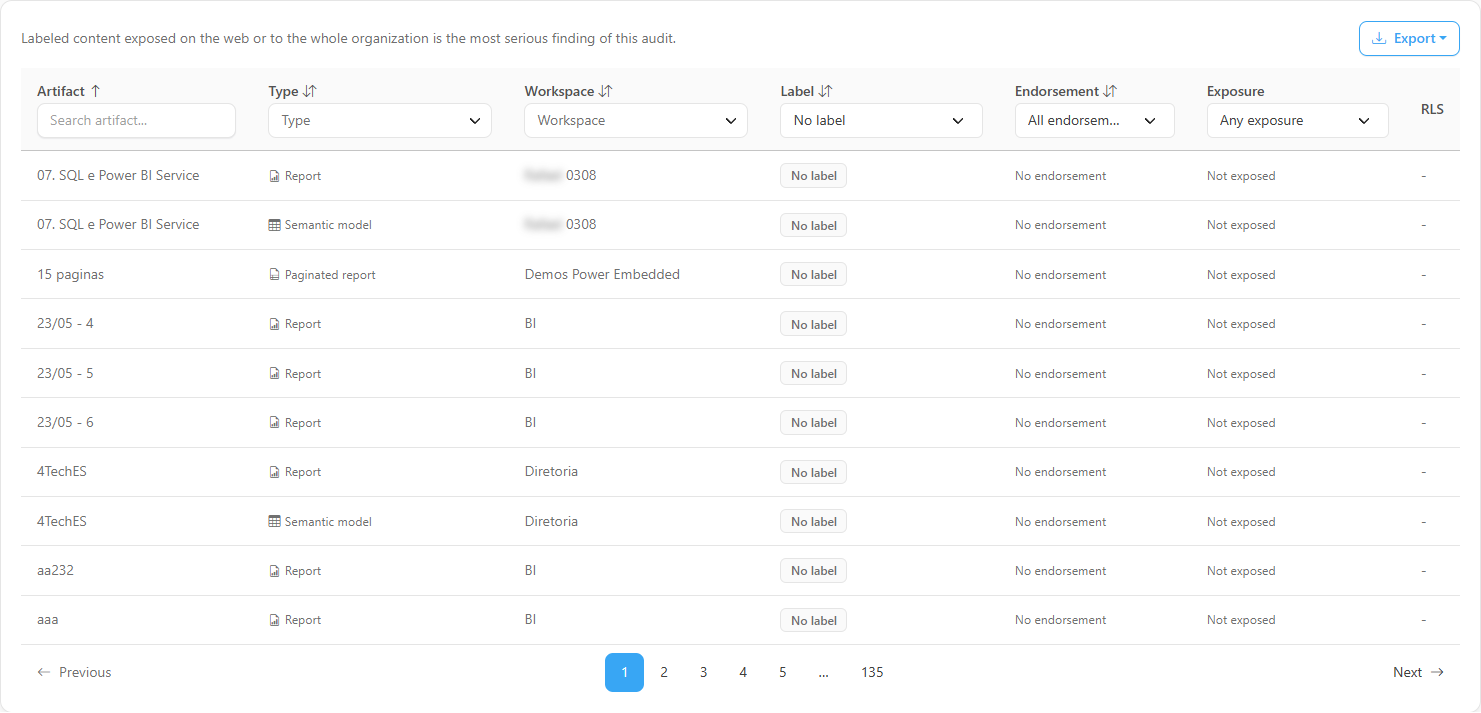
3. To see which items have no label, use the **Label** column filter › **No label** (see [Label filter and column](#label-filter-and-column)).
**How it works:** Coverage = artifacts with a label ÷ total artifacts, rounded to the nearest integer. With no artifacts, it shows "—". The numbers in the three cards consider **all artifacts visible to you** (respecting your workspace scope) and **do not change** with the table filters.
### Endorsement card
**What it is:** the **Endorsement** card (*Certified or promoted content*) shows the number of **Certified** artifacts and, in the detail line, **Promoted**.
**What it is for:** measure the reach of the content certification program, how much of the published content is "official" (certified) or recommended (promoted).
**How to use:** read the card's numbers; to list the items, use the **Endorsement** column filter.
**How it works:** it counts the artifacts with **Certified** and **Promoted** endorsement reported by Microsoft. Microsoft only reports endorsement for **reports**, **semantic models** and **dataflows** (see [Rules and behavior](#rules-and-behavior)).
### Exposure card
**What it is:** the **Exposure** card (*Published to web or open to the whole organization*) highlights **Exposed with label** and shows, in the detail lines, **Total exposed**, **Exposed without label** and **Labeled models without RLS**.
**What it is for:** it is the screen's risk gauge. **Exposed with label** counts the classified content that is reachable outside workspace control; **Labeled models without RLS** points to sensitive models that deliver every row to anyone who has access.
**How to use:**
1. Check the value of **Exposed with label**: in **green** (zero) there is no finding; in **red**, there are items to handle. The footer explains: *Classified content reachable outside workspace control.*
2. Check **Labeled models without RLS**, which turns **amber** when there is at least one model.
3. To list the items, use the **Exposure** column filter (see [Exposure filter and column](#exposure-filter-and-column)).
**How it works:**
* "Exposed" = published to web **or** with an organization-wide link.
* **Labeled models without RLS** = labeled semantic models whose RLS roles were read by the scan and are empty.
* If the exposure could not be verified in that query (see [Notices](#notices)), the exposure numbers appear as "—" (not conclusive). The **Labeled models without RLS** indicator is still displayed, since it does not depend on the exposure.
### Notices
**What it is:** banners displayed below the cards when an **optional** piece of information could not be obtained. The screen keeps working with the rest of the data.
**What it is for:** explain why the **Label** column shows codes or why the exposure is **Not verified**, and indicate how to fix it.
| Notice | When it appears | Effect on the screen |
| ---------------------------------------------------------------------------------------------- | ------------------------------------------------------------------------------------------------------------------------------------------ | ------------------------------------------------------------------------------------------------------------------------------------------------------------------------------------------------------------------------------------------- |
| *Sensitivity label names require the Microsoft Graph permission SensitivityLabels.Read.All...* | The Power Monitor Service Principal does not have permission to read the Purview label catalog. | The **Label** column shows the label **identifier** (GUID) instead of the name. Administrators see the **Grant permission** button; other profiles see the guidance *Ask an administrator to grant it in Settings, Additional Permissions.* |
| *The Purview label catalog did not respond right now\...* | Reading the label catalog failed for another reason (temporary unavailability). It may include a **Technical detail** with the error code. | The **Label** column shows the identifier when the name is not available. |
| *Exposure (Publish to Web and organization-wide links) could not be verified in this query...* | The exposure query to the Power BI admin APIs did not respond (or the Service Principal is not configured). | The exposure numbers become "—" and the **Exposure** column shows **Not verified** on all rows. |
**How to use (permission notice):** an **Administrator** clicks **Grant permission** in the notice and follows the step-by-step [How to grant the permission to see label names](#how-to-grant-the-permission-to-see-label-names). For the other notices, reload the page a few minutes later.
### Microsoft standard artifacts notice
**What it is:** the discreet line **N Microsoft standard artifacts ignored**, with a help icon, which appears when some artifact was left out of the analysis.
**What it is for:** telling you that items created by Microsoft itself in the tenant (such as the Fabric Capacity Metrics, the usage metrics models and the *Admin monitoring* workspace) are **not included** in the counts and lists on this screen, because they are not part of your business and would distort the label, endorsement and exposure coverage totals.
**How to use:** hover (or tap) the help icon to read the explanation. **Administrators** also see the **Configure** button, which opens the **Microsoft standard artifacts** window, where you can turn the rule off or add your own name patterns (see [Privacy and compliance](/en/power-monitor/governanca/conformidade/privacidade-e-conformidade.md#microsoft-standard-artifacts-are-left-out)). On saving, the screen reloads the numbers.
### Artifact search
**What it is:** the **Search artifact...** field, in the **Artifact** column header, filters the table by item name.
**What it is for:** quickly check the label, endorsement and exposure of a specific report or model, for example, before approving a publication.
**How to use:**
1. Type part of the name in **Search artifact...**.
2. If there are items with the same name in different workspaces, also use the **Workspace** filter.
3. Clear the text to return to the full list.
**How it works:** the search is case-insensitive, considers only the artifact name and is applied about half a second after you stop typing, returning to the first page.
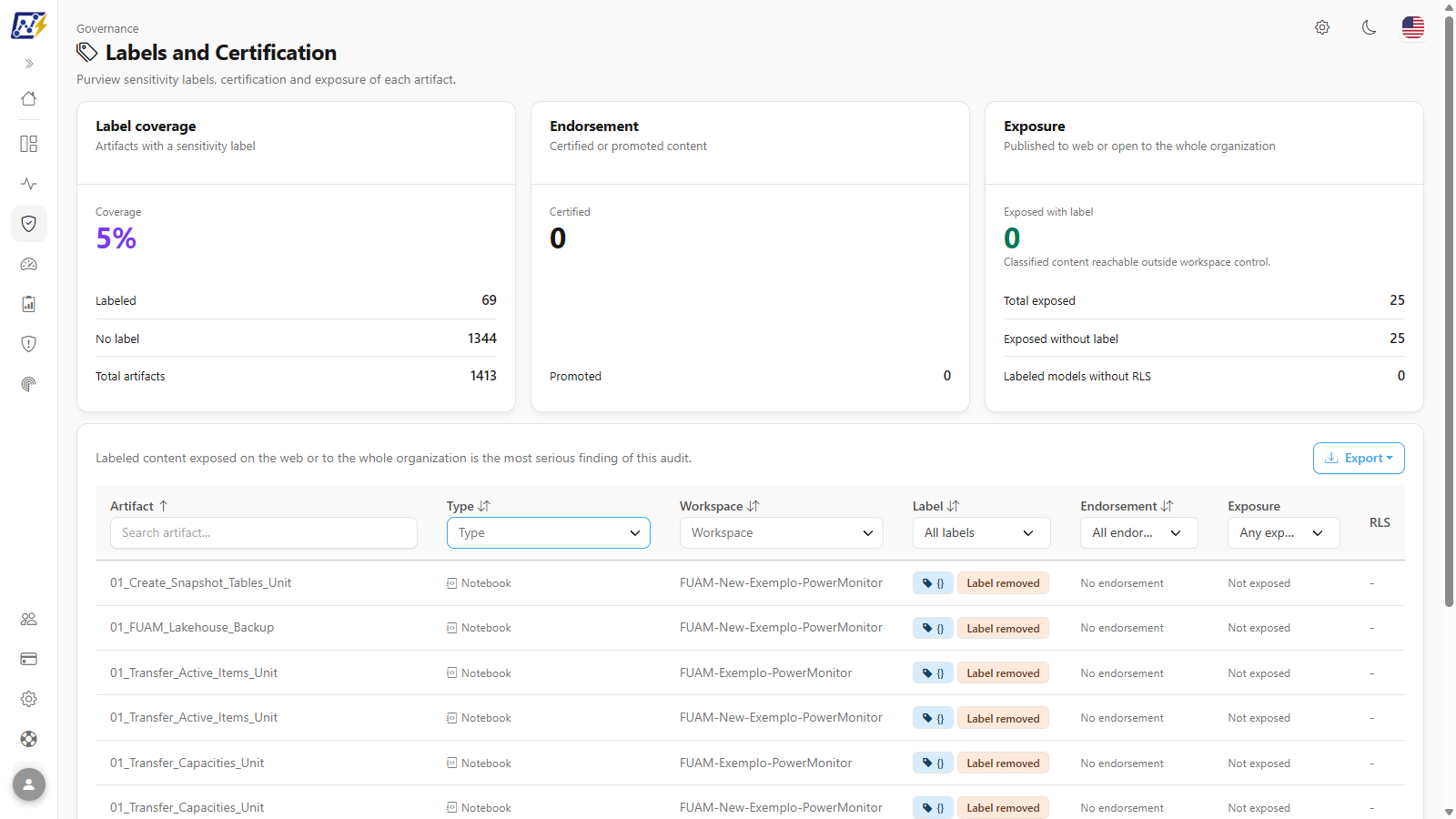
### Type and Workspace filters
**What it is:** **multiple-selection** filters in the headers of the **Type** and **Workspace** columns, with a built-in search field.
**What it is for:** focus the analysis on a type of content (for example, only **Semantic model** to review RLS) or on a business area (a department's workspaces).
Multiple-selection filter of the Type column
**How to use:**
1. Click the **Type** (or **Workspace**) selector in the column header.
2. Select one or more values; use the panel's search box to find a value in long lists.
3. To clear, click the **x** next to the selector.
**How it works:** the lists show only the values that exist in your data. The types covered are **Report**, **Paginated report**, **Semantic model**, **Dashboard**, **Dataflow**, **Warehouse**, **Notebook** and **Data pipeline**, each with its icon in the **Type** column.
### Label filter and column
**What it is:** the **Label** column shows a badge with the sensitivity label name (the full name appears on hover), **No label** when the item is not classified and, when applicable, the amber **Label removed** badge. The header filter offers **All labels**, **No label** and each label present in the list.
**What it is for:** list what remains to be classified, review all items of a specific label (for example, "Confidential") and find items that point to labels that no longer exist.
Label filter = No label
**How to use:**
1. In the **Label** column header, choose **No label** or a specific label.
2. Click the **Label** column title to sort by label sensitivity (the first click sorts from most to least sensitive).
3. Hover over the **Label removed** badge to read *This label no longer exists in Purview.*
**How it works:**
* Sorting uses the label's priority (sensitivity) in Purview; items without a label are at the end in ascending order.
* If the catalog read permission has not been granted, the badge shows the identifier (GUID) instead of the name.
* The **Label removed** badge only appears when the Purview catalog was read successfully and the item's label is not in it (for example, a label deleted or unpublished after the item was classified).
* If Microsoft returns more than one label identifier for an item, the screen considers the first one.
### Endorsement filter and column
**What it is:** the **Endorsement** column shows the **Certified** badge (green, with a seal icon) or **Promoted** (blue), or **No endorsement**. The filter offers **All endorsements**, **No endorsement**, **Certified** and **Promoted**.
**What it is for:** review the company's official content and find out who certified each item.
**How to use:**
1. In the **Endorsement** column header, choose **Certified**, **Promoted** or **No endorsement**.
2. Hover over a **Certified** badge to see *Certified by* and the name of who certified it.
3. For a list with the certifier of each item, export to **CSV** (**Certified by** column).
**How it works:** **Certified by** is only filled in for certified items. Endorsement values other than Certified/Promoted (when they exist in your tenant) appear with Microsoft's original text.
### Exposure filter and column
**What it is:** the **Exposure** column shows the **Published to web** and/or **Whole organization** badges. The badges are **red** when the item also has a label (most serious finding) and **amber** when it does not. It shows **Not exposed** when there is no exposure and **Not verified** when the exposure could not be queried.
**What it is for:** find and prioritize content open outside workspace control.
Exposure filter = Any exposure
**How to use:** in the **Exposure** column header, choose one of the options:
| Option | Shows |
| ---------------------------------------- | ----------------------------------------------------------------------------- |
| **Any exposure** (first option, default) | All items, without filtering exposure |
| **Exposed with label** | Items with a label **and** published to web or with an organization-wide link |
| **Any exposure** (second option) | Items published to web **or** with an organization-wide link |
| **Published to web** | Only items with Publish to Web |
| **Organization-wide link** | Only items with an organization-wide link |
| **Not exposed** | Items with neither of the two exposures |
{% hint style="info" %}
In the **Exposure** filter, the text **Any exposure** appears twice: the first option (default) does not filter anything; the second shows only the exposed items.
{% endhint %}
**How it works:** the exposure is queried live from the Power BI admin APIs, with the result reused for up to **10 minutes**. The **Exposure** column is not sortable.
### RLS column
**What it is:** for semantic models only, the **RLS** column shows **Yes** (the model has row-level security roles) or **No** (the model has no roles). It shows "-" for other types and for models whose roles have not yet been read.
**What it is for:** together with the **Label** column, identify classified models that do not restrict rows per user.
**How to use:** filter **Type** by **Semantic model** and look at the **RLS** column of the labeled models. To see the roles, members and filters, use the [Row-Level Security](/en/power-monitor/auditoria/seguranca-em-nivel-de-linha.md) screen.
**How it works:** **Yes** = at least one role; **No** = the scan read the model and found no roles; "-" = the scan has not yet brought this information (the model is **not** counted in **Labeled models without RLS**). The column is neither sortable nor filterable.
### Sorting and pagination
**What it is:** the table opens sorted by **Artifact** (A–Z) and is paginated with **10 items per page**.
**What it is for:** organize the list by the analysis criterion (for example, most sensitive label first).
**How to use:**
1. Click the title of a sortable column (**Artifact**, **Type**, **Workspace**, **Label**, **Endorsement**) to sort by it. When you click a new column, sorting starts descending; click again to reverse it.
2. Use the page controls below the table to navigate.
**How it works:** any filter change returns to the first page. There is no details modal or per-row actions menu. With no items in the result, the table shows *No artifacts found*.
### Export (CSV or JSON)
**What it is:** the **Export** button, above the table, offers **CSV** and **JSON**.
**What it is for:** generate evidence for audits and LGPD, and send lists of pending items to the owners.
Export menu
**How to use:**
1. Apply the desired filters (the export respects all of them).
2. Click **Export** and choose **CSV** (for spreadsheets, with the screen's texts) or **JSON** (raw records, for integration).
3. The download starts immediately with the file `rotulos-e-certificacao`. If the button is disabled, the filtered result is empty.
**How it works:** it exports **all rows of the filtered result** (not only the current page).
| Format | Content |
| -------- | --------------------------------------------------------------------------------------------------------------------------------------------------------------------------------------------------------------------------------------- |
| **CSV** | Columns **Artifact**, **Type**, **Workspace**, **Label**, **Label removed from Purview** ("Yes" when the label no longer exists), **Endorsement**, **Certified by**, **Exposure** and **RLS**, with the texts as they appear on screen. |
| **JSON** | The raw records of each row (identifiers of the artifact, the workspace and the label, label name, priority, endorsement, certifier, exposure and RLS indicators). |
{% hint style="warning" %}
The **Certified by** column may contain names or emails of people in your organization. Treat the exported file as internal information and be careful when sharing it, especially with third parties.
{% endhint %}
### Error state
**What it is:** if the main query fails, the screen shows the *Could not load the audit* card with the **Try again** button.
**How to use:** click **Try again** after a few moments. Failures of the optional information (label names and exposure) do **not** generate an error: they appear as the [notices](#notices) described above.
## How to use: common tasks
### How to grant the permission to see label names
Use this when the **Label** column shows identifiers (GUIDs) and the permission notice appears. Prerequisites: **Administrator** profile in Power Monitor and a Microsoft Entra ID **Global Administrator** or **Privileged Role Administrator** Microsoft account to give consent.
{% stepper %}
{% step %}
### Open the screen
In the menu, go to *Governance › Compliance › Labels and Certification* and locate the notice *Sensitivity label names require the Microsoft Graph permission SensitivityLabels.Read.All...*.
{% endstep %}
{% step %}
### Go to Additional Permissions
Click **Grant permission** in the notice itself. You are taken to *Settings › Additional Permissions*. (Users who are not administrators do not see the button and must ask an administrator.)
{% endstep %}
{% step %}
### Grant the permission
In the **Sensitivity labels** card, click **Grant permissions** and complete the Microsoft consent window with the Entra ID administrator account. See the details in [Additional Permissions](/en/power-monitor/configuracoes/permissoes-adicionais.md#how-to-grant-the-microsoft-graph-permissions).
{% endstep %}
{% step %}
### Check the result
Go back to *Governance › Compliance › Labels and Certification* and reload the page. The notice no longer appears and the **Label** column shows the names. If identifiers still appear, wait a few minutes (the grant may take a while to take effect and the catalog stays in memory for up to 1 hour) and reload again.
{% endstep %}
{% endstepper %}
### How to find and handle exposed classified content
This is the most important check on this screen: items with a sensitivity label that anyone on the internet (Publish to Web) or the whole organization (link) can open.
{% stepper %}
{% step %}
### Check the Exposure card
In *Governance › Compliance › Labels and Certification*, check the **Exposed with label** value. In green (zero), there is no finding; in red, there are items to handle.
{% endstep %}
{% step %}
### Filter the table
In the **Exposure** column header, choose **Exposed with label**. The table then lists only these items, with the exposure badges in red.
{% endstep %}
{% step %}
### Prioritize by the most sensitive labels
Click the **Label** column header to sort by label sensitivity (the first click sorts from most to least sensitive). Check in the **Exposure** column whether the item is **Published to web**, has a **Whole organization** link, or both.
{% endstep %}
{% step %}
### Handle each item
In Fabric/Power BI, revoke the Publish to Web embed code or the organization sharing link, or review the item's classification. To see the details of the links, use [Public Links](/en/power-monitor/governanca/conformidade/links-publicos.md) and [Organization-wide Links](/en/power-monitor/governanca/conformidade/links-para-toda-a-organizacao.md).
{% endstep %}
{% step %}
### Confirm the fix
The exposure is queried live, but the result is reused for up to 10 minutes. After this interval, reload the page: the item should leave the **Exposed with label** filter.
{% endstep %}
{% endstepper %}
### How to list artifacts without a label
{% stepper %}
{% step %}
### Filter by No label
In *Governance › Compliance › Labels and Certification*, in the **Label** column header, choose **No label**.
{% endstep %}
{% step %}
### Refine by type and workspace (optional)
Use the **Type** (for example, only **Report** and **Semantic model**) and **Workspace** filters to focus on an area. To see what is exposed first, combine with **Exposure** = **Any exposure** (the second option in the list).
{% endstep %}
{% step %}
### Export the list
Click **Export** › **CSV** to send the list to the owners. The file contains all filtered rows.
{% endstep %}
{% endstepper %}
### How to review endorsement (certified and promoted)
1. In *Governance › Compliance › Labels and Certification*, in the **Endorsement** column header, choose **Certified** or **Promoted** (or **No endorsement** to see what has not yet been endorsed).
2. Hover over the **Certified** badge to see *Certified by* and the name of who certified it.
3. For a list with the certifier of each item, export to **CSV**: the **Certified by** column is filled in for certified items.
{% hint style="info" %}
Dashboards, warehouses, notebooks and data pipelines always appear as **No endorsement**, since Microsoft does not report endorsement for these types. To review only what can be endorsed, filter **Type** by **Report**, **Paginated report**, **Semantic model** and **Dataflow**.
{% endhint %}
### How to find labeled models without RLS
Semantic models with a sensitivity label and without row-level security deliver all data to anyone with access to the model, which deserves review.
{% stepper %}
{% step %}
### Check the indicator
In the **Exposure** card, check **Labeled models without RLS** (amber when there is at least one).
{% endstep %}
{% step %}
### Filter the table
In the **Type** filter, select **Semantic model**. Click the **Label** column header to sort by sensitivity, so that models without a label end up at the bottom.
{% endstep %}
{% step %}
### Identify the models
The models with a label and **No** in the **RLS** column are the ones that make up the indicator. Models with "-" have not yet had their roles read by the scan and are not included in the count.
{% endstep %}
{% step %}
### Go deeper
To see the roles, members and filters of each model, use the [Row-Level Security](/en/power-monitor/auditoria/seguranca-em-nivel-de-linha.md) screen in the Audit menu.
{% endstep %}
{% endstepper %}
### How to find items with a label removed from Purview
1. In *Governance › Compliance › Labels and Certification*, go through the **Label** column looking for the amber **Label removed** badge (on hover: *This label no longer exists in Purview.*).
2. To get the complete list, click **Export** › **CSV** and, in Excel, filter the **Label removed from Purview** column = "Yes".
3. Reclassify these items in Fabric/Power BI with a current label. The change appears here after the next scan.
{% hint style="info" %}
The **Label removed** badge is only displayed when the label catalog was read successfully, that is, when the **SensitivityLabels.Read.All** permission has been granted.
{% endhint %}
## Rules and behavior
* **Data sources:**
* **Label, endorsement and RLS roles** come from the tenant metadata scan (the same one that feeds the other Governance screens). Therefore, they reflect the **last scan**: a change made in Fabric/Power BI appears here after the next scan that reads the workspace.
* **Label names** come from the Microsoft Purview label catalog, read through Microsoft Graph. The scan brings only the label identifier. The catalog stays in memory for up to **1 hour**.
* **Exposure** (Publish to Web and organization-wide links) is queried **live** from the Power BI admin APIs, with the result reused for up to **10 minutes** so as not to consume the quota of these APIs at every reload.
* **Types covered:** reports, paginated reports, semantic models, dashboards, dataflows, warehouses, notebooks and data pipelines. Items detected as deleted do not appear (see [Deleted Artifacts](/en/power-monitor/governanca/operacao/artefatos-excluidos.md)).
* **Endorsement by type:** endorsement is only reported by Microsoft for **reports**, **semantic models** and **dataflows**. Dashboards, warehouses, notebooks and data pipelines always appear as **No endorsement**.
* **Screen refresh:** the data is loaded when the page is opened. To fetch again, reload the page in the browser.
* **Workspace scope:** if your user has visibility restricted to some workspaces, the list and all indicators consider only the items in those workspaces.
* **Page lock:** an administrator can lock this page for a specific user in [Users](/en/power-monitor/usuarios.md); in that case it disappears from the menu and direct access by URL is refused.
### Prerequisites
| Information | What is required | Without it |
| ----------------------------------------------------------- | -------------------------------------------------------------------------------------------------------------------------------------------------------------------------------------------------------------------------------------------------------------------------------------------------------------------------------------------------------------------------------- | ------------------------------------------------------------------------- |
| List of artifacts, labels (identifier), endorsement and RLS | Service Principal configured and metadata scans running (installation completed). | The list is empty or outdated. |
| Label names | Microsoft Graph **SensitivityLabels.Read.All** application permission granted to the Service Principal, in the **Sensitivity labels** card of *Settings › Additional Permissions*. The permission only reads the label definitions, never the labeled content. **Directory.Read.All does not cover** this permission: even if the application already has it, you must grant it. | The **Label** column shows the identifier (GUID). |
| Exposure | Service Principal with access to the Power BI admin APIs (read-only), the same one used by the scan. | The exposure appears as **Not verified** and the exposure numbers as "—". |
## Frequently asked questions
Why does the Label column show a code instead of the name?
The Power BI scan reports only the label identifier. The name is read from the Microsoft Purview catalog, which requires the Microsoft Graph **SensitivityLabels.Read.All** permission on the Service Principal. An administrator can grant it in *Settings › Additional Permissions*, **Sensitivity labels** card (see [How to grant the permission to see label names](#how-to-grant-the-permission-to-see-label-names)). If the permission has already been granted and the notice is *The Purview label catalog did not respond right now*, it is a temporary failure: reload the page later.
The application already has Directory.Read.All. Do I need to grant another permission?
Yes. **Directory.Read.All** does not include reading sensitivity labels. The **SensitivityLabels.Read.All** permission must be granted separately.
Does the permission give Power Monitor access to the content of labeled reports?
No. **SensitivityLabels.Read.All** only allows reading the label definitions (name and priority). Power Monitor does not read the labeled content.
Why does the exposure appear as "Not verified"?
The Publish to Web and organization-wide links query to the Power BI admin APIs did not respond on that load. Check that the Service Principal is configured with access to the admin APIs (the same requirement as the scan) and reload the page a few minutes later. The other data on the screen remain valid.
I removed Publish to Web from a report, but it still appears as exposed.
The result of the exposure query is reused for up to **10 minutes**. Wait for this interval and reload the page.
I applied a label (or certified an item) in Power BI and the screen did not change.
Label, endorsement and RLS come from the metadata scan. The change appears after the next scan that reads the item's workspace.
Why don't the cards change when I filter the table?
The cards summarize all artifacts visible to you (within your workspace scope), regardless of the filters. The filters affect only the table and the export.
Why does a dashboard or notebook appear as "No endorsement" even though it is certified?
Microsoft only reports endorsement for reports, semantic models and dataflows in the inventory read by Power Monitor. For the other types, the screen always shows **No endorsement**.
What does "-" mean in the RLS column?
For items that are not semantic models, the column does not apply. For semantic models, "-" indicates that the scan has not yet brought the roles of that model; it is not counted as "without RLS".
## Related pages
* [Governance](/en/power-monitor/governanca.md): overview of the governance screens, permissions and scope
* [Public Links](/en/power-monitor/governanca/conformidade/links-publicos.md): reports published to the web
* [Organization-wide Links](/en/power-monitor/governanca/conformidade/links-para-toda-a-organizacao.md): items shared by link with the whole organization
* [Row-Level Security](/en/power-monitor/auditoria/seguranca-em-nivel-de-linha.md): RLS roles, members and filters of the models
* [Semantic Models](/en/power-monitor/governanca/modelos-semanticos.md): semantic model inventory
* [Reports](/en/power-monitor/governanca/relatorios.md): report inventory
* [Deleted Artifacts](/en/power-monitor/governanca/operacao/artefatos-excluidos.md): items that no longer exist in the environment
* [Additional Permissions](/en/power-monitor/configuracoes/permissoes-adicionais.md): granting the sensitivity labels permission
* [Users](/en/power-monitor/usuarios.md): profiles, workspace scope and page lock
---
# Agent Instructions
This documentation is published with GitBook. GitBook is the documentation platform designed so that both humans and AI agents can read, navigate, and reason over technical content effectively. Learn more at gitbook.com.
## Querying This Documentation
If you need additional information that is not directly available in this page, you can query the documentation by asking a question.
Perform an HTTP GET request on the following URL with the `ask` and `goal` query parameters:
```
GET https://docs.powermonitor.com.br/en/power-monitor/governanca/conformidade/rotulos-e-certificacao.md?ask=&goal=
```
`ask` is the immediate question: it should be specific, self-contained, and written in natural language.
`goal` is what the user is ultimately trying to achieve, the reason they need the answer. Sharing it helps GitBook give you a better, more relevant answer. A goal is most helpful when it describes the outcome the user wants rather than restating the question. For example, with `ask=how do I create an API token`, a goal like `automate deployments from our CI pipeline` lets GitBook tailor the answer to that use case.
The response will contain a direct answer to the question and relevant excerpts and sources from the documentation.
Use this mechanism when the answer is not explicitly present in the current page, you need clarification or additional context, or you want to retrieve related documentation sections.