> For the complete documentation index, see [llms.txt](https://docs.powermonitor.com.br/llms.txt). Markdown versions of documentation pages are available by appending `.md` to page URLs; this page is available as [Markdown](https://docs.powermonitor.com.br/en/power-monitor/governanca/dados-e-engenharia/desenvolvimento.md).

# Development

Inventory of Microsoft Fabric development artifacts, Variable Libraries, App Backend and User Data Functions.

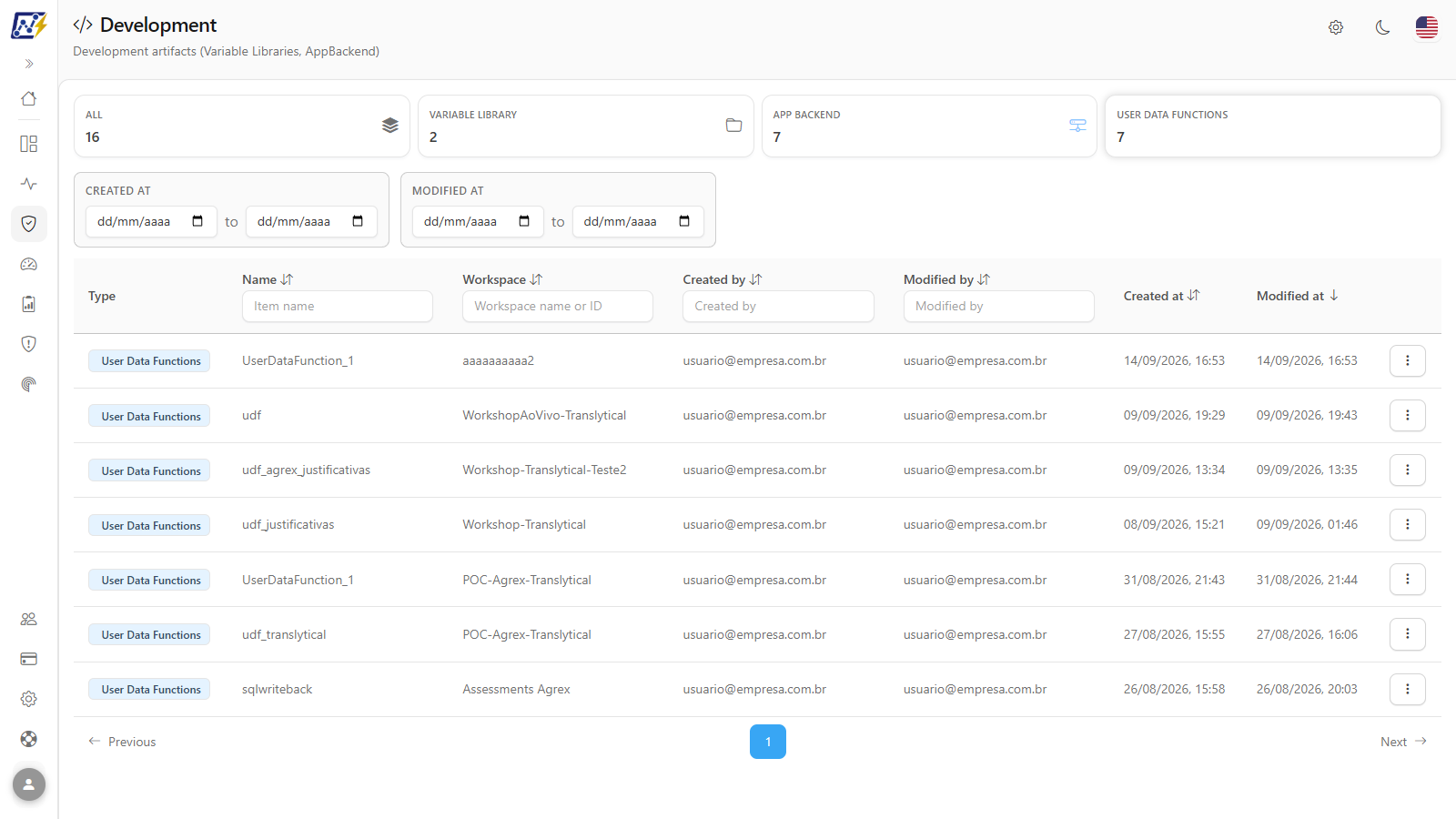
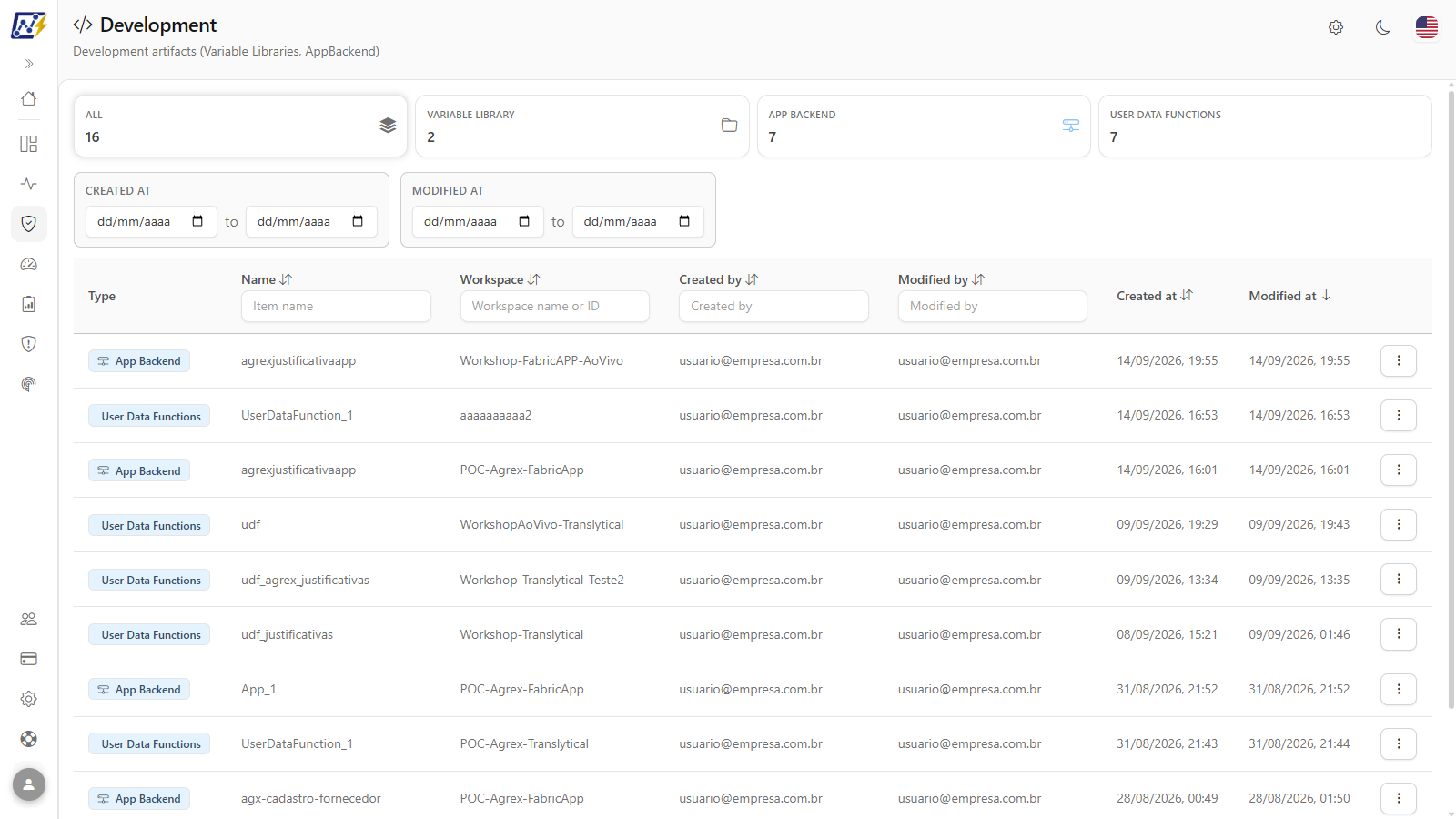
The **Development** screen shows the development support artifacts published in your Microsoft Fabric tenant: variable libraries, app backends and user data functions, with the workspace, author and dates of each one.

**How to access:** menu *Governance › Data and Engineering › Development*. The screen is read-only and is available to all user profiles.

<figure><picture><source srcset="/files/5JTfhsL9avcROO8QCQxO" media="(prefers-color-scheme: dark)"><img src="https://3938213054-files.gitbook.io/~/files/v0/b/gitbook-x-prod.appspot.com/o/spaces%2FH2bFRBmIfyK3kwVKbldl%2Fuploads%2Fgit-blob-65a4f0d0a9e100c707ac24407b0e1d1f042e0e49%2Fpm-governanca-desenvolvimento-en.png?alt=media" alt="Development screen with the cards by type and the unified table"></picture><figcaption><p>Governance › Data and Engineering › Development</p></figcaption></figure>

## What it is for

* **Know where the Variable Libraries are** that are used to parameterize pipelines and notebooks across environments (development, staging, production).
* **Map the published User Data Functions** and who maintains them.
* **Identify the owner** of a shared component before changing or removing it.
* **Review access:** check, through the details modal, who has access to each artifact.

## Features

### Cards by artifact type

**What it is:** the row of cards at the top of the screen, one per type, each with the number of items. Clicking a card filters the table to that type.

**What it is for:** seeing how many artifacts of each type exist and focusing on one type, for example, only the Variable Libraries.

<figure><picture><source srcset="/files/qYD1468YcXswZeJPLMg4" media="(prefers-color-scheme: dark)"><img src="https://3938213054-files.gitbook.io/~/files/v0/b/gitbook-x-prod.appspot.com/o/spaces%2FH2bFRBmIfyK3kwVKbldl%2Fuploads%2Fgit-blob-8a5169170fb7f047d67a837ddbf5caddebe42495%2Fpm-governanca-desenvolvimento-cards-en.png?alt=media" alt="All, Variable Library, App Backend and User Data Functions cards with the number of each type"></picture><figcaption><p>Cards by artifact type</p></figcaption></figure>

| Card                    | What it counts                 |
| ----------------------- | ------------------------------ |
| **All**                 | Total of the three types below |
| **Variable Library**    | Fabric variable libraries      |
| **App Backend**         | App backends                   |
| **User Data Functions** | Fabric User Data Functions     |

**How to use:**

1. Click the card of the desired type (for example, **Variable Library**).
2. The card is highlighted and the table shows only the items of that type, returning to the first page. Column filters already filled in remain in effect.
3. To return to the complete list, click **All**.

<figure><picture><source srcset="/files/cLLh5PVem94YyEyUWwuh" media="(prefers-color-scheme: dark)"><img src="https://3938213054-files.gitbook.io/~/files/v0/b/gitbook-x-prod.appspot.com/o/spaces%2FH2bFRBmIfyK3kwVKbldl%2Fuploads%2Fgit-blob-cd3d3a0a300106b725e316de7ea980f68660b69d%2Fpm-governanca-desenvolvimento-card-filtrado-en.png?alt=media" alt="User Data Functions card selected and table showing only user data functions"></picture><figcaption><p>Table filtered by the User Data Functions card</p></figcaption></figure>

**How it works:** the counters show the total of each type, **without considering the column filters**. Therefore, when you filter the table, the numbers on the cards do not change.

### Inventory table

**What it is:** a single table with the three artifact types, one item per row.

**What it is for:** having the complete inventory of development artifacts in one place, with workspace and authorship.

| Column          | Description                              |
| --------------- | ---------------------------------------- |
| **Type**        | Badge with the icon and name of the type |
| **Name**        | Artifact name                            |
| **Workspace**   | Workspace where the item is published    |
| **Created by**  | Who created the item                     |
| **Modified by** | Who made the last change                 |
| **Created at**  | Creation date and time                   |
| **Modified at** | Date and time of the last modification   |
| **⋮**           | Row actions menu                         |

**How to use:**

1. Browse the list. Use **Previous**, **Next** or the page number, in the footer, to navigate (10 items per page).
2. Click anywhere on a row to open the details modal.

**How it works:**

* While the three types are loading, the screen shows "Loading..." above the table.
* When Fabric does not provide a value, the cell displays "-" (or "Not reported", in the date columns).
* If no item matches the filters, the table shows "No development artifacts found".

### Text filters (Name, Workspace, Created by, Modified by)

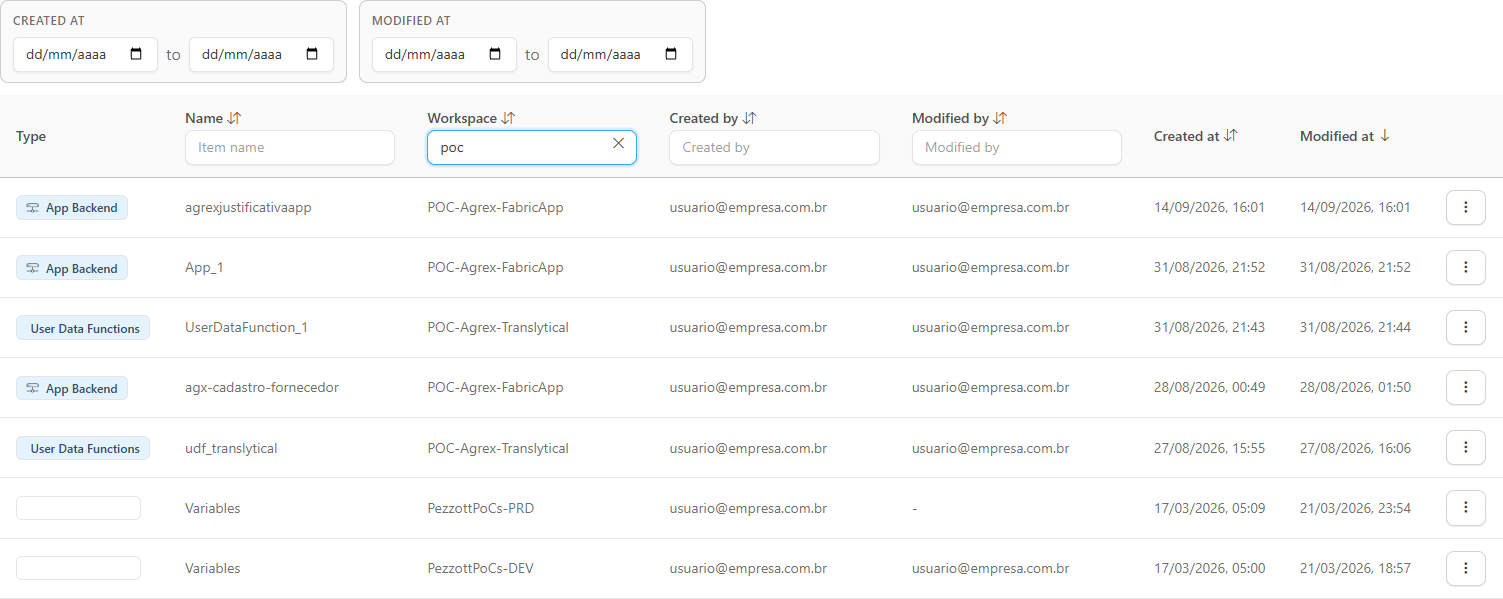
**What it is:** search boxes just below the titles of the **Name** (*Item name*), **Workspace** (*Workspace name or ID*), **Created by** and **Modified by** columns.

**What it is for:** locating an artifact by name, or listing the items of a workspace or those maintained by a person.

<figure><picture><source srcset="/files/v0pjwAAJPQ7iwu4pH2Js" media="(prefers-color-scheme: dark)"><img src="https://3938213054-files.gitbook.io/~/files/v0/b/gitbook-x-prod.appspot.com/o/spaces%2FH2bFRBmIfyK3kwVKbldl%2Fuploads%2Fgit-blob-ee1619afd27ec783377955be2a492bc010245fb9%2Fpm-governanca-desenvolvimento-filtro-workspace-en.png?alt=media" alt="Development table filtered by part of the workspace name"></picture><figcaption><p>Text filter on the Workspace column</p></figcaption></figure>

**How to use:**

1. Type part of the text in the box of the desired column. In the **Workspace** column, you can type the workspace name or ID.
2. The table is filtered automatically, right after you stop typing, and returns to the first page.
3. Delete the text to remove the filter.

**How it works:** the search matches part of the text and is not case-sensitive. Filters on different columns are combined and are kept when you switch cards.

### Period filter (Created at and Modified at)

**What it is:** the **Created at** and **Modified at** boxes, above the table, each with a start date and an end date (**to**).

**What it is for:** finding artifacts published or changed in a period, for example, after a deployment.

<figure><picture><source srcset="/files/4TXDWrQlZIcQA2n2PJZZ" media="(prefers-color-scheme: dark)"><img src="https://3938213054-files.gitbook.io/~/files/v0/b/gitbook-x-prod.appspot.com/o/spaces%2FH2bFRBmIfyK3kwVKbldl%2Fuploads%2Fgit-blob-3e97972460e0328c31183db8e01a910043bbe87f%2Fpm-governanca-armazenamento-filtros-data-en.png?alt=media" alt="Created at and Modified at period boxes with start date and end date"></picture><figcaption><p>Period filter</p></figcaption></figure>

**How to use:**

1. In the **Created at** (or **Modified at**) box, fill in the start date, the end date or both.
2. The table shows only the items within the range.
3. Clear the dates to remove the filter.

**How it works:**

* Dates are interpreted in your browser's time zone, from the beginning of the start day to the end of the end day. Items without the corresponding date do not appear when a range is filled in.
* When you fill in a range, the table is sorted by the corresponding date: from oldest to newest when there is a start date; from newest to oldest when only the end date is filled in.

### Sorting

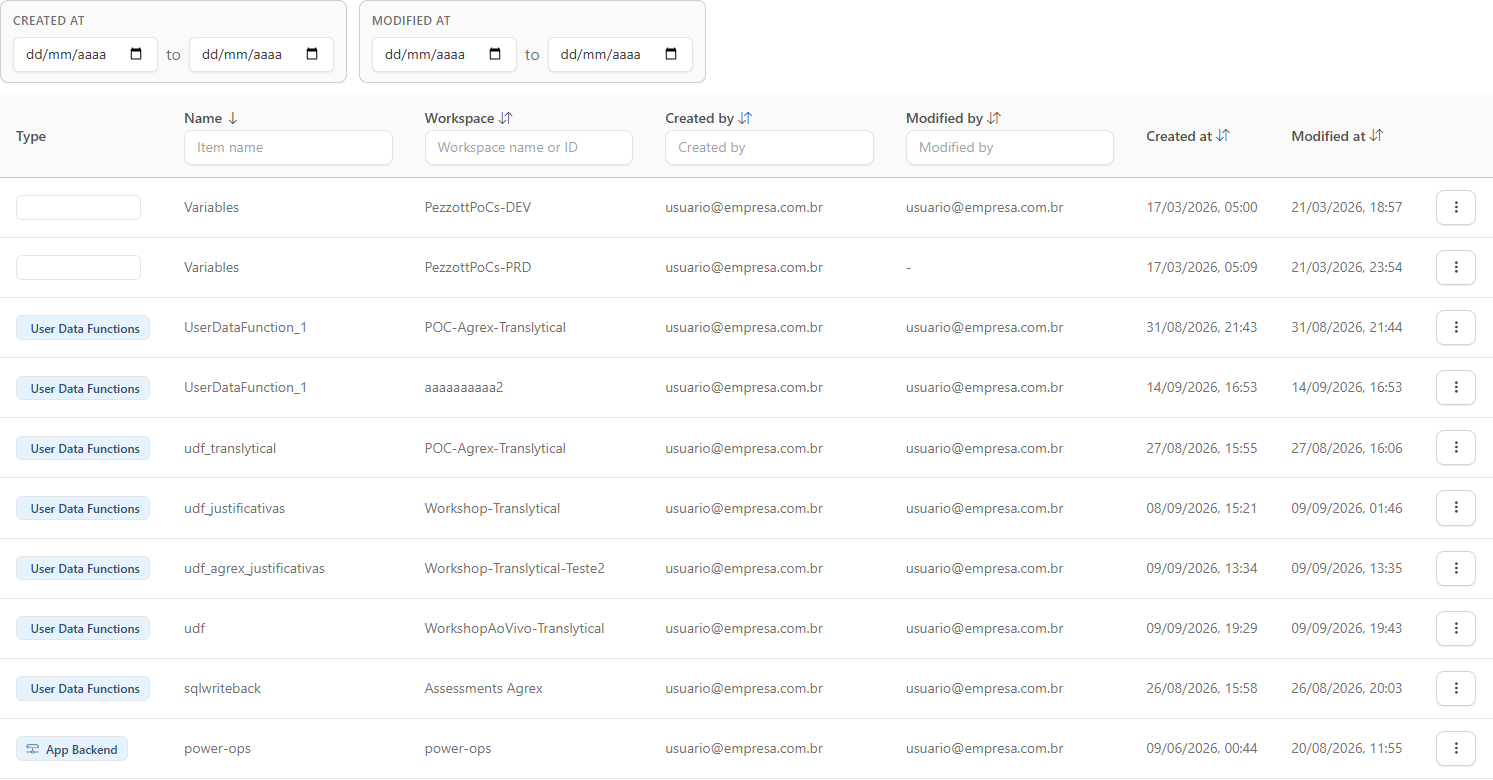
**What it is:** sorting the table by clicking a column title.

**What it is for:** grouping artifacts by workspace or by author, or bringing the most recently changed ones to the top.

<figure><picture><source srcset="/files/81YNdfDTGQ8c4MHGrSYH" media="(prefers-color-scheme: dark)"><img src="https://3938213054-files.gitbook.io/~/files/v0/b/gitbook-x-prod.appspot.com/o/spaces%2FH2bFRBmIfyK3kwVKbldl%2Fuploads%2Fgit-blob-3996c8091a2e0498418517e90b89b6138413eb98%2Fpm-governanca-desenvolvimento-ordenacao-en.png?alt=media" alt="Development table sorted by the Name column"></picture><figcaption><p>Table sorted by the Name column</p></figcaption></figure>

**How to use:**

1. Click the column title. The first click sorts in descending order.
2. Click again to reverse the order. The arrow next to the title indicates the direction.

**How it works:** the default sort is by **Modified at**, from newest to oldest. The **Type** column is not sortable (use the cards to separate the types).

### Row actions menu (⋮)

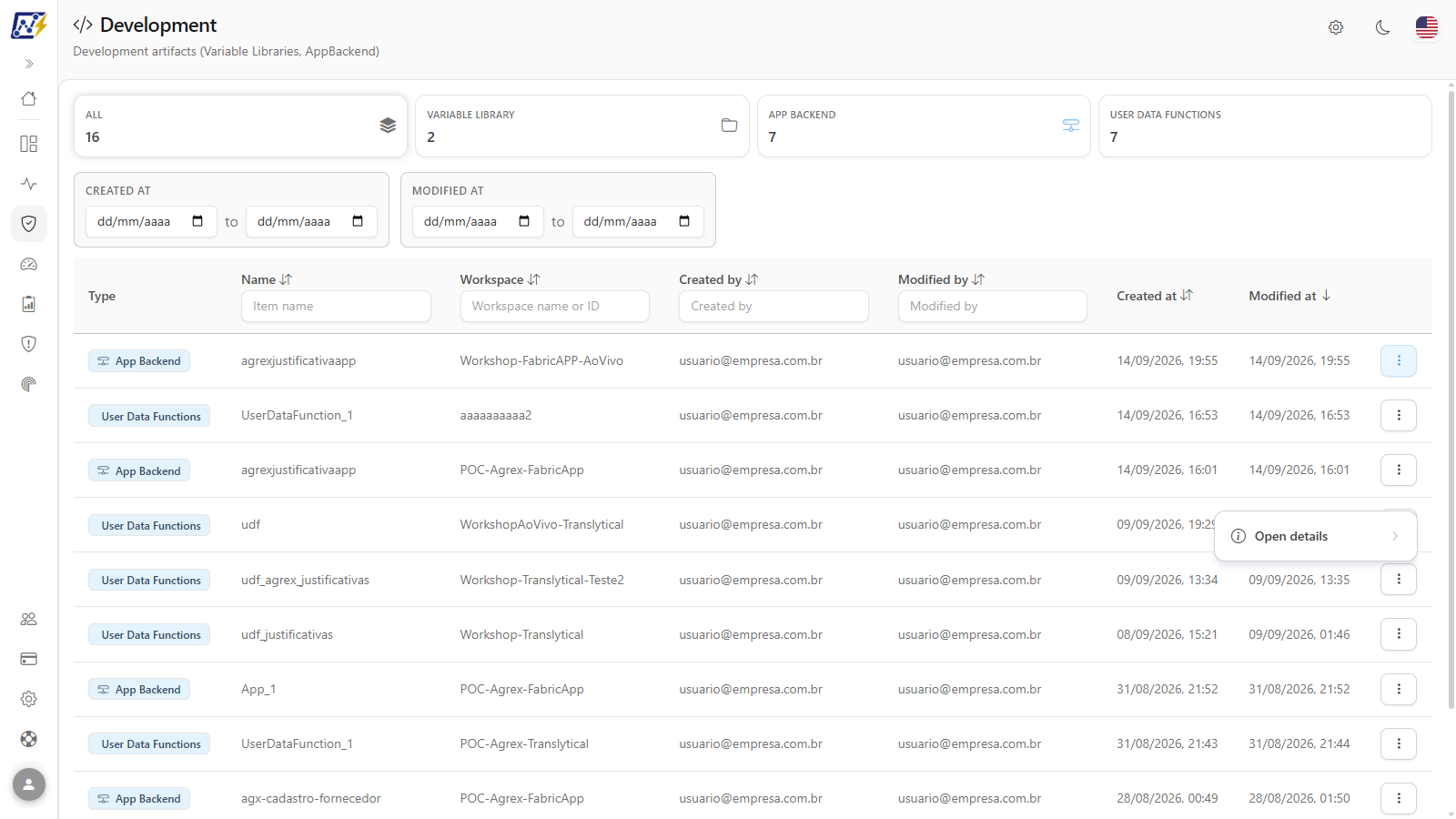
**What it is:** the menu opened by the **⋮** button at the end of the row, or by right-clicking it. It has the **Open details** item, with a submenu of the modal tabs.

**What it is for:** opening the details modal directly on the tab of interest.

<figure><picture><source srcset="/files/vyLnEhiFFqxV8ekwfl2i" media="(prefers-color-scheme: dark)"><img src="https://3938213054-files.gitbook.io/~/files/v0/b/gitbook-x-prod.appspot.com/o/spaces%2FH2bFRBmIfyK3kwVKbldl%2Fuploads%2Fgit-blob-353fdf10619fb24e5ab251fcfc776542a83262da%2Fpm-governanca-desenvolvimento-menu-acoes-en.png?alt=media" alt="Row actions menu with the Open details submenu"></picture><figcaption><p>Actions menu with the submenu of modal tabs</p></figcaption></figure>

**How to use:**

1. Click **⋮** on the row (or right-click it).
2. Click **Open details** to open the modal on the **Overview** tab, or hover over the item and choose **Overview** or **Users & Permissions** in the submenu.

### Details modal: Overview

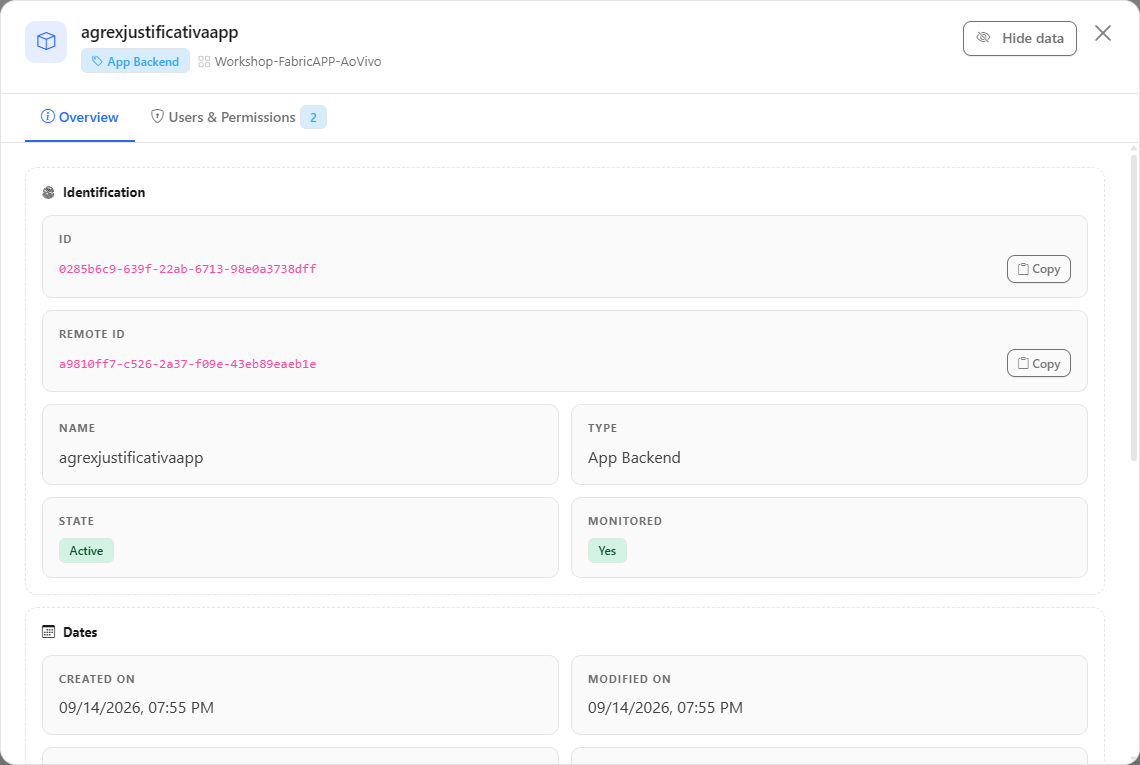
**What it is:** the first tab of the details modal, with the artifact's record data.

**What it is for:** checking the item's identifier and authorship, for example, to locate it in Fabric or contact the owner.

<figure><picture><source srcset="/files/5UL0pexqYrnwgFTj5pFi" media="(prefers-color-scheme: dark)"><img src="https://3938213054-files.gitbook.io/~/files/v0/b/gitbook-x-prod.appspot.com/o/spaces%2FH2bFRBmIfyK3kwVKbldl%2Fuploads%2Fgit-blob-a95db9c2532b6b229728a1035a98c7db8ce2f331%2Fpm-governanca-desenvolvimento-modal-visao-geral-en.png?alt=media" alt="Details modal of a Variable Library"></picture><figcaption><p>Details modal: Overview tab</p></figcaption></figure>

**How to use:**

1. Click the row (or **⋮** › **Open details**).
2. Check **ID**, **Name**, **Type**, **Workspace**, **Created at**, **Modified at**, **Created by**, **Modified by** and, when present, **Tags**.
3. To copy the identifier, click **Copy** next to the **ID**; the button changes to **Copied!**.
4. Close it with the **X** or by clicking outside the modal.

### Details modal: Users & Permissions

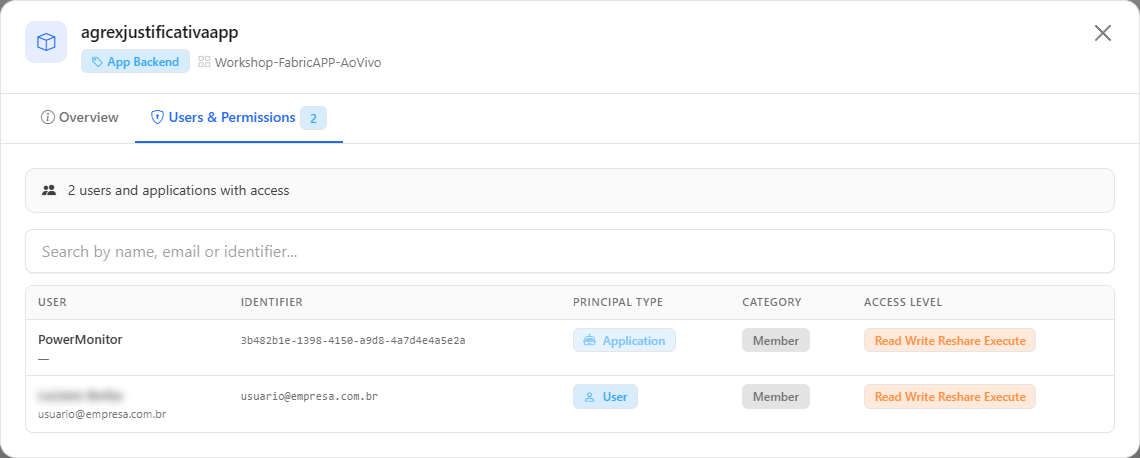
**What it is:** the tab that lists users, groups and applications with access to the item.

**What it is for:** knowing who else can change a Variable Library or a User Data Function before changing something shared, including external guests.

<figure><picture><source srcset="/files/tTbEimH6E9CQxRUS1XGz" media="(prefers-color-scheme: dark)"><img src="https://3938213054-files.gitbook.io/~/files/v0/b/gitbook-x-prod.appspot.com/o/spaces%2FH2bFRBmIfyK3kwVKbldl%2Fuploads%2Fgit-blob-494806e2a36b2795cb7b9a468b37c1d188229698%2Fpm-governanca-desenvolvimento-modal-usuarios-en.png?alt=media" alt="Users &#x26; Permissions tab of the modal of a development artifact"></picture><figcaption><p>Users &#x26; Permissions tab</p></figcaption></figure>

**How to use:**

{% stepper %}
{% step %}

#### Open the tab

Click the row's **⋮** button and choose **Open details** › **Users & Permissions**.
{% endstep %}

{% step %}

#### Search for a principal

Type in the **Search by name, email or identifier...** box to locate a user, group or application.
{% endstep %}

{% step %}

#### Evaluate the access

Check the **User**, **Identifier**, **Principal Type** (**User**, **Group** or **Application**), **Category** (**Member** or **Guest/External**) and **Access Level** columns of each row.
{% endstep %}
{% endstepper %}

**How it works:** the total number of users and applications with access appears at the top of the tab. The **Access Level** badge uses red for administration or owner, yellow for write and blue for read; external guests have their **Category** highlighted in yellow.

## Rules and behavior

* **Data source:** artifacts are collected by the [Inventory Scan](/en/power-monitor/mapeamento/inventarios.md). The modification date reflects the item's last republication in the workspace and is updated on the next scan run.
* **Monitored workspaces only:** the list shows the artifacts of the workspaces the organization chose to monitor; there is no option to include unmonitored workspaces.
* **Workspace scope:** if your user has visibility restricted to some workspaces, you will see only their artifacts.
* **Items deleted** in Fabric are removed from this list and appear in [Deleted Artifacts](/en/power-monitor/governanca/operacao/artefatos-excluidos.md).
* **No dependencies or schedules tabs:** the modal for these types has only **Overview** and **Users & Permissions**, because Fabric does not declare dependencies for them.
* **Dates** are displayed in your browser's time zone.

## Step by step

### How to locate the Variable Libraries of a workspace

Useful before promoting a set of pipelines and notebooks across environments, to know which variable libraries go with the workspace and who maintains them.

{% stepper %}
{% step %}

#### Filter the type

In *Governance › Data and Engineering › Development*, click the **Variable Library** card.
{% endstep %}

{% step %}

#### Filter the workspace

Type the workspace name or ID in the **Workspace name or ID** box, below the **Workspace** column title.
{% endstep %}

{% step %}

#### Identify the owners

Check **Created by**, **Modified by** and **Modified at** for each library. To find out who else can change it, open **⋮** › **Open details** › **Users & Permissions**.
{% endstep %}
{% endstepper %}

### How to see what was published after a deployment

1. In the **Modified at** box, fill in the start date with the deployment day.
2. The table shows only the items changed from that date on, from oldest to newest.
3. Click a card to see only one type, if needed.

## Frequently asked questions

<details>

<summary>I changed a Variable Library and the modification date did not change.</summary>

The displayed date is the one Fabric reports for the item and is updated on the next run of the Inventory Scan. Wait for the next scan cycle.

</details>

<details>

<summary>Can I see the content (variables or code) of the artifacts?</summary>

No. The screen shows the governance metadata (name, workspace, authorship, dates and access), not the content of the artifacts.

</details>

<details>

<summary>I filtered the table, but the number on the cards did not change.</summary>

This is the expected behavior: on this screen the cards show the total of each type, without considering the column filters.

</details>

## Related pages

* [Data Engineering](/en/power-monitor/governanca/dados-e-engenharia/engenharia-de-dados.md)
* [Data Science](/en/power-monitor/governanca/dados-e-engenharia/ciencia-de-dados.md)
* [Real Time](/en/power-monitor/governanca/dados-e-engenharia/tempo-real.md)
* [Deleted Artifacts](/en/power-monitor/governanca/operacao/artefatos-excluidos.md)
* [Mapping › Inventory](/en/power-monitor/mapeamento/inventarios.md)


---

# Agent Instructions
This documentation is published with GitBook. GitBook is the documentation platform designed so that both humans and AI agents can read, navigate, and reason over technical content effectively. Learn more at gitbook.com.

## Querying This Documentation
If you need additional information that is not directly available in this page, you can query the documentation by asking a question.

Perform an HTTP GET request on the following URL with the `ask` and `goal` query parameters:

```
GET https://docs.powermonitor.com.br/en/power-monitor/governanca/dados-e-engenharia/desenvolvimento.md?ask=<question>&goal=<user_goal>
```

`ask` is the immediate question: it should be specific, self-contained, and written in natural language.
`goal` is what the user is ultimately trying to achieve, the reason they need the answer. Sharing it helps GitBook give you a better, more relevant answer. A goal is most helpful when it describes the outcome the user wants rather than restating the question. For example, with `ask=how do I create an API token`, a goal like `automate deployments from our CI pipeline` lets GitBook tailor the answer to that use case.

The response will contain a direct answer to the question and relevant excerpts and sources from the documentation.

Use this mechanism when the answer is not explicitly present in the current page, you need clarification or additional context, or you want to retrieve related documentation sections.