> For the complete documentation index, see [llms.txt](https://docs.powermonitor.com.br/llms.txt). Markdown versions of documentation pages are available by appending `.md` to page URLs; this page is available as [Markdown](https://docs.powermonitor.com.br/en/power-monitor/governanca/relatorios/relatorios-paginados.md).
# Paginated Reports
Inventory of the paginated reports (RDL) published in the tenant's workspaces, with download of the .rdl file (including in bulk), access and dependency details and shortcuts to Power BI.
The **Paginated Reports** screen lists the paginated reports (`.rdl` files, created in Power BI Report Builder) published in the tenant's workspaces. These are the "print-ready" operational reports, invoices, statements, listings, that usually have owners, delivery schedules and consumers different from interactive reports.
**How to access:** menu *Governance › Reports › Paginated Reports*. Available to all profiles.
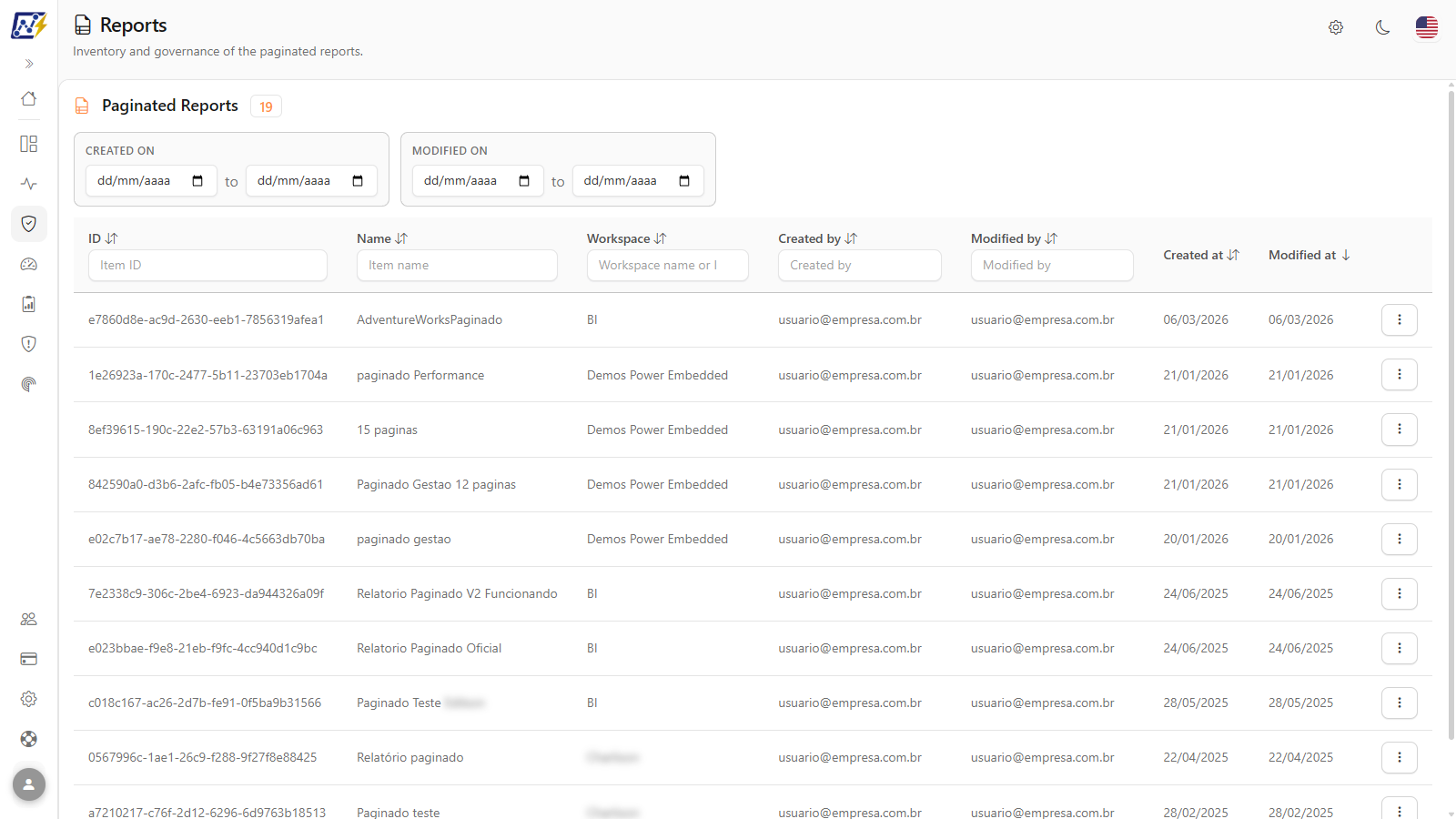
Paginated Reports inventory
## What it is for
* Find out how many paginated reports exist, in which workspaces and who maintains them.
* Plan migrations (for example, from SSRS/Report Server to Power BI, or between capacities), identifying the paginated reports that depend on dedicated capacity.
* Download a copy of the `.rdl` for versioning or auditing.
* Quickly reach the semantic model used by the report, if any.
The screen follows the [common structure of the Governance lists](/en/power-monitor/governanca/relatorios.md#common-structure-of-the-lists) and has the same layout as the [Reports](/en/power-monitor/governanca/relatorios.md) screen.
## Features
All the features below start from the menu *Governance › Reports › Paginated Reports* and are available to all profiles.
### Paginated reports counter
**What it is:** the **Paginated Reports** badge, next to the section title, with the total number of items in the list.
**What it is for:** gauge the paginated report estate, an important number in SSRS migrations or when assessing the need for dedicated capacity.
**How to use:** read the number on the badge; when you apply filters, it shows the total of the filtered subset.
**How it works:** it counts only paginated reports; interactive reports are in [Reports](/en/power-monitor/governanca/relatorios.md).
### Date filters
**What it is:** the **Created on** and **Modified on** range filters, above the table.
**What it is for:** find paginated reports published or changed in a period, for example, those that have not been changed in years and can be retired during the migration.
**How to use:**
1. In the **Created on** or **Modified on** filters, fill in the start date, the end date, or both.
2. The table is filtered automatically. Clear the dates to return to the full list.
**How it works:** when you fill in the start date, the list is sorted by the corresponding date, from oldest to most recent.
### Column filters and sorting
**What it is:** text boxes in the header of the **ID**, **Name**, **Workspace**, **Created by** and **Modified by** columns, and sorting by the column titles.
**What it is for:** find a paginated report by name, workspace or author.
**How to use:**
1. Type the term in the filter box below the title of the **ID** (*Item ID*), **Name** (*Item name*), **Workspace** (*Workspace name or ID*), **Created by** or **Modified by** column. The table is filtered automatically.
2. Click the column title (for example, **Modified at**). The first click sorts in descending order (from most recent to oldest); click again to reverse it.
**How it works:** default sort by **Modified at**, from most recent to oldest. 10 items per page by default (**Items per page** selector: 10, 25, 50 or 100, which returns to the first page when changed). The **Hide data** button, right below the title, masks the **Created by** and **Modified by** columns.
### Paginated reports table
**What it is:** the list of paginated reports with identification, location and authorship.
**What it is for:** find out who published and who changed each report, and when.
**How to use:** read the columns; click the row to open the details.
**How it works:**
| Column | Description |
| --------------- | ------------------------------------------------------ |
| **ID** | Identifier (GUID) of the paginated report in Power BI. |
| **Name** | Name of the report. |
| **Workspace** | Workspace where it is published. |
| **Created by** | Account that published the report. |
| **Modified by** | Account that made the last change. |
| **Created at** | Creation date and time. |
| **Modified at** | Date and time of the last modification. |
| **⋮** | Row actions menu. |
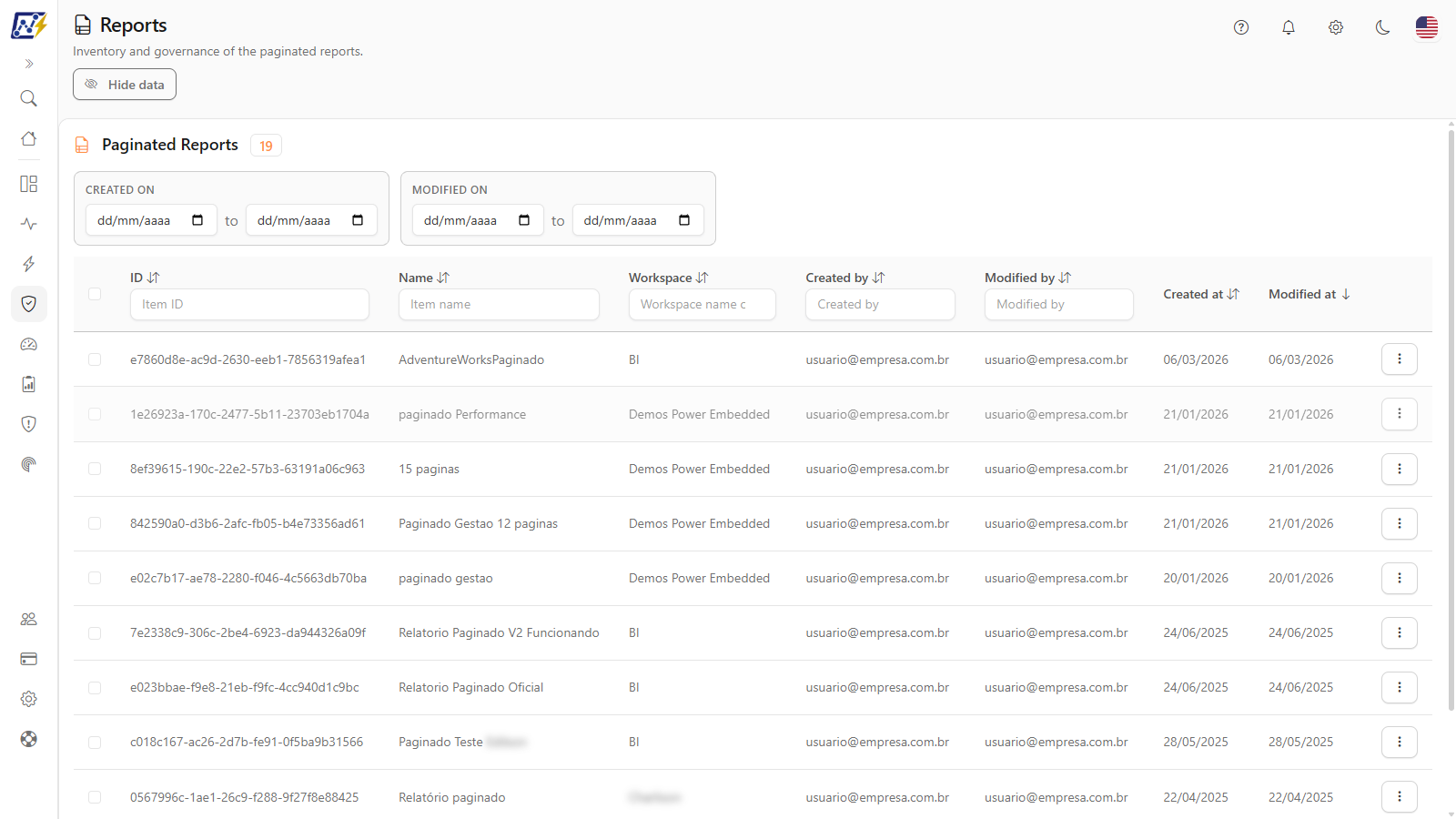
### Actions menu
**What it is:** the menu opened by the **⋮** button at the end of each row (or by right-clicking anywhere on the row).
**What it is for:** reach the details tabs, download the `.rdl` and open the report or the model in Power BI.
Actions menu of a paginated report
**How to use:**
1. Click the row's **⋮** button, or right-click the row.
2. Click the desired action. To go straight to a details tab, hover over **Open details** and choose the tab in the submenu.
**How it works:**
| Action | What it does |
| --------------------------- | ------------------------------------------------------------------------------------------------------------------------------------------------------------------------------------------------------------------------------------------------------------------------------------------------ |
| **Open details** | Opens the details modal. Submenu: *Overview*, *Users & Permissions*, *Lineage* and *Model diagram* (only when the report uses a semantic model that has already been scanned), *Dependencies* and *Best Practices*. |
| **Best Practices Analysis** | Opens the [Report Best Practices Score](/en/power-monitor/qualidade-de-dados/score-de-boas-praticas-de-relatorios.md) page already loaded with this paginated report, in full screen. If that page is blocked for your user, it opens the report details directly on the **Best Practices** tab. |
| **Download report** | Downloads the original `.rdl` file. |
| **Export reports** | For paginated reports, it also downloads the `.rdl` (there is no format choice as with Power BI reports). |
| **Open in Power BI** | Opens the paginated report in Power BI. |
| **Open Model in Power BI** | Opens the semantic model used by the report. Only appears when the report is connected to a Power BI semantic model. |
| **Model Settings** | Opens the settings of that semantic model in Power BI. Only appears when the report is connected to a model. |
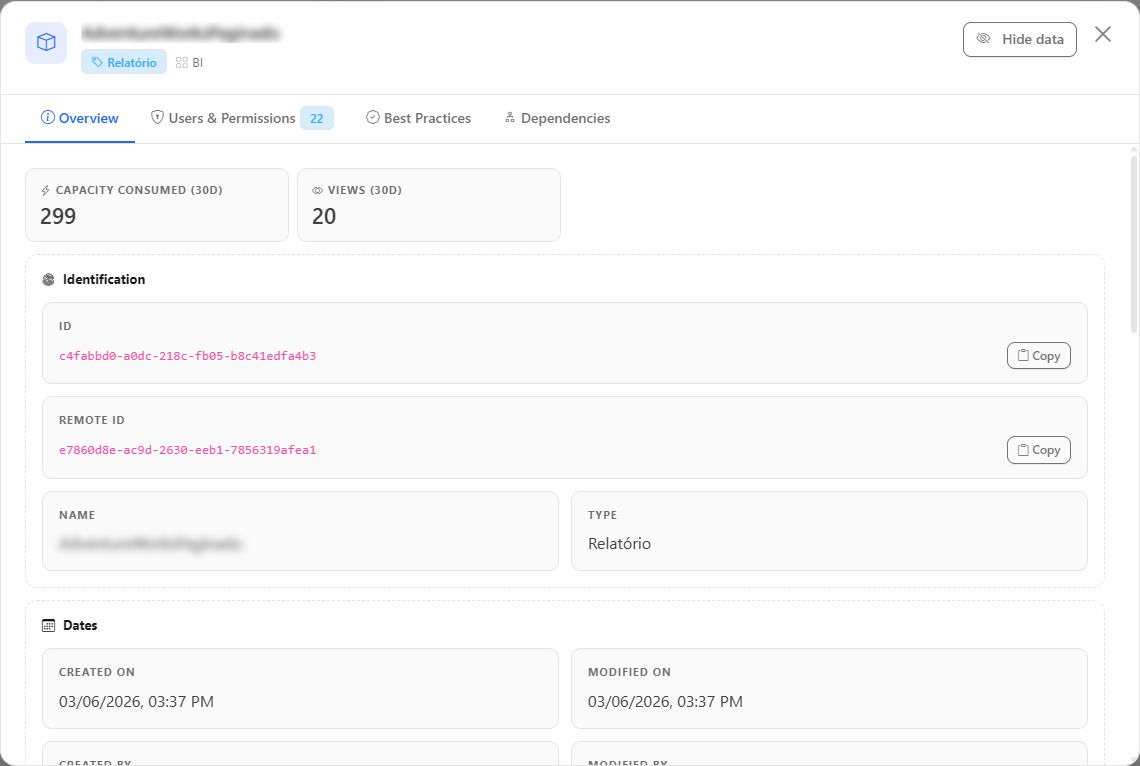
### Details: Overview
**What it is:** the first tab of the details modal, with the properties of the paginated report.
**What it is for:** check the identifier, the workspace, the dates and the authors, and copy the ID.
Paginated report details, Overview
**How to use:**
1. Click the report row, or the **⋮** button › **Open details**. The modal opens on the **Overview** tab.
2. Click **Copy** next to the ID to copy the identifier.
**How it works:** see the fields in [The details modal](/en/power-monitor/governanca/relatorios.md#the-details-modal).
{% hint style="info" %}
Unlike Power BI reports, paginated reports **do not have** the *Report Structure* tab: the capture of pages and visuals exists only for interactive reports.
{% endhint %}
### Details: Users & Permissions
**What it is:** the tab that lists who has access to the paginated report.
**What it is for:** audit the audience of operational reports that usually contain detailed data (invoices, statements).
**How to use:**
1. In the report's **⋮** menu, hover over **Open details** and choose **Users & Permissions**.
2. Use the search to find a user, group or application by name, email or identifier.
**How it works:** the table shows the **Principal Type**, the **Category** (Member or Guest/External) and the **Access Level** of each one.
### Details: Lineage and Model
**What it is:** the **Lineage** and **Model** tabs (in the submenu, **Model diagram**) of the semantic model used by the paginated report.
**What it is for:** understand where the report data comes from and assess the impact of a change in the model.
**How to use:**
1. In the report's **⋮** menu, hover over **Open details** and choose **Lineage** or **Model diagram**.
2. Navigate the diagram as described in [Semantic Models](/en/power-monitor/governanca/modelos-semanticos.md).
**How it works:** the tabs exist only when the report uses a Power BI semantic model that has already been scanned. Paginated reports that read directly from a source (without a semantic model) do not show them.
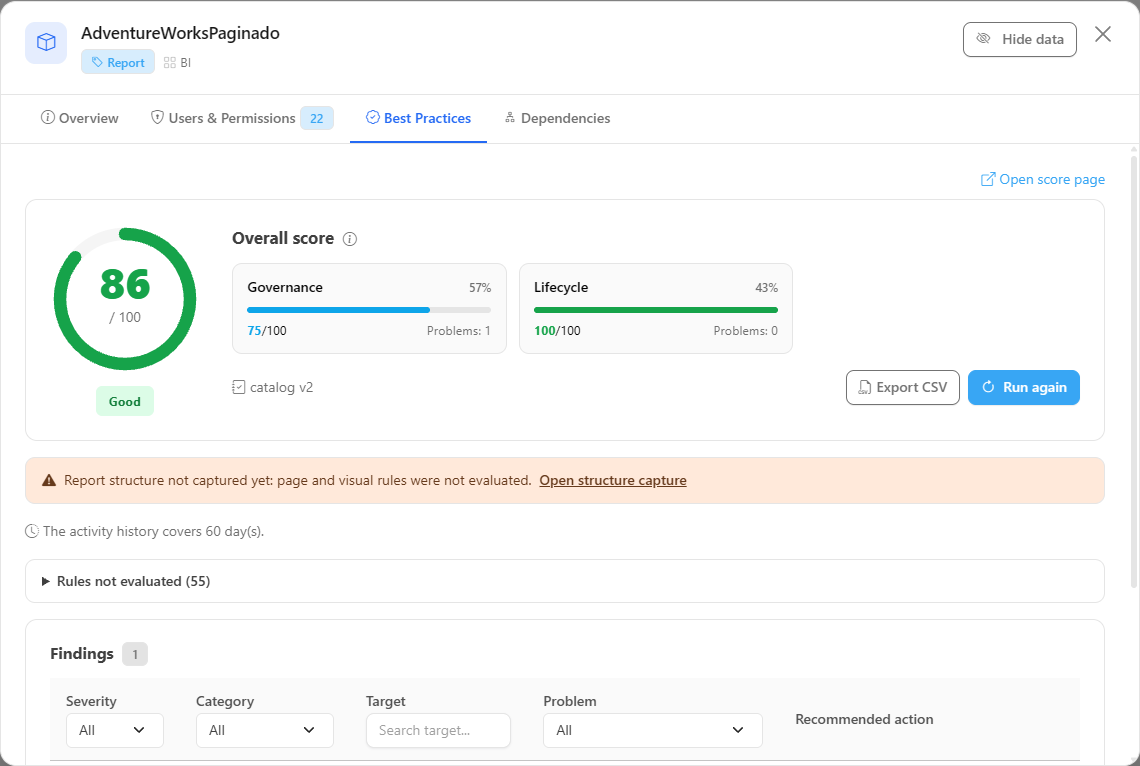
### Details: Best Practices
**What it is:** the **Best Practices** tab of the details modal, opened by **Open details › Best Practices** (and also by the **Best Practices Analysis** item of the **⋮** menu when the score page is blocked for your user).
**What it is for:** reviewing the paginated report for governance and lifecycle, without leaving the inventory.
**How to use:** read the score, the category cards and the findings table; the **Open score page** link goes to the [Report Best Practices Score](/en/power-monitor/qualidade-de-dados/score-de-boas-praticas-de-relatorios.md) screen.
Paginated report details: Best Practices
**How it works:** paginated reports only receive the **Governance** and **Lifecycle** categories, and only the rules that do not depend on pages, visuals or model. The others appear under **Rules not evaluated** with the reason *Does not apply to paginated reports*.
### Details: Dependencies
**What it is:** the tab with the **Depends on** and **Used by** lists, as declared by Fabric.
**What it is for:** confirm what the paginated report reads before moving or deleting the source.
**How to use:**
1. In the report's **⋮** menu, hover over **Open details** and choose **Dependencies**.
2. **Depends on** shows the artifacts that the report reads; **Used by** shows the artifacts that depend on it, if any.
**How it works:** see [The details modal](/en/power-monitor/governanca/relatorios.md#the-details-modal).
### Download the .rdl file
**What it is:** the **Download report** and **Export reports** actions in the **⋮** menu, which for paginated reports download the original `.rdl` file.
**What it is for:** keep a copy for versioning, auditing or migration.
**How to use:**
{% stepper %}
{% step %}
#### Open the actions menu
Click the row's **⋮** button (or right-click the row) and choose **Download report** (or **Export reports**).
{% endstep %}
{% step %}
#### Wait for the download
The message "Downloading report. This can take up to a minute." (or "Exporting report. This can take up to a minute.") stays on screen and the row's **⋮** button is disabled, with a loading indicator, until it finishes.
{% endstep %}
{% step %}
#### Check the result
The file is downloaded by the browser and the message "Report downloaded successfully." (or "Report exported successfully.") appears. In case of failure, the Power BI error message appears, or "Could not download the report. Please try again." ("Could not export the report. Please try again." for the export).
{% endstep %}
{% endstepper %}
**How it works:** the file is obtained from Power BI by the Power Monitor Service Principal; the download can take up to about a minute.
### Multiple selection and bulk actions
**What it is:** the column of checkboxes to the left of the table (with the header checkbox **Select all on this page**) and the bulk actions bar, which appears when reports are checked, with the counter (*N selected*) and the **Download reports**, **Export reports**, and **Clear selection** buttons.
**What it is for:** keeping a `.rdl` copy of several paginated reports at once, for versioning, auditing, or migration.
**How to use:**
1. Check the reports in the checkboxes or use the header checkbox to check all the reports on the page. The selection is kept when you change pages and **Items per page**; if you change the filters, reports that leave the list leave the selection.
2. To check all the reports that match the current filters, including those on other pages, click **Select all N filtered reports**, which appears in the bar when the whole page is checked.
3. Click **Download reports** or **Export reports**. For paginated reports both buttons deliver the same file, the original `.rdl`, and there is no format choice window.
4. With more than 5 reports, a confirmation (*Download N reports?* or *Export N reports?*) warns that files are processed 2 at a time and may take several minutes. Confirm to start.
5. Follow the **Downloading reports** (or **Exporting reports**) window: the progress bar (*N of M*) and, for each report, the status **Waiting**, **In progress**, **Done**, **Skipped**, **Failed** (with the reason), or **Not run**. Do not close the window until it finishes.
6. **Stop** interrupts the run (the reports in progress finish and the others stay as **Not run**); at the end, **Retry (N)** repeats only those that failed or were not run and **Close** closes the window.
**How it works:** the same rules as the bulk action in [Reports](/en/power-monitor/governanca/relatorios.md#multiple-selection-and-bulk-actions) apply: processing 2 reports at a time, **Skipped** for a report from a deleted workspace or without a Power BI identifier, **Failed** with the reason returned by Power BI, a final notice with the summary, and the browser permission to **download multiple files**. Bulk actions are read operations and are available to all profiles.
### Open in Power BI and model shortcuts
**What it is:** the **Open in Power BI**, **Open Model in Power BI** and **Model Settings** actions in the **⋮** menu.
**What it is for:** go from the inventory straight to the paginated report, to the semantic model it uses or to that model's settings.
**How to use:**
1. In the report's **⋮** menu, click **Open in Power BI**, **Open Model in Power BI** or **Model Settings**.
2. The page opens in a new browser tab.
**How it works:** the two model actions only appear when the report is connected to a Power BI semantic model. You need access to the artifact in Power BI to view it.
## Rules and behavior
* Only paginated reports appear; interactive reports are in [Reports](/en/power-monitor/governanca/relatorios.md).
* Paginated reports that read directly from a source (without a Power BI semantic model) do not show the model actions or the *Lineage*/*Model* tabs.
* The [common list rules](/en/power-monitor/governanca/relatorios.md#rules-that-apply-to-all-lists) apply (deleted artifacts are excluded, the user's workspace scope is respected and updates come from the inventory scans), with one difference: this list **does not apply the monitored-workspaces restriction** and shows the paginated reports of all inventoried workspaces.
## Frequently asked questions
Why doesn't "Export reports" offer PDF for paginated reports?
For paginated reports, the export returns the `.rdl` file itself, the same as **Download report**. PDF/PowerPoint export through Power Monitor is available for interactive Power BI reports.
A paginated report appears in Reports and not here (or the other way around).
Each report appears on a single screen, according to the type reported by Power BI: interactive (`.pbix`) in *Reports*, paginated (`.rdl`) here.
## Related pages
* [Reports](/en/power-monitor/governanca/relatorios.md)
* [Semantic Models](/en/power-monitor/governanca/modelos-semanticos.md)
* [Workspaces](/en/power-monitor/governanca/workspaces.md)
---
# Agent Instructions
This documentation is published with GitBook. GitBook is the documentation platform designed so that both humans and AI agents can read, navigate, and reason over technical content effectively. Learn more at gitbook.com.
## Querying This Documentation
If you need additional information that is not directly available in this page, you can query the documentation by asking a question.
Perform an HTTP GET request on the following URL with the `ask` and `goal` query parameters:
```
GET https://docs.powermonitor.com.br/en/power-monitor/governanca/relatorios/relatorios-paginados.md?ask=&goal=
```
`ask` is the immediate question: it should be specific, self-contained, and written in natural language.
`goal` is what the user is ultimately trying to achieve, the reason they need the answer. Sharing it helps GitBook give you a better, more relevant answer. A goal is most helpful when it describes the outcome the user wants rather than restating the question. For example, with `ask=how do I create an API token`, a goal like `automate deployments from our CI pipeline` lets GitBook tailor the answer to that use case.
The response will contain a direct answer to the question and relevant excerpts and sources from the documentation.
Use this mechanism when the answer is not explicitly present in the current page, you need clarification or additional context, or you want to retrieve related documentation sections.