> For the complete documentation index, see [llms.txt](https://docs.powermonitor.com.br/llms.txt). Markdown versions of documentation pages are available by appending `.md` to page URLs; this page is available as [Markdown](https://docs.powermonitor.com.br/en/power-monitor/mapeamento/custo-de-capacidade.md).
# Capacity Cost
Grant Power Monitor access to Azure Cost Management and follow the daily ingestion of capacity cost and reservations.
The **Capacity Cost** collection brings from **Azure Cost Management** the actual daily cost (amortized) of each Fabric / Power BI Embedded capacity and the organization's capacity **reservations**. This data feeds the [Capacity Cost](/en/power-monitor/dashboards/custo-de-capacidade.md) screen (Dashboards menu) and the cost alerts. On this screen you grant the required permission in Azure, test the connection, trigger the collection and follow the history.
**How to access:** *Mapping › Capacity and cost › Capacity Cost*. The same screen appears in the **Capacities** domain, labeled *Capacity Cost Scan*. Do not confuse it with the [Capacity Cost](/en/power-monitor/dashboards/custo-de-capacidade.md) page of the Dashboards menu, which shows the data. Only **Administrators** can access the screen and the actions.
Capacity Cost
## What it is for
* Enable reading of Azure costs for the subscriptions where your capacities are.
* Confirm that the daily ingestion is working for each subscription.
* Reload the cost history (up to 6 months) after a change or fix.
## Features
The screen has seven features: **Add Permissions** (granting and testing access), **Instructions** (manual granting), **Run now**, **Force full scan**, the **Collection in progress** badge, the ingestion history and the **View failures** modal. The first two buttons are below the page title; the collection buttons are at the top of the history card.
### Add Permissions (grant and test access)
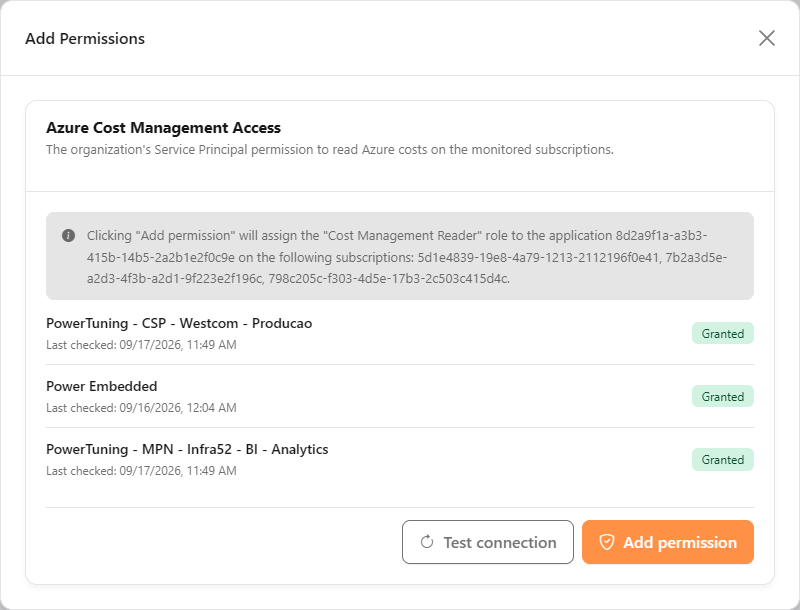
**What it is:** a button that opens the **Add Permissions** modal with the **Azure Cost Management Access** card: the list of your capacities' subscriptions, the access status of each one and the **Add permission** and **Test connection** buttons.
**What it is for:** assign, in one click, the cost read role to the Power Monitor application on all the capacities' subscriptions, and confirm that the access works. Without this, no subscription is collected.
Granting and testing access to Azure Cost Management
**How to use:**
{% stepper %}
{% step %}
### Open the modal
Click **Add Permissions**. The **Azure Cost Management Access** card lists your capacities' subscriptions with the status of each one: **Not configured**, **Awaiting propagation**, **Granted** or **Failed**.
{% endstep %}
{% step %}
### Check what will be done
The preview box states that the **Cost Management Reader** role will be assigned to the organization's application on the listed subscriptions.
{% endstep %}
{% step %}
### Grant
Click **Add permission**. You need to be an **Owner** or **User Access Administrator** on the subscriptions. If Microsoft asks for consent, complete it in the window that opens.
{% endstep %}
{% step %}
### Test the connection
The assignment may take a few minutes to propagate in Azure. Wait and click **Test connection** until the subscriptions are **Granted**. The summary shows how many subscriptions succeeded and how many failed.
{% endstep %}
{% step %}
### Trigger the first collection
Close the modal and click **Run now**.
{% endstep %}
{% endstepper %}
**How it works / rules:**
{% hint style="info" %}
The status is not updated by itself after the grant: click **Test connection** to check the propagation. If it says the access is still propagating, wait a few minutes and test again.
{% endhint %}
* The button grants only the cost role per subscription. Reading **reservations** requires another permission (see [Required permissions](#required-permissions)).
* The connection test uses the same Azure Cost Management request quota as the collection; avoid testing repeatedly in a row.
### Instructions (manual granting)
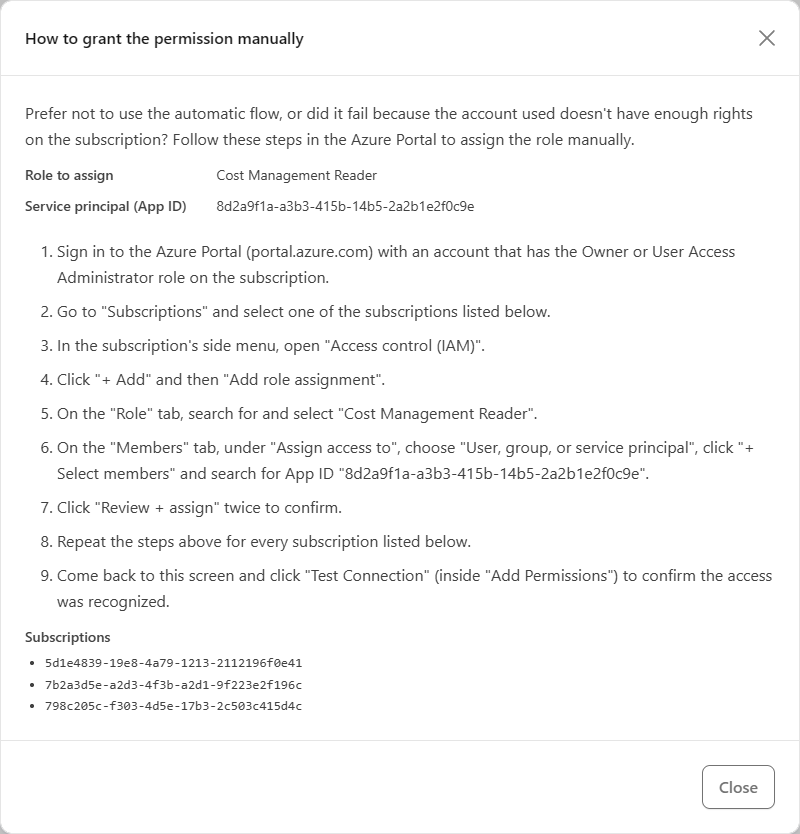
**What it is:** a button that opens the **How to grant the permission manually** modal, with the **Role to assign** (Cost Management Reader), the **Service principal (App ID)** of your organization's application, the step-by-step in the Azure portal and the list of **Subscriptions**.
**What it is for:** hand over the configuration to whoever administers the subscriptions in Azure, when that person does not have access to Power Monitor.
Instructions for manual granting
**How to use:**
{% stepper %}
{% step %}
### See the required data
Click **Instructions**. The modal shows the **Role to assign**, the **Service principal (App ID)** and the **Subscriptions**.
{% endstep %}
{% step %}
### Assign the role on each subscription
In the Azure portal, with an Owner or User Access Administrator account: **Subscriptions** › select the subscription › **Access control (IAM)** › **+ Add** › **Add role assignment**. In **Role**, choose **Cost Management Reader**; in **Members**, select **User, group, or service principal**, click **+ Select members** and search for the App ID. Click **Review + assign** (twice). Repeat for each subscription.
{% endstep %}
{% step %}
### Test in Power Monitor
Go back to Power Monitor, open **Add Permissions** and click **Test connection**.
{% endstep %}
{% endstepper %}
**How it works / rules:** if the data cannot be loaded, the modal shows a notice with the button to try loading again.
### Run now
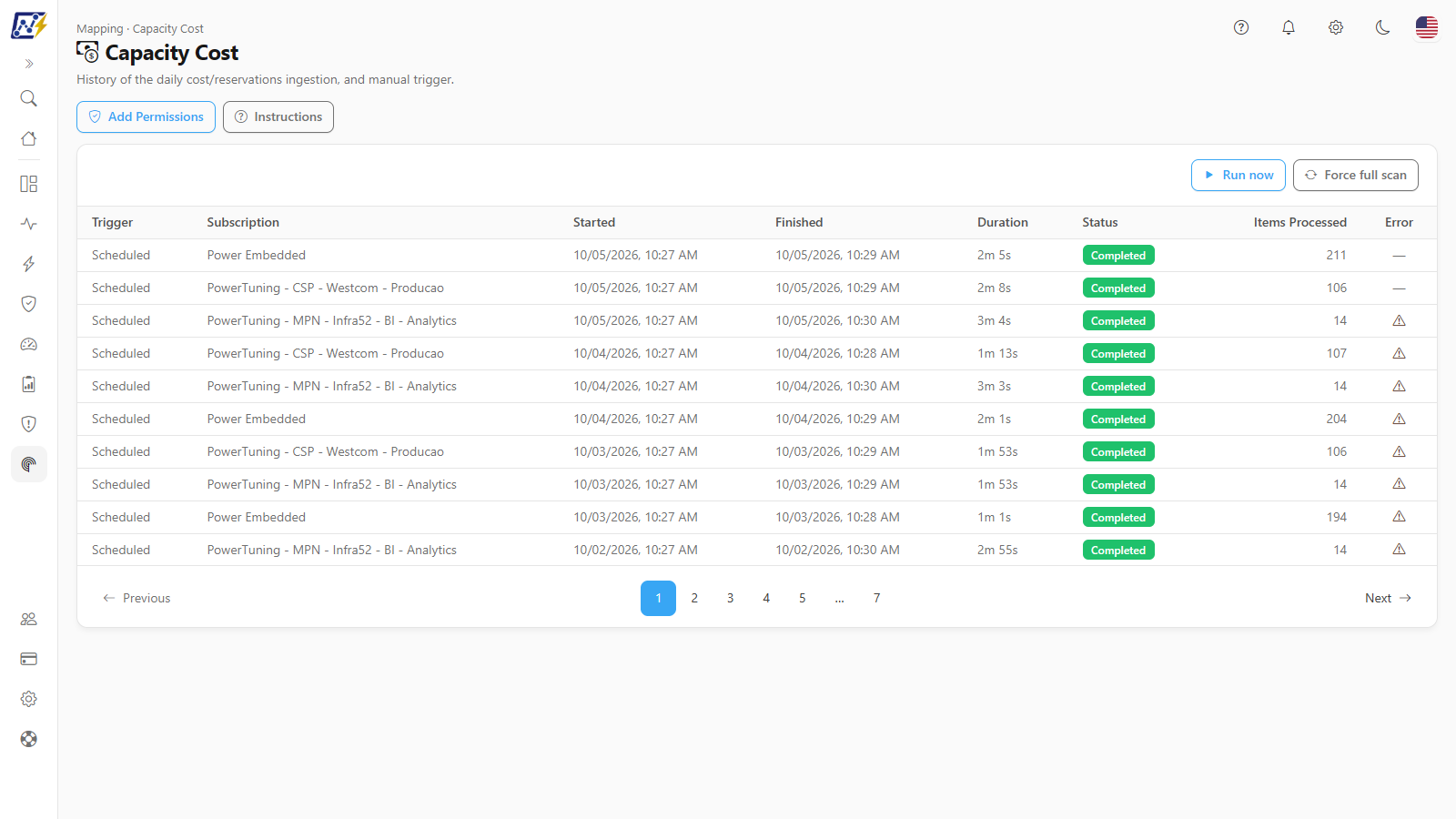
**What it is:** a button, at the top of the history card, that triggers the cost ingestion for all subscriptions with **Granted** access.
**What it is for:** do the first collection right after granting access, or update the cost without waiting for the daily run.
Collection buttons
**How to use:**
1. Click **Run now**. There is no confirmation modal; the button shows **Running…**.
2. Possible messages: **Cost collection queued. The history updates when it starts.**; **A collection is already running for this organization.**; **No subscription with granted access to trigger the collection.** (grant access first); **The Azure cost API asked for a pause after too many requests. Try again in X min.** (see the rule below).
3. Follow one row per subscription in the history until **Completed**.
**How it works / rules:** it works even with the automatic run turned off. If the Azure cost API recently asked for a pause after too many requests, nothing is triggered: instead of pretending the collection started, the screen shows the pause message with the waiting time in minutes. Wait that long and click again.
### Force full scan
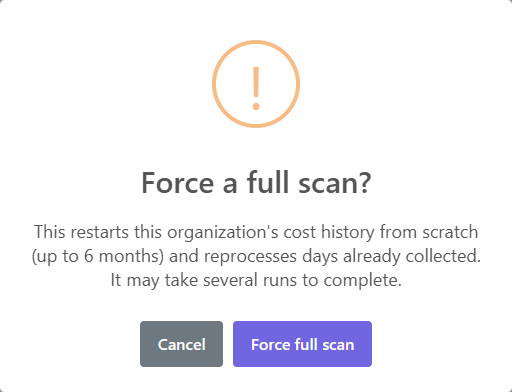
**What it is:** a button that restarts the organization's cost history from scratch (up to 6 months) and reprocesses days already collected. It asks for confirmation.
**What it is for:** reload all the cost after a fix (for example, a capacity that had no access for weeks) or when the historical values seem inconsistent.
Cost full scan confirmation
**How to use:**
1. Click **Force full scan**.
2. Read the **Force a full scan?** confirmation ("This restarts this organization's cost history from scratch (up to 6 months) and reprocesses days already collected. It may take several runs to complete.") and click **Force full scan** to confirm, or **Cancel**.
3. The message **Full scan triggered: the history will be reloaded over several runs.** confirms it.
**How it works / rules:** subscriptions that are already running are not restarted. Because of the low Azure Cost Management quota, the full history may take several runs. If the Azure cost API is in a pause after too many requests, the same message as **Run now** appears (**The Azure cost API asked for a pause after too many requests. Try again in X min.**) and nothing changes: the history is **not** restarted. Try again after the indicated time.
### Collection in progress badge
**What it is:** the **Collection in progress (n)** badge at the top of the card, with the number of subscriptions being processed, accompanied by an animated progress bar above the table.
**How to use:** just observe; the table updates by itself while there is an active collection.
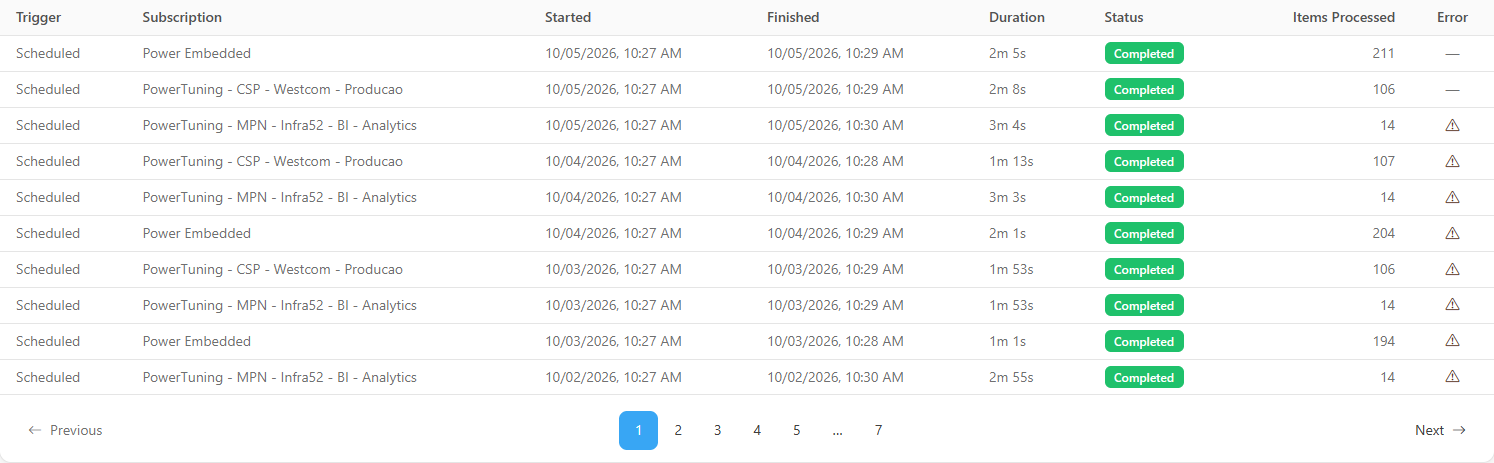
### Ingestion history
**What it is:** a table with one row per run **per subscription**, paginated (10 per page by default; the **Items per page** selector in the footer lets you choose 10, 25, 50 or 100).
**What it is for:** confirm that each subscription is being collected daily and identify the one that failed.
Ingestion history per subscription
| Column | Content |
| ----------------------------------------- | ------------------------------------------------------------------------------------------------------------------------------------------------ |
| **Trigger** | **Scheduled** or **Manual** (for manual runs, hover over the person icon to see who triggered it) |
| **Subscription** | Name of the Azure subscription (hover to see the ID) |
| **Started** / **Finished** / **Duration** | Run times |
| **Status** | **Running** (blue), **Completed** (green), **Failed** (red), **Timed out** (yellow); **View failures** link when there are cost rows with errors |
| **Items Processed** | Daily cost rows processed |
| **Error** | Yellow triangle: non-fatal warning on a completed run (for example, reservations not collected). Red icon: error of the run that failed |
**How to use:**
1. Locate the subscription and the run.
2. Hover over the icon in the **Error** column to read the message.
3. Navigate through the pages with **Previous**, **Next** or the numbers below the table.
**How it works / rules:** the table is updated every 20 seconds while there is an active collection.
### View failures
**What it is:** a link in the **Status** column that opens the **Failures for the {date} run** modal ("Cost rows that failed during this ingestion."), with the **Resource**, **Meter**, **Reason** and **Detail** columns.
**What it is for:** find out which resources or meters did not have their cost saved and why.
**How to use:**
1. Click **View failures** on the run.
2. Read the **Resource**, **Meter**, **Reason** and **Detail** of each row.
3. Click **Close**.
## Rules and behavior
* **Where the data comes from:** Azure Cost Management query API, **amortized** cost and **daily** granularity, filtered by the capacities' resources, authenticated with the Service Principal.
* **Which subscriptions:** the Azure subscriptions of the organization's capacities, **except** Premium Per User and trial capacities. Only subscriptions with **Granted** access are collected.
* **Automatic frequency:** daily at **05:28** (Brasília time, UTC-3) by default. In *Settings › Monitoring › Scans and Collections*, **Others** group (**Capacity Cost (Azure)**), you can turn the scan off or choose the **Frequency** **Daily**, **Weekly** or **Monthly**. With the weekly and monthly frequencies, the automatic run happens on a day distributed per organization, and the setting shows the **Next expected run** and the **Last run**. **Run now** is not affected by the frequency and works even with the scan turned off.
* **Collected window:**
* first collection (or after **Force full scan**): up to **180 days** (about 6 months);
* on subsequent collections: from the last collected day, **always reprocessing the last 7 closed days**, because Azure revises recent estimates;
* the current day is never collected (it is not closed yet).
* **Reservations:** collected in the same run. They require reservation read permission at the billing account level (**Reservations Reader**), which is **not** granted by the **Add Permissions** button. Without it, the run ends **Completed** with a warning. In CSP contracts (Microsoft Partner Agreement), reservations are not available to the customer and there is nothing to configure.
* **Request limit:** the Azure Cost Management quota is low and shared with the connection test. When the limit is reached, Power Monitor waits and the next run tries the same window again. During that pause, **Run now** and **Force full scan** trigger nothing and show how many minutes are left.
* **Timed out:** a run with no progress for **20 minutes** is closed as **Timed out**.
* **Concurrency:** one run per subscription at a time.
### Required permissions
| Permission | What for | How to grant |
| ----------------------------------------------------------------------------------------- | -------------------------- | --------------------------------------------------------- |
| **Cost Management Reader** role for the Service Principal on each subscription | Daily cost | **Add Permissions** button or manually (subscription IAM) |
| **Reservations Reader** at the billing account level | Reservations (optional) | In the Azure portal, by the billing team |
| Account of whoever grants: **Owner** or **User Access Administrator** on the subscription | Create the role assignment | - |
## Common errors and how to resolve them
| Message / symptom | How to resolve |
| ------------------------------------------------------------------------------------- | --------------------------------------------------------------------------------------------------------------------------------------- |
| **No subscription with granted access to trigger the collection.** | Grant the access and use **Test connection** until **Granted**. |
| "Your account does not have permission to assign roles on this subscription" | Ask an Owner or User Access Administrator to grant it, or use **Instructions**. |
| **Awaiting propagation** / access still propagating | Wait a few minutes and click **Test connection**. |
| Azure request limit reached | Wait and try again. Avoid testing the connection and forcing the full scan in a row. |
| Completed with a warning about reservations not collected | Grant **Reservations Reader** at the billing account level. In CSP, no action is needed. |
| **Consent was not completed. No permission was added.** | Redo the grant and complete the consent window. |
| **The Azure cost API asked for a pause after too many requests. Try again in X min.** | Wait the indicated minutes and click again. Nothing was triggered and, for **Force full scan**, the history was not restarted. |
| I clicked **Run now** and no row appeared | Check whether the cost API pause message appeared (see the row above) and whether the subscription has granted access. Try again later. |
| **Timed out** status | Run it again with **Run now**. |
## Frequently asked questions
Why is yesterday's cost still changing?
Azure revises the estimates of recent days. That is why Power Monitor always reprocesses the last 7 closed days.
My Premium Per User capacities do not appear here.
PPU and trial capacities do not have a resource billed in an Azure subscription and are left out of the cost collection.
## Related pages
* [Capacities](/en/power-monitor/mapeamento/capacidades.md)
* [Monitoring › Capacities](/en/power-monitor/monitoramento/capacidades.md)
* [Capacity Cost](/en/power-monitor/dashboards/custo-de-capacidade.md)
* [Capacity Dashboard](/en/power-monitor/dashboards/dashboard-de-capacidade.md)
* [Configuring permissions in Azure](/en/readme/como-instalar-o-power-monitor/configuracao-de-permissoes-no-azure-para-o-power-monitor.md)
---
# Agent Instructions
This documentation is published with GitBook. GitBook is the documentation platform designed so that both humans and AI agents can read, navigate, and reason over technical content effectively. Learn more at gitbook.com.
## Querying This Documentation
If you need additional information that is not directly available in this page, you can query the documentation by asking a question.
Perform an HTTP GET request on the following URL with the `ask` and `goal` query parameters:
```
GET https://docs.powermonitor.com.br/en/power-monitor/mapeamento/custo-de-capacidade.md?ask=&goal=
```
`ask` is the immediate question: it should be specific, self-contained, and written in natural language.
`goal` is what the user is ultimately trying to achieve, the reason they need the answer. Sharing it helps GitBook give you a better, more relevant answer. A goal is most helpful when it describes the outcome the user wants rather than restating the question. For example, with `ask=how do I create an API token`, a goal like `automate deployments from our CI pipeline` lets GitBook tailor the answer to that use case.
The response will contain a direct answer to the question and relevant excerpts and sources from the documentation.
Use this mechanism when the answer is not explicitly present in the current page, you need clarification or additional context, or you want to retrieve related documentation sections.