> For the complete documentation index, see [llms.txt](https://docs.powermonitor.com.br/llms.txt). Markdown versions of documentation pages are available by appending `.md` to page URLs; this page is available as [Markdown](https://docs.powermonitor.com.br/en/power-monitor/mapeamento/git-dos-workspaces.md).
# Workspace Git
Follow, trigger, pause and resume the collection, every 6 hours, of the Git status of workspaces: repository connection, uncommitted items, items behind and items in conflict.
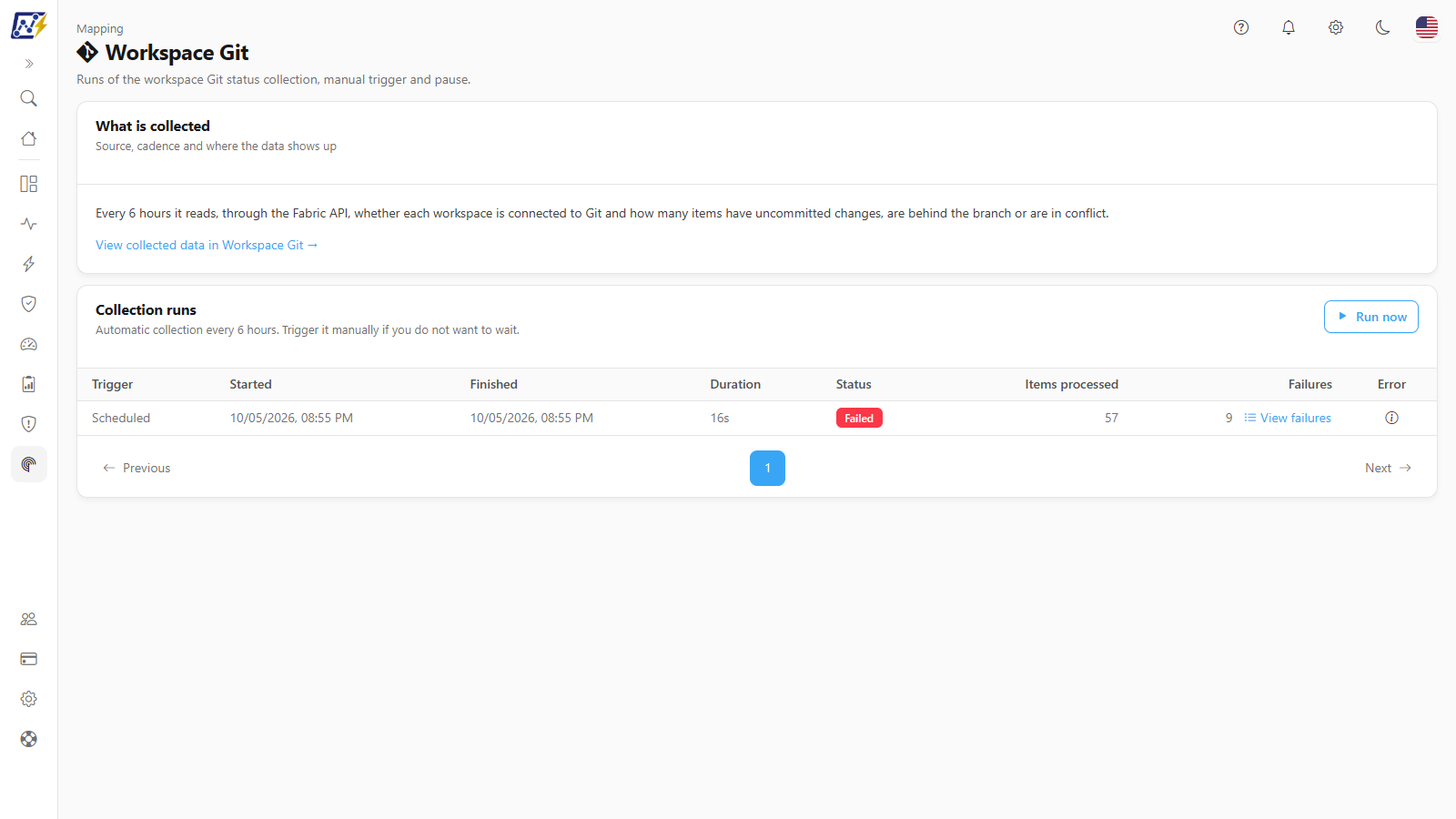
The Mapping **Workspace Git** screen controls the collection that reads, for each monitored workspace, **whether it is connected to a Git repository** and **how many items diverge from the branch**: with changes not yet committed, behind the branch or in conflict. The list and the indicators are in Governance; this screen shows the collection history and lets you trigger, pause and resume it.
**How to access:** *Mapping › Operations › Workspace Git*. Only **Administrators** can access the screen and the actions. On the Workspace Git screen in Governance, the other profiles see only the **Collection** status line, without the link to this screen.
Workspace Git
## What it is for
* Confirm that the Git status of workspaces is being collected every 6 hours and whether the last collection finished well.
* Update the status right away, after connecting a workspace to Git, making a commit or resolving a conflict.
* Find out how many workspaces the collection could not read and why.
## Screen components
The screen has two cards: **What is collected** and **Collection runs** ("Automatic collection every 6 hours. Trigger it manually if you do not want to wait.").
### What is collected
**What it is:** a card with the description of the collection and, in the footer, the link **View collected data in Workspace Git →**, which leads to the Governance screen.
### Run now / Resume
**What it is:** a button that triggers a manual collection. When there is a **Paused** collection, the same button is named **Resume** and continues where it stopped.
**What it is for:** reflecting right away, in [Governance › Operations › Workspace Git](/en/power-monitor/governanca/operacao/git-dos-workspaces.md), the current situation of the workspaces.
**How to use:**
1. Click **Run now**. There is no confirmation modal; the button shows **Running…** while it sends the request.
2. The message **Run queued. The history updates when it starts.** confirms it; if a collection is already running, **A run is already in progress for this organization.** appears. While the collection service has not picked up the run, the button shows **Queued** and the card says *Run queued, waiting to start…*; then the button changes to **In progress** and the bar shows the processed items (for example, *12 of 40*) and the estimated time left (*\~3 min left*). The screen tracks the run until it finishes, without reloading.
3. Follow the **Run in progress** badge and the row in the history until **Completed**.
To resume a paused collection, click **Resume** (**Resuming…**). The message **Run resumed successfully.** confirms it.
**How it works / rules:**
* It works even with the automatic run turned off.
* There is only one active collection (running or paused) per organization.
### Pause
**What it is:** a button that appears only while a collection is running and asks it to stop.
**What it is for:** temporarily interrupting a long collection, for example in organizations with many workspaces, without losing what has already been read.
**How to use:**
1. During the collection, click **Pause** (**Pausing…**). The badge **Pause requested: the run stops after the next processed item** appears.
2. The run becomes **Paused** and the main button becomes **Resume**.
3. Click **Resume** to continue from where it stopped.
**How it works / rules:** the pause is cooperative: the workspace being processed finishes and the collection stops at the next one. A paused collection does not expire. When resumed, only the workspaces not yet checked in the run are read.
### Collection state badges
At the top of the card the badges **Run in progress (n)** (blue, with a spinning indicator), **Run paused** (yellow) and **Pause requested…** (gray) appear. During a running collection, an animated progress bar appears above the table. If the automatic refresh of the screen is stopped after a long time, **Automatic refresh stopped. Reload the page to see the current status.** appears.
### Run history
**What it is:** a paginated table (10 per page; the **Items per page** selector below the table offers 10, 25, 50 or 100) with the runs, from the most recent to the oldest.
Run history
| Column | Content |
| ----------------------------------------- | ---------------------------------------------------------------------------------------------------- |
| **Trigger** | **Scheduled** or **Manual** (in manual runs, hover over the person icon to see who triggered it) |
| **Started** / **Finished** / **Duration** | Times of the run (no end or duration while it is active) |
| **Status** | **Running** (blue), **Paused** (yellow), **Completed** (green), **Failed** (red), **Stuck** (yellow) |
| **Items processed** | Number of workspaces read |
| **Failures** | Workspaces with an error; **View failures** link |
| **Error** | Icon with the general error message of the run (hover over it) |
While there is an active collection, the table refreshes automatically every 20 seconds. With no runs, **No run recorded yet** appears.
### View failures
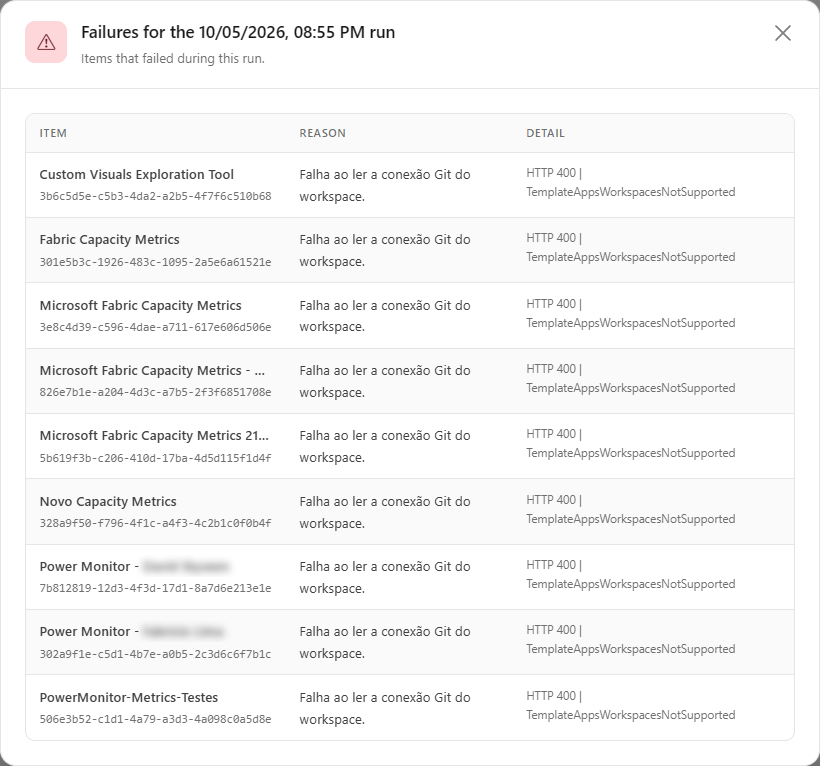
**What it is:** a link in the **Failures** column that opens the **Failures for the {date} run** modal, with the columns **Item** (workspace name and identifier), **Reason** and **Detail**.
Failures for the run
**How to use:** click **View failures** in the run (available when it ended with failures), read the **Reason** and **Detail** of each workspace and click **Close**. If the run did not keep the detail, **No detail available for this run.** appears. When there are many failures, the end of the list shows **and n more not listed**.
## Rules and behavior
* **Where the data comes from:** Fabric API (Git connection and Git status of each workspace), with the organization's Service Principal.
* **Automatic frequency:** every **6 hours** (at 03:55, 09:55, 15:55 and 21:55, Brasília time), for active organizations with a configured Service Principal. It can be turned off in *Settings › Monitoring › Scans and Collections*, **Others** group (**Workspace Git status**). Because it runs several times a day, this scan **does not have the Frequency option** (**Daily**/**Weekly**/**Monthly**). **Run now** works even with the switch turned off.
* **Which workspaces are read:** the **monitored** workspaces that are active and not deleted.
* **Counts of items, not commits:** the numbers are of workspace **items**. Fabric does not report the number of commits.
* **Result per workspace:** each workspace ends as **Read**, **No Git** (not connected to a repository), **Unavailable** or **Error**. **Unavailable** is not a failure: it happens, for example, when the Service Principal cannot see the workspace, the workspace is not in a capacity or Fabric requires the caller's own Git credentials, which a Service Principal usually does not have. Only **Error** counts in the **Failures** column.
* **Request limit:** if Fabric answers that the request limit was reached (429), the run ends as **Failed** with the message of the point where it stopped, what was already read is kept and the next collection starts with the least recently read workspaces.
* **Stuck:** a collection with no progress for **10 minutes** is ended as **Stuck**.
* **Concurrency:** one active collection (running or paused) per organization.
### Required permissions
The Service Principal must be in the workspace with the **Contributor** role or higher for Fabric to return the Git connection and status. Workspaces where it has no access appear as **Unavailable** on the Governance screen.
## Step by step
{% stepper %}
{% step %}
### Open the screen
In *Mapping › Operations › Workspace Git* (or through the **View/manage collection →** link on the Governance screen).
{% endstep %}
{% step %}
### Trigger the collection
Click **Run now** and follow the **Run in progress** badge until the history row is **Completed**.
{% endstep %}
{% step %}
### Check the failures
If the **Failures** column is greater than zero, click **View failures** and read the **Reason** and **Detail**.
{% endstep %}
{% step %}
### See the data
Click **View collected data in Workspace Git →** to open the list in Governance.
{% endstep %}
{% endstepper %}
## Common errors and how to fix them
| Message / symptom | How to fix |
| ---------------------------------------------------- | ----------------------------------------------------------------------------------------------------------------------- |
| **Failed** status with a request limit (429) message | Wait and click **Run now** again; the collection continues with the least recently read workspaces. |
| Workspaces **Unavailable** in Governance | It is not a failure. Add the Service Principal to the workspace (Contributor or higher) if you want to read the status. |
| **Stuck** status | The run stopped progressing. Click **Run now** again. |
| **Service Principal not configured** | Complete the Service Principal configuration in *Settings*. |
## Frequently asked questions
Where do I see the Git status of each workspace?
In [Governance › Operations › Workspace Git](/en/power-monitor/governanca/operacao/git-dos-workspaces.md), available to all profiles (respecting each user's workspace scope). This screen shows only the runs of the collection.
None of my workspaces use Git. Do I need this collection?
No. Workspaces without Git stay as **No Git**. If you prefer, turn the collection off in *Settings › Monitoring › Scans and Collections*.
Why is the count of changes in items and not commits?
Because the Fabric API does not report commits: it lists the items whose content differs between the workspace and the branch.
## Related pages
* [Governance › Operations › Workspace Git](/en/power-monitor/governanca/operacao/git-dos-workspaces.md)
* [Governance › Workspaces](/en/power-monitor/governanca/workspaces.md)
* [Settings › Monitoring](/en/power-monitor/configuracoes/monitoramento.md)
* [Scan Logs](/en/power-monitor/mapeamento/logs-de-scans-e-re-execucoes.md)
* [Mapping](/en/power-monitor/mapeamento.md)
---
# Agent Instructions
This documentation is published with GitBook. GitBook is the documentation platform designed so that both humans and AI agents can read, navigate, and reason over technical content effectively. Learn more at gitbook.com.
## Querying This Documentation
If you need additional information that is not directly available in this page, you can query the documentation by asking a question.
Perform an HTTP GET request on the following URL with the `ask` and `goal` query parameters:
```
GET https://docs.powermonitor.com.br/en/power-monitor/mapeamento/git-dos-workspaces.md?ask=&goal=
```
`ask` is the immediate question: it should be specific, self-contained, and written in natural language.
`goal` is what the user is ultimately trying to achieve, the reason they need the answer. Sharing it helps GitBook give you a better, more relevant answer. A goal is most helpful when it describes the outcome the user wants rather than restating the question. For example, with `ask=how do I create an API token`, a goal like `automate deployments from our CI pipeline` lets GitBook tailor the answer to that use case.
The response will contain a direct answer to the question and relevant excerpts and sources from the documentation.
Use this mechanism when the answer is not explicitly present in the current page, you need clarification or additional context, or you want to retrieve related documentation sections.