> For the complete documentation index, see [llms.txt](https://docs.powermonitor.com.br/llms.txt). Markdown versions of documentation pages are available by appending `.md` to page URLs; this page is available as [Markdown](https://docs.powermonitor.com.br/en/power-monitor/mapeamento/membros-de-grupos.md).
# Group Members
Follow and refresh on demand the cache of members of the Microsoft Entra ID groups cited in permissions, which is also refreshed automatically every day and used by the Permissions Audit and the Permi
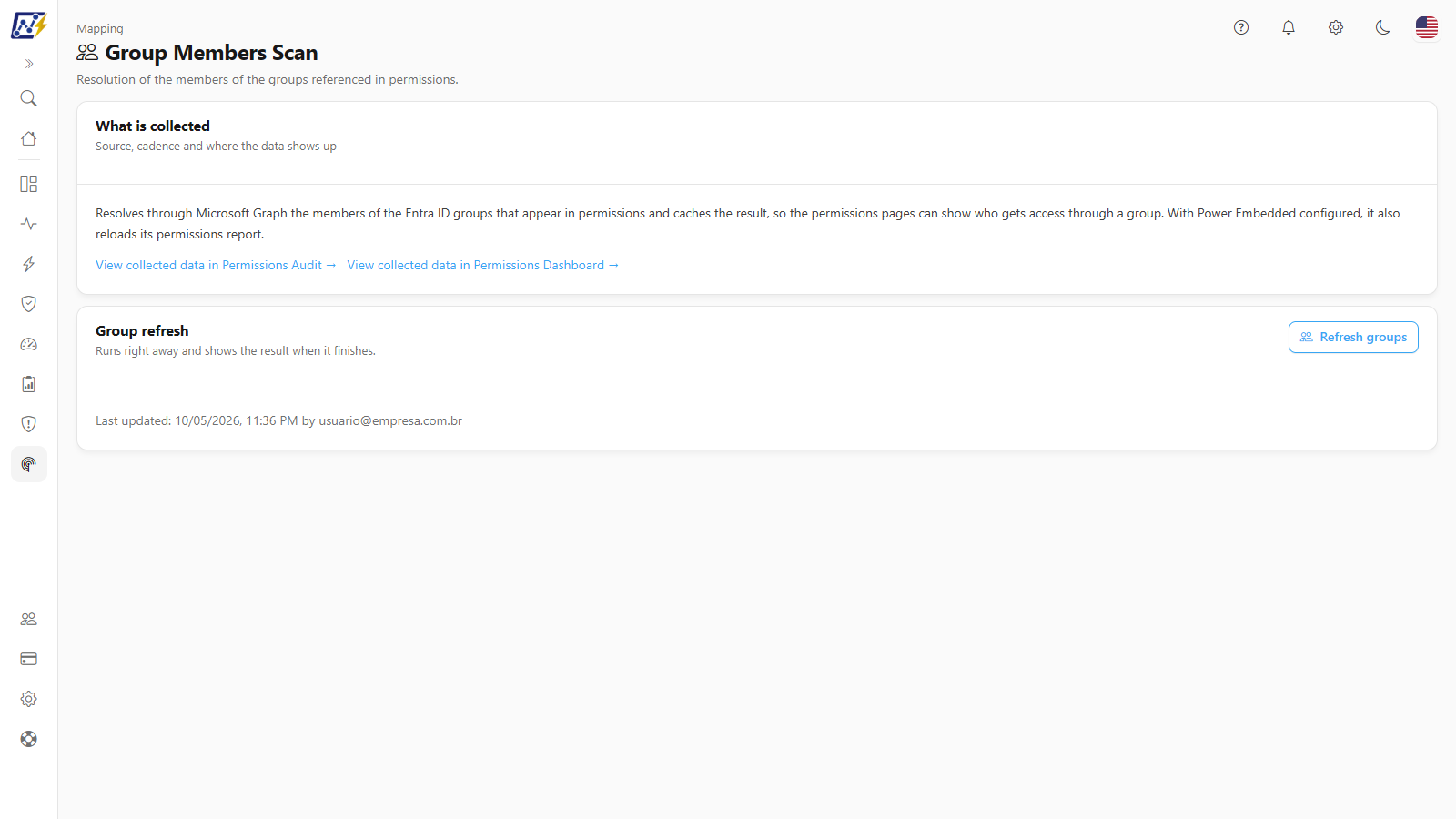
The **Group Members** screen resolves, through Microsoft Graph, **who the members are of the Microsoft Entra ID groups** that appear in the permissions of your environment (workspaces, items, gateways and connections) and keeps the result in a cache. This cache is what lets the permissions screens show **who receives access through a group**, and not only that "group X has access".
**How to access:** *Mapping › Inventory › Group Members*. The page opens for **all profiles**: unlike the other Mapping screens, it is not exclusive to Administrators, because the **Refresh groups** action has always been available to everyone. The menu item only appears for **Administrators** (the Mapping module is administrative); other profiles get there through the **View/manage collection →** button of the [Permissions Audit](/en/power-monitor/auditoria/auditoria-de-permissoes.md) and the equivalent links of the [Permissions Dashboard](/en/power-monitor/dashboards/dashboard-de-permissoes.md). An administrator can block the page for specific users, like any other page (see [Users](/en/power-monitor/usuarios.md)).
Group Members
## What it is for
* Answer "who can see this report?" taking into account the access given to groups, and not only to the people cited directly.
* Reflect right away, in the permissions screens, people joining or leaving Entra ID groups.
* Confirm when the member cache was last refreshed and by whom.
## Screen components
The screen has two cards: **What is collected** and **Group refresh**. There is no history table and no **Pause** button: the refresh is quick, runs while you wait and shows the result when it finishes.
Group refresh card
### What is collected
**What it is:** a card with the description of the collection and, in the footer, the links **View collected data in Permissions Audit →** and **View collected data in Permissions Dashboard →**, which lead to the screens fed by this cache.
### Refresh groups
**What it is:** the **Refresh groups** button, in the **Group refresh** card ("Queues the refresh; the result appears here when it finishes."). Next to the card the state of the last refresh appears: **Last updated: {date} by {user}** or **Groups never refreshed**. When the last refresh was the scheduled run, the user position shows **Automatic (scheduled)**. If the **Hide data** option is on, the name of whoever refreshed appears masked.
**What it is for:** redoing the query of members of all the groups cited in permissions.
**How to use:**
1. Click **Refresh groups**. The refresh goes to the collection service queue and the button is disabled, with a loading indicator, until it finishes. The screen tracks the result until the end, even if you reload the page. If a refresh is already running, *A group refresh is already running for this organization. Following the result.* is displayed.
2. Read the message that appears when it finishes (see the table below) and check the date in **Last updated**.
3. Open the [Permissions Audit](/en/power-monitor/auditoria/auditoria-de-permissoes.md) to see the access inherited from groups already updated.
| Message | Meaning |
| --------------------------------------------------------------------------------------------------- | ------------------------------------------------------------------------------------------------------------------------ |
| **{n} group(s) refreshed, {m} failed.** (green) | Clean run: all groups were read. |
| **Partial refresh** (title **Warning**) | Part of the groups was refreshed and part failed; the reach of the failed groups is still out of date. |
| **Could not reach Microsoft Graph: no group was refreshed…** | Nothing was refreshed; the cache is unchanged. |
| **This organization's registered application has no application permission to read group members…** | The permission is missing in Entra ID (see [Required permission](#required-permission)). Nothing on the screen fixes it. |
| **Could not refresh the group membership cache.** | General or network error; try again. |
**How it works / rules:**
* The refresh is also **automatic**: the **Group members** scan runs once a day (at around 07:35, Brasília time). The **Refresh groups** button queues a refresh right away, at any time.
* The groups queried are those that appear in direct permissions of the organization. Members are read **transitively**, that is, they include those who come in through nested groups.
* The groups are read one by one; the failure of one group does not interrupt the others.
* If the organization has no group in its permissions, the refresh ends with 0 groups and records the date anyway.
* With **Power Embedded** configured, the same action also reloads its permissions report. Organizations without Power Embedded are not affected.
* The action only **reads** Entra ID: it does not change groups or permissions in your tenant.
## Rules and behavior
* **Where the data comes from:** Microsoft Graph, with the organization's registered application (Service Principal).
* **Frequency:** automatic, once a day (at around 07:35, Brasília time), and on demand through the **Refresh groups** button. In *Settings › Monitoring*, **Group members** scan (**Inventory** group), the administrator can turn off the schedule or choose **Daily**, **Weekly**, or **Monthly**. The **Refresh groups** button is not affected and works even with the scan turned off.
* **Who can use it:** any profile that can open the page (the action is not restricted to Administrators).
* **Cache:** the permissions screens always show the result of the last refresh, with its date. Changes made in Entra ID only appear after a new refresh.
### Required permission
The organization's registered application must have, in Microsoft Entra ID, the Microsoft Graph **application** permission **GroupMember.Read.All** (or **Directory.Read.All**) with **administrator consent**. In automatic installations (*self-install*) Power Monitor already grants it; in manual installations, or in old records, it may be missing and the refresh shows the message about the missing application permission. A tenant administrator fixes it, once, in the Microsoft Entra portal.
## Step by step
{% stepper %}
{% step %}
### Open the screen
In *Mapping › Inventory › Group Members* (or through the **View/manage collection →** button in the Permissions Audit).
{% endstep %}
{% step %}
### Refresh
Click **Refresh groups** and wait for the result message.
{% endstep %}
{% step %}
### Check
See the date in **Last updated** and go back to the [Permissions Audit](/en/power-monitor/auditoria/auditoria-de-permissoes.md) or the [Permissions Dashboard](/en/power-monitor/dashboards/dashboard-de-permissoes.md) to check the access by group already updated.
{% endstep %}
{% endstepper %}
## Frequently asked questions
Why does a user who left a group still appear with access?
Because the screens use the cache of the last refresh, which happens automatically once a day (and whenever someone clicks **Refresh groups**). To avoid waiting for the next cycle, click **Refresh groups** and repeat the query to Microsoft Graph.
Why does the page open for someone who is not an Administrator?
The **Refresh groups** action has always been open to all profiles and stayed that way when it left the Audit screens. The menu item is visible only to Administrators, but the page opens through a link for the others.
The message about application permission appears. What should I do?
Ask a tenant administrator to grant **GroupMember.Read.All** (or **Directory.Read.All**) as an **application** permission, with administrator consent, to the organization's registered application, and click **Refresh groups** again.
Does the refresh change anything in my tenant's groups?
No. It is a read: Power Monitor only queries the members and keeps the result.
## Related pages
* [Permissions Audit](/en/power-monitor/auditoria/auditoria-de-permissoes.md)
* [Permissions Dashboard](/en/power-monitor/dashboards/dashboard-de-permissoes.md)
* [Users](/en/power-monitor/usuarios.md)
* [Mapping](/en/power-monitor/mapeamento.md)
---
# Agent Instructions
This documentation is published with GitBook. GitBook is the documentation platform designed so that both humans and AI agents can read, navigate, and reason over technical content effectively. Learn more at gitbook.com.
## Querying This Documentation
If you need additional information that is not directly available in this page, you can query the documentation by asking a question.
Perform an HTTP GET request on the following URL with the `ask` and `goal` query parameters:
```
GET https://docs.powermonitor.com.br/en/power-monitor/mapeamento/membros-de-grupos.md?ask=&goal=
```
`ask` is the immediate question: it should be specific, self-contained, and written in natural language.
`goal` is what the user is ultimately trying to achieve, the reason they need the answer. Sharing it helps GitBook give you a better, more relevant answer. A goal is most helpful when it describes the outcome the user wants rather than restating the question. For example, with `ask=how do I create an API token`, a goal like `automate deployments from our CI pipeline` lets GitBook tailor the answer to that use case.
The response will contain a direct answer to the question and relevant excerpts and sources from the documentation.
Use this mechanism when the answer is not explicitly present in the current page, you need clarification or additional context, or you want to retrieve related documentation sections.