# Enable Gateway Monitoring

For Power Monitor to query the status of your on-premises data gateways, three conditions must be met:

1. The Power Monitor **Service Principal** is an **administrator** of each gateway you want to monitor.
2. The gateways have been discovered by the **Gateway Scan**.
3. **Gateway Monitoring** is turned on in *Settings › Monitoring*.

## Prerequisites

* **Administrator** profile in Power Monitor (the *Settings* screens are restricted to this profile).
* For automatic granting (option A): a **tenant administrator** account (Global Administrator or Fabric Administrator).
* For manual granting (option B): an account that is a **gateway administrator** in Power BI.

## Features

### "Gateways and connections" card (Settings › Additional Permissions)

**What it is:** the **Gateways and connections** card, in *Settings › Additional Permissions*, which shows whether the Service Principal already has access to the gateways and lets you grant it without leaving Power Monitor.

**What it is for:** giving the Service Principal, in a single step, admin access to all on-premises data gateways visible to your account and user access to cloud connections (without a gateway), which is what status monitoring, the connections inventory, and the gateway version check require.

<figure><picture><source srcset="../../../assets/pm-configuracoes-permissoes-adicionais-gateways-en-dark.png" media="(prefers-color-scheme: dark)"><img src="../../../assets/pm-configuracoes-permissoes-adicionais-gateways-en.png" alt="Gateways and connections card in Settings › Additional Permissions"></picture><figcaption><p>Settings › Additional Permissions › Gateways and connections</p></figcaption></figure>

**How to use:**

* Read the badge next to the title, with the result of the check (for example, **Granted**, **Partial**, or **Not granted**), and the detail line *The Service Principal is an administrator on X of Y gateways.*
* Click **Check again** to re-run the check after a change made in Power BI.
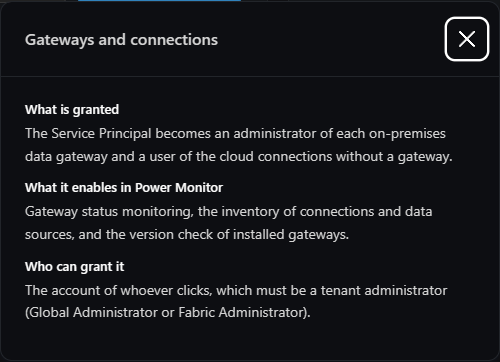
* Click **Learn more** to see what is granted, what it enables, and who can grant it.
* Click **Grant access** to perform the grant (see the step-by-step in *How to enable gateway monitoring*, below).

<figure><picture><source srcset="../../../assets/pm-configuracoes-permissoes-adicionais-gateways-saiba-mais-en-dark.png" media="(prefers-color-scheme: dark)"><img src="../../../assets/pm-configuracoes-permissoes-adicionais-gateways-saiba-mais-en.png" alt="Learn more window of the Gateways and connections card"></picture><figcaption><p>Learn more: what is granted and who can grant it</p></figcaption></figure>

**How it works:**

* The grant uses the **account of the person who clicks**, which must be a tenant administrator (Global or Fabric Administrator). If additional consent is required, the browser opens the Microsoft consent window.
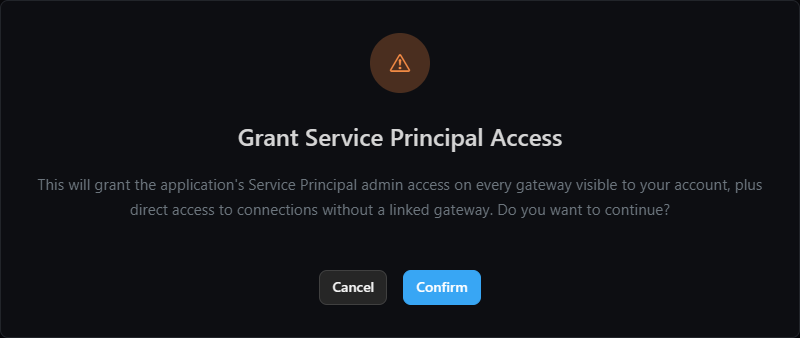
* Before granting, the screen asks for confirmation in the **Grant Service Principal Access** modal (**Confirm** or **Cancel**).
* During the grant, the button shows the progress (*N of M processed*). At the end, the card summarizes the result for gateways and for connections: how many were granted, how many already had access, how many failed, and how many were rate-limited. When everything succeeds, the message *Service Principal access granted to gateways.* confirms it. If there is nothing eligible, the card shows *No eligible gateway or connection was found under your access, so there was nothing to grant.*
* After the grant, the check is re-run automatically.
* The same card exists in the setup wizard for new organizations.

<figure><picture><source srcset="../../../assets/pm-configuracoes-permissoes-adicionais-gateways-confirmar-en-dark.png" media="(prefers-color-scheme: dark)"><img src="../../../assets/pm-configuracoes-permissoes-adicionais-gateways-confirmar-en.png" alt="Grant Service Principal Access modal with the Confirm and Cancel buttons"></picture><figcaption><p>Confirming the grant of access to gateways</p></figcaption></figure>

### "Gateway Monitoring" toggle (Settings › Monitoring)

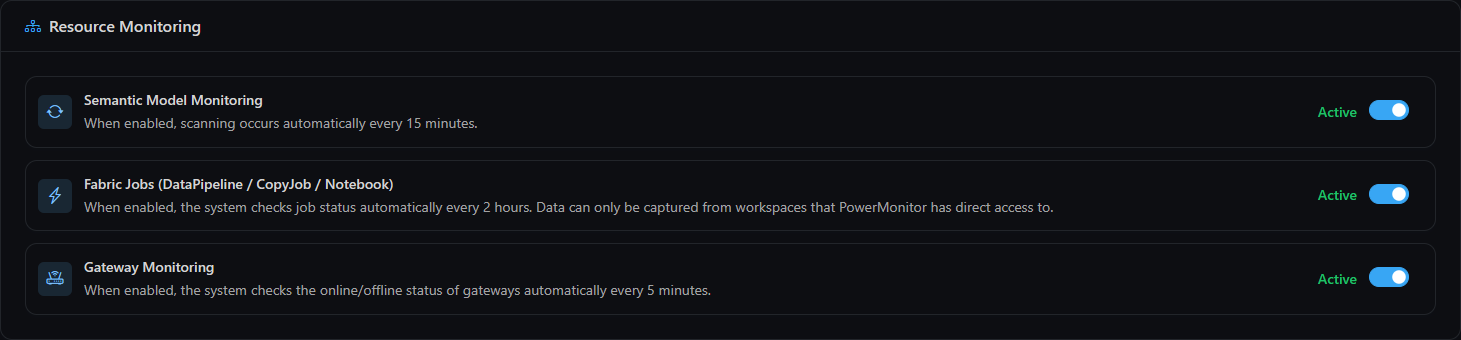
**What it is:** the **Gateway Monitoring** toggle, in the **Resource Monitoring** card of *Settings › Monitoring*, which turns the automatic gateway status check on or off.

**What it is for:** starting (or stopping) tracking the online/offline status of gateways, with incidents, alerts, and gateway offline and recovery emails.

<figure><picture><source srcset="../../../assets/pm-configuracoes-monitoramento-recursos-en-dark.png" media="(prefers-color-scheme: dark)"><img src="../../../assets/pm-configuracoes-monitoramento-recursos-en.png" alt="Gateway Monitoring toggle in the Resource Monitoring card"></picture><figcaption><p>Settings › Monitoring › Resource Monitoring</p></figcaption></figure>

<figure><picture><source srcset="../../../assets/pm-configuracoes-monitoramento-recursos-gateway-en-dark.png" media="(prefers-color-scheme: dark)"><img src="../../../assets/pm-configuracoes-monitoramento-recursos-gateway-en.png" alt="Gateway Monitoring card with the toggle and the Active or Inactive state"></picture><figcaption><p>Gateway Monitoring card</p></figcaption></figure>

**How to use:**

1. Go to *Settings › Monitoring*.
2. In the **Resource Monitoring** card, find **Gateway Monitoring**.
3. Turn the toggle on to enable it or off to disable it. The card shows **Active** or **Inactive**, and the messages *Monitoring enabled successfully.* or *Monitoring disabled successfully.* confirm the change.

**How it works:**

* When enabled, the system checks the online/offline status of gateways automatically **every 5 minutes**.
* If no gateways have been discovered yet, the **No Gateway found** panel appears in place of the toggle, explaining that you must have gateways installed in the organization and run a scan so the system can identify them.
* The setting applies to the entire organization.

## How to use

### How to enable gateway monitoring

{% stepper %}
{% step %}
### Grant the Service Principal admin access to the gateways

**Option A: from Power Monitor (recommended).** Go to *Settings › Additional Permissions* and, in the **Gateways and connections** card, click **Grant access** and then **Confirm**. With a tenant administrator account, Power Monitor makes the Service Principal an administrator of each visible on-premises data gateway and a user of the cloud connections (without a gateway).

**Option B: manually in Power BI.** In the [Power BI Service](https://app.powerbi.com), sign in with the gateway administrator account, click the gear icon in the header, and open **Manage connections and gateways**.

<figure><img src="../../../assets/image (35).png" alt="Power BI settings menu with the Manage connections and gateways option" width="343"><figcaption><p>Manage connections and gateways</p></figcaption></figure>

On the on-premises data gateways tab, select the gateway you want to monitor.

<figure><img src="../../../assets/image (34).png" alt="List of on-premises data gateways"><figcaption><p>On-premises data gateways</p></figcaption></figure>

Click **Manage users**.

<figure><img src="../../../assets/image (37).png" alt="Gateway Manage users option"><figcaption><p>Manage users</p></figcaption></figure>

Search for the Power Monitor Service Principal (by default, **PowerMonitor-APP**, or the name defined when your organization was set up) and add it.

<figure><img src="../../../assets/image (38).png" alt="Searching for the Service Principal when adding a user to the gateway"><figcaption><p>Adding the Service Principal</p></figcaption></figure>

Save, open user management again, and change the Service Principal's role to **Admin**. Save again. Repeat for each gateway (or cluster) you want to monitor.

<figure><img src="../../../assets/image (39).png" alt="Admin role selected for the Service Principal"><figcaption><p>Admin role</p></figcaption></figure>
{% endstep %}

{% step %}
### Discover the gateways

In Power Monitor, go to *Mapping › Gateways* and run the scan (see [Gateway Scan](../../mapeamento/gateways.md)). When it finishes, the gateways are listed in the inventory ([Governance › Infrastructure › Gateways](../../governanca/gateways.md)).
{% endstep %}

{% step %}
### Turn on Gateway Monitoring

Go to *Settings › Monitoring* and, in the **Resource Monitoring** card, turn on **Gateway Monitoring**. The message *Monitoring enabled successfully.* confirms the change.

If the card shows **No Gateway found**, go back to the previous step: you must have gateways installed in the organization and have run the Gateway Scan.
{% endstep %}

{% step %}
### Check the result

Within 5 minutes, the gateways appear in [Monitoring › Gateways](README.md) with their current status.
{% endstep %}
{% endstepper %}

### How to turn off gateway monitoring

Prerequisite: **Administrator** profile.

1. Go to *Settings › Monitoring*.
2. In the **Resource Monitoring** card, turn off **Gateway Monitoring**. The message *Monitoring disabled successfully.* confirms the change.
3. The checks stop and the [Monitoring › Gateways](README.md) screen is no longer updated (look at **Last check**). To resume monitoring, turn the toggle on again.

### How to add a new gateway to monitoring

1. Grant the Service Principal admin access to the new gateway (option A or B of the first step above).
2. Run the [Gateway Scan](../../mapeamento/gateways.md) again.
3. With **Gateway Monitoring** already on, the gateway starts being checked automatically and appears in [Monitoring › Gateways](README.md) within 5 minutes.

## Frequently asked questions

<details>

<summary>The automatic grant did not include some gateways.</summary>

The grant reaches the gateways visible to the account that clicked **Grant access**. For the others, use the manual option with an administrator account for that gateway. The summary shown in the card indicates how many gateways failed or were rate-limited; in that case, try again later.

</details>

<details>

<summary>I added a new gateway. Do I need to redo everything?</summary>

Grant the Service Principal admin access to the new gateway and run the Gateway Scan again. The monitoring that is already on starts including it automatically.

</details>

## Related pages

* [Gateways (Gateway Monitoring)](README.md)
* [Governance › Infrastructure › Gateways](../../governanca/gateways.md)
* [Gateway Scan](../../mapeamento/gateways.md)
* [Settings](../../configuracoes.md)