> For the complete documentation index, see [llms.txt](https://docs.powermonitor.com.br/llms.txt). Markdown versions of documentation pages are available by appending `.md` to page URLs; this page is available as [Markdown](https://docs.powermonitor.com.br/en/principais-funcionalidades/governanca-de-capacidade.md).
# Capacity Governance
Automate pause, resume and SKU changes for Fabric and Power BI Embedded capacities, with schedules, autoscale and schedule alerts.
**Capacity Governance** automates the management of your capacities to **reduce costs** and **eliminate manual interventions**: pause and resume at defined times, change the SKU according to demand, scale automatically based on consumption and get notified when a capacity is running outside business hours.
{% hint style="warning" %}
**Prerequisites:** the Power Monitor application must be a **Capacity Administrator** and have the **Contributor** role on the capacity resource in Azure. See [Configuring Azure permissions](/en/readme/como-instalar-o-power-monitor/configuracao-de-permissoes-no-azure-para-o-power-monitor.md). The actions apply to capacities that are Azure resources: **Fabric (F-SKU)** and **Power BI Embedded (A-SKU)**.
{% endhint %}
## How to access
* **Capacities › Capacity Governance**, or **Governance › Infrastructure › Capacities**.
* In each capacity's **⋮** menu: **Open details** (with shortcuts to each tab, including **Schedule Alerts**), **Pause Capacity** or **Turn On Capacity** (depending on the current state), **Change size (SKU)** and **Change History**.
* All profiles can view capacities; **creating schedules and running actions is restricted to Administrators**.
Capacity details and governance tabs
***
## What you can configure
The **capacity details** contain the following tabs:
| Tab | What it does |
| ----------------------- | --------------------------------------------------------------------------------------------------------------------------------------------------------------------------------------------------------------------------------------- |
| **Details** | Capacity data (SKU, region, administrators) and the **Azure Resource Location** (subscription, resource group and provider), when the application only has permission on the resource |
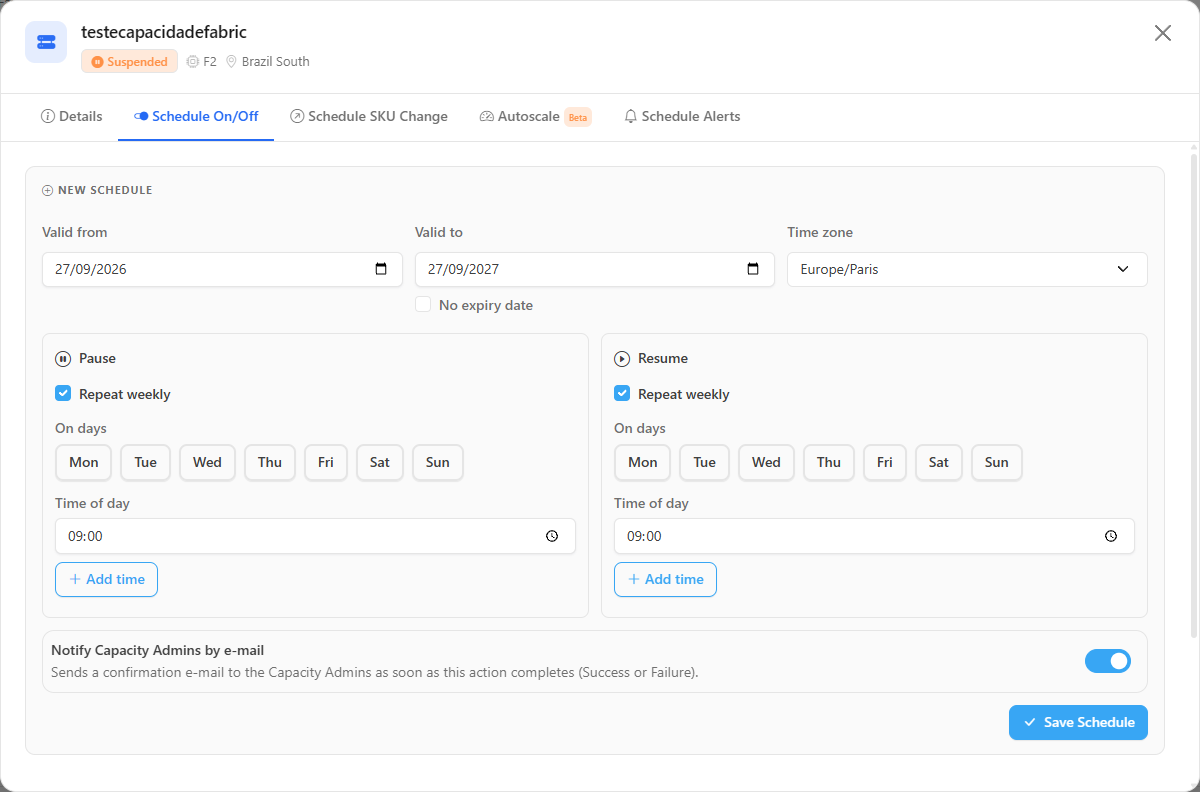
| **Schedule On/Off** | **Pause** and **Resume** schedules, with validity period, time zone, days of the week, multiple times per day and weekly recurrence |
| **Schedule SKU Change** | Changes the SKU (up or down) on defined days and times, for example, increasing it during peak hours and reducing it at night |
| **Autoscale** (Beta) | Increases or reduces the SKU based on capacity usage (% of Capacity Units, overall or background usage), when usage stays above or below the threshold for the configured number of minutes, respecting a **Min SKU** and a **Max SKU** |
| **Schedule Alerts** | Notifies you when the capacity is **running outside the expected window**, with a configurable resend interval and additional recipients |
In addition, the **Change size (SKU)** action in the ⋮ menu changes the SKU immediately.
***
## Rules and behavior
* Pause, resume and SKU change schedules are checked **every minute**; autoscale is evaluated **every 5 minutes**; schedule alerts, **every 5 minutes**.
* Each executed action (manual, scheduled or automatic) generates a record in **Audit › Capacity Actions** (also in **Capacities › Capacity Actions**) and can generate the **Capacity Governance Actions** notification, configurable in **Settings › Notifications**.
* Pausing a capacity stops consumption **and** access to the items hosted on it. Plan the schedules with the teams that use the capacity.
* While the capacity is paused, Power Monitor receives no consumption data from it and may issue the **Consumption Data Unavailable** alert.
## Step by step: pause a capacity outside business hours
{% stepper %}
{% step %}
### Open the capacity
In **Capacities › Capacity Governance**, open the capacity's **⋮** menu and click **Open details**.
{% endstep %}
{% step %}
### Create the schedule
On the **Schedule On/Off** tab, set the validity period and the time zone. Under **Pause**, check **Repeat weekly** and choose the days and time (for example, 20:00 Monday to Friday). Under **Resume**, choose the days and time to turn it back on (for example, 07:00).
{% endstep %}
{% step %}
### Save and track
Click **Save Schedule**. The executions appear in **Capacity Actions**.
{% endstep %}
{% endstepper %}
## Related pages
* [Capacities](/en/power-monitor/capacidades.md)
* [Capacity Monitoring](/en/principais-funcionalidades/monitoramento-de-capacidades.md)
* [Capacity Actions](/en/power-monitor/auditoria/acoes-de-capacidade.md)
* [Configuring Azure permissions](/en/readme/como-instalar-o-power-monitor/configuracao-de-permissoes-no-azure-para-o-power-monitor.md)
---
# Agent Instructions
This documentation is published with GitBook. GitBook is the documentation platform designed so that both humans and AI agents can read, navigate, and reason over technical content effectively. Learn more at gitbook.com.
## Querying This Documentation
If you need additional information that is not directly available in this page, you can query the documentation by asking a question.
Perform an HTTP GET request on the following URL with the `ask` and `goal` query parameters:
```
GET https://docs.powermonitor.com.br/en/principais-funcionalidades/governanca-de-capacidade.md?ask=&goal=
```
`ask` is the immediate question: it should be specific, self-contained, and written in natural language.
`goal` is what the user is ultimately trying to achieve, the reason they need the answer. Sharing it helps GitBook give you a better, more relevant answer. A goal is most helpful when it describes the outcome the user wants rather than restating the question. For example, with `ask=how do I create an API token`, a goal like `automate deployments from our CI pipeline` lets GitBook tailor the answer to that use case.
The response will contain a direct answer to the question and relevant excerpts and sources from the documentation.
Use this mechanism when the answer is not explicitly present in the current page, you need clarification or additional context, or you want to retrieve related documentation sections.