

In Power Monitor, each Microsoft Entra ID tenant corresponds to one organization. The data of one organization is isolated from the others: no one in one organization sees data from another.
Therefore, to monitor multiple tenants (for example, companies of the same group or clients of a consulting firm):
- Install Power Monitor in each tenant. Each installation creates its own organization, with its inventory, alerts, users, and billing. See How do I install Power Monitor?
- Give access to the people who will follow each tenant. Register each person in Users in the Power Monitor of the corresponding organization, with the email of the account they use to sign in. Anyone who does not belong to the tenant and needs to sign in directly to it (or perform actions that use their Microsoft account, such as granting permissions) must also be invited as an external user (B2B guest) in that tenant's Entra ID.
- Switch organizations from the user menu. Anyone registered in Users of more than one organization sees the Companies list in the user menu and switches company with one click, without leaving the session. See Switch company. You can also sign in directly to the desired tenant, as explained in Sign in to Power Monitor with an external user.
Access to Power Monitor is always done with a Microsoft account. There is no Power Monitor-specific username and password.
Invite an external user to your tenant
A user from another tenant registered in Power Monitor may not be able to sign in until they are registered in your tenant. To fix this, an administrator of your Entra ID sends an invitation:
1. Open the Azure portal
Open the list of users in your tenant: Microsoft Entra ID › Users.
2. Invite the external user
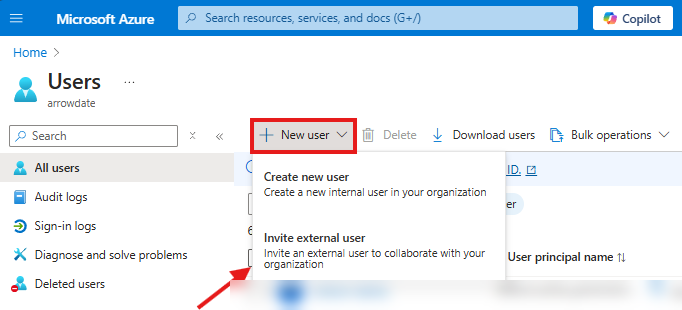
Click + New user and select Invite external user.
3. Fill in the details
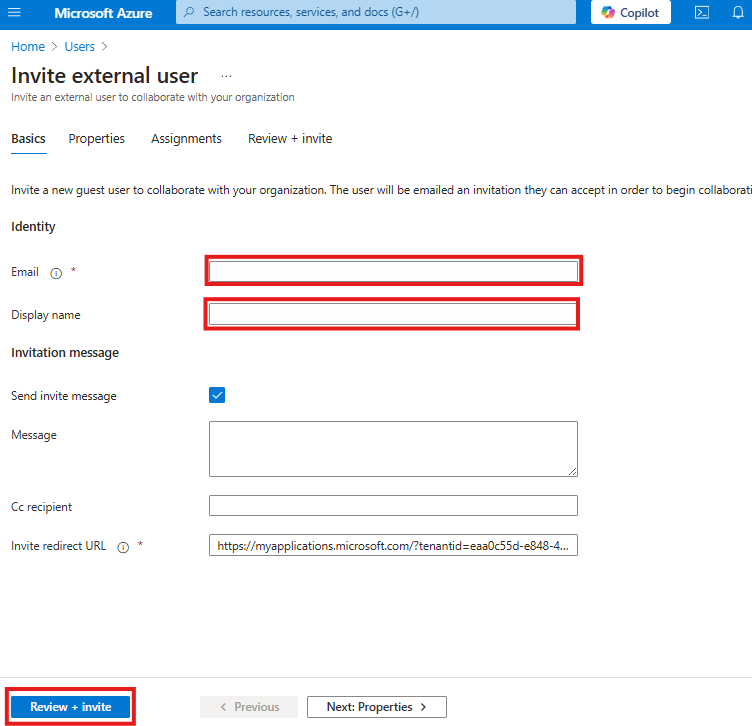
Enter the external user's email and name and click Review + invite.
4. The user accepts the invitation
The user receives an email from Microsoft and clicks Accept invitation to be linked to your tenant.
5. Register the user in Power Monitor
In Users, a Power Monitor administrator registers the user and defines the profile, the workspace scope, and the allowed pages.
Sign in to Power Monitor with an external user
1. Open the Power Monitor portal
Open https://app.powermonitor.com.br/.
2. Choose "Sign in to an organization"
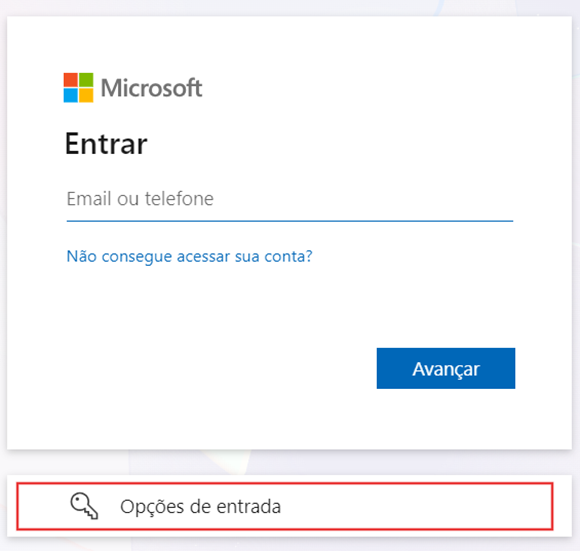
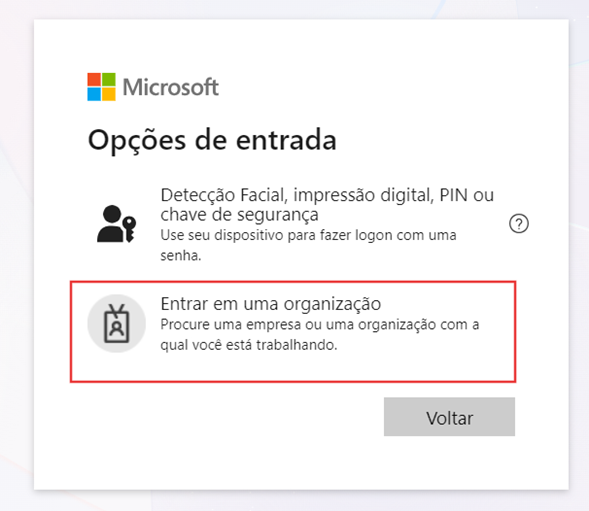
On the Microsoft sign-in screen, click Sign-in options and select Sign in to an organization.
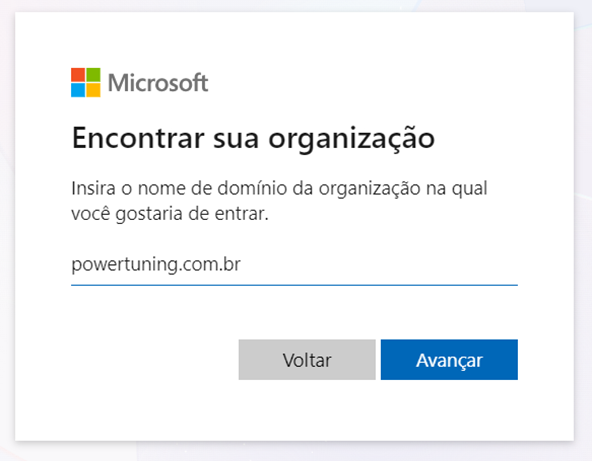
3. Enter the tenant domain
Type the domain of the tenant you want to access. Example: minhaempresa.com.br.
4. Enter your account email
Type the email of the invited account.
5. Access granted
After validation, you are redirected to the Power Monitor of that tenant's organization.
Frequently asked questions
Can I see multiple tenants in a single consolidated panel?
No. Each tenant is an isolated organization, with its own data and dashboards. To switch, use the Companies list in the user menu (see Switch company) or sign in directly to the desired organization's tenant.
Is each tenant billed separately?
Yes. Each organization has its own trial period and its own monthly fee tier, calculated from the items monitored in that tenant.
I switched to a customer's company and some actions are blocked. Why?
When the chosen company is in another Microsoft Entra ID tenant, actions that use your Microsoft account (consents and permission grants, access management, workspace creation and actions on capacities in Azure) are blocked, because your account belongs to another tenant. Ask an administrator from the company's tenant to perform them, or sign in to that tenant with a guest account, as explained in Sign in to Power Monitor with an external user.